
Roinvou 2+64G CarPlay(HiFi)
Roinvou Car Radio Instruction Manual
Model: 2+64G CarPlay(HiFi) for Toyota Corolla 2009-2013
Introduction
The Roinvou 9-inch Android 13 IPS Touch Screen Car Stereo is designed to enhance your driving experience with advanced features and seamless integration. This manual provides detailed instructions for installation, operation, and maintenance to help you get the most out of your new car radio.
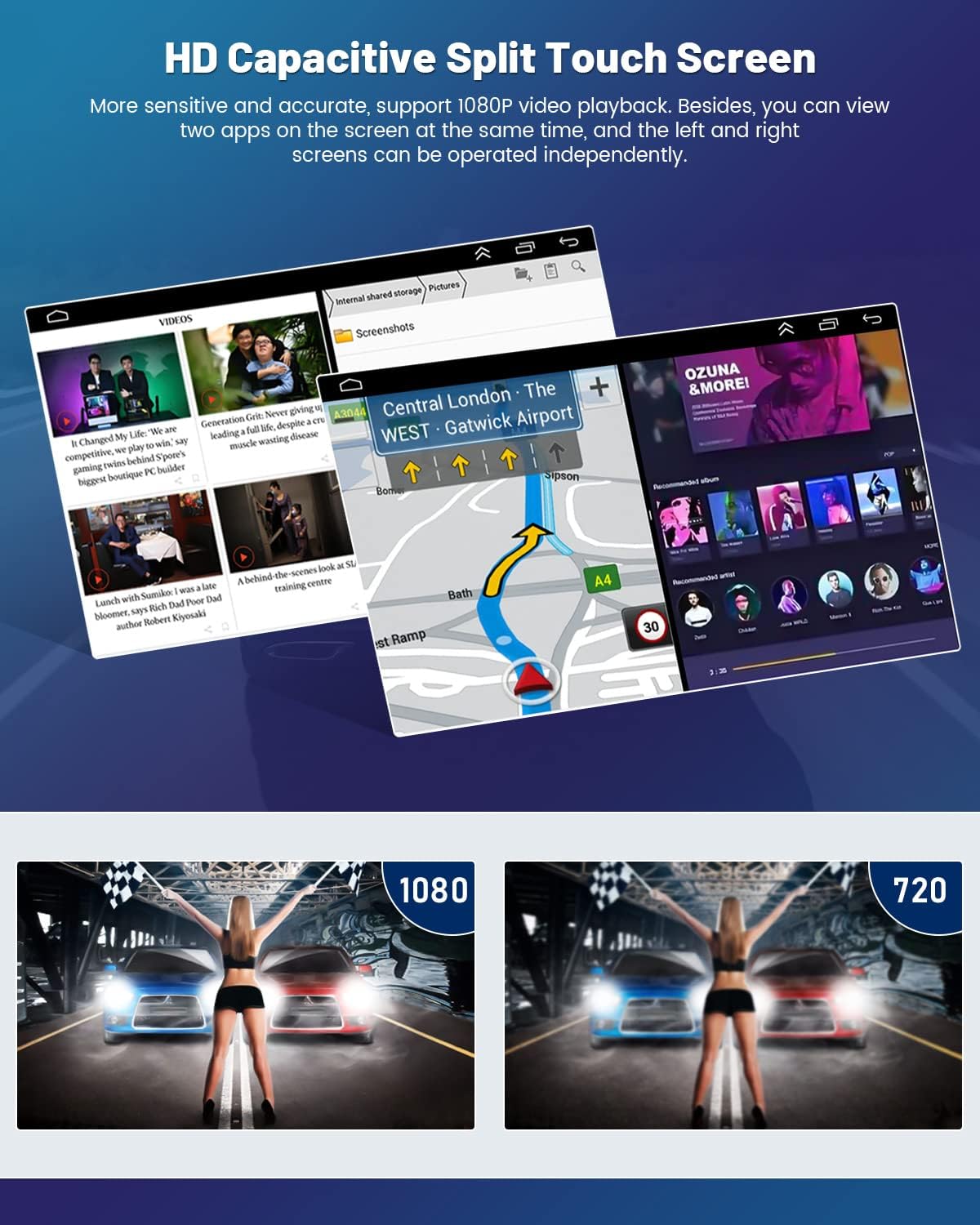
Key features include: Newest 2+64G Android 13 Car Radio with 1024 x 600 screen resolution, multiple EQ options and Hi-Fi sound. Built-in wireless/wired Apple CarPlay and wireless/wired Android Auto for superior voice-assisted control and access to phone features. Integrated GPS module for navigation with free offline maps and online map support via WiFi/hotspot. Android/IOS Mirror Link for screen synchronization. Bluetooth for hands-free calling and music playback, and a stable FM/RDS Radio.
What's in the Box
- Roinvou Car Stereo for Toyota Corolla
- Power Cable
- RCA Cable
- GPS Antenna
- AHD Backup Camera
- External Microphone
- Rear Camera Input Cable
- Dual USB Cable
- Installation Tool & Accessories
Setup & Installation
Pre-Installation Steps
Before installing your new Roinvou car radio, it is necessary to carefully remove the existing head unit and prepare the dashboard. This process typically involves detaching bezel pieces, unscrewing mounting bolts, and disconnecting existing wiring harnesses. Refer to the video below for a visual guide on console disassembly and wiring.
Video Description: This video demonstrates the disassembly of the center console and the wiring method for installing the Roinvou car radio in a Toyota Corolla 2009-2013 model. It covers the removal of bezel pieces, screws, and the old radio unit, showing the wiring harnesses.
Wiring Connections

The provided wiring harness is designed for plug-and-play installation in compatible Toyota Corolla models. Connect the power cable, RCA cables, GPS antenna, AHD backup camera, external microphone, rear camera input cable, and dual USB cables to their respective ports on the head unit and vehicle harness. Ensure all connections are secure to prevent issues.
Initial Power On & Testing

After all connections are made, turn on the vehicle's accessory power to test the unit. Verify that the screen powers on, is responsive to touch, and that basic functions like radio and audio playback are working. It is also recommended to test the antenna signal strength at this stage.
Operating Instructions
Wireless CarPlay & Android Auto
Video Description: This video illustrates the steps for connecting your smartphone to the Roinvou car radio via Bluetooth for wireless CarPlay and Android Auto functionality. It also covers manual Wi-Fi connection if Bluetooth pairing is unsuccessful.

To use Wireless CarPlay or Android Auto, first ensure Bluetooth is enabled on both your phone and the car radio. Pair your phone with the car radio via Bluetooth. Then, open the 'ZLINK' application on the car radio. For Android Auto, if the connection is not successful via Bluetooth alone, enable your phone's Wi-Fi hotspot, connect the car radio to it, and then re-open 'ZLINK'.

For wired CarPlay or Android Auto, connect your phone to the car radio using an original USB cable. Open the 'ZLINK' application on the car radio and wait for the connection to establish.
GPS Navigation

The unit features a built-in GPS module for offline and online navigation. You can download free offline maps for use without an internet connection. For real-time traffic updates and online map functionality, connect the unit to Wi-Fi or a mobile hotspot. This also allows you to download various applications from the Play Store, enriching your in-car experience.
FM/RDS Radio & Bluetooth
Access FM/RDS radio with 18 preset stations, manual, semi-automatic, and fully automatic channel search for high-quality audio and real-time information. Utilize Bluetooth for hands-free calling, music playback, and voice functions through the built-in and external microphone. The Hi-Fi sound feature allows for precise audio quality adjustments via the equalizer settings.
Reversing Display & Steering Wheel Control

The included waterproof night vision backup camera automatically displays the reverse image on the screen when the vehicle is in reverse gear, providing clear visibility and parking guidelines. If your vehicle has original steering wheel buttons, they can be configured to control various radio functions, making operation more convenient and safer while driving.
Maintenance
To ensure the longevity and optimal performance of your Roinvou car radio, regularly clean the screen with a soft, lint-free cloth. Avoid using harsh chemicals or abrasive materials that could damage the display. Keep the unit free from dust and moisture. Periodically check wiring connections for security and ensure no cables are pinched or damaged during installation or use.
Troubleshooting
Steering Wheel Controls Not Working

If the original car steering wheel controls are not working properly after installation, please locate the two wires circled in the image (typically orange and green, connected to the steering wheel control input). Cut these two wires and wrap them with electrical tape. Then, re-test the steering wheel controls. If the issue persists or you are unsure how to perform this operation, please contact our customer service for assistance.
Bluetooth Disconnection Issues
If Bluetooth randomly disconnects, try recalibrating the touchscreen or restarting the Bluetooth function on both the car radio and your phone. Ensure no other devices are interfering with the connection. Check for any available firmware updates for the car radio. If issues persist, refer to the Bluetooth connection video in the Operating Instructions section or contact support.
Unit Stays On After Car Is Off
This issue often indicates an incorrect power wire connection. Verify that the wiring harness is correctly connected according to the installation instructions, paying close attention to the ACC (accessory) and constant power wires. If you are uncertain about the wiring, it is recommended to consult a professional installer.
Specifications
| Feature | Detail |
|---|---|
| Product Dimensions | 9.84 x 2.05 x 10.43 inches |
| Item Weight | 3.72 pounds |
| ASIN | B0C3M4G3YB |
| Manufacturer | Roinvou |
| Country of Origin | China |
| Vehicle Service Type | Car |
| Screen Size | 9 Inches |
| Special Feature | Bluetooth, Touchscreen, CarPlay, Android Auto, Hi-Fi Sound, FM/RDS, Mirror Link, GPS Navigation, EQ Settings, Wi-Fi, SWC |
| Connectivity Technology | Bluetooth, Wi-Fi, USB |
| Map Type | North America |
| Included Components | for Toyota Corolla Car Stereo, Power Cable, RCA Cable, GPS Antenna, AHD Backup Camera, External Microphone, Rear Camera Input Cable, Dual USB Cable, Installation Tool & Accessories |
| Audio Output Mode | Stereo |
| Mounting Type | Dashboard Mount |
| Resolution | 1024 x 600 |
Warranty & Support
Roinvou products are backed by a commitment to quality. For specific warranty details, please refer to the protection plans available at the time of purchase or contact Roinvou customer support directly. Protection plans for 2-Year and 3-Year coverage are typically available.
For technical assistance, troubleshooting, or any inquiries regarding your Roinvou car radio, please visit the Roinvou Store on Amazon or use the "Ask a question" feature on the product page to reach our support team.
Related documents2+64G CarPlay(HiFi)


Ask a question about this manual
Ask about setup, troubleshooting, compatibility, parts, safety, or missing instructions. Manuals+ will review the question and use this page’s manual context to help answer it.