
Relndoo T618
Contents
Relndoo T618 Android 12 Tablet User Manual
Model: T618 | Brand: Relndoo
Introduction
Welcome to the user manual for your new Relndoo T618 Android 12 Tablet. This guide provides essential information on setting up, operating, maintaining, and troubleshooting your device. Designed for versatility, your tablet offers a powerful Android 12 experience with ample memory, a vibrant display, and robust connectivity options for both work and entertainment.
What's in the Box
Please check the package contents to ensure all items are present:
- 1 x Tablet PC
- 1 x Standable Tablet Case
- 1 x Charging Head
- 1 x Type-C Charging Cable
- 1 x OTG Cable
- 1 x User Manual (this document)
Product Overview
Familiarize yourself with the key features and components of your Relndoo T618 tablet.

The Relndoo T618 tablet shown with its protective case, highlighting the 10-inch display and the rear camera module. The case provides protection and can act as a stand.

An overview of the tablet's core specifications, including Android 12 OS, 8GB RAM, 128GB ROM, 5G Wi-Fi, 4G LTE, Octa-Core CPU, 1TB expandability, and an 8000mAh battery.
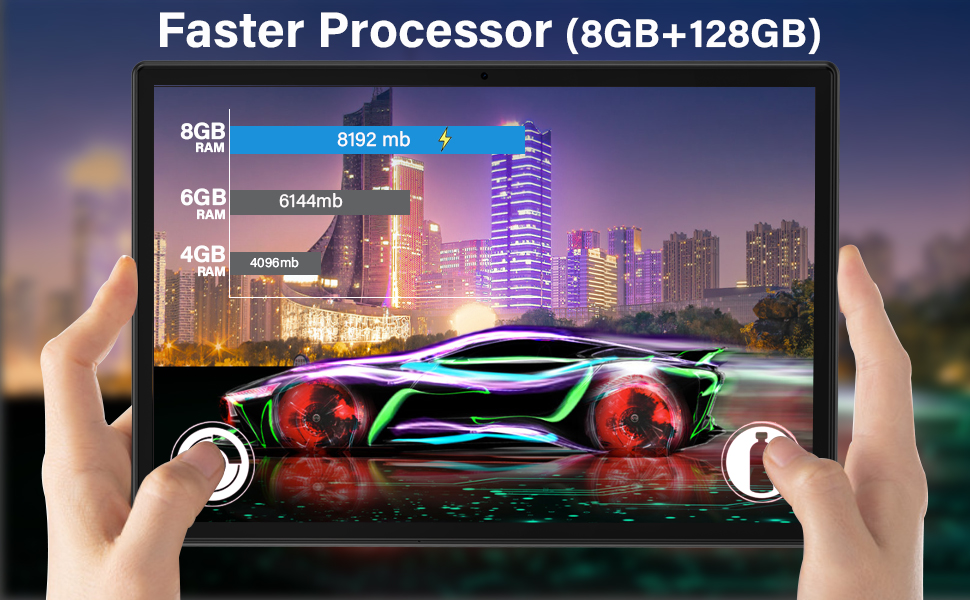
This image illustrates the tablet's performance capabilities, emphasizing the 8GB RAM and 128GB ROM for faster processing and smoother application launches, ideal for gaming and multitasking.
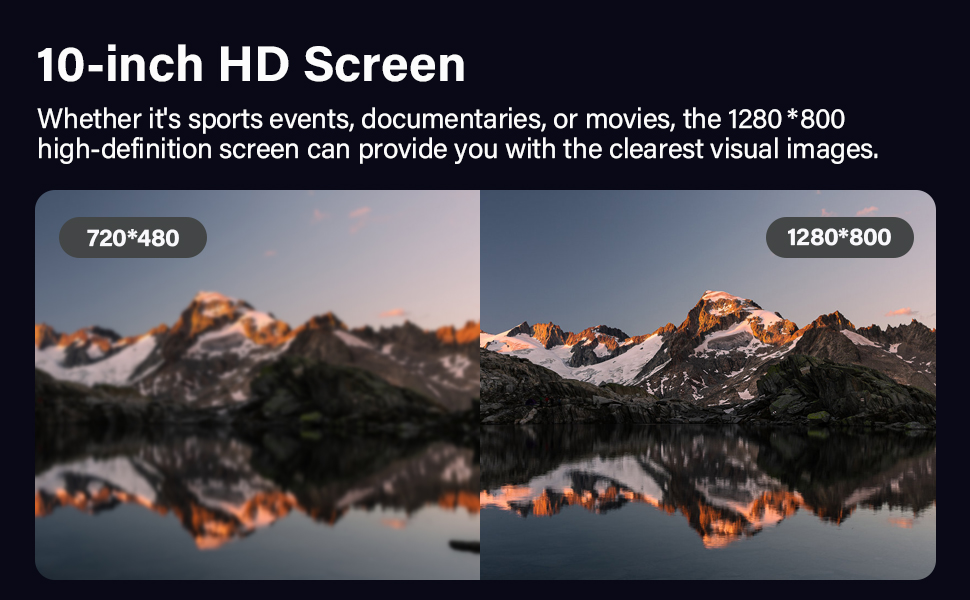
A visual comparison demonstrating the clarity of the 10-inch 1280x800 HD screen, providing clear visual images for various content types, from sports to movies.
Setup
1. Initial Charging
Before first use, fully charge your tablet. Connect the provided Type-C charging cable to the tablet's charging port and the charging head to a power outlet. The battery indicator on the screen will show charging progress. A full charge can take several hours.
Important: Only use a 0.5V / 2 Amp charger. Using a charger with higher amperage (e.g., 3 Amp) can overcharge and damage the battery.
2. Powering On/Off
- To Power On: Press and hold the Power button (usually located on the side) until the Relndoo logo appears on the screen.
- To Power Off: Press and hold the Power button until a power-off menu appears. Select "Power off" or "Shut down".
- To Restart: From the power-off menu, select "Restart".
3. Initial Setup Wizard
Upon first power-on, you will be guided through an initial setup process:
- Language Selection: Choose your preferred language.
- Wi-Fi Connection: Select your Wi-Fi network and enter the password to connect to the internet.
- Google Account: Sign in with your Google account or create a new one. This is essential for accessing the Google Play Store and other Google services.
- Date & Time: Set the correct date and time, or allow the network to set it automatically.
- Security: Set up a screen lock (PIN, pattern, password, or face unlock) for security.
- Follow any remaining on-screen prompts to complete the setup.
Operating Instructions
1. Basic Navigation
- Touch Gestures: Tap to select, swipe to scroll, pinch to zoom.
- Home Screen: Access your apps, widgets, and notifications.
- Navigation Bar: Use the Back, Home, and Recent Apps buttons at the bottom of the screen.
- Notification Panel: Swipe down from the top of the screen to view notifications and quick settings.
2. App Management
- Installing Apps: Download apps from the Google Play Store.
- Uninstalling Apps: Press and hold an app icon on the home screen or app drawer, then drag it to "Uninstall" or select the uninstall option. Alternatively, go to Settings > Apps.
- Updating Apps: Apps are typically updated automatically via the Google Play Store when connected to Wi-Fi. You can also manually check for updates in the Play Store.
3. Connectivity
- Wi-Fi: Go to Settings > Network & internet > Wi-Fi to connect to available networks. Supports 2.4G and 5G Wi-Fi.
- Bluetooth: Go to Settings > Connected devices > Bluetooth to pair with Bluetooth devices like headphones or speakers.
- 4G/LTE: Insert a compatible SIM card into the designated slot for mobile data connectivity. (Note: The tablet is only suitable for SIM cards provided by some service providers).
- USB-C: Use the Type-C port for charging and data transfer. The included OTG cable allows connecting USB accessories.
4. Camera Usage
Your tablet features an 8 MP rear camera with autofocus and flash, and a 5 MP front camera.
- Open the Camera app from the home screen or app drawer.
- Tap the shutter button to take photos.
- Switch between front and rear cameras using the camera toggle icon.
- Select video mode to record videos.

The tablet is ideal for HD video calling, offering lower latency and stable network performance with 5G WiFi, ensuring a smooth online communication experience.

This image highlights the tablet's network capabilities, including 5G WiFi and 4G LTE, which enable faster and smoother HD calls. It also shows slots for TF Card and SIM Card.
5. Storage Management
Your tablet comes with 128GB of internal storage, expandable up to 1TB via a microSD card.
- Inserting a MicroSD Card: Locate the card slot (usually on the side) and gently insert the microSD card until it clicks into place.
- Managing Storage: Go to Settings > Storage to view storage usage and free up space.
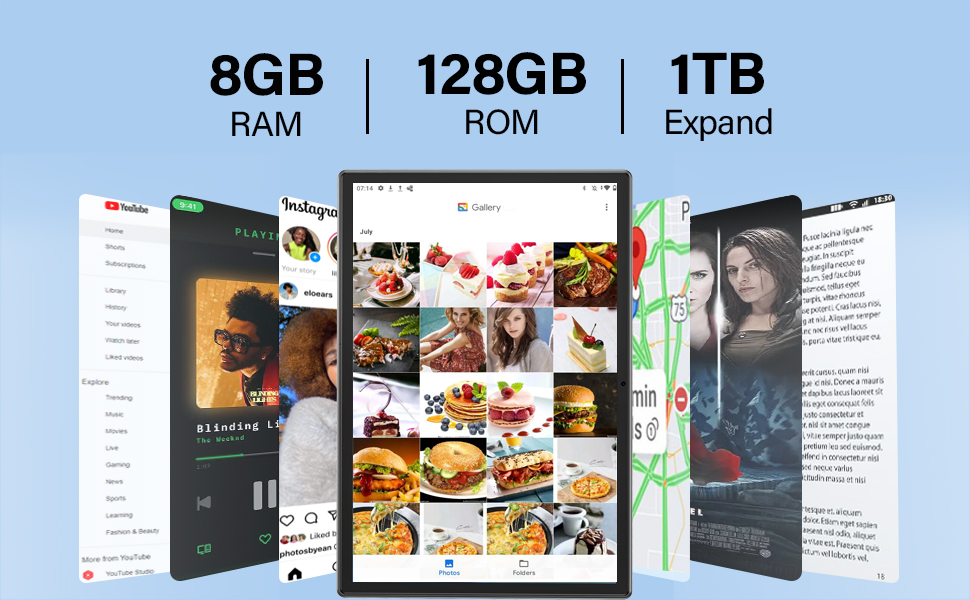
This visual emphasizes the tablet's generous storage options: 8GB RAM, 128GB ROM, and the ability to expand storage up to 1TB, allowing for ample space for apps, files, and media.
Maintenance
1. Cleaning Your Tablet
- Use a soft, lint-free cloth to clean the screen and body.
- For stubborn smudges, slightly dampen the cloth with water or a screen cleaner. Avoid harsh chemicals.
- Do not spray liquids directly onto the tablet.
2. Battery Care
- Avoid extreme temperatures, as they can degrade battery life.
- Do not leave the tablet plugged in for extended periods after it's fully charged.
- As noted in the setup section, use only the recommended 0.5V / 2 Amp charger to prevent battery damage.

This image highlights the tablet's long-lasting 8000mAh battery, providing up to 16.5 hours of runtime on a single charge, suitable for extended use during travel or daily commuting.
3. Software Updates
Regularly check for system updates to ensure optimal performance and security. Go to Settings > System > System update.
Troubleshooting
Here are solutions to common issues you might encounter:
Tablet Not Powering On
- Ensure the tablet is sufficiently charged. Connect it to the charger for at least 30 minutes.
- Press and hold the Power button for 10-15 seconds to force a restart.
- Verify the charging cable and adapter are working correctly.
Wi-Fi Connectivity Issues
- Toggle Wi-Fi off and on in Quick Settings or Settings > Network & internet.
- Restart your Wi-Fi router.
- Forget the network and reconnect by re-entering the password.
Slow Performance or Freezing
- Close unused apps running in the background.
- Clear cache for frequently used apps (Settings > Apps > [App Name] > Storage & cache > Clear cache).
- Ensure you have sufficient free storage space.
- Restart the tablet regularly.
Touch Screen Issues
- Clean the screen to remove any dirt or smudges.
- Restart the tablet.
- If issues persist, a factory reset might be necessary (back up your data first).
Specifications
| Feature | Detail |
|---|---|
| Brand | Relndoo |
| Model Name | T618 |
| Operating System | Android 12 |
| Screen Size | 10 Inches |
| Screen Resolution | 1280 x 800 pixels (FHD IPS) |
| RAM | 8 GB |
| Internal Storage (ROM) | 128 GB |
| Expandable Storage | Up to 1 TB (via MicroSD card) |
| Processor | Octa-Core A75 |
| Battery Capacity | 8000 mAh |
| Average Battery Life | Up to 16.5 hours |
| Wireless Type | 802.11ax (5G WiFi) |
| Cellular Connectivity | 4G/LTE (SIM card support) |
| Bluetooth | Bluetooth 5.0 |
| Rear Camera | 8 MP (with autofocus and flash) |
| Front Camera | 5 MP |
| Dimensions (LxWxH) | 10 x 7 x 2 inches |
| Item Weight | 2.66 pounds |
| Color | Silver |
| GMS Certified | Yes |
Warranty and Support
Relndoo is committed to providing quality products and customer satisfaction. For any issues not covered in this manual, or for warranty inquiries, please contact our customer support.
- Refer to the contact information provided in the physical user manual included with your tablet for the most direct support channels.
- You may also visit the official Relndoo store page on Amazon for additional resources and contact options: Relndoo Amazon Store
Ask a question about this manual
Ask about setup, troubleshooting, compatibility, parts, safety, or missing instructions. Manuals+ will review the question and use this page’s manual context to help answer it.