
UGREEN 90912US
Contents
UGREEN Revodok Pro 209 USB C Docking Station User Manual
Model: 90912US | Brand: UGREEN
1. Introduction
This manual provides detailed instructions for the setup, operation, and maintenance of your UGREEN Revodok Pro 209 USB C Docking Station. This 9-in-1 docking station is designed to expand the connectivity of your Mac or Windows laptop, offering dual 4K@60Hz display output, high-speed data transfer, and 100W Power Delivery charging.

Image: The UGREEN Revodok Pro 209 USB C Docking Station shown alongside its included 100W GaN charger. The docking station features multiple ports on its sides, and the charger has two USB-C outputs.
2. Package Contents
Please verify that all items are present in the package:
- UGREEN Revodok Pro 209 USB C Docking Station
- 100W GaN Charger
- USB-C to USB-C Cable (for host connection)
- 100W Charging Cable (for power delivery)
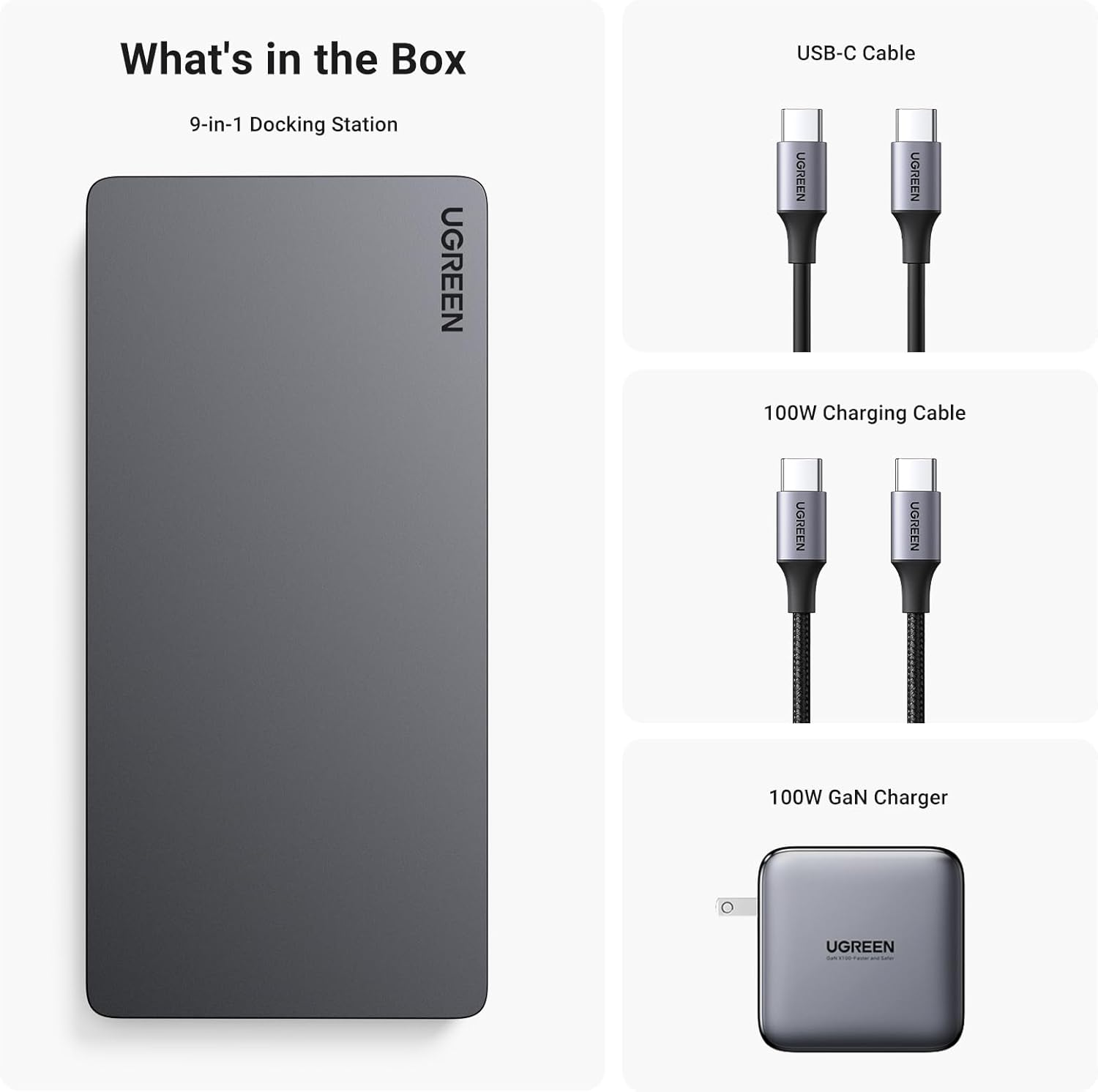
Image: A visual representation of the package contents, including the 9-in-1 docking station, a USB-C cable, a 100W charging cable, and a 100W GaN charger.
3. Product Overview (Ports)
The UGREEN Revodok Pro 209 features a comprehensive set of ports to enhance your workstation:
- Front Panel:
- Power Button
- USB C 3.2 (10Gbps)
- USB A 3.2 x 2 (10Gbps)
- Rear Panel:
- Ethernet (1000Mbps)
- HDMI 1 (4K@60Hz)
- DisplayPort 1 (4K@60Hz)
- HDMI 2 (4K@60Hz)
- DisplayPort 2 (4K@60Hz)
- USB C Power (PD 100W)
- The Host (Connect to Laptop)
Note: For each display output (Display 1 and Display 2), only one port (either HDMI or DisplayPort) can be used at a time. They cannot work concurrently for the same display output.
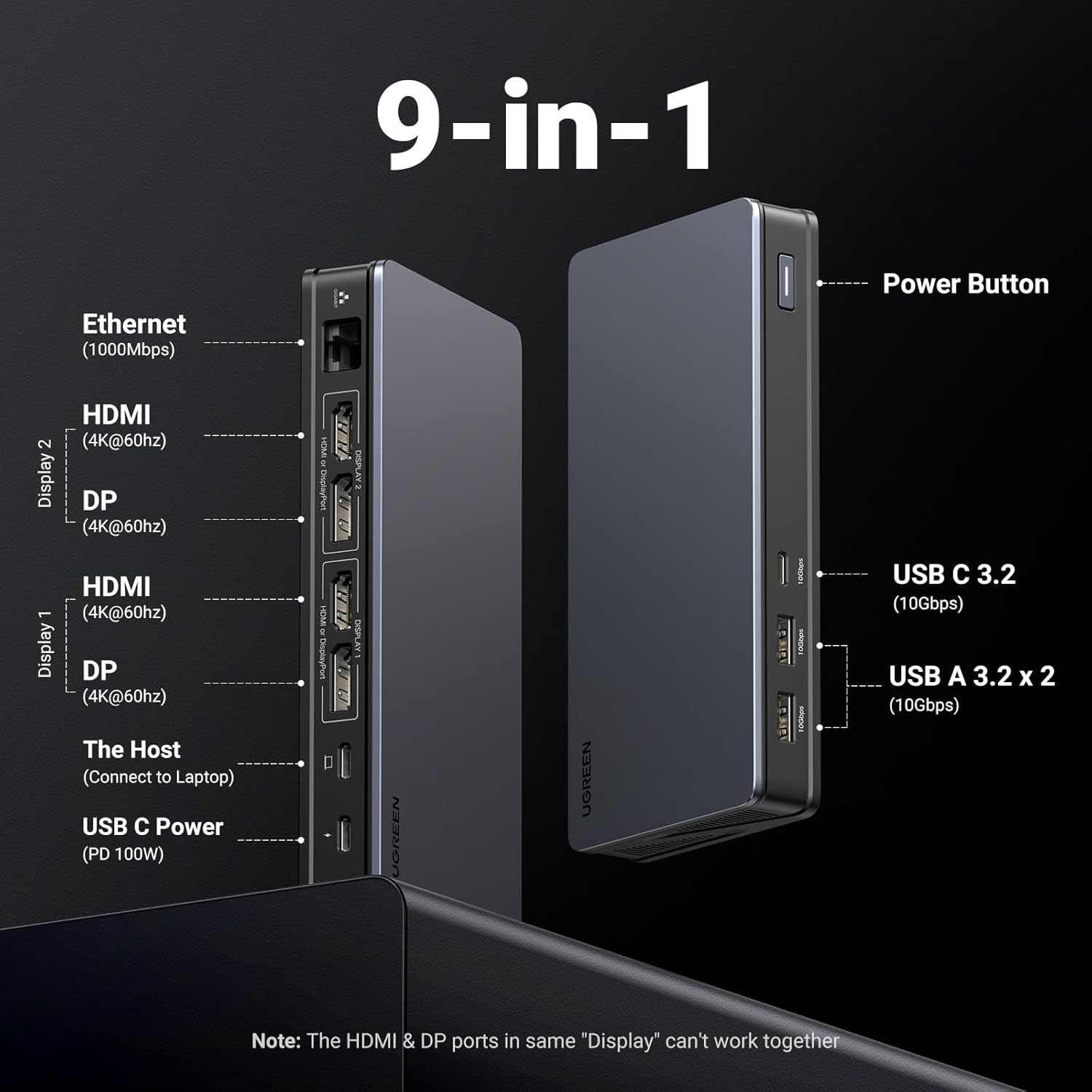
Image: A detailed diagram illustrating the front and rear ports of the UGREEN Revodok Pro 209 docking station, labeling each connection type and its specifications.
4. Setup
4.1 Driver Installation (DisplayLink)
The UGREEN Revodok Pro 209 utilizes DisplayLink technology for multi-monitor support. Before connecting the docking station, it is recommended to install the latest DisplayLink drivers for your operating system (Windows or macOS). You can download the drivers from the official DisplayLink website: www.displaylink.com/downloads.
4.2 Connecting the Docking Station
- Connect Power: Plug the included 100W GaN charger into a wall outlet. Connect the 100W charging cable from the charger to the "USB C Power (PD 100W)" port on the docking station.
- Connect to Host Device: Use the provided USB-C to USB-C cable to connect the "The Host (Connect to Laptop)" port on the docking station to a USB-C port on your laptop (Mac or Windows). Ensure your laptop's USB-C port supports video output and Power Delivery for full functionality.
- Connect Monitors: Connect your external monitors to the HDMI or DisplayPort outputs on the docking station. Remember, for each display output, only one port (HDMI or DisplayPort) can be active at a time.
- Connect Peripherals: Connect your USB devices (keyboard, mouse, external drives) to the USB-A or USB-C data ports on the front of the docking station. For wired network access, connect an Ethernet cable to the Gigabit Ethernet port.
5. Operating
5.1 Display Configuration
The docking station supports dual 4K@60Hz extended displays for both Windows and macOS systems. After connecting your monitors, you may need to configure display settings in your operating system.
- Windows: Right-click on the desktop, select "Display settings," and arrange your displays as desired (Extend, Duplicate, or Second screen only).
- macOS: Go to "System Settings" (or "System Preferences"), then "Displays." You can arrange displays, set resolutions, and choose between extended or mirrored modes.

Image: A laptop connected to the docking station, which in turn is connected to two external monitors, demonstrating an extended desktop setup for increased productivity.

Image: A graphic illustrating various multi-stream transport (MST) display modes for macOS, showing how the laptop screen (A) can be combined with two external monitors (B and C) in different extended configurations (ABB, AAB, ABC).

Image: A person using a laptop connected to two large external monitors, showcasing the clarity and detail provided by 4K@60Hz display output for tasks like video editing.
5.2 Data Transfer
The docking station provides high-speed data transfer capabilities:
- USB C 3.2 Port: One port offering up to 10Gbps data transfer speed.
- USB A 3.2 Ports: Two ports offering up to 10Gbps data transfer speed.
These ports are suitable for connecting external storage devices, flash drives, and other peripherals requiring fast data exchange.

Image: A laptop connected to the docking station, which is then connected to an external SSD, illustrating the rapid transfer of files at 10Gbps.
5.3 Charging (Power Delivery)
The docking station supports 100W Power Delivery (PD) to charge your connected laptop. The included 100W GaN charger provides efficient power to both the docking station and your laptop.
- The docking station can deliver up to 85W to your laptop, with the remaining power used to operate the dock and connected peripherals.
- The 100W GaN charger can also be used independently to charge other devices via its two USB-C ports, with intelligent power distribution (e.g., 100W for one device, or 65W + 30W for two devices).

Image: A laptop being charged via the docking station, which is powered by the 100W GaN charger, demonstrating 100W input to the dock and 85W output to the laptop.

Image: A diagram illustrating the intelligent power distribution of the 100W GaN charger when charging one device (100W) or two devices (65W + 30W or 30W + 65W).
5.4 Network Connectivity
The integrated Gigabit Ethernet port provides a stable and fast wired network connection, supporting speeds up to 1000Mbps. This is ideal for reliable internet access and large file transfers.

Image: A laptop connected to the docking station, with an Ethernet cable plugged into the dock, highlighting the stable and fast 1000Mbps network connection.
6. Maintenance
- Keep the docking station in a dry environment, away from direct sunlight and extreme temperatures.
- Avoid dropping or subjecting the device to strong impacts.
- Clean the device with a soft, dry cloth. Do not use liquid cleaners or aerosols.
- Ensure proper ventilation around the docking station to prevent overheating.
7. Troubleshooting
- No Display Output:
- Ensure DisplayLink drivers are installed and up to date.
- Verify that the USB-C cable connecting the dock to your laptop supports video output.
- Check all cable connections (USB-C to laptop, HDMI/DP to monitors).
- Confirm that only one video port (HDMI or DisplayPort) is used per display output.
- Try restarting your laptop and reconnecting the docking station.
- Charging Issues:
- Ensure the 100W GaN charger is properly connected to a power outlet and the docking station.
- Verify that your laptop's USB-C port supports Power Delivery.
- Check if the charging cable is securely connected.
- USB Devices Not Recognized:
- Ensure the docking station is properly connected to your laptop.
- Try connecting the USB device to a different port on the docking station.
- Test the USB device by connecting it directly to your laptop.
- No Ethernet Connection:
- Check the Ethernet cable connection between the dock and your router/modem.
- Verify network settings on your laptop.
- Ensure your router/modem is functioning correctly.
8. Specifications
| Feature | Specification |
|---|---|
| Model Number | 90912US |
| Brand | UGREEN |
| Product Dimensions | 5.12 x 2.36 x 0.59 inches |
| Item Weight | 2.33 pounds |
| Hardware Interface | USB Type C |
| Compatible Devices | MacBook Pro, Windows Laptops (with compatible USB-C port) |
| Number of Ports | 9 |
| Video Output | 2x HDMI (4K@60Hz), 2x DisplayPort (4K@60Hz) |
| USB Data Ports | 1x USB C 3.2 (10Gbps), 2x USB A 3.2 (10Gbps) |
| Ethernet | Gigabit Ethernet (1000Mbps) |
| Power Delivery | 100W (Input), up to 85W (Output to Host) |
| Charger Included | 100W GaN Charger |
9. Warranty and Support
UGREEN products come with a standard manufacturer's warranty. For specific warranty details, technical support, or customer service inquiries, please refer to the warranty card included with your product or visit the official UGREEN website: www.ugreen.com.
Ask a question about this manual
Ask about setup, troubleshooting, compatibility, parts, safety, or missing instructions. Manuals+ will review the question and use this page’s manual context to help answer it.