
Ott-lite CSAQA4K9-SHPR
OttLite Wellness Series Wireless Charging LED Table Lamp User Manual
Model: CSAQA4K9-SHPR
Introduction
This manual provides comprehensive instructions for the setup, operation, maintenance, and troubleshooting of your OttLite Wellness Series Wireless Charging LED Table Lamp. Please read this manual thoroughly before using the product to ensure safe and optimal performance.

Figure 1: OttLite Wellness Series Wireless Charging LED Table Lamp. This image shows the lamp in its upright position, with a smartphone placed on the base, indicating the wireless charging feature.
Product Features
- Adjustable Design: Lamp height adjusts from 21 to 25 inches. The shade tilts and swivels to direct light.
- Dual Charging: Features a Qi wireless charging pad and a 5V, 2.1A USB port for simultaneous device charging.
- Customizable Lighting: Offers three color temperatures and three brightness levels.
- ClearSun LED Technology: Equipped with OttLite's exclusive ClearSun LED with a 95+ Color Rendering Index for accurate color and reduced eyestrain.
- Intuitive Controls: Sleek touch controls for easy adjustments.

Figure 7: ClearSun LED Technology. This image highlights the benefits of OttLite's ClearSun LED technology, designed to reduce eyestrain and provide natural light.
Setup
Unpacking and Assembly
- Carefully remove all components from the packaging.
- Place the lamp base on a stable, flat surface.
- Ensure all connections are secure.
- Plug the power cord into a standard electrical outlet.
Initial Placement
Position the lamp in your desired workspace or reading area. Ensure there is sufficient space around the base for wireless charging and access to the USB port.
Operating Instructions
Powering On/Off and Brightness Control

Figure 2: Touch Control Button. This image illustrates the location of the touch-sensitive power and control button on the lamp's base.
- Power On/Off: Lightly touch the circular power button on the lamp base to turn the lamp on or off.
- Adjust Brightness: With the lamp on, repeatedly touch the power button to cycle through the three brightness levels (Low, Medium, High).
Color Temperature Adjustment

Figure 3: Color Temperature Options. This image visually represents the three distinct color temperature settings available on the lamp.
To change the color temperature, press and hold the power button for approximately 2 seconds. The lamp will cycle through the three available color temperatures (Warm White, Bright White, and ClearSun® Natural Daylight). Release the button when your desired color temperature is reached.
Adjusting Lamp Position

Figure 4: Multi-Position Shade Adjustment. This diagram illustrates the flexibility of the lamp's shade, which can be tilted and swiveled to direct light.
- Height Adjustment: Gently slide the adjustable pole to raise or lower the lamp height between 21 and 25 inches.
- Shade Adjustment: The lamp shade can be tilted up, down, and swiveled side to side to direct light precisely where needed.
Charging Devices
Wireless Charging (Qi-Compatible Devices)
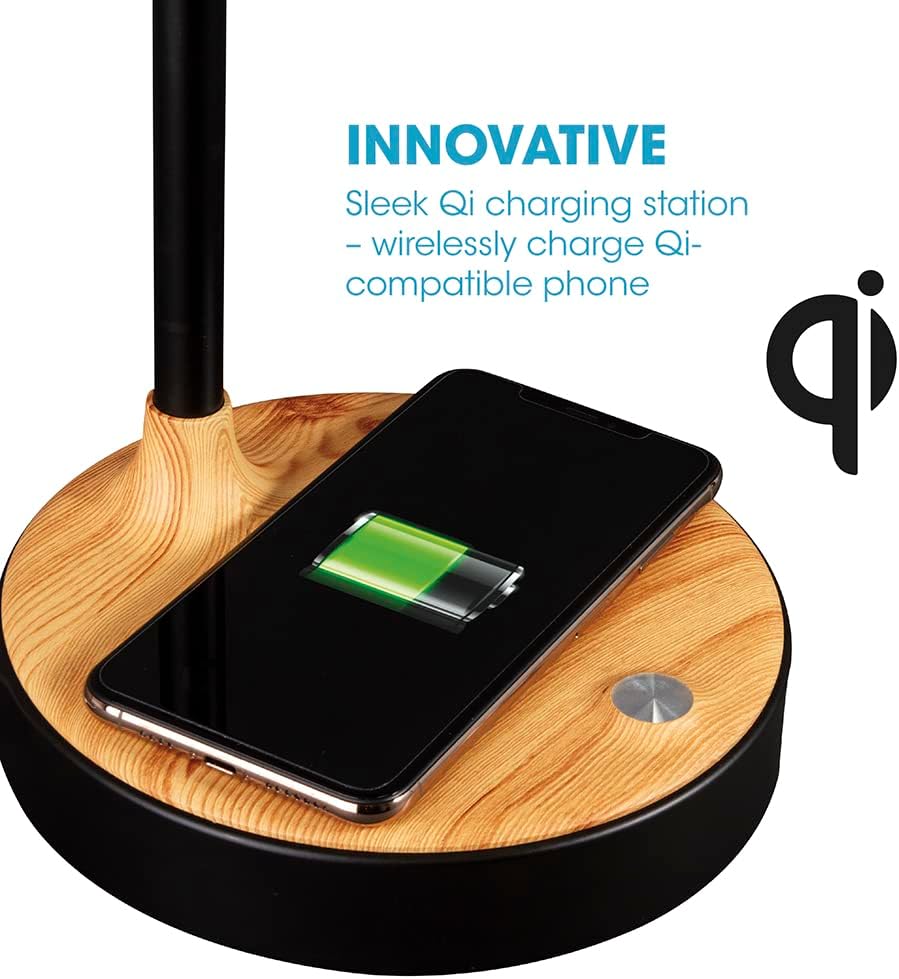
Figure 5: Wireless Charging Pad. This image demonstrates a smartphone being wirelessly charged on the lamp's base, highlighting the Qi charging capability.
- Place your Qi-compatible device (e.g., smartphone) directly onto the wireless charging pad located on the lamp base.
- Ensure the device is centered on the pad for optimal charging.
- A charging indicator on your device will confirm that charging has begun.
USB Charging

Figure 6: USB Charging Port. This image shows the USB port on the lamp's base, ready for connecting a charging cable.
- Locate the 5V, 2.1A USB port on the side of the lamp base.
- Connect your device's USB charging cable to the port.
- Connect the other end of the cable to your device to begin charging.
Maintenance
- Cleaning: Disconnect the lamp from the power source before cleaning. Use a soft, dry cloth to wipe down the lamp. Do not use abrasive cleaners or solvents.
- LED Care: The LEDs in this lamp are designed for long-term use and are not replaceable. Do not attempt to open the lamp head.
- Storage: If storing the lamp for an extended period, ensure it is clean and dry. Store in a cool, dry place away from direct sunlight.
Troubleshooting
| Problem | Possible Cause | Solution |
|---|---|---|
| Lamp does not turn on. | Not plugged in; power outlet issue; defective unit. |
|
| Wireless charging not working. | Device not Qi-compatible; device not centered; foreign objects on pad; phone case too thick. |
|
| USB charging not working. | Cable issue; device issue. |
|
| Light flickers or dims unexpectedly. | Unstable power supply; internal component issue. |
|
Specifications
| Brand | Ott-lite |
| Model Number | CSAQA4K9-SHPR |
| Product Dimensions | 17.46 x 17.46 x 63.5 cm (6.87 x 6.87 x 25 inches) |
| Item Weight | 3.63 kg (8 lbs) |
| Light Source Type | LED (Light Emitting Diode) |
| Color Rendering Index (CRI) | 95+ (ClearSun LED Technology) |
| Brightness Levels | 3 |
| Color Temperatures | 3 (Warm White, Bright White, ClearSun® Natural Daylight) |
| Wireless Charging | Qi-compatible pad |
| USB Charging Port | 5V, 2.1A |
| Base Material | Wood |
| Shade Material | Metal |
| Switch Type | Touch |
| Power Source | Corded Electric |
Warranty and Support
For warranty information and customer support, please refer to the documentation included with your purchase or visit the official OttLite website. You can also contact OttLite customer service directly for assistance with product inquiries, troubleshooting, or warranty claims.
Manufacturer: OttLite
Website: www.ottlite.com (Example link, actual link not provided in data)
Related documentsCSAQA4K9-SHPR

Ask a question about this manual
Ask about setup, troubleshooting, compatibility, parts, safety, or missing instructions. Manuals+ will review the question and use this page’s manual context to help answer it.