
TECLAST P80T
TECLAST P80T 8-Inch Android Tablet User Manual
Model: P80T
1. Product Overview
The TECLAST P80T is an 8-inch Android 12 tablet designed for versatile use, from entertainment to educational purposes. It features a vibrant 1280x800 IPS display, a powerful 1.8GHz Quad-Core processor, and supports Wi-Fi 6 for fast and stable internet connectivity. With 8GB (4GB + 4GB Virtual) RAM and 64GB of internal storage, expandable up to 1TB via Micro SD card, the P80T offers ample space for your apps, photos, and videos. Its lightweight and ultra-thin design make it highly portable.

Figure 1.1: TECLAST P80T Tablet Overview. This image shows the front and back of the tablet, emphasizing its compact design and key software features like Android 12 and Wi-Fi 6.
2. Components and Controls
Familiarize yourself with the physical components and controls of your TECLAST P80T tablet:
- Front Camera: Located above the screen, used for video calls and selfies.
- Rear Camera: Located on the back, used for taking photos and videos.
- Power Button: Used to turn the tablet on/off or put it to sleep/wake it up.
- Volume Buttons: Used to adjust the audio volume.
- Reset Pinhole: A small hole requiring a pin to force a restart if the tablet becomes unresponsive.
- Type-C Port: For charging the tablet and connecting to a computer.
- 3.5mm Headphone Jack: For connecting wired headphones.
- Micro SD Card Slot: For expanding storage capacity.
- Speakers: For audio output.

Figure 2.1: TECLAST P80T Components Layout. This diagram clearly labels the front and rear cameras, power and volume buttons, reset pinhole, speakers, headphone jack, Micro SD slot, and Type-C port.
3. Initial Setup
3.1 Charging the Tablet
Before first use, it is recommended to fully charge your TECLAST P80T tablet for at least 30 minutes. Connect the provided USB Type-C cable to the tablet's Type-C port and the other end to a compatible USB power adapter (not included) or a computer's USB port.
3.2 Powering On/Off
- To Power On: Press and hold the Power button until the TECLAST logo appears on the screen.
- To Power Off: Press and hold the Power button until a power-off menu appears. Select "Power off" and confirm.
- To Sleep/Wake: Briefly press the Power button to put the tablet into sleep mode or wake it up.
3.3 Inserting a Micro SD Card
The TECLAST P80T supports storage expansion up to 1TB using a Micro SD card. Locate the Micro SD card slot on the side of the tablet. Gently insert the Micro SD card into the slot until it clicks into place. Ensure the card is oriented correctly as indicated by the slot's icon.

Figure 3.1: Storage Expansion. This image highlights the tablet's 8GB (4+4GB) RAM, 64GB ROM, and the ability to expand storage up to 1TB with a Micro SD card.
4. Operating Your TECLAST P80T Tablet
4.1 Basic Navigation
The TECLAST P80T runs on Android 12, offering an intuitive user experience. Navigate the interface using standard touchscreen gestures:
- Tap: To select an item or open an app.
- Swipe: To scroll through pages or menus.
- Pinch-to-Zoom: To zoom in or out on images or web pages.
- Long Press: To access contextual menus or move icons.

Figure 4.1: Android 12 Interface. This image displays the tablet's home screen with various popular applications, highlighting the Android 12 operating system and the efficient Allwinner A133 4-core processor.
4.2 Connecting to Wi-Fi
To access the internet, connect your tablet to a Wi-Fi network:
- Go to Settings > Network & internet > Internet.
- Turn on Wi-Fi.
- Select your desired Wi-Fi network from the list.
- Enter the password if prompted and tap Connect.
The TECLAST P80T supports Wi-Fi 6 (802.11ax) for faster speeds and improved performance.

Figure 4.2: Wi-Fi 6 and Bluetooth 5.0. This image illustrates the tablet's advanced wireless capabilities, showing a child using the tablet with wireless headphones, benefiting from Bluetooth 5.0 and Wi-Fi 6.
4.3 Bluetooth Connectivity
Pair your tablet with Bluetooth devices like headphones, speakers, or keyboards:
- Go to Settings > Connected devices > Connection preferences > Bluetooth.
- Turn on Bluetooth.
- Ensure your Bluetooth device is in pairing mode.
- Select your device from the list of available devices and follow any on-screen prompts.
4.4 Using the Cameras
The tablet is equipped with dual cameras for capturing moments:
- Open the Camera app from the home screen or app drawer.
- Switch between front and rear cameras using the camera icon.
- Tap the shutter button to take a photo or start/stop video recording.

Figure 4.3: Dual Camera Functionality. This image highlights the tablet's slim profile and its dual camera system, showing a child using the tablet to take a picture.
4.5 Display Settings
Customize your viewing experience:
- Go to Settings > Display.
- Adjust Brightness level.
- Set Dark theme or Night Light for comfortable viewing in different lighting conditions.
- Change Font size and Display size for better readability.
The 8-inch HD IPS screen provides a 1280x800 resolution with wide viewing angles for visual enjoyment.
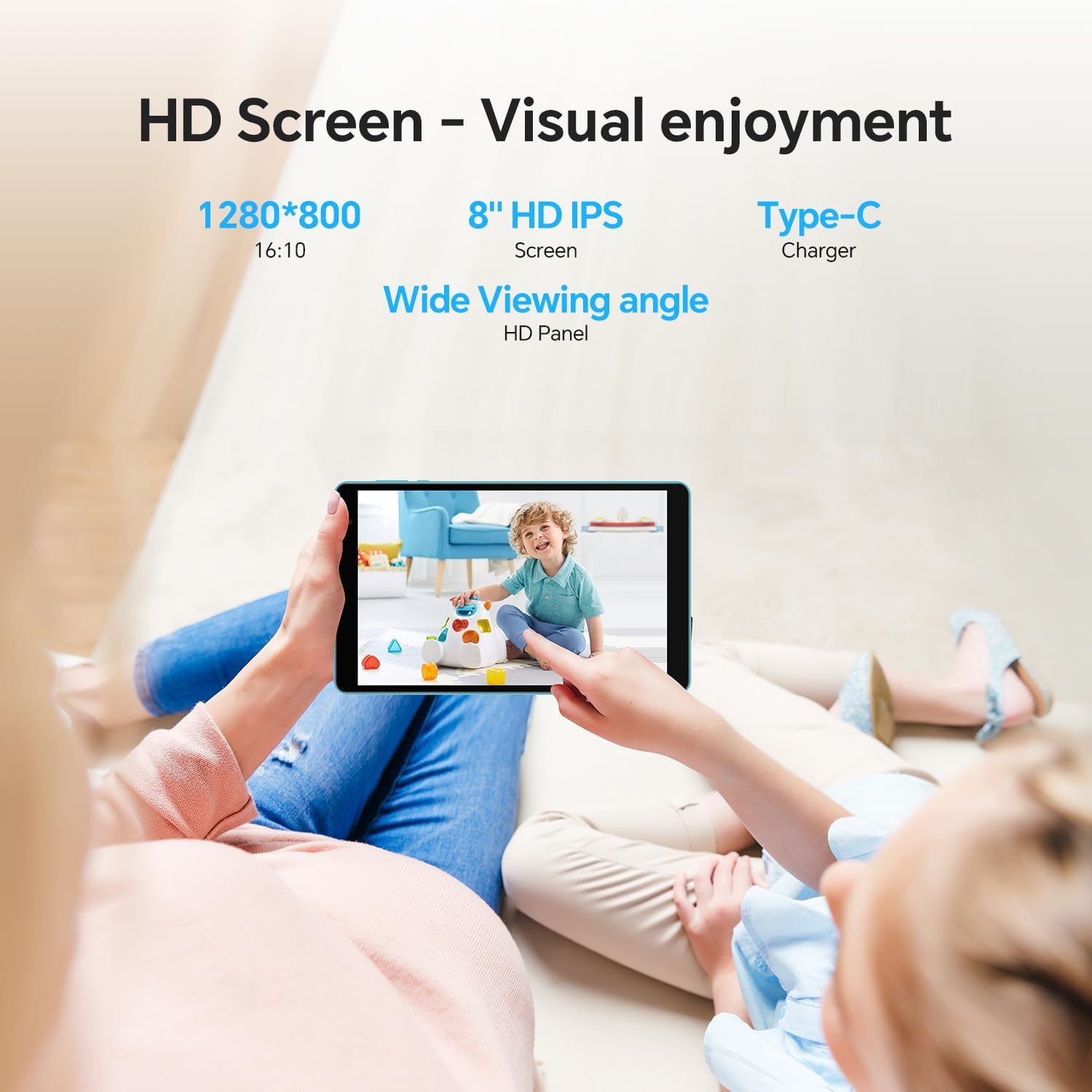
Figure 4.4: HD Screen Visuals. This image demonstrates the tablet's 8-inch HD IPS screen with 1280x800 resolution, providing a clear and enjoyable visual experience for users.
5. Maintenance and Care
- Cleaning: Use a soft, lint-free cloth to clean the screen and body. Avoid abrasive cleaners or solvents.
- Storage: Store the tablet in a cool, dry place away from direct sunlight and extreme temperatures.
- Battery Care: To prolong battery life, avoid fully discharging the battery frequently. Charge it regularly, and if storing for a long period, ensure it has about 50% charge.
- Software Updates: Regularly check for and install system updates to ensure optimal performance and security. Go to Settings > System > System update.
- Avoid Drops and Impacts: Protect your tablet from physical damage by using a protective case and handling it with care.
6. Troubleshooting Common Issues
| Problem | Solution |
|---|---|
| Tablet won't turn on. | Ensure the tablet is charged. Connect it to a power source for at least 30 minutes. If still unresponsive, press and hold the Power button for 10-15 seconds to force a restart. If that fails, use a pin to press the reset pinhole. |
| Wi-Fi connection issues. | Check if Wi-Fi is enabled in Settings. Restart your Wi-Fi router. Forget the network and reconnect. Ensure you are within range of the Wi-Fi signal. |
| Tablet is running slow. | Close unused apps running in the background. Clear cache for frequently used apps. Uninstall unnecessary apps. Restart the tablet. Consider a factory reset if performance issues persist (back up data first). |
| Apps are crashing. | Ensure apps are updated to their latest versions. Clear the app's cache and data (Settings > Apps > [App Name] > Storage & cache). Reinstall the app if necessary. |
| Screen is unresponsive. | Restart the tablet by holding the Power button. If the screen is completely frozen, use the reset pinhole. |
7. Technical Specifications
| Feature | Specification |
|---|---|
| Model | P80T |
| Operating System | Android 12 |
| Display Size | 8 Inches |
| Display Resolution | 1280 x 800 pixels IPS |
| Processor | Allwinner A133 1.8GHz Quad-Core |
| RAM | 8GB (4GB + 4GB Virtual) |
| Internal Storage | 64GB |
| Expandable Storage | Up to 1TB via Micro SD Card |
| Wireless Connectivity | Wi-Fi 6 (802.11ax), Dual-Band |
| Bluetooth | Bluetooth 5.0 |
| Cameras | Rear: 2 MP, Front: (Specification not explicitly provided, assuming standard for video calls) |
| Battery Capacity | 4000mAh |
| Ports | Type-C, 3.5mm Headphone Jack, Micro SD Card Slot |
| Dimensions (LxWxH) | 10.1 x 6 x 0.36 inches |
| Item Weight | 1.43 pounds |
8. Warranty and Customer Support
TECLAST provides a 1-year warranty for this tablet, valid immediately after purchase. We are committed to providing professional service before and after sales. Any questions will be answered within 1 working day, and we offer a 1-year unconditional replacement service for qualifying issues.
For further assistance, please visit the official TECLAST store or contact customer support through the platform where you purchased the product.
Related documentsP80T


Ask a question about this manual
Ask about setup, troubleshooting, compatibility, parts, safety, or missing instructions. Manuals+ will review the question and use this page’s manual context to help answer it.