
Worlde Easykey.25
Worlde Easykey.25 USB MIDI Controller Instruction Manual
Model: Easykey.25
Brand: Worlde
Introduction
This manual provides detailed instructions for the setup, operation, and maintenance of your Worlde Easykey.25 Portable Keyboard Mini 25-Key USB MIDI Controller. Please read this manual thoroughly to ensure proper use and to maximize the performance of your device.

Image: An angled view of the Worlde Easykey.25 MIDI Controller, showcasing its compact design and key layout.
Key Features
- 25 velocity-sensitive mini-keyboard keys for expressive playability.
- 4 programmable memory banks for custom settings.
- 6 dedicated control buttons: Edit, Mod, Pitch Down, Pitch Up, Octave Down, Octave Up.
- 1 rotary knob for versatile tone adjustment and parameter control.
- Plug and Play USB 2.0 connectivity, eliminating the need for driver installation.
- USB bus powered, requiring no external power adapter.
- Compact and portable design for easy transport and use.
Package Contents
Please verify that all items listed below are included in your package:
- 1 x Worlde Easykey.25 MIDI Keyboard Controller
- 1 x USB Cable

Image: The Worlde Easykey.25 MIDI Controller shown alongside its included USB cable.
Setup Guide
- Connect the USB Cable: Insert one end of the provided USB cable into the USB port on the Worlde Easykey.25 controller.
- Connect to Computer: Insert the other end of the USB cable into an available USB port on your computer (PC or Mac).
- Power On: The device is USB bus powered and will automatically power on once connected to your computer. No external power supply is needed.
- Driver Installation: The Worlde Easykey.25 is a Plug and Play device. No specific drivers are required for most operating systems (Windows 8 / 7 / XP / Vista, Mac OSX). Your computer should automatically recognize the device.
- Software Configuration: Open your preferred Digital Audio Workstation (DAW) or music software. Navigate to the MIDI settings or preferences and select "Easykey.25" (or similar) as your MIDI input device.

Image: A close-up view of the USB port on the side of the Worlde Easykey.25 controller, where the USB cable connects.
Operating Instructions
Keys and Velocity Sensitivity
The Easykey.25 features 25 velocity-sensitive mini-keys. This means the volume and timbre of the sound produced will vary depending on how hard or soft you press the keys, allowing for expressive musical performance.

Image: A detailed view of the black and white keys on the Worlde Easykey.25, highlighting their mini size and arrangement.
Control Buttons and Rotary Knob
The left panel of the controller houses various buttons and a rotary knob for real-time control over your sounds.
- Edit Button: Used to enter edit mode for programming various parameters. Refer to your software's manual for specific MIDI learn functions.
- Mod Button: Activates the modulation function, typically used to add vibrato or other effects to your sound.
- Pitch Down / Pitch Up Buttons: Adjust the pitch of the notes downwards or upwards in real-time.
- Octave Down / Octave Up Buttons: Shift the entire keyboard's pitch range down or up by octaves. The red LED indicators typically show the current octave setting.
- Rotary Knob: This knob can be assigned to control various parameters within your music software, such as volume, filter cutoff, or effect depth. Its function is programmable via MIDI learn.
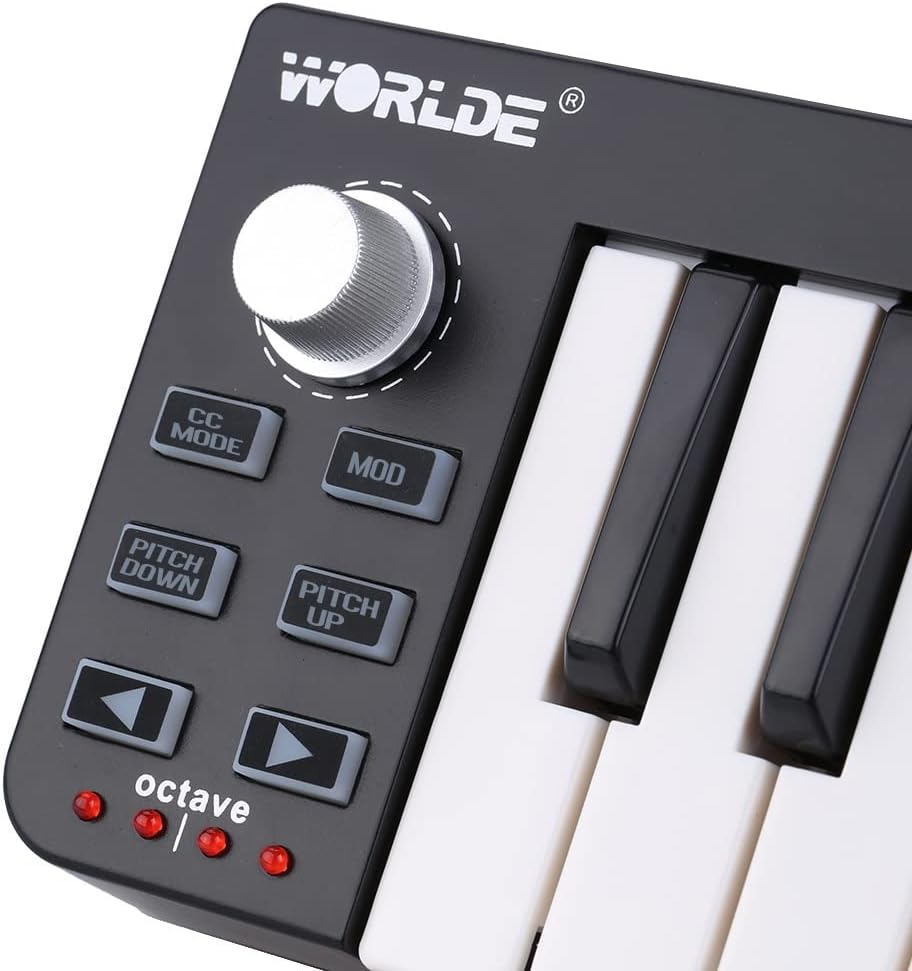
Image: A close-up of the control panel on the Worlde Easykey.25, showing the rotary knob, Edit, Mod, Pitch, and Octave buttons, along with the octave indicator LEDs.
Maintenance
To ensure the longevity and optimal performance of your Worlde Easykey.25, follow these maintenance guidelines:
- Cleaning: Use a soft, dry, lint-free cloth to wipe the surface of the controller. For stubborn dirt, slightly dampen the cloth with water. Avoid using abrasive cleaners, solvents, or waxes, as these can damage the finish.
- Storage: When not in use, store the controller in a clean, dry place away from direct sunlight, extreme temperatures, and excessive humidity.
- Handling: Avoid dropping the device or subjecting it to strong impacts. Do not place heavy objects on top of the controller.
- Connectivity: Always handle the USB cable by the connector, not the cable itself, to prevent damage to the cable or the port.
Troubleshooting
If you encounter issues with your Worlde Easykey.25, please refer to the following common solutions:
- Device Not Recognized:
- Ensure the USB cable is securely connected to both the controller and your computer.
- Try connecting to a different USB port on your computer.
- Test with a different USB cable if available.
- Restart your computer.
- No Sound Output:
- Verify that the Easykey.25 is selected as the MIDI input device in your music software's preferences.
- Ensure that the correct instrument or sound is loaded and armed for recording/playback in your software.
- Check the volume levels within your software and on your audio output device.
- Keys Not Responding Correctly:
- Check if the octave buttons have shifted the keyboard to an extreme range (very high or very low) that might not produce audible sound with your current instrument.
- Ensure no other MIDI devices are conflicting with the Easykey.25.
Specifications
| Keys | 25 velocity-sensitive mini-keys |
| Control Buttons | Edit, Mod, Pitch Down, Pitch Up, Octave Down, Octave Up |
| Rotary Knob | 1 (programmable) |
| Memory Banks | 4 programmable |
| Connectivity | USB 2.0 (Plug and Play) |
| Power Supply | USB Bus Powered |
| Operating System Support | Windows 8 / 7 / XP / Vista, Mac OSX |
| Material | Plastic |
| Dimensions (L x W x H) | 34 cm x 10 cm x 3 cm (13.4" x 3.9" x 1.2") |
| Weight | 407 g (14.4 oz) |
Warranty and Support
Specific warranty information for this product is not provided in the available documentation. For details regarding warranty coverage, technical support, or service, please contact the retailer or manufacturer directly.
Always retain your proof of purchase for any warranty claims.
Related documentsEasykey.25


Ask a question about this manual
Ask about setup, troubleshooting, compatibility, parts, safety, or missing instructions. Manuals+ will review the question and use this page’s manual context to help answer it.