
1. Introduction
Thank you for choosing the COOSII AC01 Over-Ear Wired Headphones. These headphones are designed to provide a comfortable and immersive audio experience with passive noise isolation and clear stereo sound. This manual will guide you through the setup, operation, and maintenance of your new headphones.
2. Package Contents
- COOSII AC01 Over-Ear Wired Headphones
- Storage Bag
- User Guide (this manual)
3. Product Overview & Features

Figure 1: COOSII AC01 Over-Ear Wired Headphones (Black Blue)
3.1 Comfort & Design
- Truly Over-Ear & Exceptional Comfort: Features enlarged, deeply cushioned ear pads made with high-grade protein leather and breathable mesh, designed to softly surround the entire ears for long-lasting comfort.
- Adjustable Headband: Ergonomically designed with lightweight TPU material for a perfect fit for various head sizes.
- Lightweight & Foldable: Portable and foldable design ideal for easy transport and travel.

Figure 2: Enlarged Protein Earmuff for enhanced comfort.
3.2 Sound Quality & Noise Isolation
- Passive Noise Isolation: 360-degree surrounding over-ear construction blocks up to 85% of ambient sounds.
- Dynamic Driver: Equipped with a 40mm DLC dynamic driver for well-balanced bass and treble performance with clear stereo mid-range.
- HD Microphone: Ensures excellent voice pick-up and automatically suppresses wind noise for optimized calls.

Figure 3: Passive Noise Isolation capability.
3.3 Connectivity & Controls
- 3.5mm Audio Jack: Gold-plated plug for wide compatibility with various devices.
- In-line Controls: Built-in buttons for volume adjustment, managing phone calls, and controlling music playback (play/pause/skip).
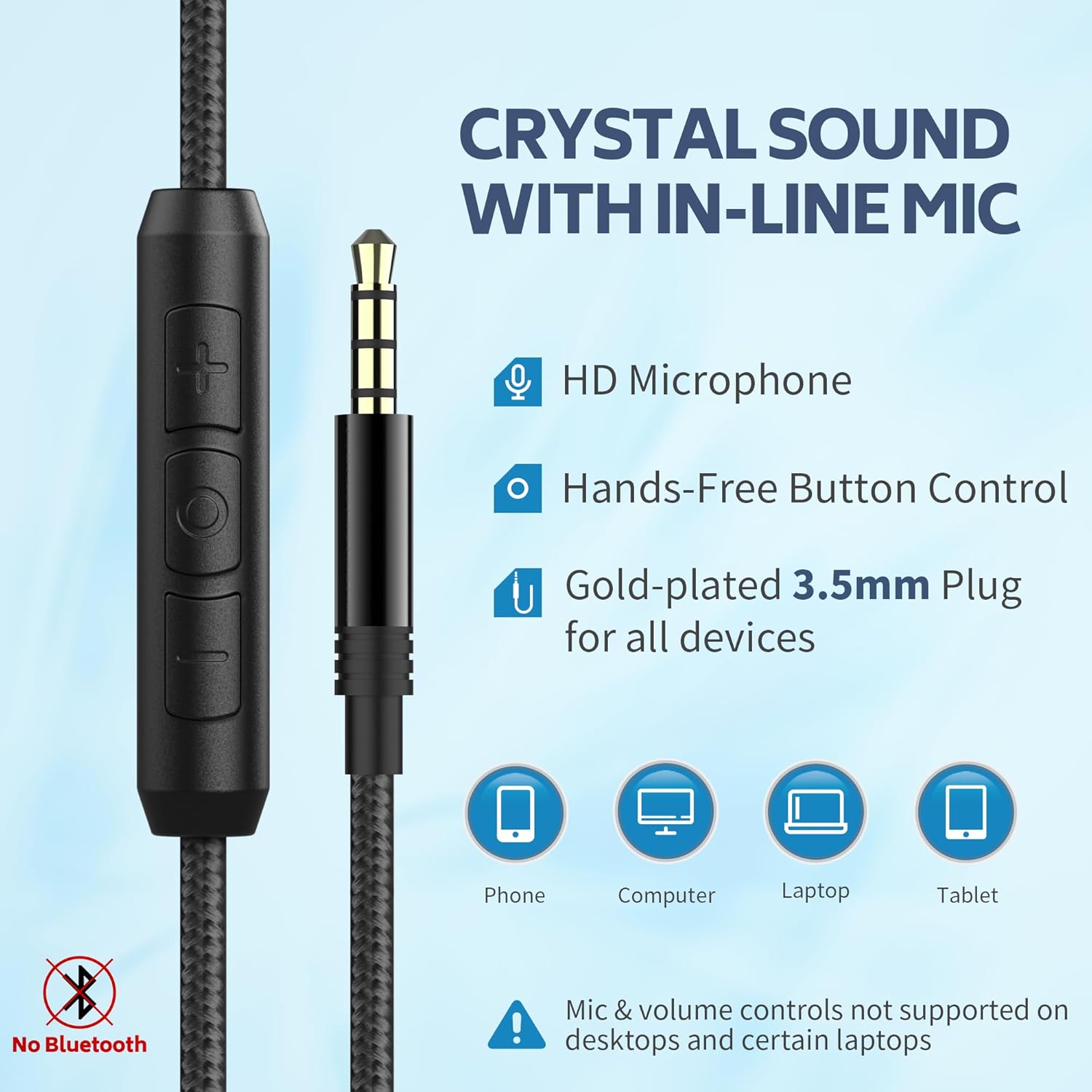
Figure 4: In-line microphone and control buttons.
4. Setup
4.1 Connecting the Headphones
- Locate the 3.5mm audio jack on your device (phone, tablet, laptop, computer, Chromebook).
- Insert the 3.5mm plug of the headphone cable firmly into the audio jack.
- Ensure the connection is secure for optimal audio quality.
4.2 Adjusting for Comfort
- Gently extend or retract the headband on both sides to fit your head size.
- Position the earcups so they fully cover your ears, ensuring the soft cushions provide a comfortable seal.
- The earcups can pivot slightly to conform to your head shape.

Figure 5: Adjusting the headband and earcups for a comfortable fit.
5. Operating Instructions
5.1 Audio Playback Control
- Play/Pause: Press the central button on the in-line control once to play or pause audio.
- Next Track: Press the central button twice quickly to skip to the next track.
- Previous Track: Press the central button three times quickly to go to the previous track.
5.2 Volume Adjustment
- Increase Volume: Press the '+' button on the in-line control.
- Decrease Volume: Press the '-' button on the in-line control.
5.3 Call Management
- Answer/End Call: Press the central button once during an incoming call or to end an active call.
- Reject Call: Press and hold the central button for approximately 2 seconds during an incoming call.
Note: Volume control and microphone functions are not compatible with all PC computers. A separate adapter may be required for full functionality on some PCs.
6. Maintenance
- Cleaning: Use a soft, dry cloth to clean the headphones. Do not use liquid cleaners or aerosols.
- Storage: When not in use, fold the headphones and store them in the provided storage bag to protect them from dust and damage.
- Avoid Moisture: Keep the headphones away from water, humidity, and extreme temperatures.
- Cable Care: Avoid sharp bends or excessive pulling on the cable to prevent damage.

Figure 6: Foldable design for compact storage.
7. Troubleshooting
- No Sound:
- Ensure the 3.5mm audio jack is fully inserted into your device.
- Check the volume level on your device and using the in-line controls.
- Test the headphones with another device to rule out a device-specific issue.
- Microphone Not Working on PC:
- Some PC computers require a separate audio splitter (Y-cable) to use both headphone and microphone functions simultaneously with a single 3.5mm jack.
- Verify your PC's audio settings to ensure the correct input device is selected.
- In-line Volume Control Not Responding:
- This feature may not be fully compatible with all devices. Adjust volume directly on your device if the in-line controls do not work.
8. Specifications
| Model Name | AC01 |
| Brand | COOSII |
| Connectivity Technology | Wired |
| Headphones Jack | 3.5 mm Jack |
| Ear Placement | Over Ear |
| Form Factor | Over Ear |
| Noise Control | Sound Isolation (Passive) |
| Audio Driver Type | Dynamic Driver (40mm) |
| Material | Faux Leather |
| Item Weight | 10.2 ounces |
| Package Dimensions | 7.09 x 5.28 x 3.62 inches |
| Included Components | Headphones, Storage Bag |
9. Warranty & Support
For warranty information or technical support, please contact COOSII customer service through the retailer where the product was purchased or visit the official COOSII website. Please retain your proof of purchase for warranty claims.
