
Fortdows 8 Core 4G RAM+64GB ROM (B0C3GQ94LQ)
Contents
Fortdows Android 13 Car Radio User Manual
Model: 8 Core 4G RAM+64GB ROM (B0C3GQ94LQ) for Dodge RAM 1500 2500 (2013-2018)
1. Product Overview
This manual provides instructions for the Fortdows 8 Core 4G+64G Android 13 Car Radio, a 9-inch HD IPS Touchscreen Stereo Head Unit designed for Dodge RAM 1500 and 2500 models manufactured between 2013 and 2018. This unit integrates wireless CarPlay, Android Auto, Bluetooth, 5G WiFi, GPS, DSP, FM/AM radio, and supports a 1080P backup camera.

Image 1: The Fortdows 9-inch Android 13 Car Radio unit, displaying its main interface with various application icons.
2. Setup and Installation
2.1 Compatibility
This car radio is specifically designed for Dodge RAM 1500 and 2500 models from 2013 to 2018. Ensure your vehicle falls within this range for proper fitment and functionality.

Image 2: Visual guide demonstrating the fitment of the car radio in a Dodge RAM 1500/2500 dashboard (2013-2018 models) and showing incompatible dashboard configurations.
2.2 What's in the Box
The package includes all necessary components for installation:
- Power Cable *1
- Canbus *1
- RCA Cable *1
- GPS Antenna *1
- MIC *1
- USB Cable *1
- Reversing Camera *1
- Radio Antenna Adapter *1
- Crowbar *1
- 4G Antenna *1
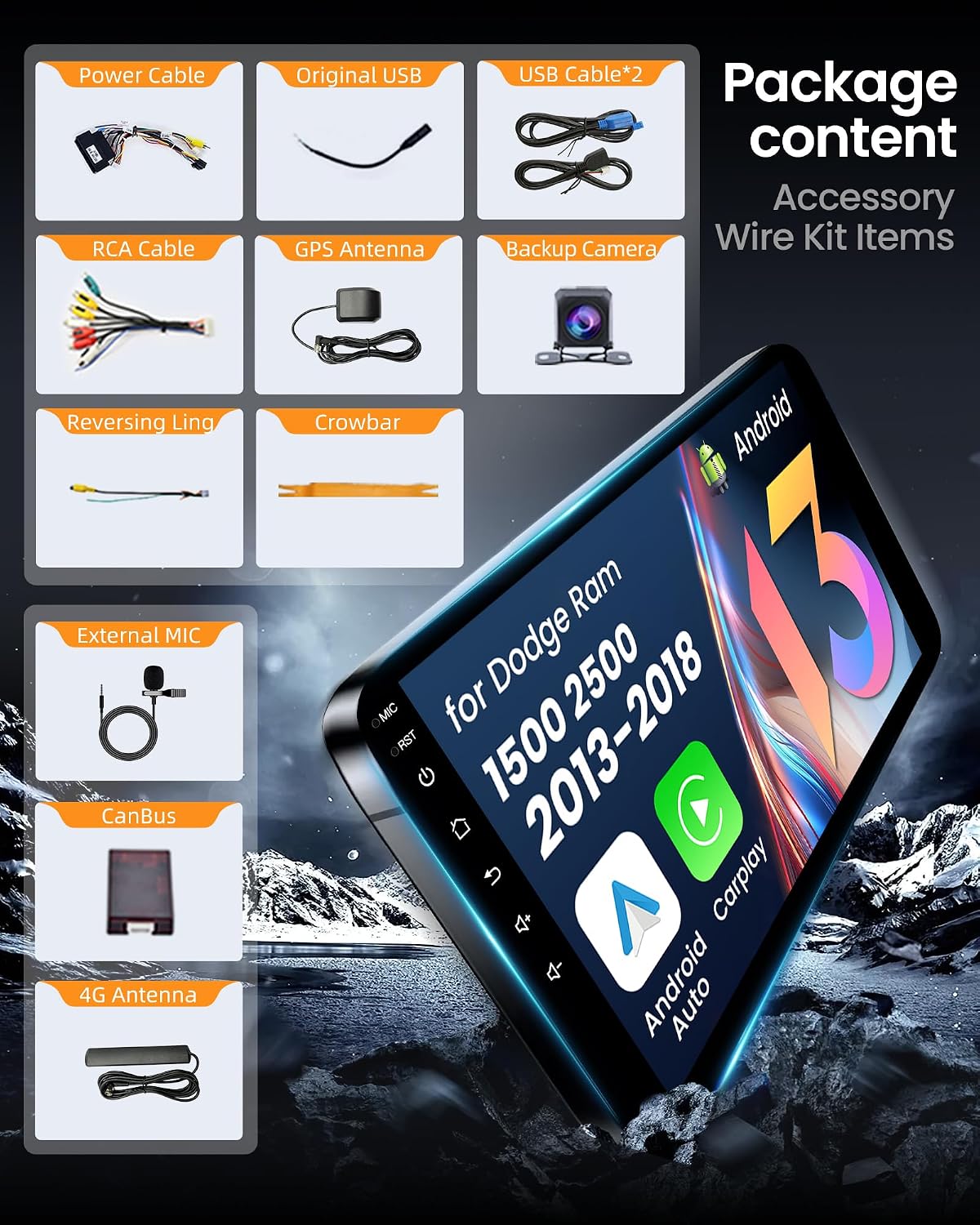
Image 3: An illustration of all accessories included in the package, such as power cables, antennas, and the backup camera.
2.3 Installation Procedure
- Preparation: Disconnect the vehicle's battery before starting any electrical work.
- Remove Old Unit: Carefully remove the existing car radio and dashboard trim using the provided crowbar.
- Connect Wiring: Connect the power cable, RCA cable, USB cables, GPS antenna, 4G antenna, and microphone to the new head unit. Ensure all connections are secure.
- Canbus Integration: Connect the Canbus module as per the wiring diagram to ensure steering wheel controls and other vehicle features function correctly.
- Backup Camera: Install the reversing camera at the rear of the vehicle and route its cable to the head unit, connecting it to the designated input.
- Test Functionality: Before fully reassembling the dashboard, reconnect the battery and power on the unit to test basic functions like power, audio, touchscreen response, and camera feed.
- Secure Unit: Mount the new car radio securely into the dashboard opening.
- Reassemble: Reinstall all dashboard trim pieces.
Note: Professional installation is recommended if you are unfamiliar with car audio system wiring.
3. Operating Instructions
3.1 Basic Controls and Touchscreen
The unit features a 9-inch 1280x800 HD IPS touchscreen for primary interaction. Navigate through menus and applications by tapping, swiping, and pinching. Physical buttons for power, volume, and reset are located on the unit's bezel.

Image 4: A visual comparison highlighting the superior clarity and color saturation of the 1280x800 IPS touchscreen compared to lower resolution displays.
3.2 Steering Wheel Controls
The unit supports your vehicle's original steering wheel controls, allowing for safe operation of media and communication features without diverting attention from the road. Configuration may be required in the system settings.

Image 5: Depiction of the car radio's compatibility with existing steering wheel controls, showing common control buttons for calls and media playback.
3.3 Wireless CarPlay & Android Auto
Connect your smartphone wirelessly to access CarPlay (for iOS devices) or Android Auto (for Android devices). This mirrors your phone's interface, providing access to navigation, music, messages, and calls directly on the car radio display.
- Ensure Bluetooth and Wi-Fi are enabled on your smartphone.
- On the car radio, select the CarPlay or Android Auto application.
- Follow the on-screen prompts to pair your device.

Image 6: Screenshots illustrating the user interfaces for Apple CarPlay and Android Auto as displayed on the car radio, showing navigation, music, and phone call functionalities.
3.4 5G WiFi and GPS Navigation
The unit supports 5G WiFi for fast internet connectivity, enabling downloads of applications like Spotify and Waze. The integrated GPS system provides both online and offline navigation capabilities.
- WiFi Connection: Go to Settings > Network & Internet > Wi-Fi to connect to an available network.
- GPS Usage: Open the pre-installed navigation app or download your preferred app from the app store. Ensure the GPS antenna is properly installed for optimal signal reception.

Image 7: A graphic demonstrating the 5G WiFi capability of the unit, highlighting improved network performance and faster application downloads.
3.5 Bluetooth Connectivity (BT5.0)
Utilize Bluetooth 5.0 for stable hands-free calling and high-quality music streaming from your mobile device.
- Enable Bluetooth on your phone and the car radio.
- Search for available devices on the car radio's Bluetooth menu.
- Select your phone from the list and confirm pairing.
3.6 FM/AM Radio
Access a wide range of local radio stations using the integrated FM/AM tuner. Scan for stations and save your favorites for quick access.
3.7 Digital Sound Processor (DSP)
The built-in DSP ensures high-quality audio output with customizable sound settings, allowing you to tailor the audio experience to your preferences.
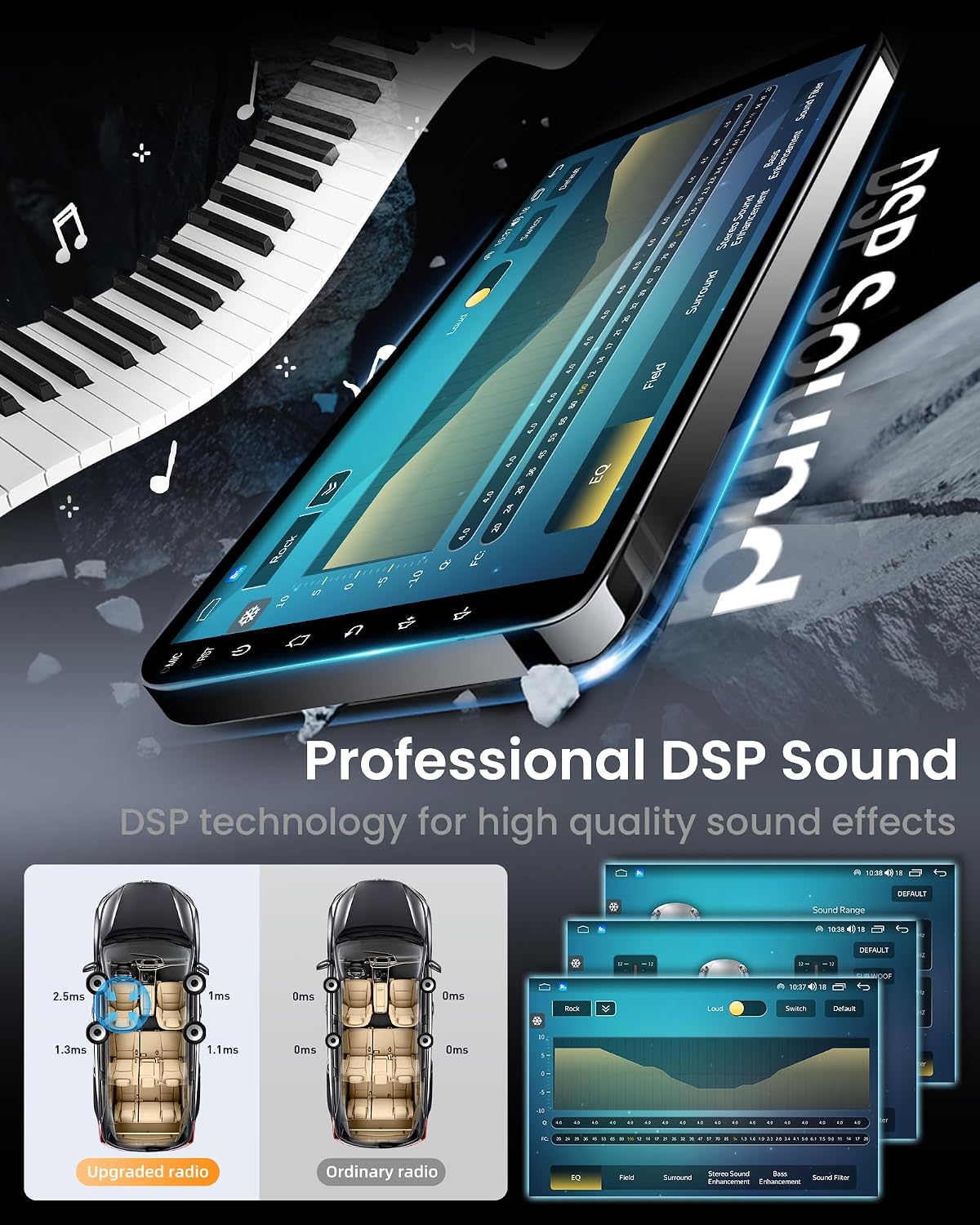
Image 8: An illustration of the DSP sound settings interface, showing options for sound field adjustment and equalization to optimize audio quality within the vehicle.
3.8 Split Screen Function
The split-screen feature allows you to run two applications simultaneously, such as navigation on one side and music playback on the other, enhancing multitasking convenience.
4. Maintenance
4.1 Screen Cleaning
To clean the touchscreen, power off the unit and gently wipe it with a soft, lint-free cloth. For stubborn smudges, slightly dampen the cloth with water or a screen-safe cleaner. Avoid abrasive materials or harsh chemicals.
4.2 Software Updates
Periodically check for software updates through the system settings to ensure optimal performance and access to the latest features. Updates can typically be performed via a Wi-Fi connection.
4.3 General Care
Avoid exposing the unit to extreme temperatures, direct sunlight for prolonged periods, or excessive moisture. Ensure proper ventilation around the unit to prevent overheating.
5. Troubleshooting
- No Power: Check all power connections and the vehicle's fuse box. Ensure the battery is properly connected.
- No Sound: Verify speaker connections, check volume levels, and ensure the audio source is correctly selected. Check DSP settings for any muted channels.
- GPS Not Working: Ensure the GPS antenna is securely connected and has a clear view of the sky. Check location services settings in the Android system.
- Bluetooth Connection Issues: Ensure Bluetooth is enabled on both devices. Try unpairing and re-pairing the devices. Clear Bluetooth cache if issues persist.
- Touchscreen Unresponsive: Perform a soft reset of the unit (refer to the power button instructions). If the issue continues, check for physical damage.
- CarPlay/Android Auto Not Connecting: Ensure your phone's operating system is up to date. Try restarting both the phone and the car radio. Check for any specific app permissions required.
6. Specifications
| Feature | Specification |
|---|---|
| Processor | 8 Core |
| RAM | 4GB |
| ROM | 64GB |
| Operating System | Android 13 |
| Display Size | 9 Inches |
| Display Resolution | 1280x800 IPS |
| Connectivity Technology | Bluetooth 5.0, WiFi (5G), USB |
| Controller Type | Android 13, iOS (via CarPlay) |
| Special Features | 1280*800 Touchscreen, Digital Display Screen, Screen Mirroring, DSP |
| Compatible Devices | Smartphone |
| Audio Output Mode | Stereo |
| Supported Internet Services | YouTube (and other downloadable apps) |
| Control Method | App, Touch, Voice |
| Item Weight | 3.98 pounds |
| Package Dimensions | 12.91 x 12.52 x 5.94 inches |

Image 9: A diagram illustrating the 8-core processor with 4GB RAM and 64GB ROM, highlighting performance improvements over 4-core systems.
7. Warranty and Support
7.1 Warranty Information
This product comes with a 1-Year Warranty from the date of purchase, covering manufacturing defects.
7.2 Return Policy
A 7-Day Return Policy is offered for products with defects. Please contact customer support within this period if you encounter any issues.
7.3 Customer Support
For technical assistance, warranty claims, or any product-related inquiries, please contact Fortdows customer support:
- Email: fortdows.cam@gmail.com
- Website: www.fancygod.com

Image 10: Details regarding the product's 1-year warranty, 7-day return policy, and contact information for customer support.
Ask a question about this manual
Ask about setup, troubleshooting, compatibility, parts, safety, or missing instructions. Manuals+ will review the question and use this page’s manual context to help answer it.