
1. Introduction
This manual provides comprehensive instructions for the setup, operation, maintenance, and troubleshooting of your WEILY Android 13.0 TV Box. Please read this manual carefully before using the device to ensure optimal performance and longevity.
The WEILY Android 13.0 TV Box is a high-performance media player equipped with the RK3528 Quad-Core 64bit Cortex-A53 chipset and Mali 450 MP2 GPU. It features 2GB RAM and 16GB EMMC Flash storage, supporting 8K video decoding and dual-band WiFi 6 connectivity. It runs on Android 13.0, offering an enhanced user experience for streaming, gaming, and various applications.
2. Package Contents
Verify that all items listed below are present in your package:
- WEILY Android 13.0 TV Box
- IR Remote Control
- Power Adapter
- HDMI Cable
- User Manual (this document)

Image: The WEILY Android TV Box and its included remote control, HDMI cable, power adapter, and user manual.
3. Product Overview
3.1 Device Layout and Ports

Image: Top-down view of the WEILY Android TV Box, highlighting its compact size and various ports including DC power, SPDIF, HDMI, LAN, AV, USB 2.0, USB 3.0, and TF card slot.
The WEILY Android TV Box features a compact design with essential ports for connectivity:
- DC (Power Input): Connect the included power adapter.
- SPDIF: Digital audio output for connecting to audio receivers.
- HDMI: Connect to your TV or display for video and audio output. Supports HDMI 2.0b for 4K @ 60Hz.
- LAN (Ethernet): RJ-45 port for wired network connection (10/100M).
- AV: Analog video and audio output for older TVs.
- USB 2.0: Standard USB port for peripherals like keyboards, mice, or USB drives.
- USB 3.0: High-speed USB port for faster data transfer with compatible devices.
- TF (Micro SD Card Slot): Expand storage up to 64GB.
3.2 Remote Control Functions

Image: The WEILY Android TV Box and its infrared remote control, showing various buttons for navigation, volume, power, and application shortcuts.
The included IR remote control allows you to navigate the Android TV Box interface. Key functions include:
- Power Button: Turns the device on/off or puts it into standby.
- Navigation Pad (Arrow Keys & OK): For menu navigation and selection.
- Volume +/-: Adjusts audio volume.
- Back/Return: Returns to the previous screen.
- Home: Returns to the main home screen.
- Menu: Accesses context-sensitive menus.
- Mouse Mode: Activates a virtual mouse pointer for easier navigation in certain applications.
- Numeric Keypad: For direct input or channel selection.
- Application Shortcuts (e.g., YouTube, Netflix): Direct access to pre-installed applications.
4. Setup Guide
4.1 Initial Connection
- Connect to TV: Connect one end of the HDMI cable to the HDMI port on the TV Box and the other end to an available HDMI input on your television.
- Connect Power: Plug the power adapter into the DC port on the TV Box, then plug the adapter into a wall outlet.
- Power On: The device should automatically power on. If not, press the Power button on the remote control.
- Select Input: On your TV, select the correct HDMI input source using your TV's remote control.
4.2 Network Configuration
The TV Box supports both wired (Ethernet) and wireless (Wi-Fi) network connections.
4.2.1 Wi-Fi Connection
- From the home screen, navigate to Settings.
- Select Network & Internet.
- Turn on Wi-Fi.
- Select your desired Wi-Fi network from the list.
- Enter the Wi-Fi password using the on-screen keyboard and select Connect.
4.2.2 Ethernet Connection
- Connect an Ethernet cable from your router or modem to the LAN port on the TV Box.
- The device should automatically detect and connect to the wired network.
5. Operating Instructions
5.1 Navigating the Interface

Image: Example of the Android 13 user interface on the TV Box, showing the home screen with categories like Home, Movie, TV Show, and Apps.
The WEILY Android TV Box runs on Android 13.0, providing a user-friendly interface. Use the remote control's navigation pad to move between icons and options. Press the OK button to select an item.
- Home Screen: Provides quick access to frequently used apps, recommended content, and system settings.
- Apps: Access all installed applications.
- Settings: Configure network, display, sound, storage, and other system preferences.
5.2 Installing and Managing Applications
You can download and install applications from the pre-installed app store or other trusted sources.
- From the home screen, navigate to the Apps section.
- Open the Google Play Store (or equivalent app store).
- Search for the desired application.
- Select Install to download and install the app.
To manage installed apps, go to Settings > Apps. From here, you can uninstall, force stop, or clear data for applications.
5.3 Media Playback and Streaming
The TV Box supports various media formats and streaming services.
- Local Media: Connect a USB drive or Micro SD card to play local video, music, and photo files. Use a file manager app or a media player app to browse and play content.
- Streaming Services: Access pre-installed apps like YouTube, Netflix, and others. Log in with your account credentials to stream content.
- Screen Mirroring: Share content from your mobile device or tablet to your TV screen. Refer to the specific screen mirroring app's instructions for setup.
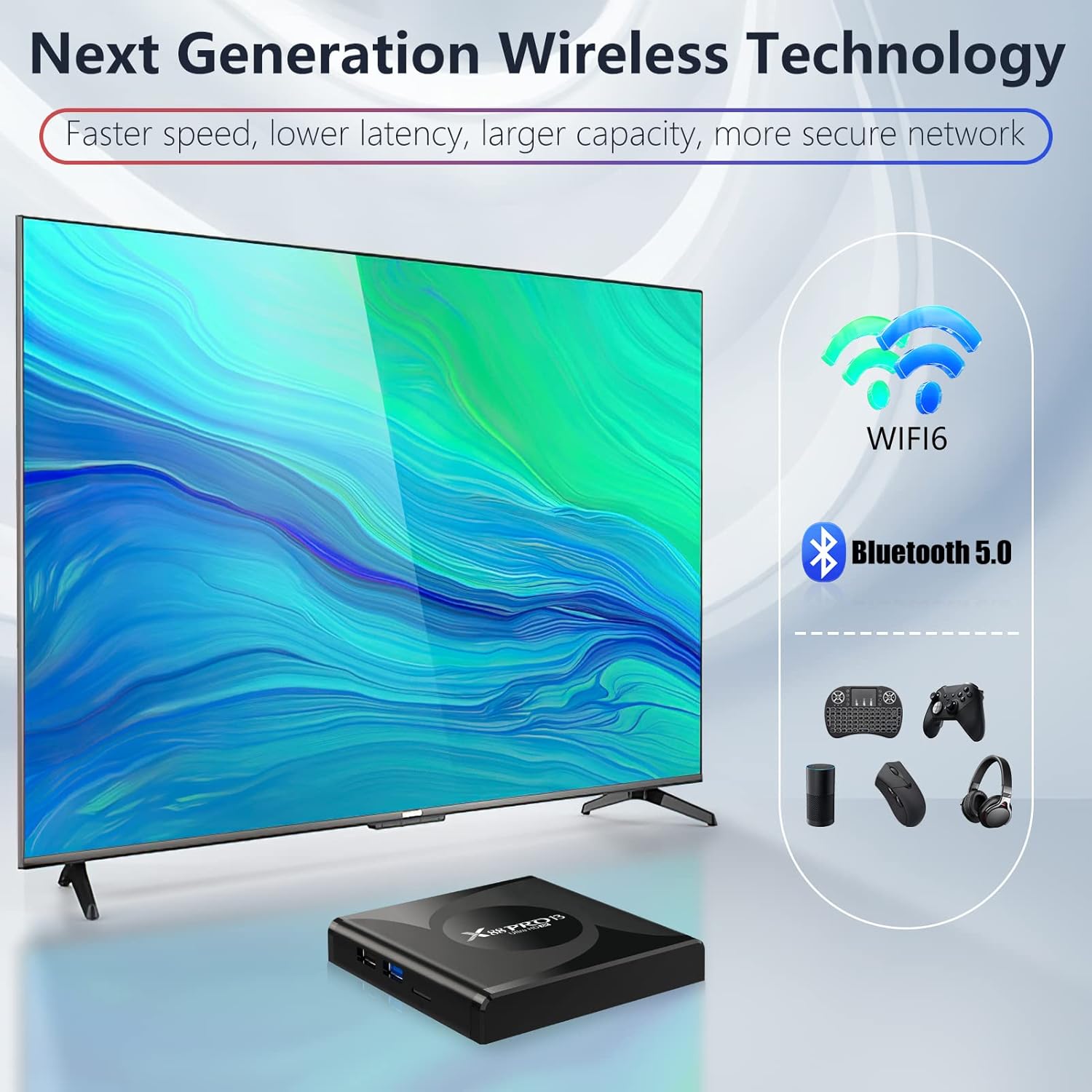
Image: Illustration of the screen mirroring feature, showing a smartphone displaying content that is simultaneously mirrored on a large TV screen via the TV Box.
6. Maintenance
To ensure the longevity and optimal performance of your WEILY Android TV Box, follow these maintenance guidelines:
- Cleaning: Use a soft, dry cloth to clean the exterior of the device. Do not use liquid cleaners or aerosols.
- Ventilation: Ensure the device is placed in a well-ventilated area. Do not block the ventilation openings.
- Software Updates: Periodically check for system updates in Settings > About Device > System Update to ensure you have the latest features and security patches.
- Storage Management: Regularly clear cache and unnecessary files to free up storage space. Go to Settings > Storage to manage.
- Power Off Properly: Always power off the device using the remote control or system menu before unplugging it.
7. Troubleshooting
This section addresses common issues you might encounter with your WEILY Android TV Box.
| Problem | Possible Cause | Solution |
|---|---|---|
| No Power | Power adapter not connected or faulty outlet. | Ensure power adapter is securely connected to the device and a working power outlet. Try a different outlet. |
| No Picture/Signal | Incorrect HDMI input selected on TV; loose HDMI cable. | Verify the TV is on the correct HDMI input. Check HDMI cable connections at both ends. Try a different HDMI port or cable. |
| No Sound | TV or device volume too low; incorrect audio output settings. | Increase volume on both TV and TV Box. Check audio output settings in Settings > Sound. |
| Wi-Fi Connection Issues | Incorrect password; router issues; device too far from router. | Re-enter Wi-Fi password. Restart your router. Move the TV Box closer to the router or use an Ethernet connection. |
| Apps Crashing/Freezing | Insufficient RAM/storage; app compatibility issues. | Clear app cache/data (Settings > Apps). Uninstall and reinstall the app. Ensure sufficient free storage. Restart the TV Box. |
| Remote Control Not Working | Dead batteries; IR sensor blocked. | Replace batteries. Ensure no obstructions between remote and TV Box. |
8. Specifications
Detailed technical specifications for the WEILY Android 13.0 TV Box:
| Feature | Detail |
|---|---|
| Chipset | RK3528 Quad-Core 64bit Cortex-A53 |
| GPU | Mali 450 MP2 |
| Flash Memory | 16GB EMMC |
| SDRAM | 2GB |
| USB Ports | 1x USB 3.0, 1x USB 2.0 |
| LAN | Ethernet 10/100M standard RJ-45 |
| Bluetooth | 5.0 |
| Wireless | 2.4G / 5G Dual Band WiFi 802.11 a/b/g/n/ac/ax (WiFi 6) |
| Card Reader | Micro SD Card (up to 64GB) |
| HDMI | HDMI 2.0b for 4K @ 60Hz |
| Operating System | Android 13.0 |
| Video Decoding | H.264/H.265/VP9 up to 8K @ 30fps, MPEG-1/2/4 |
| Video Output | 4K (3840 x 2160 pixels) |
| Supported Media Formats | Avi/Ts/Vob/Mkv/Mov/ISO/wmv/asf/flv/dat/mpg/mpeg |
| Supported Music Formats | MP3/WMA/AAC/WAV/OGG/DDP/HD/FLAC/APE |
| Supported Photo Formats | HD JPEG/BMP/GIF/PNG/TIFF |
| HDD File System | FAT16/FAT32/NTFS |
| Certifications | CE, FCC, ROHS |

Image: Diagram illustrating the RK3528 chipset and key specifications such as CPU, 8K HD, 2GB RAM, 16GB ROM, OS 13.0, HDR 10, WiFi 6, and BT 5.0.
9. Warranty and Support
WEILY products are designed for reliability and performance. For warranty information and technical support, please refer to the contact details provided with your purchase or visit the official WEILY website.
Please retain your proof of purchase for warranty claims.