
1. Introduction
Thank you for choosing the DEPGI 14-Inch 1080P Portable Gaming Monitor. This monitor is designed to enhance your gaming experience on the Xbox Series S and other compatible devices, offering a high-definition display and integrated audio in a compact, portable form factor. This manual provides detailed instructions for setup, operation, maintenance, and troubleshooting to ensure optimal performance.
2. Package Contents
Please verify that all items listed below are included in your package:
- DEPGI 14-Inch Portable Monitor for Xbox Series S (x1)
- Remote Control (x1)
- USB to DC Power Cable (x1)
- HDMI Cable (x1)
- Power Adapter (x1)
- User Manual (x1)

Figure 2.1: Included Accessories
3. Product Features
- Display: 14-inch 1080P HD IPS screen with HDR10 and 300cd/m² brightness for vivid visuals.
- Performance: 60Hz refresh rate, OD function, and AMD FreeSync for smooth gameplay.
- Audio: Integrated 3.0W dual stereo speakers for immersive sound.
- Portability: Lightweight (2.64 lbs) and compact design (12.67x8.77x3.11 inches) for easy transport.
- Control: Intuitive buttons on the monitor and a remote control for easy settings adjustment.
- Game Modes: Three specialized game modes (FTG/FPS/RTS) to enhance contrast and dynamic effects.
- Connectivity: Two HDMI ports and two headphone jacks for wide compatibility with Xbox Series S, Switch, PS5, PC, and laptops.

Figure 3.1: High-Definition Display

Figure 3.2: Key Performance Features
4. Setup Instructions
4.1 Attaching the Monitor to Xbox Series S
- Carefully align the monitor's base with the top of your Xbox Series S console.
- Gently slide the monitor onto the console until it clicks into place. Ensure the rubber pieces on the monitor's base align with the console's ventilation holes for protection and proper fit.
- Secure the monitor by inserting and tightening the provided screws into the designated slots on the side of the monitor's base.
4.2 Connecting Cables
- Connect one end of the short HDMI cable to an HDMI output port on the monitor and the other end to the HDMI input port on your Xbox Series S.
- Connect the USB to DC Power Cable to the monitor's DC IN port and the USB end to a compatible USB power source (e.g., the Xbox Series S USB port or a power adapter).
- Plug the power adapter into a wall outlet and connect it to the USB to DC Power Cable if not using the Xbox USB port for power.
Video 4.1: Installation and Gameplay Demonstration. This video demonstrates the physical installation of the DEPGI portable monitor onto an Xbox Series S console, followed by a brief showcase of the monitor displaying gameplay.
5. Operating Instructions
5.1 Powering On/Off
To power on the monitor, ensure it is properly connected to a power source and the Xbox Series S is turned on. The monitor should automatically detect the signal. To power off, simply turn off your Xbox Series S, and the monitor will power down.
5.2 Adjusting Settings
The monitor features intuitive buttons located on its base for quick adjustments. A remote control is also provided for convenient access to various settings, including brightness, contrast, volume, and game modes. Point the remote directly at the monitor's sensor for optimal response.

Figure 5.1: Remote Control
6. Game Modes
The DEPGI monitor offers three specialized game modes to optimize your visual experience:
- FTG (Fighting Game Mode): Enhances contrast and color saturation for fighting games, making character models and special effects more vibrant.
- FPS (First-Person Shooter Mode): Adjusts gamma and black levels to reveal enemies in dark areas, providing a competitive edge in FPS titles.
- RTS (Real-Time Strategy Mode): Optimizes clarity and detail for strategy games, allowing for better visibility of units and map elements.
Switch between these modes using the monitor's buttons or the remote control to suit your current game genre.

Figure 6.1: Game Mode Selection
7. Connectivity
The monitor provides versatile connectivity options:
- 2x HDMI Ports: Connect to your Xbox Series S, Nintendo Switch, PlayStation 5, PC, or laptop.
- 2x Headphone Jacks: Enjoy private audio without disturbing others.
- DC Power Input: For external power supply.

Figure 7.1: Connectivity Ports

Figure 7.2: Connectivity Diagram
8. Portability and Usage Scenarios
The DEPGI portable monitor is designed for gamers on the go. Its lightweight and compact form factor makes it ideal for various environments:
- Travel: Easily fits into backpacks or luggage for long trips.
- Motorhomes & Camping: Provides entertainment in recreational vehicles or outdoor settings.
- Business Trips: Offers a personal gaming setup in hotel rooms.
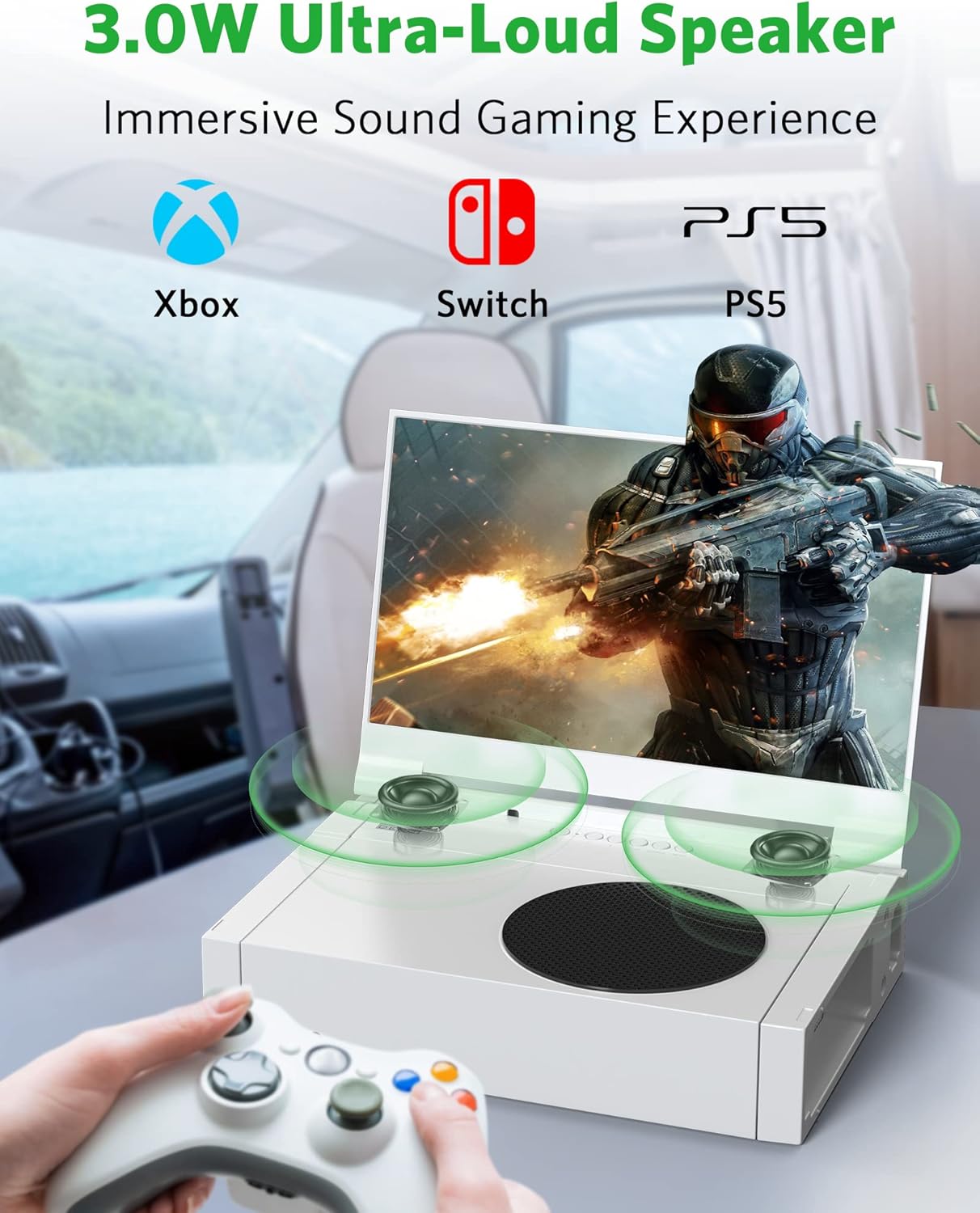
Figure 8.1: Monitor in a Car Setting

Figure 8.2: Easy to Carry

Figure 8.3: Versatile Usage Scenarios
9. Specifications
| Feature | Specification |
|---|---|
| Product Dimensions | 11.22 x 15.35 x 3.94 inches |
| Item Weight | 2.64 pounds |
| Screen Size | 14 Inches |
| Resolution | 1920 x 1080 Pixels (FHD 1080p) |
| Aspect Ratio | 16:9 |
| Image Brightness | 300 cd/m² |
| Refresh Rate | 60Hz |
| Total USB Ports | 1 (for power) |
| HDMI Ports | 2 |
| Headphone Jacks | 2 |
| Special Features | HDR10, AMD FreeSync, OD Function, 3 Game Modes (FTG/FPS/RTS) |
10. Maintenance
- Cleaning: Use a soft, lint-free cloth to gently wipe the screen and exterior surfaces. Avoid abrasive cleaners or solvents.
- Storage: When not in use, close the monitor securely to protect the screen. Store in a cool, dry place away from direct sunlight and extreme temperatures.
- Ventilation: Ensure the Xbox Series S and the monitor's ventilation areas are not obstructed during use to prevent overheating.
11. Troubleshooting
- No Display:
- Check all cable connections (HDMI, power) to ensure they are secure.
- Verify that the Xbox Series S is powered on.
- Ensure the monitor is receiving power.
- No Sound:
- Check the monitor's volume settings using the buttons or remote.
- Ensure no headphones are plugged into the headphone jacks if you intend to use the built-in speakers.
- Verify audio output settings on your Xbox Series S.
- Remote Control Not Responding:
- Ensure there are no obstructions between the remote and the monitor's sensor.
- Check and replace the remote control batteries if necessary.
- Screen Glitching/Flickering:
- Ensure the HDMI cable is securely connected and not damaged. Try a different HDMI cable if available.
- Restart both the monitor and the Xbox Series S.
- Check for any firmware updates for the monitor (refer to manufacturer's website).
12. Warranty and Support
For warranty information and technical support, please refer to the official DEPGI website or contact customer service using the details provided in your product packaging. Keep your purchase receipt as proof of purchase for warranty claims.


