Introduction
This manual provides comprehensive instructions for the installation, operation, and maintenance of your Woibugee Android Car Radio for BMW 3 Series E46 (1999-2005 models). This advanced head unit features a 9-inch display, wireless Apple CarPlay and Android Auto, integrated GPS navigation, dual Bluetooth connectivity, AM/FM/RDS radio, Digital Sound Processor (DSP), and support for steering wheel controls. Please read this manual thoroughly before use to ensure proper installation and optimal performance.
Safety Information
- Always ensure the vehicle is turned off and the battery is disconnected before performing any installation or wiring.
- Installation should be performed by a qualified professional if you are unsure about any steps.
- Do not operate the device in a way that distracts you from driving. Always prioritize road safety.
- Avoid exposing the unit to extreme temperatures, direct sunlight for prolonged periods, or excessive moisture.
- Use only the provided cables and accessories to prevent damage and ensure compatibility.
Package Contents
Verify that all items listed below are included in your package:
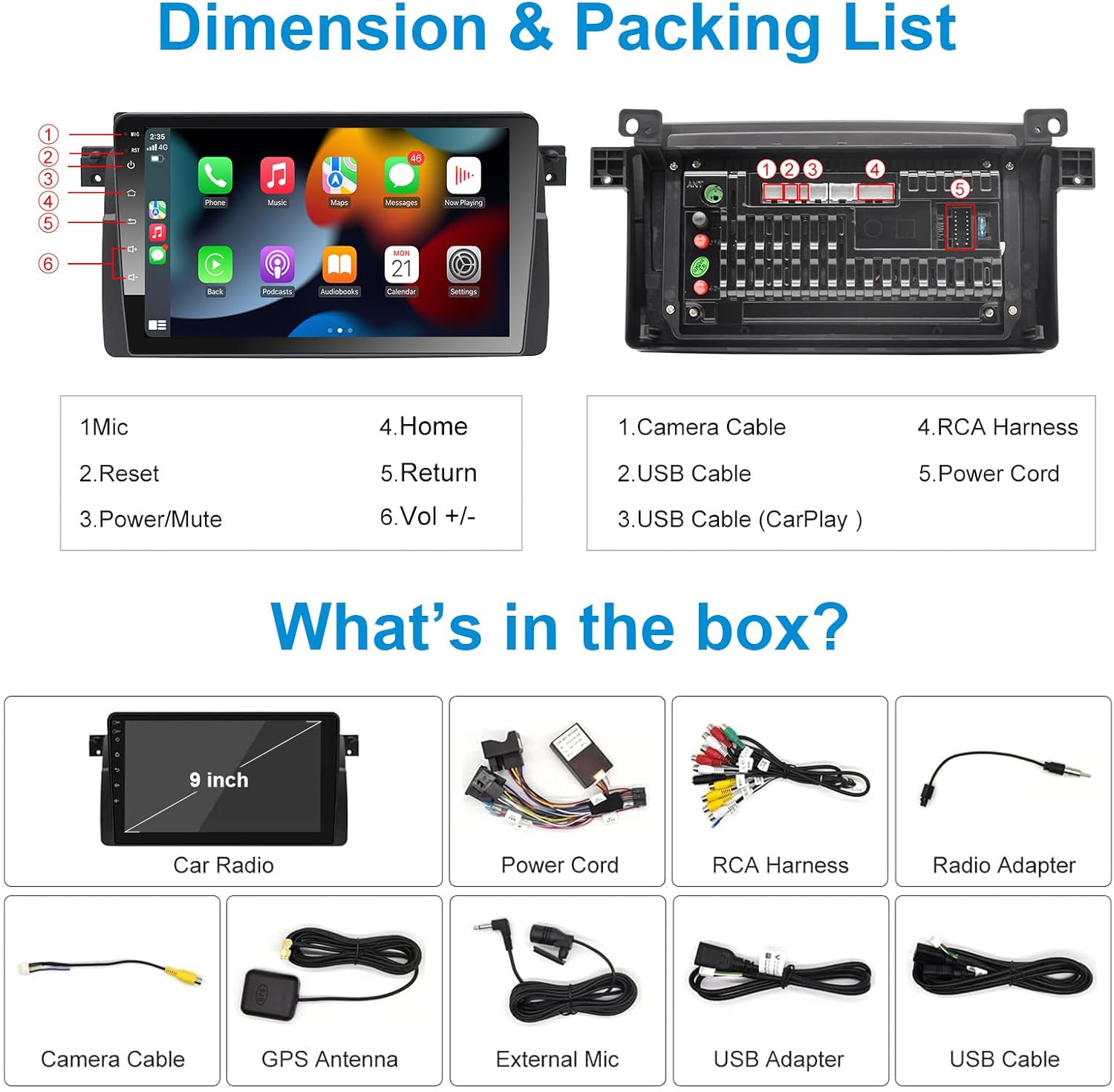
Image: Diagram of the head unit and included accessories.
This image displays the main car radio unit from the front and back, highlighting key connection points. Below it, a grid of smaller images shows the individual components included in the box: the 9-inch car radio, power cord, RCA harness, radio adapter, camera cable, GPS antenna, external microphone, USB adapter, and USB cable. This visual guide helps confirm all parts are present.
- Woibugee 9-inch Android Car Radio Unit
- Power Harness
- RCA Cable Harness
- GPS Antenna
- USB Cables (x2)
- External Microphone
- Radio Antenna Adapter
- Canbus Decoder (if applicable for your vehicle model)
- User Manual (this document)
Setup and Installation
1. Pre-Installation Check
- Confirm vehicle compatibility: This unit is designed for BMW 3 Series E46 models (1999-2005).
- Disconnect the vehicle's battery before starting installation.
- Gather necessary tools (trim removal tools, screwdrivers, wire strippers, electrical tape).
2. Removing the Factory Radio
Carefully remove the existing factory radio and trim pieces from your BMW E46 dashboard. Refer to your vehicle's specific service manual for detailed instructions on trim removal.
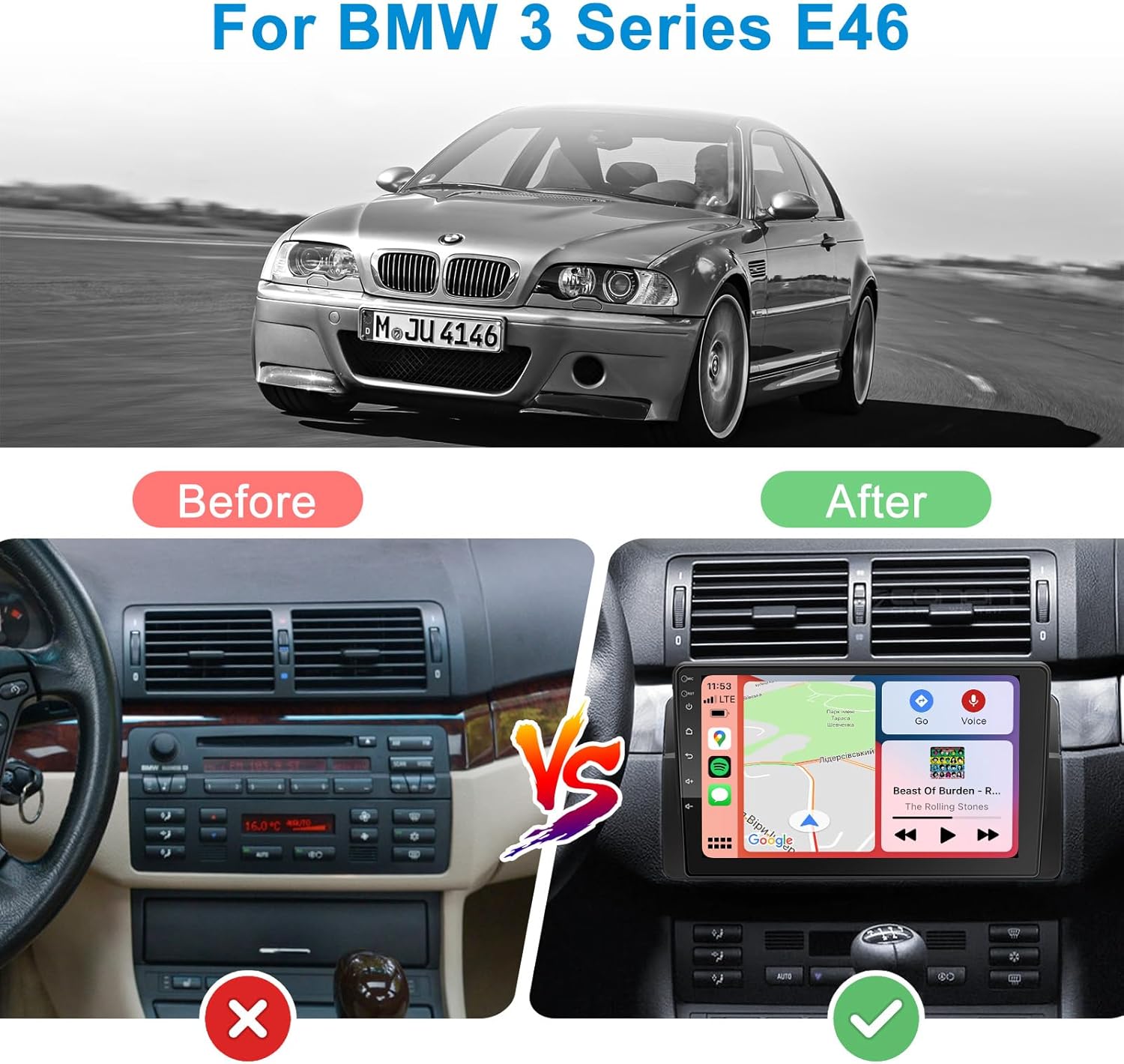
Image: Comparison of the dashboard before and after installation.
This image visually demonstrates the transformation of a BMW E46 dashboard. The "Before" section shows the original factory radio and climate controls, while the "After" section displays the new Woibugee Android Car Radio seamlessly integrated into the dashboard, highlighting the modern upgrade.
3. Wiring Connections
Connect the provided wiring harnesses to the corresponding ports on the new head unit and your vehicle's wiring. Ensure all connections are secure.
- Power Harness: Connect the main power harness to the vehicle's power connector.
- RCA Cables: Connect RCA cables for external amplifiers, subwoofers, or auxiliary inputs/outputs.
- GPS Antenna: Mount the GPS antenna in a location with a clear view of the sky (e.g., dashboard, A-pillar).
- USB Cables: Route the USB cables to a convenient location for connecting USB devices.
- External Microphone: Connect the external microphone for improved call quality.
- Radio Antenna: Connect the radio antenna adapter and then the vehicle's antenna.
- Canbus Decoder: Connect the Canbus decoder as per the diagram. This enables steering wheel controls and other vehicle data integration.
- Reverse Camera Input: If installing a reverse camera (not included), connect its video signal to the dedicated input.

Image: Dual Bluetooth Chips.
This image illustrates the presence of dual Bluetooth chips (BT 4.1 and BT 5.0) within the head unit, highlighting their respective functionalities such as tethering internet, Bluetooth OBD device connection, Bluetooth mouse support, wireless CarPlay, Bluetooth music streaming, and phone calls.
4. Testing and Reassembly
Before fully reassembling the dashboard, reconnect the vehicle's battery and power on the unit to test all functions (radio, GPS, Bluetooth, touch screen, steering wheel controls). Once confirmed, carefully reassemble the dashboard trim.
Operating Instructions
Basic Operation
- Power On/Off: Press and hold the power button (usually labeled with a power icon) to turn the unit on or off. A short press typically mutes/unmutes audio.
- Volume Control: Use the physical volume buttons or the on-screen controls to adjust the audio level.
- Home Button: Press the home button to return to the main Android interface.
- Return Button: Press the return button to go back to the previous screen or menu.
Wireless Apple CarPlay & Android Auto
The unit supports wireless Apple CarPlay and Android Auto for seamless smartphone integration. This allows you to access navigation, music, messages, and calls directly from the head unit's display.

Image: Wireless CarPlay & Android Auto Interface.
This image showcases the user interface for both wireless Apple CarPlay and Android Auto. It highlights voice command capabilities with examples like "Hello Google," "Navigate Home," "Play Music," and "Call Jane." The display shows typical app icons for phone, music, maps, messages, and other compatible applications, demonstrating the integrated smartphone experience.
- Ensure Bluetooth and Wi-Fi are enabled on your smartphone.
- On the head unit, navigate to the CarPlay/Android Auto application.
- Follow the on-screen prompts to pair your phone via Bluetooth. Once paired, the system will automatically establish a Wi-Fi connection for wireless CarPlay/Android Auto.
- Use voice commands (Siri/Google Assistant) or the touchscreen to control functions.
GPS Navigation & WiFi Hotspot
The unit has a built-in GPS module and supports Wi-Fi connectivity for online navigation and app downloads.

Image: GPS Navigation and WiFi Hotspot.
This image illustrates the GPS navigation capabilities of the unit, showing a detailed map with route guidance and speed limit information. It also highlights the Wi-Fi functionality, indicating that the device can connect to a Wi-Fi hotspot for online services, including real-time navigation updates and streaming content.
- Navigation: Use the pre-installed navigation app or download your preferred app from the Google Play Store. The unit supports offline maps.
- WiFi: Connect to your phone's hotspot or a public Wi-Fi network to access online features, download apps, and stream content.
Bluetooth Functions
With dual Bluetooth (BT 5.0 and BT 4.1), the unit offers hands-free calling and audio streaming.
- Hands-Free Calling: Pair your phone via Bluetooth to make and receive calls directly from the head unit. Access your phonebook and call history.
- Audio Streaming: Stream music from your smartphone or other Bluetooth-enabled devices to the car radio.
- BT 4.1: Supports tethering internet, Bluetooth OBD devices, and Bluetooth mouse.
- BT 5.0: Primarily for wireless CarPlay, Bluetooth music, and phone calls.
Radio (AM/FM/RDS)
Access local radio stations with AM/FM tuning and RDS support.
Image: FM+AM+RDS Radio Interface.
This image displays the radio interface, showing FM and AM frequency bands. It highlights the RDS (Radio Data System) support, which allows for the display of station information and song titles where available. Users can customize radio station names for easier identification.
- Tune to your desired frequency using the on-screen controls.
- Save your favorite stations as presets for quick access.
- RDS (Radio Data System) provides additional information like station name, song title, and traffic announcements where available.
Other Features

Image: Overview of Key Features.
This composite image showcases several key functionalities of the car radio. It includes sections for AM/FM Radio, Built-in DSP (Digital Sound Processor) with an equalizer interface, Bluetooth connectivity, Reverse Camera Input (showing a rear view), Picture-in-Picture mode (displaying two applications simultaneously), and Steering Wheel Controls, illustrating how the unit integrates with vehicle functions.
- DSP (Digital Sound Processor) & 32-Band EQ: Adjust audio settings with the built-in DSP and 32-band equalizer for a customized sound experience.
- Split Screen: Run two applications simultaneously on the 9-inch display (e.g., navigation and music player).
- Steering Wheel Controls: The unit supports your vehicle's original steering wheel controls for safe and convenient operation.
- Reverse Camera Input: Connect an aftermarket reverse camera (not included) for enhanced parking safety. The display automatically switches to the camera view when reversing.
- USB Ports: Two USB ports are available for media playback, charging devices, or connecting other USB accessories.
Maintenance
- Cleaning: Use a soft, dry cloth to clean the screen and unit. For stubborn marks, slightly dampen the cloth with water. Avoid abrasive cleaners or solvents.
- Software Updates: Periodically check the manufacturer's website or the unit's settings for available software updates to ensure optimal performance and access to new features.
- Temperature: Do not expose the unit to extreme temperatures. If the car has been parked in very hot or cold conditions, allow the interior to normalize before operating the device.
Troubleshooting
| Problem | Possible Cause | Solution |
|---|---|---|
| Unit does not power on. | No power connection; Blown fuse; Incorrect wiring. | Check power harness connection; Inspect vehicle's fuse box; Verify wiring according to diagram. |
| No sound. | Volume too low; Mute activated; Speaker wires disconnected; Amplifier issue. | Increase volume; Deactivate mute; Check speaker connections; Verify external amplifier (if used). |
| CarPlay/Android Auto not connecting wirelessly. | Bluetooth/Wi-Fi off on phone; Incorrect pairing; Software glitch. | Ensure phone's Bluetooth/Wi-Fi is on; Re-pair the device; Restart both phone and head unit. |
| GPS signal lost or inaccurate. | GPS antenna obstructed or disconnected; Poor satellite coverage. | Ensure GPS antenna has clear view of sky; Check antenna connection; Move vehicle to open area. |
| Steering wheel controls not working. | Canbus decoder not connected or faulty; Incorrect settings. | Verify Canbus decoder connection; Check steering wheel control settings in unit's menu. |
Specifications

Image: Display and Hardware Specifications.
This image highlights the technical specifications of the car radio, including its 1280x720 QLED display for better picture quality. It also details the internal hardware: an 8-core 8*A55 processor, 2GB RAM + 32GB ROM, 5GHz WiFi & 4G Network support, 28-nanometer process technology, and DSP with 32-band equalizer.
- Display Size: 9 inches
- Display Resolution: 1280 x 720 QLED
- Operating System: Android (Version not specified, but implied by "Android Car Radio")
- Processor: 8-Core (8*A55)
- RAM: 2GB
- Internal Storage (ROM): 32GB
- Connectivity:
- Wireless Apple CarPlay
- Wireless Android Auto
- Bluetooth 5.0 (for CarPlay, music, calls)
- Bluetooth 4.1 (for internet tethering, OBD, mouse)
- WiFi (2.4GHz/5GHz)
- GPS Navigation
- USB (x2)
- Audio: DSP (Digital Sound Processor), 32-Band Equalizer
- Radio: AM/FM with RDS support
- Compatible Vehicle Models:
- BMW E46 4-door Sedan (1998-2005)
- BMW E46 2-door Coupe (1999-2006)
- BMW E46 2-door Convertible (1999-2006)
- BMW E46 5-door Touring (1999-2005)
- BMW E46 3-door Hatchback (2000-2004)
- BMW E46 M3 (2000-2006)
- Rover 75 (1999-2005)
- MG ZT (2001-2005)
Warranty and Support
Woibugee products typically come with a standard manufacturer's warranty. Please refer to the warranty card included in your package or contact Woibugee customer support for specific warranty terms and conditions.
For technical assistance, troubleshooting, or any inquiries regarding your product, please contact Woibugee customer support. Contact information can usually be found on the product packaging or the official Woibugee website.

Image: 24H Customer Support.
This image depicts two customer support representatives with headsets, symbolizing the availability of 24-hour customer support via email or WhatsApp for any product-related queries or assistance.