
ABASK Q40S
Abask Dash Cam Q40S Instruction Manual
Model: Q40S
Introduction
This manual provides comprehensive instructions for the installation, operation, and maintenance of your Abask Dash Cam Q40S. Please read this manual thoroughly before using the device to ensure proper functionality and safety. This dual dash cam system is designed to record your journeys in 1080P Full HD, offering enhanced security and peace of mind on the road.
Important Safety Information
- Ensure the dash cam is installed in a location that does not obstruct the driver's view or interfere with airbag deployment.
- Do not operate the device while driving. Adjust settings only when the vehicle is safely parked.
- Use only the original power adapter and cables provided to prevent damage to the device and vehicle.
- Avoid exposing the device to extreme temperatures, direct sunlight for prolonged periods, or excessive moisture.
- Regularly format the Micro SD card to ensure optimal recording performance and prevent data corruption.
Package Contents
Please verify that all items listed below are included in your package:
- Dual Dash Cam x1
- Cigarette Lighter Adapter (3.5m) x1
- Mini USB Cable (0.5m) x1
- Suction Cup Mount x1
- Crowbar x1
- Cable Clamps x1
- 32GB Micro SD Card x1
- User Manual x1

Image: All components included in the Abask Dash Cam Q40S package.
Product Overview
The Abask Dash Cam Q40S is a comprehensive recording solution for your vehicle, featuring a 4-inch IPS screen and advanced functionalities to capture critical moments on the road.

Image: The Abask Dash Cam Q40S main unit with its suction mount and rear camera.

Image: Illustration of the front and rear recording functionality.
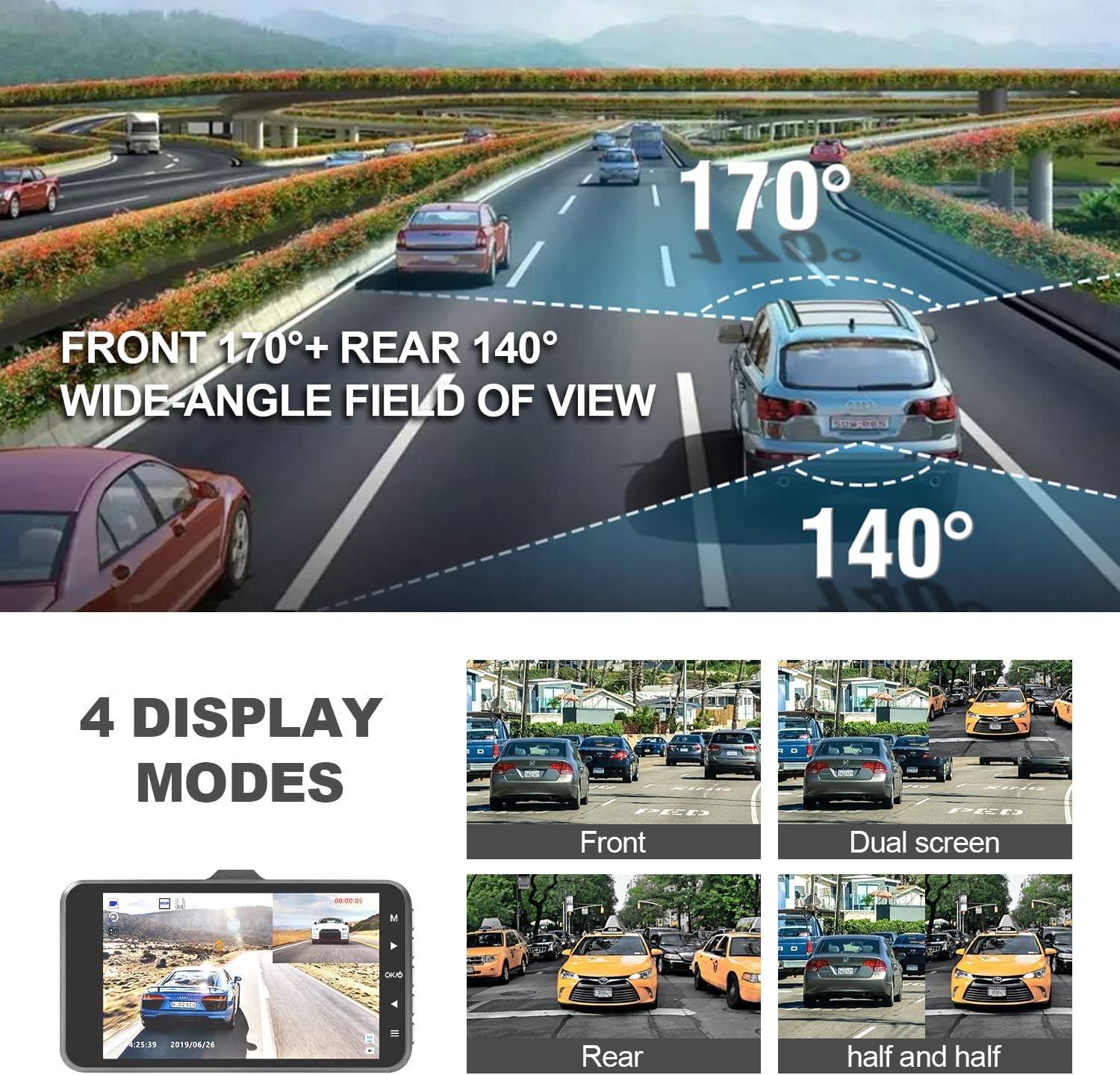
Image: Visual representation of the wide-angle field of view for both front and rear cameras.

Image: Key features such as Loop Recording, G-Sensor, Parking Guard, and Reverse Parking Assistance.
Setup Guide
Follow these steps for proper installation and initial setup of your dash cam:
- Format the Micro SD Card: Before first use, insert the provided 32GB Micro SD card into the dash cam. Navigate to the settings menu on the device and select the 'Format' option to prepare the card for recording. This ensures optimal performance and prevents data corruption.
- Clean the Windshield: Use a clean cloth to wipe the area on your windshield where the dash cam will be mounted. Ensure it is free of dust and grease for a secure attachment.
- Attach Suction Cup to Windshield: Securely attach the suction cup mount to the cleaned area of your windshield. Ensure it is positioned to provide an unobstructed view for the camera and does not block your driving visibility.
- Route and Hide Cables: Connect the power cable to the dash cam. Carefully route the cable along the edge of the windshield and down the A-pillar to the cigarette lighter socket. Use the provided crowbar and cable clamps to tuck the cable neatly and securely, preventing interference with driving.
- Install the Rear Camera (Optional): If using the rear camera, connect its cable to the main dash cam unit. Route the cable along the vehicle's interior trim to the rear windshield. Secure the rear camera to the rear windshield using its adhesive mount.
- Plug in the Cigarette Lighter Adapter: Insert the cigarette lighter adapter into your vehicle's 12V power socket. The dash cam will automatically power on and begin recording when the vehicle's ignition is turned on.
Video: A detailed guide on how to format the Micro SD card, install the dash cam using the suction cup mount, route and hide cables, and connect the power adapter. This video also demonstrates basic operation and playback.

Image: Visual guide for routing and hiding the dash cam cables in a vehicle.
Operating Instructions
Understand the various functions and modes of your Abask Dash Cam Q40S.
Basic Operation
- Automatic Recording: The dash cam automatically starts recording when the vehicle's ignition is turned on and stops when the ignition is turned off.
- Manual Recording: Press the 'OK' button to manually start or stop recording.
- Switching Modes: Use the 'M' button to switch between video recording, camera (still photo), and playback modes.
- Playback Footage: In playback mode, use the up/down arrow buttons to navigate through recorded files and the 'OK' button to play or pause.
Key Features
- Loop Recording: The dash cam records video in continuous loops. When the memory card is full, the oldest unlocked files are overwritten.
- G-Sensor (Emergency Accident Lock): In the event of a sudden impact or collision, the built-in G-Sensor automatically detects the event and locks the current video file, preventing it from being overwritten.
- Parking Monitor: When enabled, the dash cam will automatically start recording if it detects a collision or vibration while the vehicle is parked. This feature requires a continuous power supply (e.g., hardwire kit, not included).
- Motion Detection: When enabled, the dash cam will start recording when motion is detected in front of the camera. This is useful for monitoring your vehicle when parked.
- Wide Dynamic Range (WDR): WDR technology balances exposure, providing clearer video footage in various lighting conditions, including low light and strong backlight.
- Night Vision: Enhanced night vision capabilities ensure clear recordings even in low-light environments.
- Reverse Assist: When the rear camera is connected and the vehicle is in reverse, the display will automatically show the rear view with parking guidelines.
Video: An overview of the Abask Q40S Dash Cam's key features, including its 4-inch HD display, 1080P FHD recording, wide view angle, G-sensor, emergency accident lock, reversing camera, and 24-hour parking monitor.

Image: Features contributing to excellent night vision, including WDR and a 6-layer HD lens.
Maintenance
Proper maintenance ensures the longevity and optimal performance of your dash cam:
- Micro SD Card: Format the Micro SD card at least once a month to maintain optimal performance and prevent data corruption. Use a high-speed (Class 10 or higher) Micro SD card from a reputable brand.
- Cleaning: Use a soft, dry cloth to clean the camera lens and screen. Do not use abrasive cleaners, solvents, or chemical sprays, as these can damage the device.
- Temperature: Avoid leaving the dash cam in direct sunlight for extended periods, especially in hot weather, as this can affect battery life and device performance. Store the device in a cool, dry place when not in use.
Troubleshooting
If you encounter any issues with your Abask Dash Cam Q40S, refer to the table below for common problems and their solutions:
| Problem | Solution |
|---|---|
| Dash cam does not turn on. | Ensure the power cable is securely connected to the dash cam and the cigarette lighter socket. Check if the vehicle's 12V power socket is functioning. Test with another 12V device if possible. |
| Recording stops automatically. | The Micro SD card may be full or corrupted. Format the card regularly. Ensure you are using a Class 10 or higher Micro SD card (max 32GB). Replace the card if issues persist. |
| Video footage is blurry or unclear. | Clean the camera lens with a soft cloth. Ensure the protective film has been removed from the lens. Check if the dash cam is securely mounted and not vibrating excessively. |
| G-Sensor is too sensitive/not sensitive enough. | Adjust the G-Sensor sensitivity setting in the device menu. Lower sensitivity for fewer accidental locks, higher for more responsive detection. |
| Rear camera is not displaying. | Ensure the rear camera cable is securely connected to both the main dash cam unit and the rear camera. Check for any kinks or damage in the cable. |
Specifications
- Model: Q40S
- Display: 4-inch IPS Screen
- Video Capture Resolution: 1080p Full HD
- Front Camera Field of View: 170 degrees
- Rear Camera Field of View: 140 degrees
- Storage: Supports up to 32GB Micro SD card (32GB included)
- Special Features: G-Sensor, Night Vision, WDR, Accident Lock, Loop Recording, Parking Monitor, Motion Detection, Reverse Assist
- Connectivity: USB
- Power Source: Cigarette Lighter Adapter (12V)
- Battery: 1 Lithium Polymer battery (included)
- Product Dimensions: 7.91 x 4.45 x 2.91 inches
- Item Weight: 0.001 ounces
Warranty and Support
Abask products come with a standard manufacturer's warranty. For detailed warranty information, technical support, or service inquiries, please refer to the contact information provided on the product packaging or visit the official Abask website. Please retain your proof of purchase for warranty claims.
Manufacturer: ABASK
Brand Store: Visit the ABASK Store on Amazon
Related documentsQ40S


Ask a question about this manual
Ask about setup, troubleshooting, compatibility, parts, safety, or missing instructions. Manuals+ will review the question and use this page’s manual context to help answer it.