
Introduction
This manual provides detailed instructions for setting up, operating, maintaining, and troubleshooting your TECURS MK206 Wireless Gaming Mechanical Keyboard. Please read this manual thoroughly to ensure proper use and to maximize your keyboard's features.
Product Overview
The TECURS MK206 is an 80% TKL (Tenkeyless) mechanical keyboard designed for gaming and daily use, offering versatile connectivity options and customizable RGB lighting.
Key Features:
- Triple Connection Modes: USB-C Wired, 2.4G Wireless, Bluetooth (up to 3 devices).
- 87-Key Compact Layout.
- Red Mechanical Switches for quiet and fast actuation.
- 18 Colorful RGB Backlit Effects with adjustable speed and brightness.
- Programmable Software (Windows only) for lighting and key customization.
- Ergonomic Design with adjustable tilt angles.
- Durable Rechargeable Battery.
- N-Key Rollover.
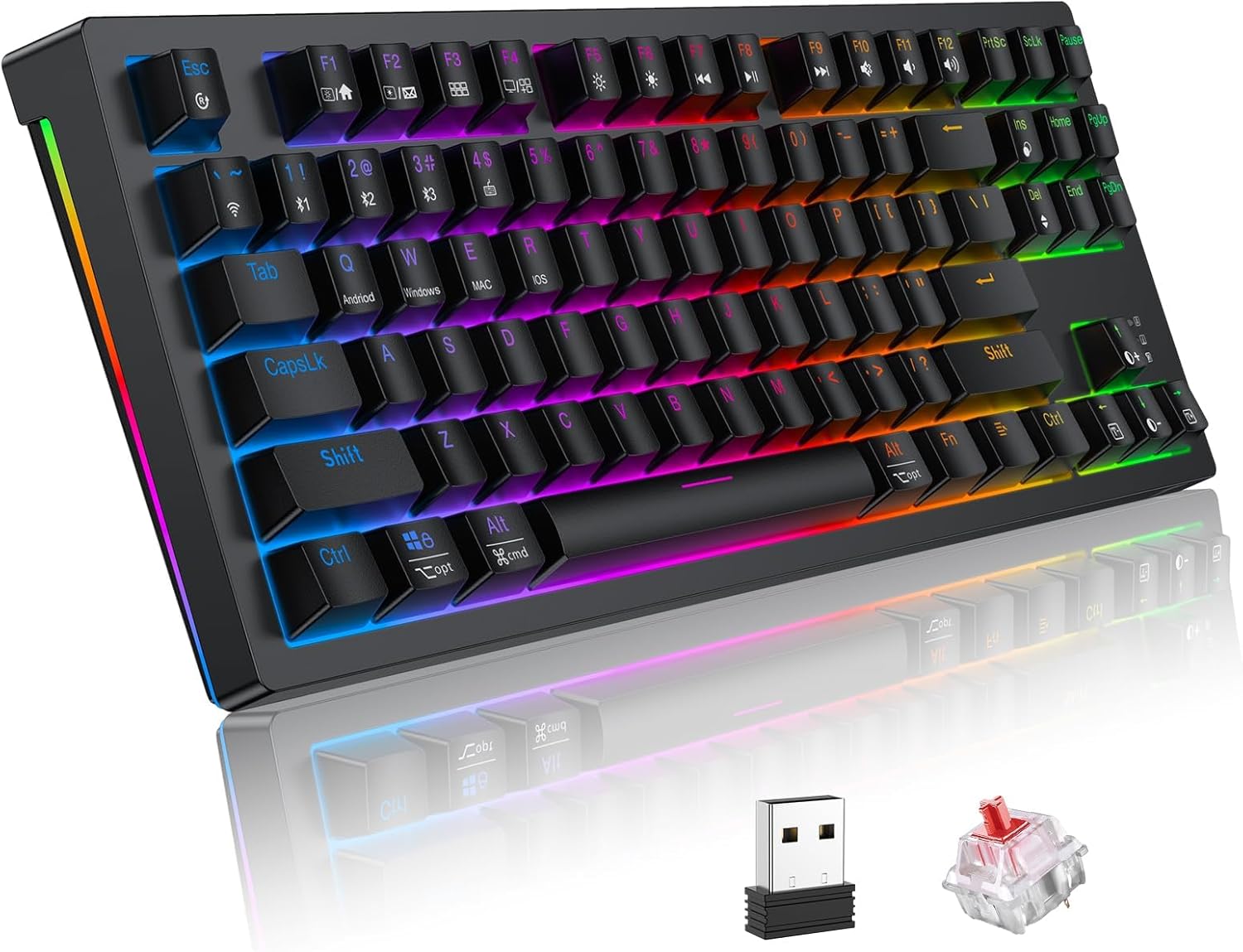
Image: TECURS MK206 Wireless Gaming Mechanical Keyboard, showcasing its compact design, included USB dongle, and a sample red mechanical switch.
Setup
Package Contents:
- TECURS MK206 Mechanical Keyboard
- USB-C Cable
- 2.4G Wireless Receiver
- Keycap Puller
- User Manual (this document)
Connecting Your Keyboard:
The keyboard supports three connection modes: Wired, 2.4G Wireless, and Bluetooth.
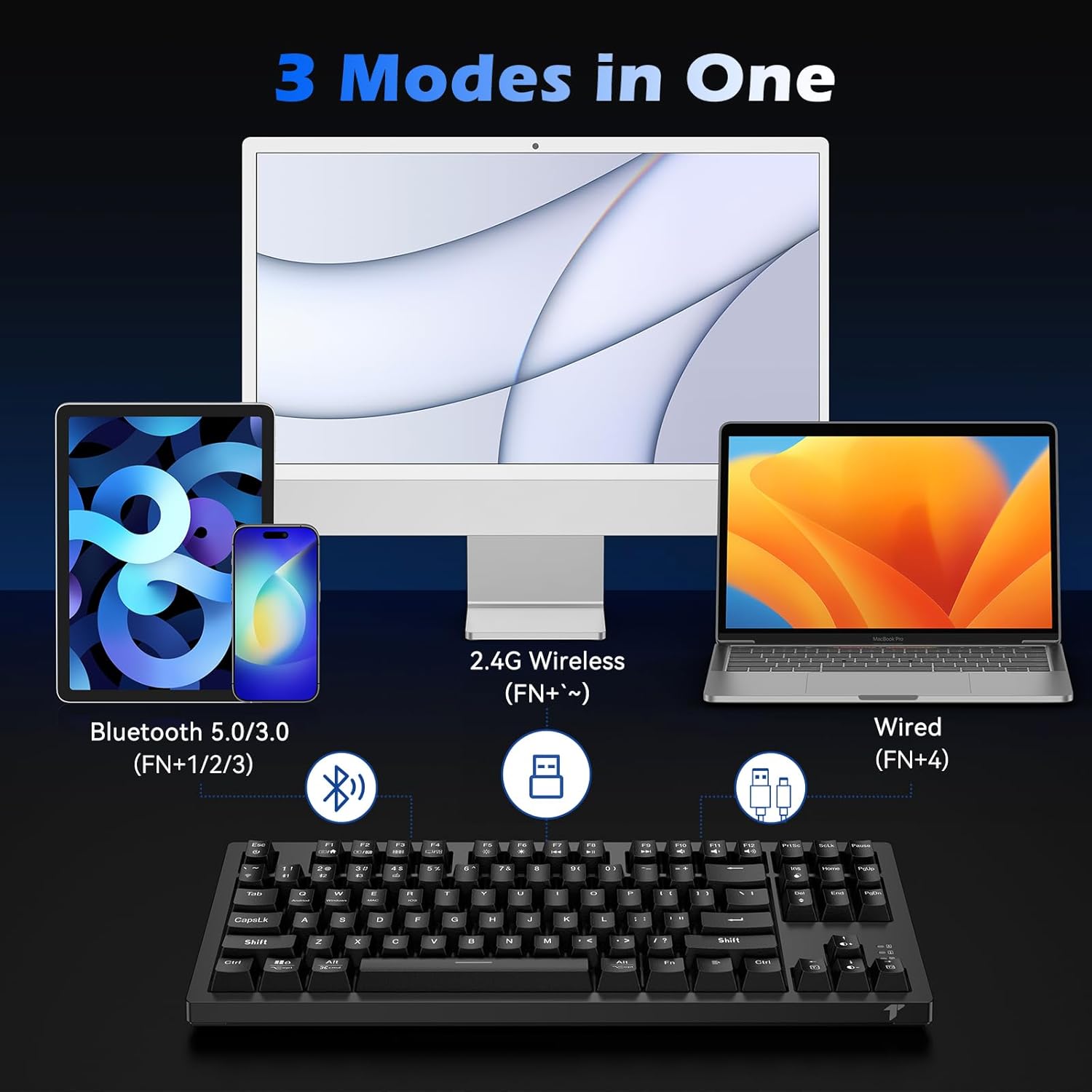
Image: Diagram illustrating the three connection modes: Bluetooth 5.0/3.0, 2.4G Wireless, and USB-C Wired.
1. Wired Mode (Fn+4):
Connect the provided USB-C cable from the keyboard to an available USB port on your computer. The keyboard will automatically switch to wired mode and begin charging.
2. 2.4G Wireless Mode (Fn+~):
Insert the 2.4G wireless receiver into a USB port on your computer. Turn on the keyboard. Press Fn + ~ (tilde key) to activate 2.4G wireless mode. The keyboard should connect automatically.
3. Bluetooth Mode (Fn+1, Fn+2, or Fn+3):
The keyboard can store up to three Bluetooth devices.
- Turn on the keyboard.
- Press and hold Fn + 1 (or 2, or 3) for 3-5 seconds until the indicator light flashes rapidly, indicating pairing mode.
- On your device (PC, Mac, Tablet, Smartphone), search for Bluetooth devices and select "TECURS Keyboard" (or similar name).
- Once connected, the indicator light will stop flashing.
- To switch between paired Bluetooth devices, simply press Fn + 1, Fn + 2, or Fn + 3.
Operating Instructions
RGB Backlighting Control:
The keyboard features 18 colorful RGB backlight effects.
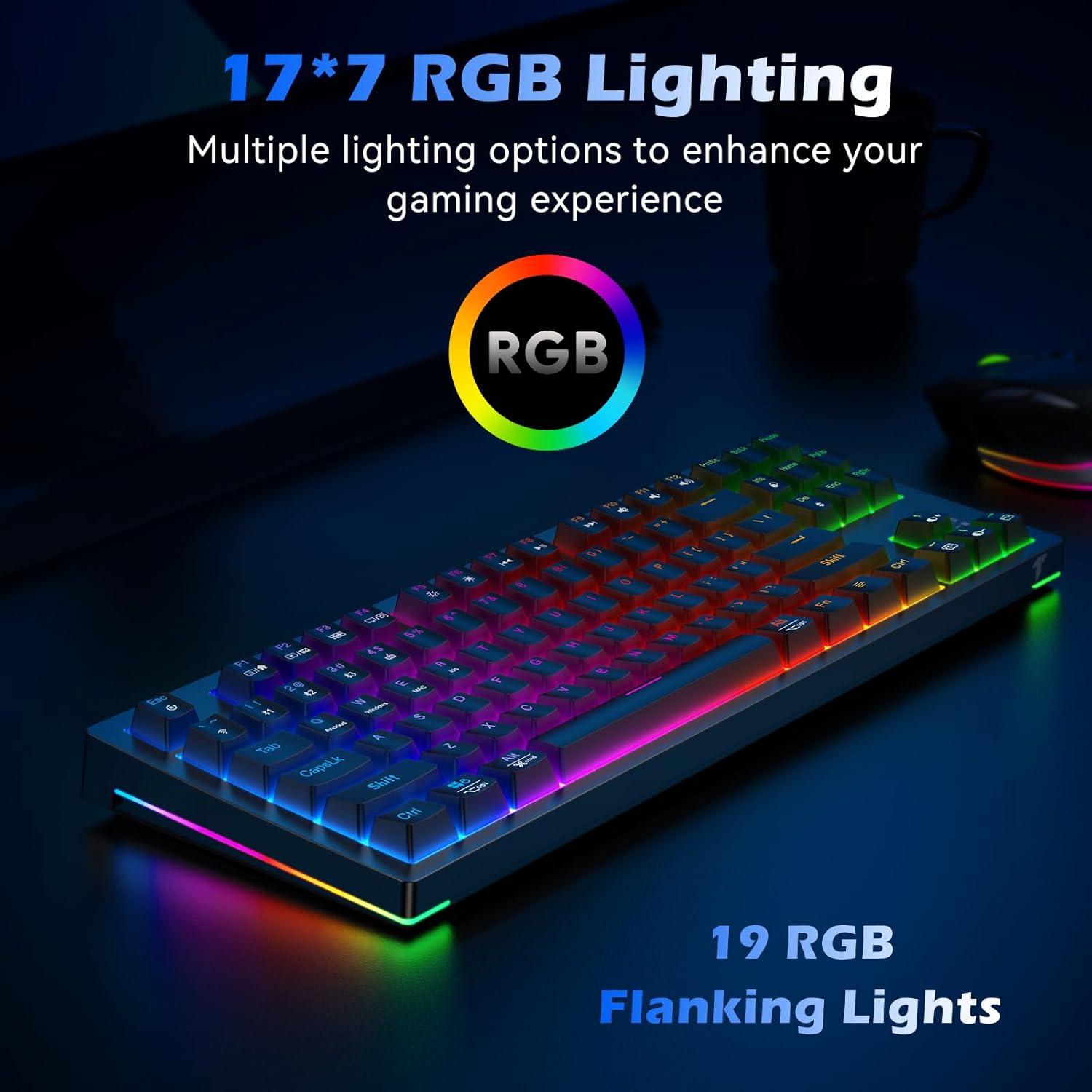
Image: The TECURS MK206 keyboard illuminated with vibrant RGB backlighting, highlighting the 19 RGB flanking lights.
- Fn + Ins: Cycle through backlight modes.
- Fn + Del: Change backlight colors (for certain modes).
- Fn + PgUp: Increase backlight brightness.
- Fn + PgDn: Decrease backlight brightness (can turn off).
- Fn + Left Arrow: Decrease backlight speed.
- Fn + Right Arrow: Increase backlight speed.
Multimedia and Function Keys:
Use the Fn key in combination with the F-keys for multimedia and system functions.

Image: Close-up of the keyboard's F-keys, illustrating their dual functions when combined with the Fn key, including media controls and lighting adjustments.
| Key Combination | Function |
|---|---|
| Fn + F1 | My Computer |
| Fn + F2 | Search |
| Fn + F3 | Calculator |
| Fn + F4 | Media Player |
| Fn + F5 | Previous Track |
| Fn + F6 | Next Track |
| Fn + F7 | Play/Pause |
| Fn + F8 | Stop |
| Fn + F9 | Mute |
| Fn + F10 | Volume Down |
| Fn + F11 | Volume Up |
| Fn + F12 | Lock Keyboard |
| Fn + Win | Lock/Unlock Windows Key |
Programmable Software (Windows Only):
For advanced customization of lighting effects and key functions, download the dedicated software from the official TECURS website.
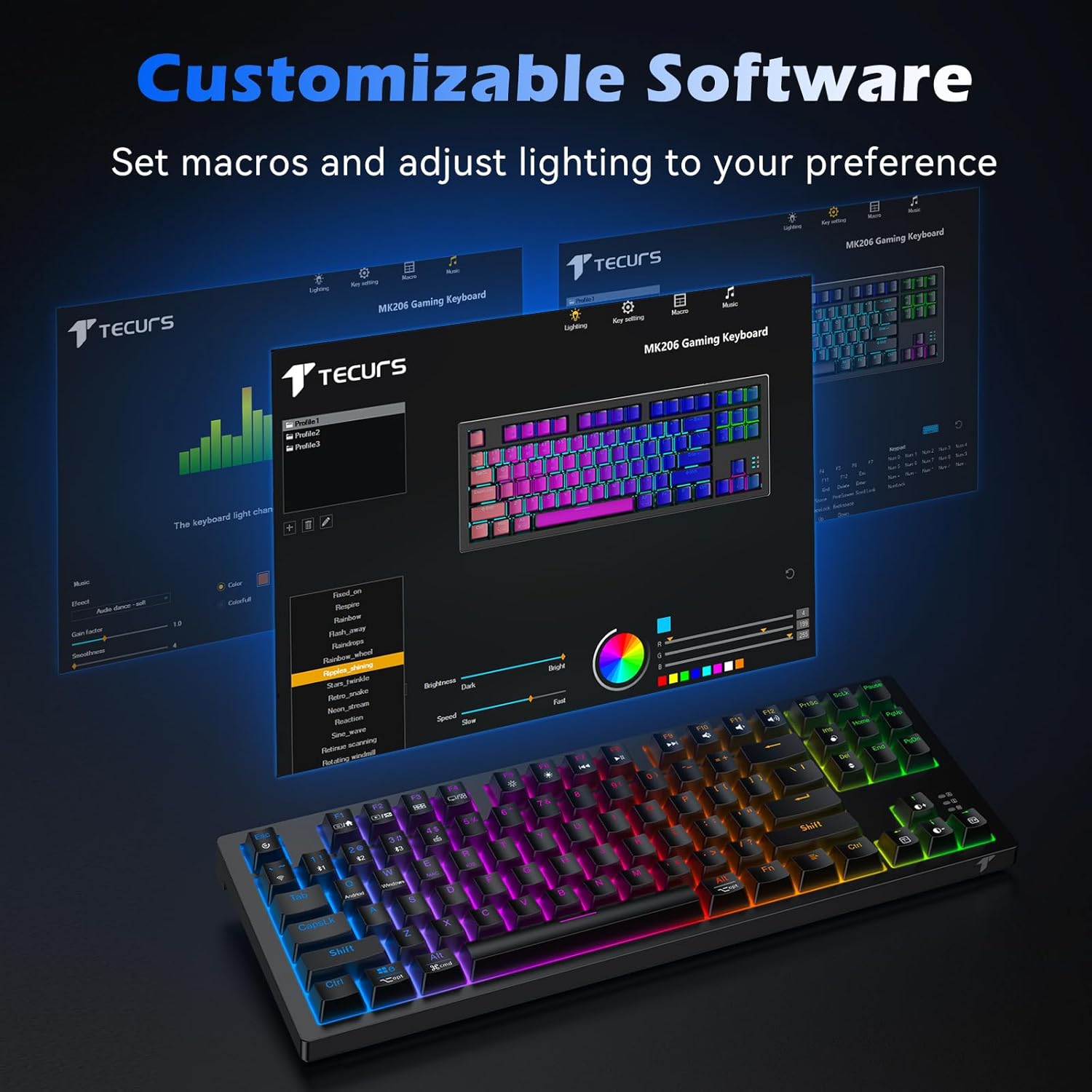
Image: Screenshot of the TECURS MK206 Gaming Keyboard's customizable software interface, showing options for macro settings and lighting adjustments.
Note: The programmable software is not compatible with Mac systems.
Maintenance
Cleaning:
To clean your keyboard, disconnect it from all power sources. Use a soft, dry cloth to wipe down the keycaps and chassis. For deeper cleaning, you can use a keycap puller (included) to remove keycaps and clean underneath with a small brush or compressed air.

Image: Hands using a keycap puller and a small brush to clean the TECURS MK206 keyboard, demonstrating how to maintain the mechanical switches.
Battery Care:
The keyboard has a built-in rechargeable lithium battery.
- Charge the keyboard using the provided USB-C cable.
- To conserve battery life, turn off the RGB lighting (Fn + PgDn repeatedly) or switch off the keyboard when not in use.
- Avoid exposing the keyboard to extreme temperatures.
Troubleshooting
Common Issues and Solutions:
- Keyboard not responding:
1. Ensure the keyboard is charged. Connect it via USB-C cable to check if it works in wired mode.
2. For wireless modes, ensure the correct mode is selected (Fn + ~ for 2.4G, Fn + 1/2/3 for Bluetooth).
3. For 2.4G, ensure the USB receiver is properly inserted.
4. For Bluetooth, ensure your device's Bluetooth is on and the keyboard is paired. Try re-pairing if necessary.
5. Try restarting your computer.
- RGB lighting not working or stuck:
1. Ensure the backlight is not turned off (Fn + PgDn).
2. Try cycling through different lighting modes (Fn + Ins).
3. If using the programmable software, ensure settings are correctly applied.
- Keys not registering or double-typing:
1. Clean under the affected keycaps (refer to Maintenance section).
2. Ensure the keyboard firmware is up to date (check TECURS official website).
3. If the issue persists, it may indicate a hardware problem.
- Programmable software not detecting keyboard:
1. Ensure the keyboard is connected via USB-C wired mode when using the software.
2. Verify you have downloaded the correct software version from the TECURS official website.
3. The software is only compatible with Windows systems.
Video: An official product video from Tecurs Mall demonstrating the TECURS Gaming Keyboard's Bluetooth Mechanical features for PC/XBOX/PS4. This video highlights the keyboard's multi-device compatibility and mechanical key action.
Specifications
| Feature | Detail |
|---|---|
| Model Number | MK206 |
| Dimensions | 14.4 x 5.3 x 1.4 inches |
| Item Weight | 1.7 pounds |
| Connectivity | Bluetooth / 2.4G Wireless / Wired (USB-C) |
| Number of Keys | 87 |
| Switch Type | Red Mechanical Switches |
| Backlighting | RGB (18 effects) |
| Battery | 1 Lithium Ion battery required (built-in rechargeable) |
| Compatible Devices | Laptop, PC, Xbox, Tablet, Smartphone |
| Operating Systems | Windows XP/Vista/7/8/10/11, Mac OS, Linux OS, Android |
Warranty and Support
For warranty information and technical support, please visit the official TECURS website or contact their customer service. Keep your purchase receipt for warranty claims.
Official TECURS Store: TECURS Amazon Store


