
NETUM C750
NETUM C750 QR Code Scanner User Manual
Model: C750 | Brand: NETUM
1. Product Overview
The NETUM C750 is a versatile mini 2D barcode scanner designed for efficient data capture. It features advanced CMOS sensor technology, enabling it to read both 1D and 2D barcodes (including QR, PDF417, Data Matrix) from various surfaces, including paper and digital screens like computer monitors, smartphones, and tablets. Its compact and portable design, combined with multiple connection options, makes it suitable for inventory management, point-of-sale (POS) systems, and other data collection tasks.
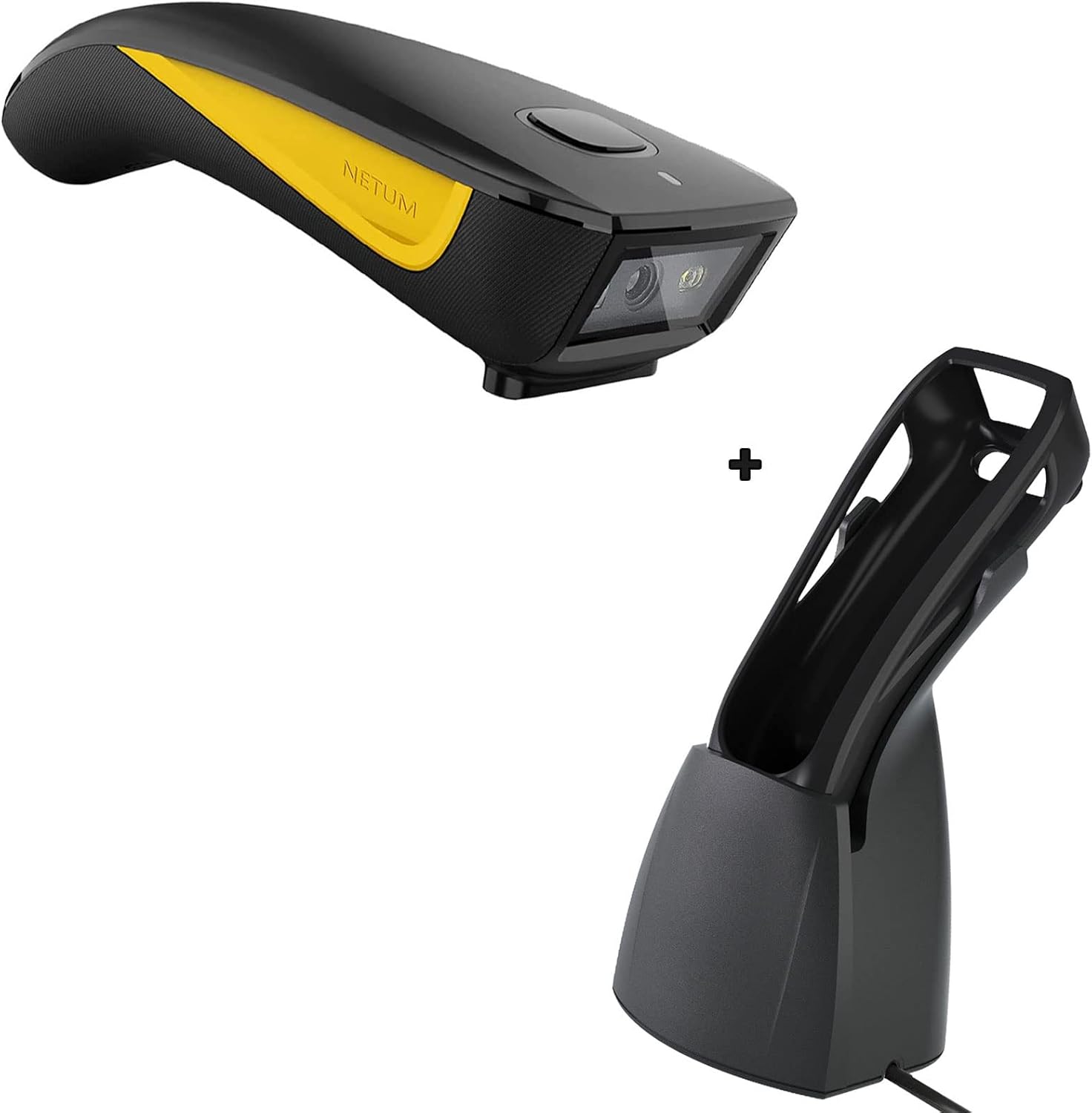
Figure 1.1: NETUM C750 QR Code Scanner and its dedicated charging dock.
2. Package Contents
Please verify that all items are present in your package:
- NETUM C750 QR Code Scanner
- Charging Dock
- USB Type-C Cable
- 2.4G Wireless USB Dongle

Figure 2.1: The NETUM C750 scanner shown with its USB Type-C charging cable and 2.4G wireless USB dongle.

Figure 2.2: The charging dock for the NETUM C750 scanner, designed for convenient charging and hands-free operation.
3. Setup Guide
3.1 Charging the Scanner
Before initial use, fully charge the scanner. Place the scanner into the charging dock. The dock also serves as a charger when the scanner is seated in it. The 1200mAh battery provides approximately 20 hours of continuous scanning.

Figure 3.1: Underside view of the charging dock, showing the cable connection point for power input.
3.2 Connection Modes (3-in-1 Design)
The NETUM C750 offers three connection methods: Bluetooth, 2.4G Wireless, and Wired USB. Choose the mode that best suits your device and environment.

Figure 3.2: The scanner supports USB Wired, 2.4GHz Wireless, and Bluetooth connections, compatible with various devices.
3.2.1 Bluetooth Connection
- Ensure the scanner is powered on.
- Activate Bluetooth on your host device (laptop, PC, mobile phone, tablet, iPhone, iPad).
- Scan the Bluetooth pairing barcode (usually found in the quick start guide or on the scanner itself).
- Select "NETUM C750" from the list of available Bluetooth devices on your host device to pair.
3.2.2 2.4G Wireless Connection
- Insert the 2.4G USB dongle into an available USB port on your computer or POS system.
- Power on the scanner. It should automatically connect to the dongle.
3.2.3 Wired Connection
- Connect the USB Type-C cable to the scanner's port.
- Connect the other end of the USB cable to an available USB port on your computer or POS system.
- The scanner will function as a wired device and also charge simultaneously.
4. Operating the Scanner
4.1 Scanning Modes
The C750 supports multiple scanning modes to suit different operational needs:
- Manual Scan: Press the trigger button to activate the scanner and read a barcode.
- Auto-sensing Scan: The scanner automatically detects a barcode placed in its scanning field and reads it without requiring a trigger press. This mode is ideal for hands-free operation when placed in the charging dock.
- Continuous Scan: The scanner continuously emits its scanning beam, reading any barcode that passes through its field.
4.2 Barcode Compatibility
The imager barcode scanner is equipped with an advanced CMOS sensor capable of easily capturing 1D and 2D barcodes. This includes common formats such as QR codes, PDF417, and Data Matrix codes. It effectively reads barcodes from both printed materials and digital screens.

Figure 4.1: The NETUM C750 scanner in use, demonstrating its ability to read 1D and 2D barcodes. The scanner also supports multi-languages.
5. Maintenance and Care
To ensure the longevity and optimal performance of your NETUM C750 scanner, follow these maintenance guidelines:
- Cleaning: Use a soft, dry cloth to clean the scanner's exterior. For the scanning window, use a lens cleaning cloth to avoid scratches. Do not use abrasive cleaners or solvents.
- Protection: The scanner case is made of soft silicone material, designed to cushion the impact of accidental drops and resist abrasion and scratches. While durable, avoid unnecessary drops or harsh impacts.
- Storage: Store the scanner in a cool, dry place away from direct sunlight and extreme temperatures.
6. Troubleshooting
If you encounter issues with your NETUM C750 scanner, please refer to the following common problems and solutions:
- Scanner not powering on: Ensure the battery is charged. Place the scanner in the charging dock or connect it directly via USB cable.
- Scanner not connecting: Verify the chosen connection mode (Bluetooth, 2.4G, Wired). For Bluetooth, ensure pairing is complete. For 2.4G, ensure the dongle is properly inserted. For wired, check cable connections.
- Scanner not reading barcodes: Ensure the barcode is clean and not damaged. Check if the barcode type is supported (1D/2D). Adjust the distance and angle of the scanner to the barcode. Ensure sufficient lighting.
- Slow or inconsistent scanning: This could be due to low battery. Recharge the scanner. Ensure there are no obstructions between the scanner and the host device in wireless modes.
- No data transmission after scanning: Check if the scanner is successfully connected to your device. Ensure the application you are using is ready to receive input.
For further assistance, please contact NETUM customer support.
7. Technical Specifications

Figure 7.1: Physical dimensions and key features of the NETUM C750 scanner, including its USB Type-C port and hooking ring.
| Feature | Description |
|---|---|
| Model | C750 |
| Brand | NETUM |
| ASIN | B0C39NSXSY |
| Compatible Devices | Desktop, Laptop, Smartphone, Tablet |
| Power Source | Battery Powered, Corded Electric |
| Connectivity Technology | Bluetooth, 2.4G Wireless, Wired USB |
| Battery Capacity | 1200mAh (approx. 20 hours continuous scanning) |
| Barcode Types Supported | 1D/2D (QR, PDF417, Data Matrix, etc.) |
| Sensor Type | CMOS |
8. Warranty and Support
NETUM products are designed for reliability and performance. For information regarding warranty coverage, technical support, or service inquiries, please refer to the warranty card included with your product or visit the official NETUM website. You may also contact NETUM customer support directly for assistance.
For more information about NETUM products, visit the NETUM Brand Store on Amazon.
Related documentsC750


Ask a question about this manual
Ask about setup, troubleshooting, compatibility, parts, safety, or missing instructions. Manuals+ will review the question and use this page’s manual context to help answer it.