
TECURS MK206
TECURS Mechanical Keyboard User Manual
Model: MK206
Introduction
Thank you for choosing the TECURS Mechanical Keyboard. This manual provides essential information for setting up, operating, maintaining, and troubleshooting your new keyboard. Please read it thoroughly before use to ensure optimal performance and longevity of your device.
The TECURS Mechanical Keyboard (Model MK206) is a versatile 80% TKL (Tenkeyless) gaming keyboard featuring red mechanical switches, multi-mode connectivity (2.4G wireless, Bluetooth 5.0/3.0, and wired USB-A), and customizable RGB lighting.
Package Contents
Ensure all items are present in the package:
- TECURS Mechanical Keyboard (MK206)
- USB-A to USB-C Cable
- 2.4G Wireless USB Receiver
- Keycap Puller
- Switch Puller
- User Manual (this document)

Image: The TECURS Mechanical Keyboard, showing the keyboard itself, a USB wireless receiver, and a single red mechanical switch.
Product Overview

Image: Top-down view of the TECURS Mechanical Keyboard, highlighting the key layout and compact TKL design.

Image: Bottom view of the TECURS Mechanical Keyboard, showing the adjustable feet and product label.
Key Features:
- 80% TKL Layout: Compact design without the numeric keypad, saving desk space.
- Red Mechanical Switches: Linear and quiet switches, ideal for gaming and typing, with a lifespan of 50 million clicks.
- Tri-Mode Connectivity:
- 2.4G Wireless (via USB receiver)
- Bluetooth 5.0/3.0 (connect up to 3 devices)
- Wired (USB-C to USB-A cable)
- Customizable RGB Backlighting: 17 preset RGB lighting effects with 7 color options, plus 19 RGB side flank lights.
- N-Key Rollover: Ensures all key presses are registered accurately, even during rapid input.
- Ergonomic Design: Adjustable feet for three different typing angles (6°, 8°, 12°) to reduce wrist strain.
- Programmable Software: Create custom macros and lighting effects.
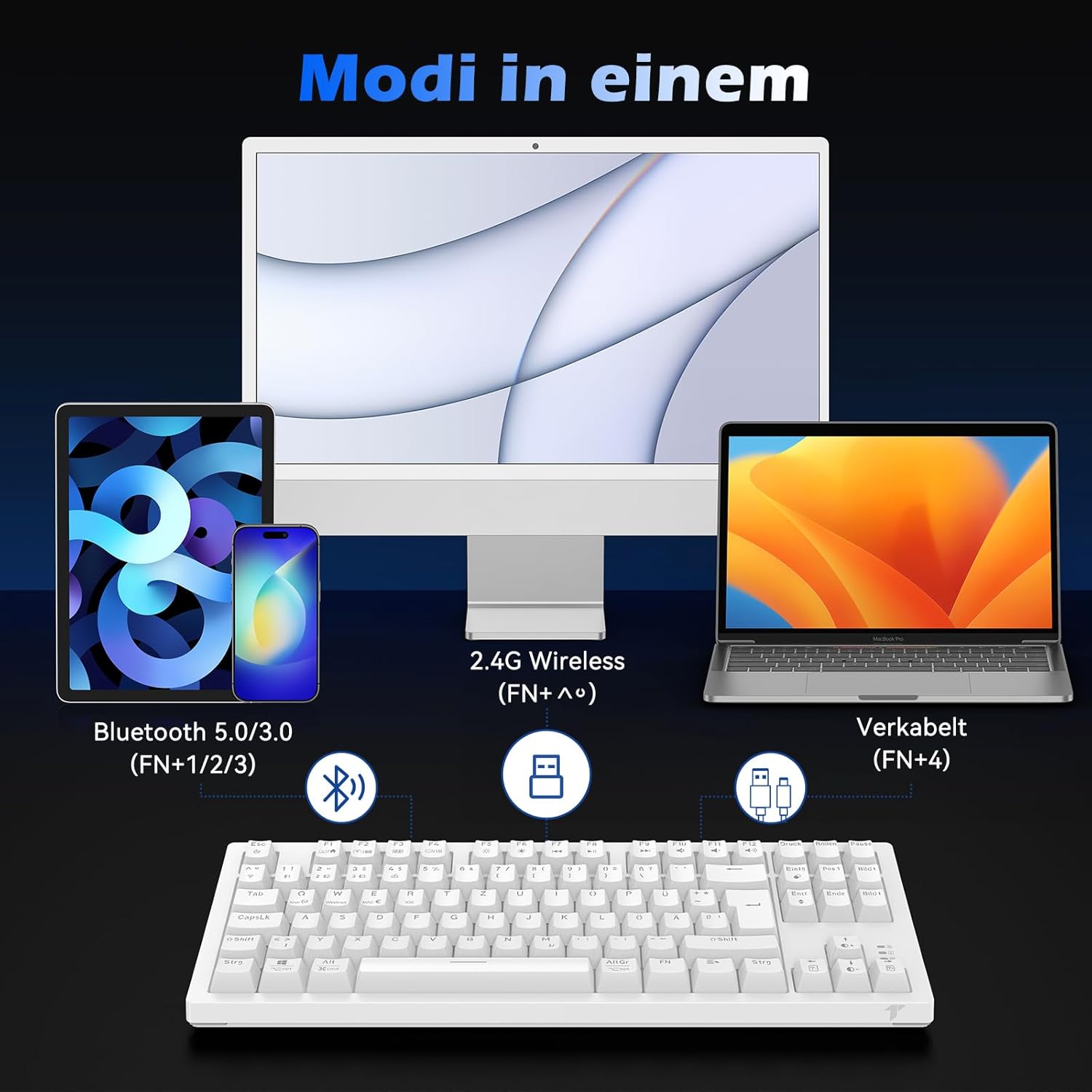
Image: Diagram illustrating the keyboard's multi-mode connectivity options: Bluetooth 5.0/3.0, 2.4G Wireless, and Wired connection, compatible with various devices like PC, tablet, and smartphone.

Image: Close-up view of a red mechanical switch and the keyboard, emphasizing the 50 million click lifespan of the linear red switches.

Image: Illustration of the keyboard's ergonomic design, showing three adjustable height settings (30mm, 36mm, 41mm) and corresponding angles (6°, 8°, 12°) for comfortable typing and gaming.

Image: Graphic depicting the N-Key Rollover feature, showing multiple simultaneous key presses registered on the keyboard, ensuring no input conflicts.
Setup and Connection
1. Wired Connection:
- Connect the provided USB-C cable to the keyboard's USB-C port.
- Connect the USB-A end of the cable to an available USB port on your computer.
- The keyboard will be automatically recognized and ready for use.
- Press FN + 4 to switch to wired mode.
2. 2.4G Wireless Connection:
- Locate the 2.4G USB receiver, usually stored in a compartment on the keyboard's bottom.
- Plug the USB receiver into an available USB port on your computer.
- Turn on the keyboard using the power switch located on the bottom.
- Press FN + ~ (tilde) to switch to 2.4G wireless mode. The indicator light will flash, then become solid when connected.
3. Bluetooth Connection:
- Turn on the keyboard using the power switch.
- Press FN + 1, FN + 2, or FN + 3 to select a Bluetooth channel. The indicator light for the selected channel will flash rapidly, indicating pairing mode.
- On your device (computer, tablet, smartphone), enable Bluetooth and search for new devices.
- Select "TECURS Keyboard" or "MK206" from the list of available devices.
- Once paired, the indicator light will become solid. You can pair up to three different devices and switch between them using FN + 1/2/3.
Operating Instructions
Function Keys (FN Combinations):
The keyboard features a dedicated FN key for accessing secondary functions. Hold down the FN key and press the corresponding key for the desired function.
| Combination | Function |
|---|---|
| FN + 1/2/3 | Switch Bluetooth device (1, 2, or 3) |
| FN + ~ (tilde) | Switch to 2.4G Wireless mode |
| FN + 4 | Switch to Wired mode |
| FN + F1 | My Computer |
| FN + F2 | Search |
| FN + F3 | Calculator |
| FN + F4 | Media Player |
| FN + F5 | Previous Track |
| FN + F6 | Next Track |
| FN + F7 | Play/Pause |
| FN + F8 | Stop |
| FN + F9 | Mute |
| FN + F10 | Volume Down |
| FN + F11 | Volume Up |
| FN + F12 | Lock Keyboard |
| FN + INS (Insert) | Change RGB lighting mode |
| FN + DEL (Delete) | Change single color in static RGB mode |
| FN + Arrow Up | Increase backlight brightness |
| FN + Arrow Down | Decrease backlight brightness |
| FN + Left Arrow | Decrease backlight speed |
| FN + Right Arrow | Increase backlight speed |
| FN + AltGr | Toggle side RGB lights On/Off |
| FN + W | Switch between Windows/Mac layout (changes F-key primary function) |
RGB Lighting Control:
The keyboard offers extensive RGB lighting customization.
- Changing Modes: Press FN + INS to cycle through 17 different preset lighting effects.
- Adjusting Brightness: Use FN + Arrow Up to increase brightness and FN + Arrow Down to decrease brightness.
- Adjusting Speed: Use FN + Left Arrow to slow down the lighting effect and FN + Right Arrow to speed it up.
- Changing Static Color: When in a static color mode, press FN + DEL to cycle through available colors.
- Side RGB Lights: The keyboard features 19 RGB flank lights. Toggle them on or off using FN + AltGr.

Image: The TECURS Mechanical Keyboard illuminated with vibrant RGB backlighting, showcasing the 17*7 RGB lighting options and 19 RGB flank lights.
Software Customization:
For advanced customization, including macro programming and detailed lighting control, download the official TECURS software from the manufacturer's website. The software allows you to:
- Create and assign macros to any key.
- Customize individual key lighting.
- Adjust lighting effects with greater precision.
- Save multiple profiles for different applications or games.

Image: A visual representation of the TECURS keyboard's customizable software interface, showing options for setting macros and personalizing lighting effects.
Maintenance and Care
- Cleaning: Use a soft, dry cloth to wipe the keyboard surface. For deeper cleaning, you can use a can of compressed air to remove dust and debris from between the keycaps.
- Keycap Removal: Use the provided keycap puller to carefully remove keycaps for cleaning or switch replacement. Pull straight up to avoid damaging the switch stem.
- Switch Replacement: The keyboard is hot-swappable. Use the provided switch puller to gently remove switches. Align new switches carefully with the pins before pressing them into place.
- Avoid Liquids: Do not expose the keyboard to liquids. In case of spills, immediately disconnect the keyboard and allow it to dry completely before reconnecting.
- Storage: Store the keyboard in a cool, dry place away from direct sunlight and extreme temperatures.
Troubleshooting
| Problem | Possible Cause | Solution |
|---|---|---|
| Keyboard not responding (Wired) | Loose cable connection; Incorrect mode selected; Driver issue. | Ensure USB cable is securely connected. Press FN + 4 to confirm wired mode. Try a different USB port. Restart your computer. |
| Keyboard not responding (2.4G Wireless) | USB receiver not plugged in; Low battery; Incorrect mode selected; Interference. | Ensure USB receiver is plugged in. Check battery level and charge if necessary. Press FN + ~ to confirm 2.4G mode. Move receiver closer to keyboard or away from other wireless devices. |
| Keyboard not responding (Bluetooth) | Not paired; Incorrect channel selected; Bluetooth disabled on device; Low battery. | Ensure Bluetooth is enabled on your device. Press FN + 1/2/3 to select the correct channel. Re-pair the keyboard if necessary. Charge the keyboard. |
| RGB lighting not working or stuck | Lighting mode issue; Software conflict. | Try cycling through lighting modes with FN + INS. Adjust brightness with FN + Arrow Up/Down. Restart the keyboard. Check software settings if installed. |
| Keys not registering or double-typing | Dust/debris under keycap; Faulty switch. | Remove keycap and clean with compressed air. If issue persists, consider replacing the switch using the provided switch puller. |
Specifications
| Feature | Detail |
|---|---|
| Model | MK206 |
| Dimensions | 14.45 x 5.36 x 1.41 inches |
| Weight | 2.42 pounds |
| Number of Keys | 88 |
| Switch Type | Red Mechanical Switches |
| Connectivity | 2.4G Wireless, Bluetooth 5.0/3.0, Wired (USB-A) |
| Material | Plastic |
| Power Source | USB Powered (Internal Lithium Ion battery included) |
| Compatible Devices | Gaming Console, PC |
Warranty and Support
TECURS products are designed and manufactured to the highest quality standards. For information regarding warranty coverage, technical support, or customer service, please refer to the contact information provided on the product packaging or visit the official TECURS website.
For the latest drivers and software, please visit the TECURS official support page.
Manufacturer: TECURS
Related documentsMK206


Ask a question about this manual
Ask about setup, troubleshooting, compatibility, parts, safety, or missing instructions. Manuals+ will review the question and use this page’s manual context to help answer it.