
Introduction
This manual provides essential information for setting up, operating, and maintaining your Lenovo ThinkVision T24i-30 monitor. The ThinkVision T24i-30 features a 23.8-inch Full HD (1920x1080) IPS display, designed for clear visuals and comfortable viewing with its Natural Low Blue Light technology. Please read this manual thoroughly before using your monitor.
Package Contents
Verify that all items listed below are included in your package:
- ThinkVision T24i-30 Widescreen LED Monitor
- Monitor Stand (Base and Neck)
- Power Cable
- HDMI Cable
- USB-A to USB-B Cable
Setup Instructions
1. Monitor Assembly
Follow these steps to assemble the monitor stand and attach it to the display panel:
- Place the monitor panel face down on a soft, clean surface to prevent scratches.
- Attach the stand neck to the monitor panel by aligning the tabs and pushing until it clicks into place.
- Attach the stand base to the stand neck. Secure it with the captive screw located on the underside of the base.
- Carefully lift the assembled monitor and place it upright on a stable desk or surface.

Figure 1: Assembled Lenovo ThinkVision T24i-30 Monitor. This image shows the monitor fully assembled with its stand, displaying a graphical user interface.
The monitor also supports VESA mounting (100x100mm) for wall or arm mounting. Refer to the VESA mount instructions provided with your mounting kit for details.
2. Connecting the Monitor
Connect the necessary cables to your monitor and computer:
- Power Connection: Connect one end of the power cable to the monitor's power input and the other end to a grounded electrical outlet.
- Video Connection:
- For HDMI: Connect one end of the HDMI cable to the monitor's HDMI port and the other end to the HDMI port on your computer.
- For VGA: Connect one end of the VGA cable to the monitor's VGA port and the other end to the VGA port on your computer.
- USB Connection (Optional): Connect the USB-A to USB-B cable from your computer's USB-A port to the monitor's USB-B upstream port to enable the monitor's integrated USB-A ports.

Figure 2: Rear Ports of the ThinkVision T24i-30 Monitor. This image illustrates the location of the power input, video input (HDMI, VGA), and USB ports on the back of the monitor.
Operating Instructions
1. Power On/Off
Press the power button, usually located on the front or bottom right of the monitor, to turn the monitor on or off. The power indicator light will illuminate when the monitor is on.
2. On-Screen Display (OSD) Menu
The OSD menu allows you to adjust various monitor settings. Access the OSD menu by pressing the OSD button (refer to your monitor's physical buttons for exact location, typically near the power button). Use the navigation buttons to:
- Navigate through menu options.
- Select options.
- Adjust values (e.g., brightness, contrast).
- Exit the OSD menu.
Common OSD settings include:
- Brightness/Contrast: Adjust the display's luminance and contrast levels.
- Input Selection: Manually switch between HDMI and VGA inputs.
- Color Settings: Modify color temperature, gamma, and other color-related parameters.
- Picture Mode: Select predefined display modes (e.g., Standard, Movie, Gaming).
- OSD Settings: Adjust OSD language, transparency, and timeout.
Maintenance
Proper maintenance ensures the longevity and optimal performance of your monitor.
- Cleaning the Screen:
- Turn off the monitor and unplug the power cord.
- Use a soft, lint-free cloth lightly dampened with water or a specialized screen cleaner.
- Wipe the screen gently. Avoid using harsh chemicals, abrasive cleaners, or direct spraying onto the screen.
- Cleaning the Casing: Use a soft, dry cloth to wipe the monitor casing.
- Ventilation: Ensure the monitor's ventilation openings are not blocked to prevent overheating.
- Storage: If storing the monitor for an extended period, disconnect all cables and store it in a cool, dry place, preferably in its original packaging.
Troubleshooting
If you encounter issues with your monitor, refer to the following common problems and solutions:
| Problem | Possible Solution |
|---|---|
| No image on screen |
|
| Image is blurry or distorted |
|
| Colors are incorrect or faded |
|
| Monitor does not turn on |
|
If the problem persists after trying these solutions, contact Lenovo support for further assistance.
Specifications
Key technical specifications for the Lenovo ThinkVision T24i-30 monitor:
| Feature | Detail |
|---|---|
| Screen Size | 23.8 Inches |
| Panel Type | IPS |
| Resolution | 1920 x 1080 (Full HD) |
| Aspect Ratio | 16:9 |
| Brightness | 250 nits |
| Response Time | 4 ms |
| Refresh Rate | 60 Hz |
| Color Gamut | 99% sRGB |
| Video Inputs | 1x HDMI, 1x VGA |
| USB Ports | 1x USB-B (upstream), Multiple USB-A (downstream) |
| VESA Mount Compatible | Yes (100x100mm) |
| Low Blue Light | Natural Low Blue Light Technology |
| Dimensions (LxWxH) | 1.9 x 21.3 x 12.7 inches (without stand) |
| Weight | 11.9 pounds (with stand) |
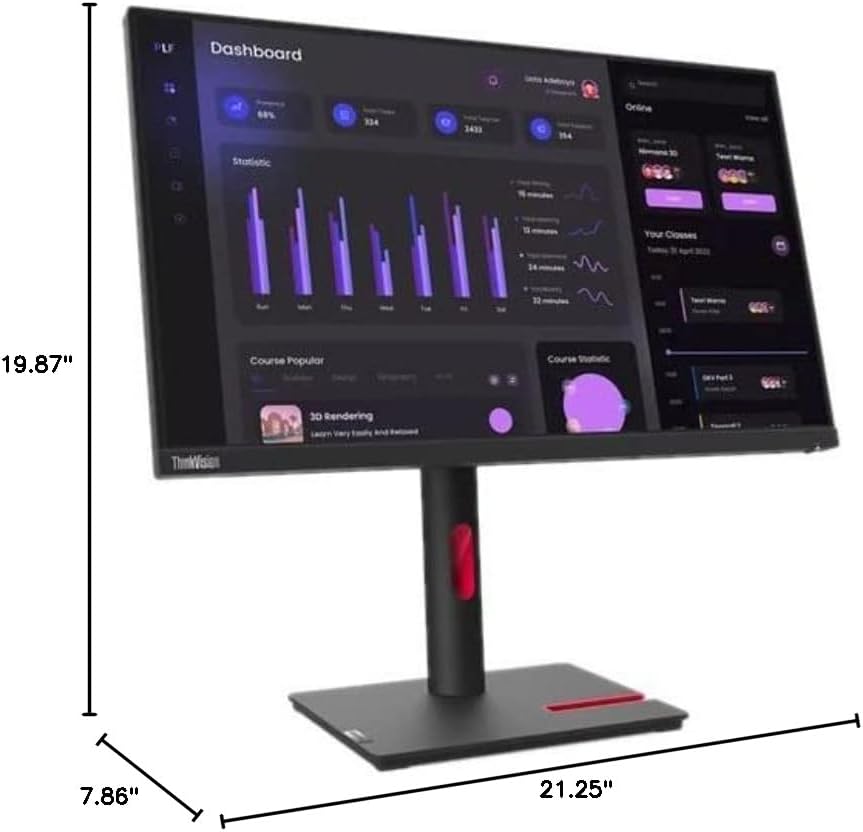
Figure 3: Monitor Dimensions. This diagram provides the physical measurements of the ThinkVision T24i-30 monitor.
Warranty and Support
Your Lenovo ThinkVision T24i-30 monitor is covered by a limited warranty. For detailed warranty terms and conditions, please refer to the warranty card included with your product or visit the official Lenovo support website.
For technical support, driver downloads, and additional resources, please visit the Lenovo Support website: support.lenovo.com