
1. Product Overview
The SRIHOME SP028 is a 1080P WiFi PTZ (Pan-Tilt-Zoom) IP security surveillance camera designed for both indoor and outdoor use. It features 2MP Ultra-HD resolution, AI humanoid detection, auto motion tracking, three night vision modes, two-way audio, and IP66 waterproofing. This manual provides instructions for setting up, operating, and maintaining your camera.

Image: The SRIHOME SP028 camera, a white dome-shaped unit with two antennas, mounted on a wall, with a smartphone displaying the camera's live view.
2. Package Contents
Verify that all items listed below are included in your package. If any items are missing or damaged, please contact customer support.
- SRIHOME SP028 IP Camera
- Power Supply Adapter
- Mounting Screws and Wall Plugs
- Quick User Manual

Image: A visual representation of the package contents, showing the IP camera, a quick user manual, mounting screws, and a power supply.
3. Setup Guide
3.1 Physical Installation
- Choose a Location: Select a suitable location for your camera, ensuring it has a clear view and is within range of your WiFi network. The camera is IP66 waterproof, making it suitable for outdoor installation.
- Mount the Camera: Use the provided screws and wall plugs to securely mount the camera to a wall or ceiling. Ensure the mounting surface is stable.
- Connect Power: Plug the power adapter into the camera's power input and then into a standard electrical outlet. The camera will power on and initiate its startup sequence.
3.2 App Download and Account Creation
- Download the SriHome App: Search for "SriHome" in your smartphone's app store (iOS or Android) and download the official application.
- Create an Account: Open the SriHome app and follow the on-screen instructions to register a new account or log in if you already have one.
3.3 Camera Connection to WiFi
- Add Device: In the SriHome app, tap the "+" icon or similar option to add a new device.
- Select Camera Type: Choose the appropriate camera type (e.g., WiFi Camera).
- Follow In-App Instructions: The app will guide you through the process of connecting the camera to your 2.4G WiFi network. This typically involves scanning a QR code displayed on your phone with the camera or entering your WiFi credentials.
- Wait for Connection: The camera will indicate a successful connection (e.g., a voice prompt or LED indicator change).
4. Operating Instructions
4.1 Live View and Digital Zoom
Once connected, you can access the live video feed from your camera through the SriHome app. The app supports 3x digital zoom, allowing you to magnify specific areas of the live view for more detail.
4.2 Pan & Tilt Rotation
The camera offers a 355° horizontal and 90° vertical rotation range. You can remotely control the camera's pan and tilt movements directly from the SriHome app to adjust the viewing angle.

Image: A smartphone displaying the SriHome app interface with directional arrows for controlling the camera's pan and tilt movements, alongside an illustration of the camera's 355-degree horizontal and 90-degree vertical rotation capabilities.
4.3 Two-Way Audio
The camera is equipped with a built-in high-fidelity microphone and speaker, enabling real-time interactive communication. You can listen to audio from the camera's location and speak through the camera using the SriHome app.

Image: A man in a delivery uniform speaking into a smartphone, with speech bubbles indicating 'Hello!' and 'Hi!', illustrating the camera's two-way audio communication feature.
4.4 Night Vision Modes
The camera offers three distinct night vision modes to suit various monitoring needs:
- Smart Mode: Provides black and white night vision. Upon detection of motion, the camera automatically activates its spotlights, switching to full-color vision for the duration of the event.
- Color Mode: Keeps the spotlights continuously on, providing full-color night vision. The brightness of the spotlights can be adjusted via the SriHome App.
- IR Mode: Disables the spotlights, offering traditional black and white infrared night vision. This mode can be selected through the SriHome App.

Image: A visual comparison of the three night vision modes: Smart Mode (black and white with spotlights on motion), Color Mode (full-color with spotlights), and IR Mode (black and white infrared).
5. Advanced Features
5.1 AI Humanoid Detection & Auto Motion Tracking
The camera is equipped with advanced AI technology that specifically detects human shapes, minimizing false alarms triggered by animals or other non-human objects. When a human is detected, the camera can automatically track their movement within its 355° horizontal and 90° vertical range.
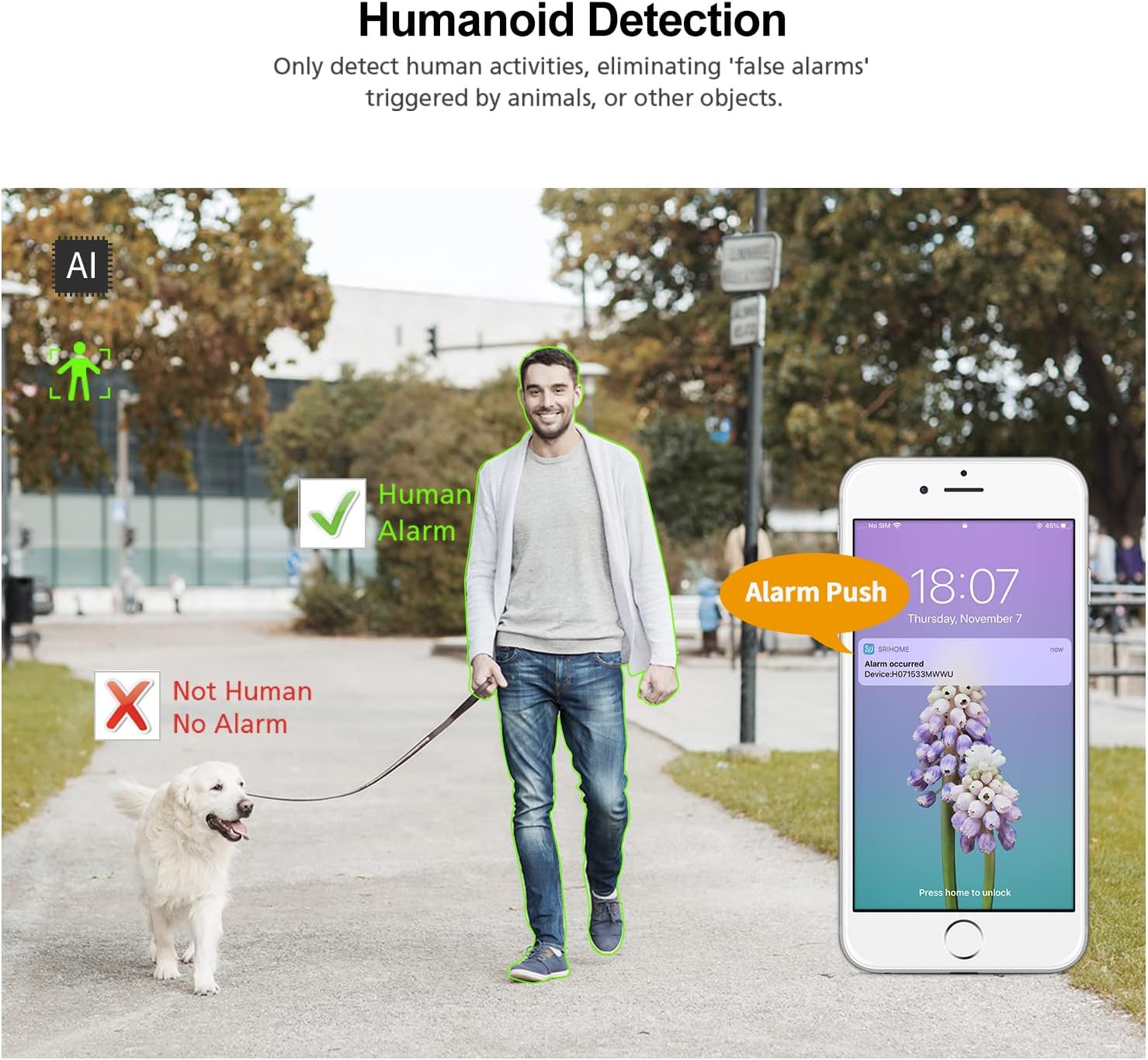
Image: An illustration demonstrating AI Humanoid Detection, showing a human figure outlined in green with a 'Human Alarm' notification, while a dog is not detected, preventing false alarms.
5.2 Local Storage
The camera supports local storage via a MicroSD card (not included) up to 128GB. This allows for continuous 24/7 recording or event-triggered recording, providing a secure way to store your video footage.

Image: A diagram illustrating the camera's MicroSD card storage capability, showing a MicroSD card icon and various images representing recorded footage.
5.3 IP66 Waterproofing
With an IP66 rating, the camera is protected against dust ingress and powerful water jets, making it suitable for outdoor installation and resistant to various weather conditions like rain and snow.

Image: The SRIHOME camera shown in a rainy outdoor setting, with icons indicating its resistance to heat, water, cold, and dust, emphasizing its IP66 waterproof rating.
6. Specifications
| Feature | Specification |
|---|---|
| Model Number | SP028 |
| Video Capture Resolution | 1080p (1920*1080) |
| Maximum Webcam Image Resolution | 2 MP |
| Connectivity Technology | Wireless (Wi-Fi) |
| Wireless Communication Technology | Wi-Fi (2.4G IEEE 802.11 b/g/n) |
| Pan/Tilt Range | 355° Horizontal, 90° Vertical |
| Digital Zoom | 3x |
| Night Vision | IR 20 meters, Full Color 15 meters (3 modes) |
| Audio | Two-Way Audio (Built-in microphone and speaker) |
| Motion Detection | AI Humanoid Detection, Auto Motion Tracking |
| Storage | MicroSD card (up to 128GB, not included) |
| Waterproof Rating | IP66 |
| Power Source | Corded Electric |
| Compatible Devices | Smartphone (iOS, Android) |
| Dimensions (L x W x H) | 3.94 x 5.67 x 6.1 inches |
| Item Weight | 1.23 pounds |
| Mounting Type | Wall Mount |
| Operating Temperature | Not specified (typical for outdoor cameras) |
7. Maintenance
- Cleaning: Regularly wipe the camera lens and body with a soft, damp cloth to remove dust and dirt. Avoid using harsh chemicals that could damage the camera.
- Firmware Updates: Check the SriHome app periodically for firmware updates. Keeping your camera's firmware updated ensures optimal performance and access to new features.
- Power Cycle: If the camera experiences issues, try power cycling it by unplugging and replugging the power adapter.
- Network Stability: Ensure your WiFi network is stable and strong at the camera's location for consistent performance.
8. Troubleshooting
- Camera Not Connecting to WiFi:
- Ensure your WiFi network is 2.4GHz. This camera does not support 5GHz WiFi.
- Verify the WiFi password is entered correctly in the app.
- Move the camera closer to your WiFi router to improve signal strength.
- Restart your router and the camera.
- Poor Video Quality:
- Check your internet connection speed. A slow connection can affect streaming quality.
- Clean the camera lens for any smudges or dirt.
- Ensure adequate lighting in the area, especially during the day.
- Motion Detection Not Working or Too Many False Alarms:
- Adjust the motion detection sensitivity settings in the SriHome app.
- Ensure AI Humanoid Detection is enabled to filter out non-human movements.
- Define specific detection zones to monitor only relevant areas.
- Two-Way Audio Issues:
- Check the volume settings on your smartphone and within the SriHome app.
- Ensure there are no obstructions blocking the camera's microphone or speaker.
- Verify your network connection is stable for real-time audio transmission.
- MicroSD Card Not Recording:
- Ensure the MicroSD card is inserted correctly and is not damaged.
- Format the MicroSD card through the SriHome app.
- Check if the recording schedule or event recording settings are configured correctly.
9. Warranty and Support
For warranty information and technical support, please refer to the documentation included with your product or visit the official SRIHOME website. Keep your purchase receipt as proof of purchase for warranty claims.
If you encounter any issues not covered in this manual, please contact SRIHOME customer service for assistance.


