User Manual: ATOZEE Kids Tablet
Model: ATOZEE Kids
1. Introduction
Welcome to the user manual for your new ATOZEE Kids Tablet. This 7-inch tablet is specifically designed for children, offering a safe and engaging platform for learning and entertainment. It features a stable Android system, ample storage, and robust parental controls to ensure a secure digital environment for your child.
This manual provides essential information on setting up, operating, maintaining, and troubleshooting your tablet. Please read it carefully to ensure optimal performance and longevity of your device.
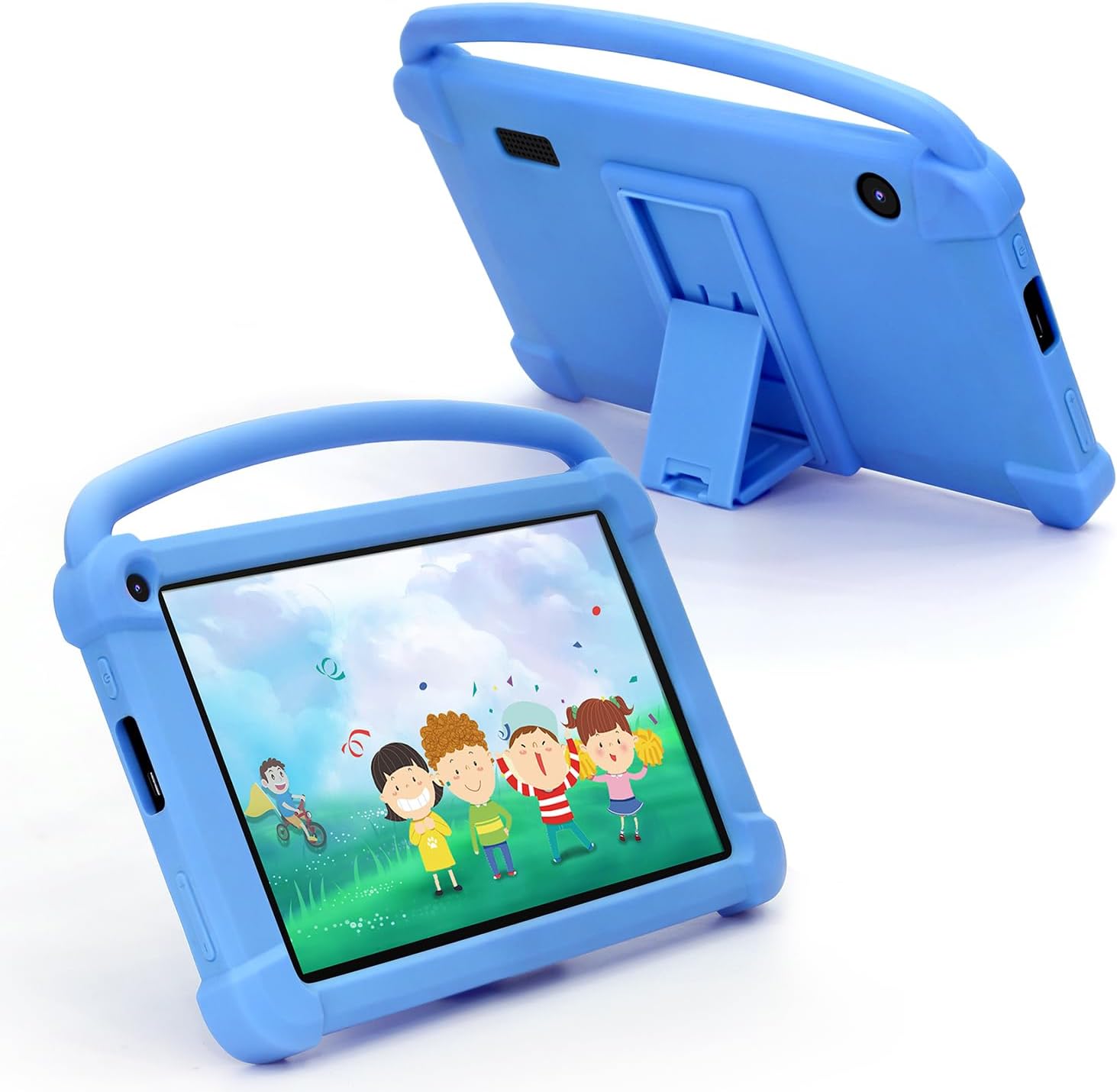
Image 1.1: The ATOZEE Kids Tablet in its blue protective case, showcasing the front screen and the adjustable kickstand from the back.
2. Components and Features
2.1 Package Contents
- ATOZEE Kids Tablet (with pre-installed protective case)
- USB Charging Cable
- User Manual (this document)
2.2 Key Features
- Operating System: Stable Android System
- Display: 7-inch HD Display (1024x600 Pixels)
- Memory: 4GB RAM (including 2GB extended memory)
- Storage: 32GB ROM (expandable up to 1024GB via Micro SD card)
- Cameras: Dual cameras with flash (2.0MP front, 5.0MP rear)
- Battery: 3,000mAh for up to 6 hours of mixed use
- Pre-installed Software: iWawa application for educational content and games
- Parental Controls: Advanced features for content filtering, screen time management, and safe browsing
- Protection: Exclusive kid-proof shockproof case with integrated kickstand
- Certification: GMS certified for smooth and safe app downloads from Google Store

Image 2.1: Visual representation of the tablet's core specifications, including its operating system, camera resolution, battery capacity, display size, and memory/storage.
3. Initial Setup
3.1 Charging the Tablet
Before first use, fully charge the tablet. Connect the included USB charging cable to the tablet's charging port and the other end to a compatible USB power adapter (not included) or a computer's USB port. The charging indicator will show the charging status.
3.2 Powering On/Off
- To Power On: Press and hold the Power button located on the side of the tablet until the screen lights up.
- To Power Off: Press and hold the Power button until a power-off menu appears. Select "Power off" or "Shut down" from the options.
3.3 Connecting to Wi-Fi
- From the home screen, swipe down from the top to open the Quick Settings panel.
- Tap and hold the Wi-Fi icon to go to Wi-Fi settings.
- Toggle Wi-Fi "On" if it's not already.
- Select your desired Wi-Fi network from the list.
- Enter the network password if prompted, then tap "Connect."
3.4 Setting Up Parental Controls (iWawa)
The ATOZEE Kids Tablet comes with the iWawa application pre-installed, providing a safe and controlled environment for children. This app allows parents to manage content, screen time, and access to websites.
- Launch the iWawa app from the tablet's home screen.
- Follow the on-screen prompts to create a parent account and set up profiles for your children.
- Within the parent dashboard, you can customize settings such as:
- App Management: Select which apps your child can access.
- Time Limits: Set daily usage limits and specific play times.
- Content Filtering: Control access to websites and videos.
- Educational Content: Explore pre-approved educational games and videos.
- Ensure you set a strong password for the parent account to prevent unauthorized access to settings.
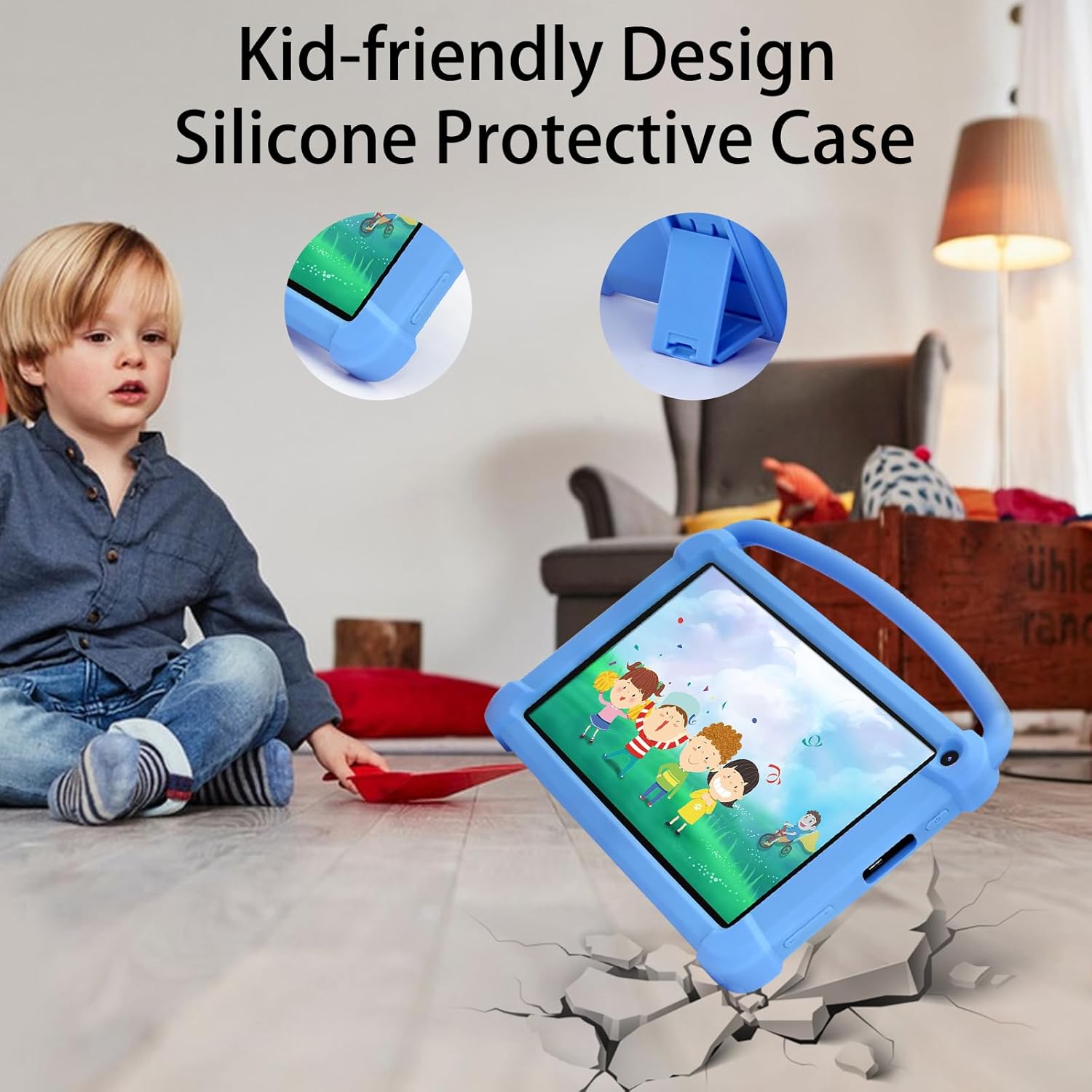
Image 3.1: An adult and child using the tablet together, highlighting the ease of managing parental controls for a safe user experience.
4. Operating the Tablet
4.1 Navigating the Interface
- Touch: Tap an icon to open an app or select an item.
- Swipe: Drag your finger across the screen to scroll through pages or lists.
- Pinch-to-Zoom: Use two fingers to zoom in or out on photos and web pages.
- Home Button: Returns you to the main home screen.
- Back Button: Returns to the previous screen.
- Recent Apps Button: Shows recently opened applications for quick switching.
4.2 Downloading Applications
Thanks to GMS certification, you can safely download a wide variety of applications from the Google Play Store. Ensure the tablet is connected to Wi-Fi before downloading.
- Open the "Play Store" app from the home screen or app drawer.
- Search for the desired app using the search bar.
- Tap on the app and then tap "Install."
- Once installed, the app icon will appear on your home screen or in the app drawer.

Image 4.1: The tablet screen showcasing a variety of applications, emphasizing its capability to support diverse learning and entertainment software.
4.3 Using the Camera
The tablet is equipped with dual cameras for capturing photos and videos.
- Open the "Camera" app.
- Tap the camera icon to take a photo or the video icon to record a video.
- Use the switch camera icon to toggle between the front and rear cameras.
4.4 Media Playback
The tablet supports various media formats for videos and music. You can play content stored on the device or stream from online services.

Image 4.2: A child enjoying audio content on the tablet with headphones, illustrating the device's sound capabilities.
5. Care and Maintenance
5.1 Cleaning the Tablet
To clean the tablet screen, use a soft, lint-free cloth. For stubborn smudges, slightly dampen the cloth with water or a screen cleaner. Avoid using harsh chemicals or abrasive materials.
5.2 Battery Care
- Avoid fully discharging the battery frequently.
- Do not expose the tablet to extreme temperatures.
- If storing the tablet for an extended period, charge it to about 50% before storage.
5.3 Storage Management
The tablet comes with 32GB of internal storage. If more space is needed for photos, videos, or apps, you can expand it up to 1TB using a Micro SD card (not included). Insert the Micro SD card into the designated slot on the side of the tablet.
5.4 Protective Case
The tablet is housed in a durable, shockproof silicone case designed to protect it from accidental drops and bumps. The integrated kickstand allows for hands-free viewing, making it convenient for watching videos or video chatting.

Image 5.1: The tablet's protective silicone case is highlighted, demonstrating its kid-friendly design and ability to withstand impacts.
6. Troubleshooting Common Issues
| Problem | Possible Cause | Solution |
|---|---|---|
| Tablet won't turn on | Low battery; System crash | Charge the tablet for at least 30 minutes; Press and hold the power button for 10-15 seconds to force restart. |
| Wi-Fi connection issues | Incorrect password; Router issue; Out of range | Verify Wi-Fi password; Restart your Wi-Fi router; Move closer to the router. |
| Apps crashing or freezing | Insufficient RAM; App bug; Too many apps open | Close background apps; Clear app cache (Settings > Apps > [App Name] > Storage > Clear Cache); Restart the tablet. |
| Screen is unresponsive | Temporary software glitch | Force restart the tablet (hold power button); Ensure screen is clean and dry. |
| Slow performance | Too many apps; Low storage | Uninstall unused apps; Clear cache; Move files to SD card; Perform a factory reset (as a last resort, will erase all data). |
7. Technical Specifications
| Feature | Specification |
|---|---|
| Brand | ATOZEE |
| Model Name | Kids Tablet |
| Operating System | Android |
| Screen Size | 7 Inches |
| Screen Resolution | 1024x600 Pixels |
| RAM | 4GB (including 2GB extended) |
| Flash Memory Size | 32 GB |
| Expandable Storage | Up to 1TB via Micro SD card |
| Processor Brand | ATOZEE |
| Chipset Brand | ZZB |
| Wireless Type | 802.11ad |
| Average Battery Life | 8 Hours (rated), up to 6 hours mixed use |
| Item Weight | 1.23 pounds |
| Product Dimensions | 5.5 x 4.5 x 1 inches |
| Color | Blue |
8. Warranty and Support
8.1 Warranty Information
Your ATOZEE Kids Tablet is covered by a manufacturer's warranty against defects in materials and workmanship. Please refer to the warranty card included in your product packaging for specific terms, conditions, and duration of the warranty. Keep your purchase receipt as proof of purchase for warranty claims.
8.2 Customer Support
For technical assistance, troubleshooting beyond this manual, or warranty inquiries, please contact ATOZEE customer support. Contact information can typically be found on the product packaging, the official ATOZEE website, or through your point of purchase. Please have your model number and purchase date ready when contacting support.


