
1. Introduction
Thank you for purchasing the X-Cell XC-SB-02 100W Bluetooth Soundbar. This soundbar is designed to enhance your audio experience with powerful sound and versatile connectivity options, including Bluetooth, USB, TF card, AUX, and optical input. Please read this manual carefully before using the product to ensure proper operation and to maximize its performance.
2. Safety Instructions
- Do not expose the soundbar to rain, moisture, or extreme temperatures.
- Do not open the casing. Refer all servicing to qualified personnel.
- Ensure the power adapter is compatible with your local power supply.
- Keep the soundbar away from heat sources and direct sunlight.
- Clean the soundbar with a soft, dry cloth. Do not use liquid cleaners.
- Avoid placing heavy objects on the soundbar.
3. Package Contents
Please check the package for the following items:
- X-Cell XC-SB-02 Soundbar Unit
- Power Adapter
- Remote Control
- Audio Cables (RCA, 3.5mm)
- User Manual
4. Product Overview
Familiarize yourself with the soundbar's ports and controls.
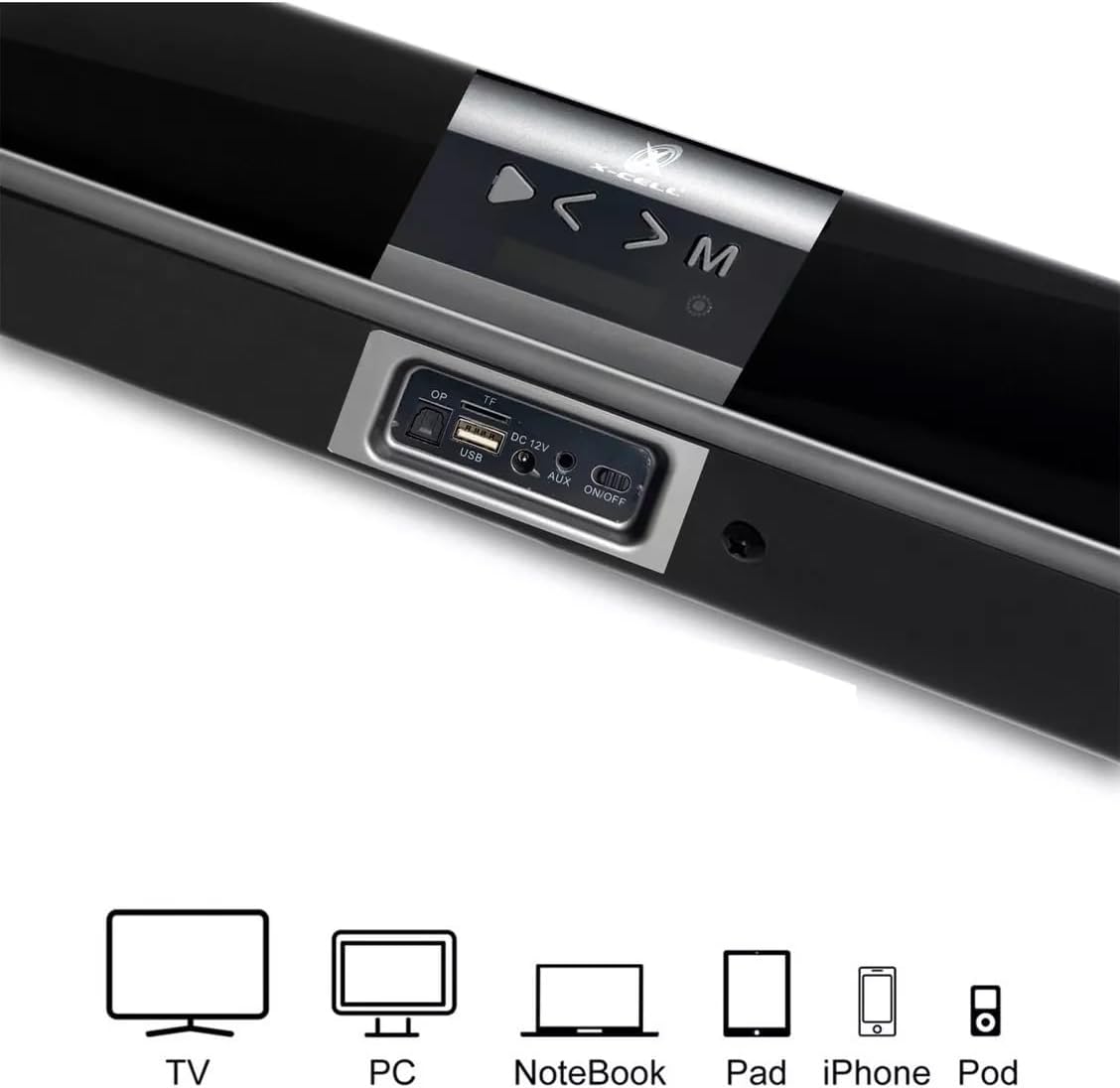
Image 1: Rear panel connections and compatible devices. This image displays the rear panel of the X-Cell XC-SB-02 soundbar, highlighting the USB port, TF card slot, DC 12V power input, AUX input, and the ON/OFF switch. Below the soundbar, icons illustrate compatible devices such as TV, PC, Notebook, Pad, iPhone, and iPod, indicating the versatility of the soundbar's connectivity.
4.1. Rear Panel Connections
- USB Port: For playing audio files from a USB flash drive.
- TF Card Slot: For playing audio files from a TF (MicroSD) card.
- DC 12V Input: Connect the provided power adapter here.
- AUX Input: Connect external audio devices using a 3.5mm or RCA cable.
- ON/OFF Switch: Main power switch for the soundbar.
4.2. Top Panel Controls
- Power Button: Turns the soundbar on or off (standby).
- Mode Button (M): Switches between input modes (Bluetooth, AUX, USB, TF, Optical).
- Volume Up / Next Track (>): Increases volume or skips to the next track in USB/TF mode.
- Volume Down / Previous Track (<): Decreases volume or skips to the previous track in USB/TF mode.
5. Setup
5.1. Placement
Place the soundbar on a stable, flat surface in front of your TV or desired listening area. Ensure there is adequate ventilation around the unit.
5.2. Power Connection
- Connect the power adapter to the DC 12V input on the rear of the soundbar.
- Plug the power adapter into a wall outlet.
- Flip the ON/OFF switch on the rear panel to the 'ON' position.
5.3. Connecting to Devices

Image 2: Soundbar connected to a television. This image shows the X-Cell XC-SB-02 soundbar placed directly in front of a television, demonstrating a common and recommended setup for home entertainment systems.
5.3.1. Bluetooth Connection
Refer to Section 6.2 for detailed Bluetooth pairing instructions.
5.3.2. AUX/RCA Connection
Use the provided 3.5mm audio cable or RCA cables to connect the soundbar's AUX input to the audio output of your TV, PC, or other audio device.
5.3.3. Optical Connection
Connect an optical audio cable (not included) from your TV's optical audio output to the soundbar's optical input (if available on your specific model, as indicated by the product title).
6. Operating Instructions
6.1. Power On/Off
- Ensure the rear ON/OFF switch is in the 'ON' position.
- Press the Power button on the soundbar's top panel or the remote control to turn the unit on or off (standby mode).
6.2. Mode Selection

Image 3: Soundbar mode indicators. This image highlights the different input modes available on the X-Cell XC-SB-02 soundbar, including Bluetooth Mode, AUX Mode, and TF Card Mode, represented by their respective icons.
Press the 'M' (Mode) button on the soundbar or the remote control repeatedly to cycle through the available input modes: Bluetooth, AUX, USB, TF, and Optical.
6.3. Bluetooth Pairing

Image 4: Bluetooth connectivity. This image shows a smartphone wirelessly connected to the X-Cell XC-SB-02 soundbar via Bluetooth, demonstrating music playback from the phone through the soundbar.
- Turn on the soundbar and switch to Bluetooth mode using the 'M' button. The soundbar will indicate it is in pairing mode (e.g., flashing LED or voice prompt).
- Enable Bluetooth on your device (smartphone, tablet, PC).
- Search for available Bluetooth devices and select "XC-SB-02" (or similar name) from the list.
- Once connected, the soundbar will indicate successful pairing. You can now play audio from your device through the soundbar.
- The Bluetooth signal range is up to 12 meters.
6.4. USB/TF Card Playback
- Insert a USB flash drive or TF card into the corresponding port on the rear panel.
- Switch the soundbar to USB or TF mode using the 'M' button.
- The soundbar will automatically begin playing audio files from the storage device.
- Use the Volume Up/Down buttons (which also function as Next/Previous track) on the soundbar or remote to control playback.
6.5. Volume Control
Adjust the volume using the Volume Up (>) and Volume Down (<) buttons on the soundbar's top panel or the dedicated volume buttons on the remote control.
7. Maintenance
- Cleaning: Wipe the soundbar with a soft, dry, lint-free cloth. Do not use abrasive cleaners, waxes, or solvents.
- Storage: If not in use for an extended period, unplug the soundbar from the power outlet and store it in a cool, dry place.
- Ventilation: Ensure the soundbar's vents are not blocked to prevent overheating.
8. Troubleshooting
If you encounter issues with your soundbar, refer to the following common problems and solutions:
- No Power:
- Check if the power adapter is securely connected to the soundbar and the wall outlet.
- Ensure the rear ON/OFF switch is in the 'ON' position.
- Press the Power button on the soundbar or remote.
- No Sound:
- Ensure the soundbar is powered on and not muted.
- Check the volume level on both the soundbar and the connected device.
- Verify that the correct input mode (Bluetooth, AUX, USB, TF, Optical) is selected.
- For wired connections, ensure cables are securely connected to both the soundbar and the audio source.
- For Bluetooth, ensure the device is properly paired and within range.
- Bluetooth Disconnection/Cannot Pair:
- Ensure the soundbar is in Bluetooth pairing mode.
- Move your device closer to the soundbar (within 12 meters).
- Turn off Bluetooth on your device and the soundbar, then turn them back on and try pairing again.
- Clear the soundbar from your device's Bluetooth history and re-pair.
- Remote Control Not Working:
- Check if the batteries are correctly inserted and not depleted. Replace if necessary.
- Ensure there are no obstructions between the remote and the soundbar's sensor.
9. Specifications
| Model | XC-SB-02 |
| Output Power | 100 Watts |
| Connectivity | Bluetooth, USB, TF Card, AUX (3.5mm/RCA), Optical |
| Bluetooth Range | Up to 12 meters |
| Dimensions (L x W x H) | 99.2 cm x 6 cm x 6.2 cm |
| Weight | 2.02 Kilograms |
| Power Source | Wired Electric (DC 12V) |
| Compatible Devices | Notebook, Smartphone, Tablet, TV, PC |
10. Warranty and Support
This product comes with a standard manufacturer's warranty. For specific warranty terms and conditions, please refer to the documentation provided at the time of purchase or contact your retailer. For technical support or service inquiries, please contact X-Cell customer service through their official channels.