Introduction
Thank you for choosing the WEILY X88 PRO 13 Android TV Box. This manual provides detailed instructions for setting up, operating, and maintaining your device. Please read this manual thoroughly before use to ensure proper functionality and to maximize your viewing experience.
Important Safety Information
- Do not expose the device to rain, moisture, or extreme temperatures.
- Avoid placing the device near heat sources such as radiators, heat registers, stoves, or other apparatus (including amplifiers) that produce heat.
- Use only the power adapter supplied with the device. Using unauthorized power adapters may damage the device and void the warranty.
- Do not open the device casing. Refer all servicing to qualified service personnel.
- Ensure proper ventilation around the device to prevent overheating.
- Clean the device only with a dry cloth.
Package Contents
Please check the box for the following items:
- 1 x X88 PRO Android Box
- 1 x Power Charger
- 1 x HD Cable
- 1 x User Manual (this document)
- 1 x Remote Control
Product Overview
The WEILY X88 PRO 13 is an Android 13.0 TV Box designed to transform your television into a smart entertainment hub. It features a Quad-Core 64bit RK3528 CPU, 2GB RAM, 16GB ROM, and supports 8K video output, Wi-Fi 6, and Bluetooth 5.0.
Device Layout and Ports

Image: Front and side view of the X88 PRO 13 Android TV Box, highlighting its various ports and compact dimensions (107mm x 107mm x 21mm). Ports include DC power input, SPDIF, HDMI, LAN (Ethernet), AV, USB 2.0, USB 3.0, and TF card slot.
The X88 PRO 13 TV Box is equipped with multiple ports for connectivity:
- DC (Power Input): Connect the supplied 5V/2A power adapter.
- SPDIF: Digital audio output for connecting to audio receivers.
- HD (HDMI): Connect to your TV or display via HDMI cable for video and audio output (supports up to 6K).
- LAN (Ethernet): For wired network connection (10/100M Gigabit RJ-45).
- AV: Analog video/audio output for older televisions.
- USB 2.0: Two high-speed USB 2.0 ports for connecting USB devices like flash drives, external hard drives, mouse, or keyboard.
- TF (MicroSD Card Slot): For expanding storage using SD/SDHC/MMC cards.

Image: The X88 PRO 13 Android TV Box, a compact black square device with the 'X88 PRO 13 Ultra HD 8K' logo, shown alongside its black remote control with various navigation and function buttons.
Initial Setup
Follow these steps to set up your X88 PRO 13 Android TV Box:
- Connect to TV: Connect one end of the provided HD (HDMI) cable to the HDMI port on the TV Box and the other end to an available HDMI input on your television.
- Connect Power: Plug the DC power adapter into the DC port on the TV Box, then plug the adapter into a wall outlet. The power indicator LED on the box should turn red.
- Select Input: Turn on your television and use its remote control to select the correct HDMI input source that corresponds to where you connected the TV Box.
- Initial Boot: The TV Box will automatically power on and begin the boot process. This may take a few moments.
- Remote Control: Insert two AAA batteries (not included) into the remote control. Point the remote at the TV Box to begin navigation.
Operating Your X88 PRO 13 TV Box
Powering On/Off
Once connected to power, the device will typically power on automatically. To turn off or restart the device, use the power button on the remote control or navigate to the power options within the Android interface.
Navigating the User Interface

Image: Multiple screenshots demonstrating the new user interface of the Android 13 operating system on the TV Box, showing a clean layout with categories like Home, Movie, TV Show, and Apps, and customizable backgrounds.
The X88 PRO 13 runs on Android 13.0, offering an intuitive and user-friendly interface. Use the directional buttons on your remote to navigate through menus and select items. The 'OK' button confirms selections, and the 'Back' button returns to the previous screen. The 'Home' button takes you directly to the main screen.
Connecting to Network
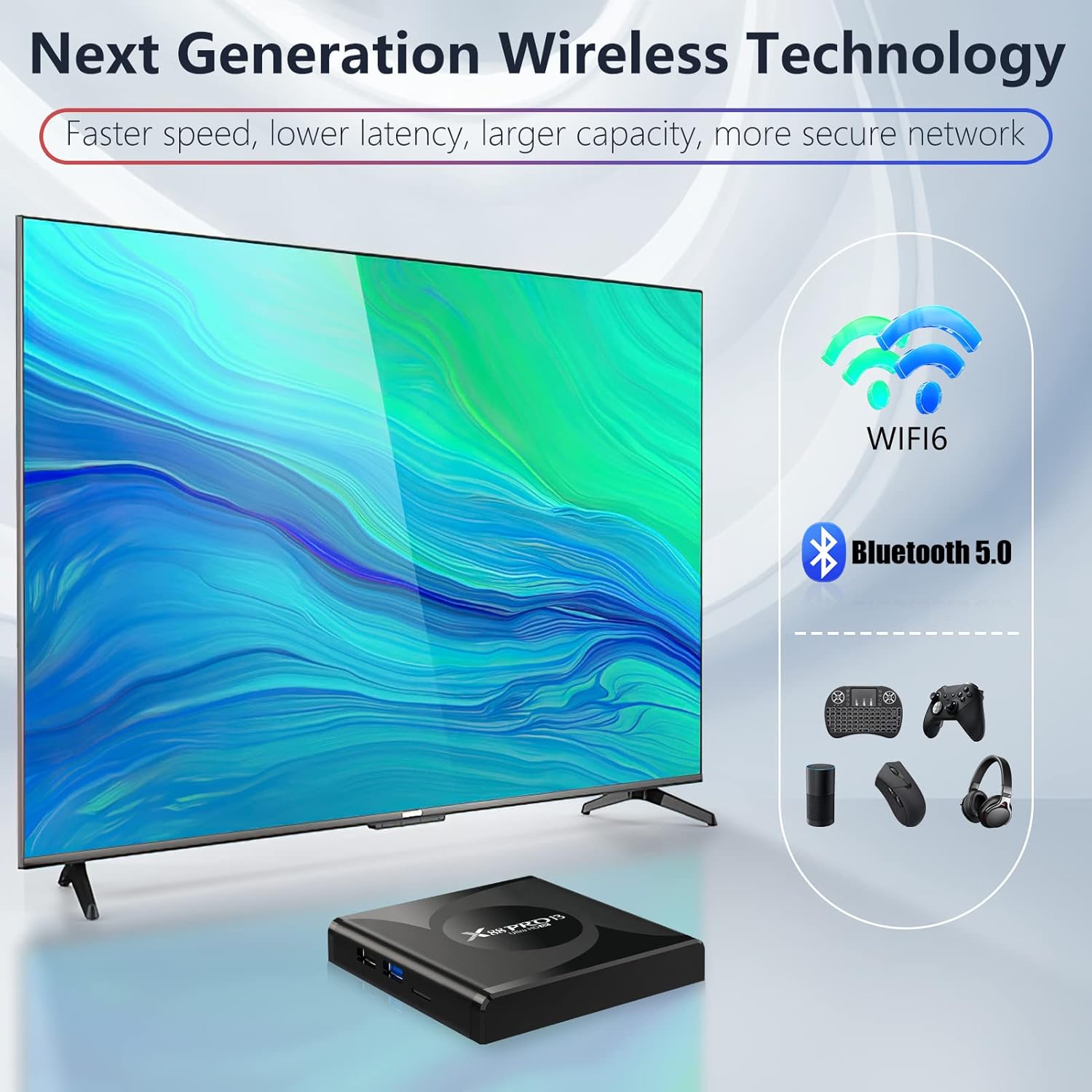
Image: A television displaying content, with the X88 PRO 13 TV Box in the foreground. Graphics indicate support for WIFI6 (2.4G/5G dual-band) and Bluetooth 5.0, showing various compatible devices like game controllers, keyboards, mice, and headphones.
For internet access, you can connect via Wi-Fi or Ethernet:
- Wi-Fi Connection:
- Go to Settings > Network > Wi-Fi.
- Turn Wi-Fi ON.
- Select your desired Wi-Fi network from the list.
- Enter the password if prompted and select Connect.
- Ethernet Connection:
- Connect an Ethernet cable from your router/modem to the LAN port on the TV Box.
- The device will automatically detect and connect to the wired network.
Media Playback and Features

Image: A television screen displaying a vibrant 8K Ultra HD image with HDR10, demonstrating the X88 PRO 13's capability for high-resolution video decoding. The TV Box is shown below the screen, with icons for H.265 HEVC and 3D Graphics.
The X88 PRO 13 supports a wide range of media formats and advanced features:
- 8K Video Decoding: Enjoy ultra-high-definition content. Ensure your display and video source files also support 8K resolution for optimal viewing.
- 3D Graphics Acceleration: Supports hardware 3D graphics acceleration for compatible content.
- HDR (High Dynamic Range): Provides richer and more realistic colors.

Image: A person holding a smartphone mirroring its content (a fantasy scene with dragons) to a large television screen, demonstrating the screen mirroring capability of the X88 PRO 13 TV Box. Icons below indicate support for video playing, games, and web browsing via mirroring.
- Screen Mirroring: Share content from your mobile device or tablet directly to your TV screen. Refer to your mobile device's screen mirroring or casting settings for connection instructions.

Image: A graphic illustrating the progression of Android operating system versions, with Android 13 at the top, emphasizing its modern design and improved UI compared to previous versions like Android 7, 10, 11, and 12.
- Android 13.0 OS: Experience the latest Android operating system with enhanced compatibility and a refined interface.

Image: An internal view of the X88 PRO 13 TV Box, showcasing the RK3528 Quad-Core chipset, 2GB RAM, and 16GB ROM. Various ports are visible on the side, and icons below highlight key features like CPU RK3528, HD 8K, RAM 2G, ROM 16G, OS 13.0, HDR 10, WIFI 6, and BT 5.0.
- Powerful Chipset: Powered by the RK3528 Quad-Core 64bit Cortex-A53 chipset for fast and efficient performance.
No official product videos are available for embedding at this time.
Maintenance and Care
- Keep the device clean by wiping it with a soft, dry cloth. Do not use liquid cleaners or aerosol sprays.
- Ensure the device is placed on a stable, flat surface to prevent accidental falls.
- Avoid blocking the ventilation openings to prevent overheating.
- If the device will not be used for an extended period, disconnect it from the power outlet.
Troubleshooting
If you encounter issues with your X88 PRO 13 TV Box, refer to the following table for common problems and solutions:
| Problem | Possible Cause | Solution |
|---|---|---|
| No power/Device not turning on | Power adapter not connected; Faulty power outlet; Device malfunction. | Ensure power adapter is securely connected to the device and a working power outlet. Try a different outlet. |
| No display on TV | Incorrect HDMI input selected; Loose HDMI cable; TV Box not powered on. | Verify TV input source matches the HDMI port used. Check HDMI cable connection. Ensure TV Box is powered on. |
| No Wi-Fi connection | Incorrect Wi-Fi password; Router issues; Wi-Fi disabled on device. | Double-check Wi-Fi password. Restart your router. Ensure Wi-Fi is enabled in device settings. |
| Remote control not working | Dead batteries; Obstruction between remote and device; Remote not paired (if applicable). | Replace batteries. Remove any obstructions. Ensure remote is pointed directly at the TV Box. |
| Slow performance/App crashes | Too many apps running in background; Low storage space; Overheating. | Close unnecessary apps. Clear cache or uninstall unused apps. Ensure proper ventilation. Restart the device. |
Technical Specifications
| Feature | Specification |
|---|---|
| Operating System | Android 13.0 |
| CPU | RK3528 Quad-Core 64bit Cortex-A53 |
| GPU | Mali 450 MP2 |
| RAM | 2GB DDR |
| ROM (Flash) | 16GB EMMC |
| Wi-Fi | 2.4G + 5G Wi-Fi 6 |
| Bluetooth | BT5.0 |
| Video Output | HDMI 2.0 up to 6K Output with HDR, CEC, HDCP 2.2 (6K@30fps max) |
| USB Ports | 2 x High-speed USB 2.0 |
| Ethernet | Standard 10/100M, Gigabit RJ-45 |
| Card Reader | SD/SDHC/MMC cards |
| Power Supply | DC 5V/2A |
| Dimensions (L x W x H) | 4.21 x 4.21 x 0.82 inches (107 x 107 x 21 mm) |
| Weight | 10.8 ounces |
| Supported Media Formats | Avi/Rm/Rmvb/Ts/Vob/Mkv/Mov/ISO/wmv/asf/flv/dat/mpg/mpeg |
| Supported Music Formats | MP3/WMA/AAC/WAV/OGG/AC3/DDP/TrueHD/DTS/DTS/HD/FLAC/APE |
| Supported Photo Formats | HD JPEG/BMP/GIF/PNG/TIFF |
Warranty and Customer Support
The WEILY X88 PRO 13 Android TV Box comes with a standard manufacturer's warranty. Please refer to the warranty card included in your package for specific terms and conditions. For technical support, troubleshooting assistance, or warranty claims, please contact your retailer or the WEILY customer service department through the contact information provided with your purchase or on the official WEILY website. Please have your model number and purchase details ready when contacting support.


