
1. Introduction
The ASUS RT-AX1800HP is a Dual Band WiFi 6 (802.11ax) router designed to provide high-speed, efficient, and secure wireless connectivity for your home or small office network. It supports advanced technologies like MU-MIMO and OFDMA, offering improved network efficiency and faster WiFi speeds, especially in environments with multiple connected devices. This router is also AiMesh compatible, allowing for easy expansion of your network coverage.

Image: The ASUS RT-AX1800HP router with its four external antennas.
2. Setup Guide
2.1 Package Contents
Before you begin, ensure all items are present in the package:
- ASUS RT-AX1800HP Router
- RJ45 Ethernet Cable (x1)
- Power Adapter (x1)
- Quick Start Guide (QSG x1)
- Warranty Card (x1)
2.2 Physical Connection
Follow these steps to connect your router:
- Position the Router: Place the router in a central location in your home, away from obstructions and electronic devices that may cause interference.
- Connect the Internet Cable: Connect one end of the RJ45 Ethernet cable to your modem's LAN port and the other end to the WAN port (blue) on the back of the RT-AX1800HP router.
- Connect Devices (Optional): For wired connections, connect your computer or other network devices to any of the Gigabit LAN ports (yellow) on the router using Ethernet cables.
- Connect Power: Plug the power adapter into the router's Power port and then into a wall outlet.
- Power On: Press the Power button to turn on the router. Wait for the indicator lights to stabilize, typically indicating a successful connection.
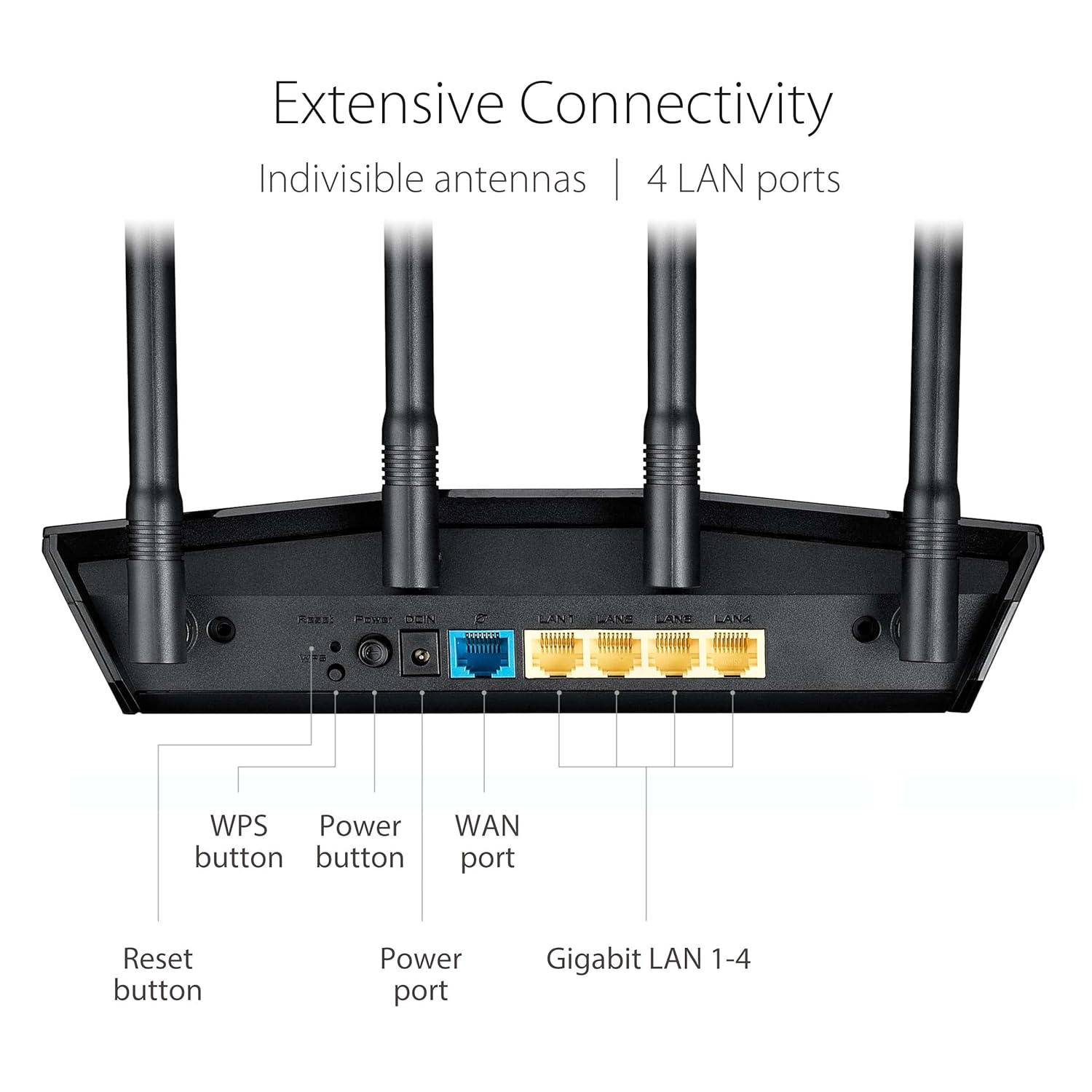
Image: Rear view of the ASUS RT-AX1800HP router showing the WPS button, Reset button, Power button, Power port, WAN port (blue), and Gigabit LAN ports 1-4 (yellow).
2.3 Initial Configuration
You can configure your router using a web browser or the ASUS Router App.
- Web Browser Setup: Open a web browser on a connected computer (wired or wirelessly connected to the default ASUS WiFi network). Navigate to http://router.asus.com and follow the on-screen instructions for initial setup, including setting up your WiFi name (SSID) and password.
- ASUS Router App Setup: Download the ASUS Router App from the App Store (iOS) or Google Play Store (Android). Launch the app and follow the guided steps to set up your router.
3. Operation
3.1 ASUS Router App
The ASUS Router App provides an intuitive way to manage your network from your smartphone or tablet. It allows you to:
- Monitor network traffic in real-time.
- View connected devices.
- Adjust WiFi settings.
- Manage parental controls.
- Perform firmware updates.
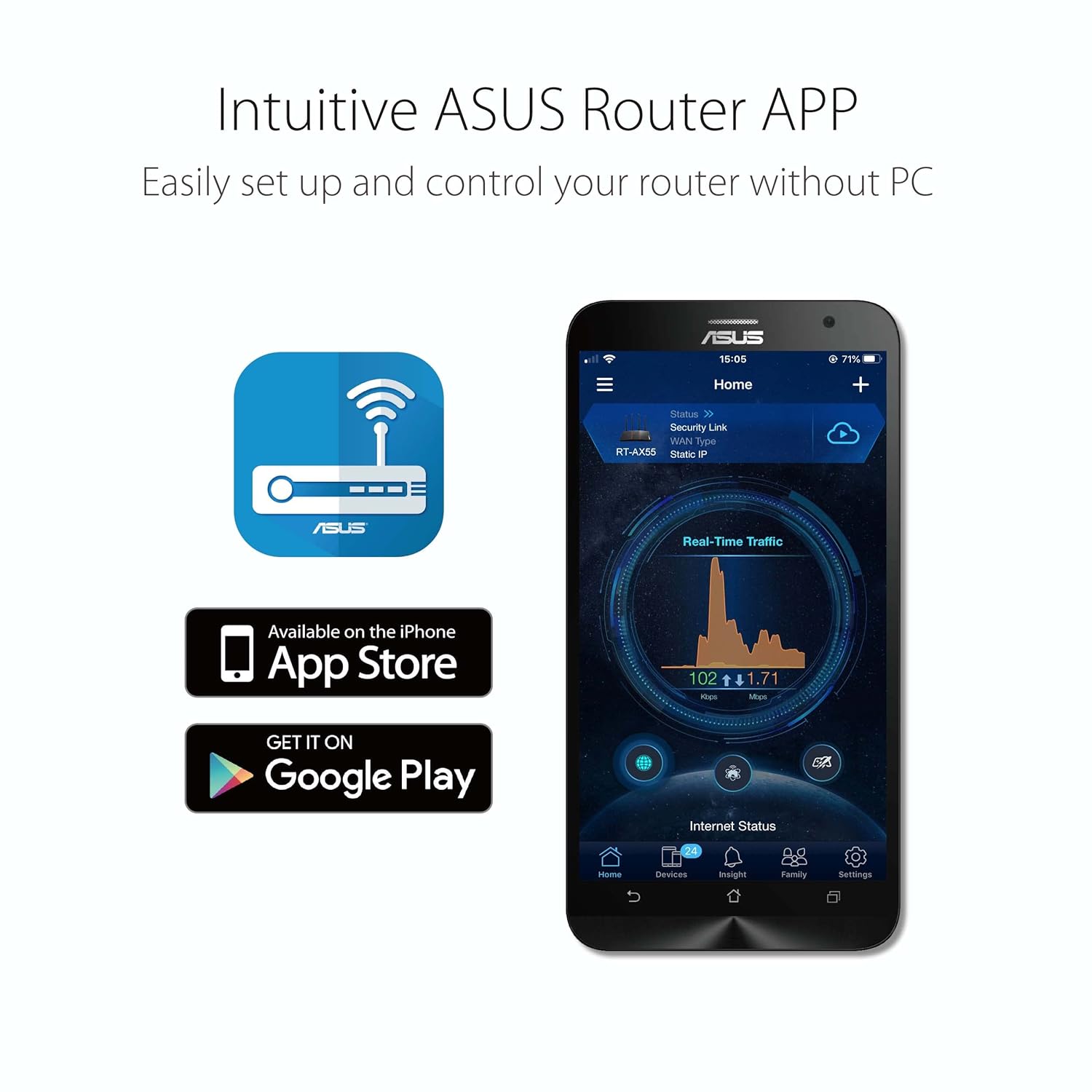
Image: A smartphone displaying the intuitive ASUS Router App interface, showing network status, real-time traffic, and various management options.
3.2 AiProtection Classic
AiProtection Classic, powered by Trend Micro, offers commercial-grade network security for your home. Key features include:
- Network Vulnerability Protection: Scans your router for security vulnerabilities and recommends solutions.
- Malicious Site Blocking: Prevents access to known malicious websites.
- Two-Way IPS: Blocks malicious incoming packets and outgoing packets from infected devices.
- Parental Controls: Allows you to schedule internet access, block specific apps or websites, and filter content for family members.

Image: Diagram illustrating AiProtection Classic providing life-time free security for the network, including Parental Control and Internet Security, protecting devices connected to the router.
3.3 AiMesh System
The RT-AX1800HP is AiMesh compatible, allowing you to create a whole-home mesh WiFi system by adding other AiMesh-compatible ASUS routers. This provides seamless roaming and eliminates WiFi dead zones.
- Seamless Roaming: Your devices automatically switch to the strongest WiFi signal as you move around your home.
- Centralized Control: Manage your entire AiMesh network from a single interface (web or app).
- Easy Setup: Add new AiMesh nodes with simple steps.

Image: A floor plan illustrating an AiMesh network extending WiFi coverage throughout a single-story home using multiple AiMesh-compatible routers.

Image: A multi-story house diagram showing how an AiMesh network provides extended and seamless WiFi coverage across different floors using multiple AiMesh-compatible routers.
3.4 Built-in VPN
The router includes a built-in VPN server and client functionality. ASUS Instant Guard provides a one-click secure VPN connection when you are away from home, encrypting your internet traffic and protecting your privacy.
4. Key Features
The ASUS RT-AX1800HP incorporates several advanced technologies to enhance your networking experience:
- New-Gen WiFi 6 (802.11ax) Standard: Supports MU-MIMO and OFDMA technology for better efficiency and throughput, especially with multiple devices.
- Ultra-fast WiFi Speed: Achieves a total networking speed of approximately 1800Mbps, with 574 Mbps on the 2.4GHz band and 1201 Mbps on the 5GHz band, utilizing 1024-QAM for faster wireless connections.
- Increased Capacity and Efficiency: OFDMA technology efficiently allocates channels, allowing communication with multiple devices simultaneously, improving overall network capacity.
- Improved Battery Life: Target Wake Time (TWT) technology allows devices to negotiate when to send and receive data, reducing power consumption and extending battery life for connected devices.
- Wider WiFi Range: Enhanced signal coverage for a more reliable connection throughout your home.

Image: Infographic detailing New-Gen WiFi 6 (802.11ax) features including OFDMA, TWT, MU-MIMO, 80MHz, highlighting 4X capacity for multi-devices, 1.5X WiFi speed, 7X battery life, and 80% increased WiFi range, with speed comparison up to 1800Mbps.
5. Maintenance
To ensure optimal performance and longevity of your ASUS RT-AX1800HP router, consider the following maintenance tips:
- Firmware Updates: Regularly check for and install firmware updates. These updates often include performance improvements, security patches, and new features. You can do this via the ASUS Router App or the web interface.
- Optimal Placement: Ensure the router is placed in an open area, away from walls, large metal objects, and other electronic devices that could interfere with the signal. Avoid placing it on the floor.
- Cleaning: Periodically clean the router's exterior with a soft, dry cloth. Ensure ventilation holes are free from dust to prevent overheating. Do not use liquid cleaners.
- Restarting: If you experience network issues, a simple restart of the router (power cycle) can often resolve them. Unplug the power adapter, wait 10-15 seconds, then plug it back in.
6. Troubleshooting
This section addresses common issues you might encounter with your router.
6.1 No Internet Connection
- Check Cables: Ensure all Ethernet cables (WAN, LAN) are securely connected.
- Modem Status: Verify that your modem is working correctly and has an active internet connection. Try restarting your modem.
- Router Lights: Check the WAN indicator light on the router. If it's off or red, there might be an issue with the internet connection from your ISP or modem.
- Router Restart: Power cycle the router and modem.
6.2 Slow WiFi Speeds
- Interference: Move the router away from other electronic devices (microwaves, cordless phones) that operate on similar frequencies.
- Channel Optimization: Use the ASUS Router App or web interface to analyze WiFi channels and select a less congested one.
- Device Compatibility: Ensure your devices support WiFi 6 (802.11ax) to benefit from the router's full speed capabilities.
- Band Selection: Connect devices that require high bandwidth (e.g., streaming, gaming) to the 5GHz band, while less demanding devices can use the 2.4GHz band.
6.3 WiFi Signal Drops or Weak Signal
- Router Placement: Relocate the router to a more central and elevated position.
- Antenna Adjustment: Adjust the router's antennas for optimal signal direction.
- AiMesh Expansion: If you have a large home or multiple floors, consider adding an AiMesh-compatible router to extend coverage.
6.4 Factory Reset
If you encounter persistent issues or forget your login credentials, you may need to perform a factory reset. This will revert all settings to their default values.
- With the router powered on, press and hold the Reset button (located on the rear panel, often recessed) for approximately 5-10 seconds until the power LED starts blinking.
- Release the button and wait for the router to restart.
- After the reset, you will need to reconfigure the router as if it were new.
7. Specifications
| Feature | Detail |
|---|---|
| Brand | ASUS |
| Model Name | RT-AX1800HP |
| Wireless Standard | 802.11ax (WiFi 6), 802.11ac, 802.11n, 802.11g, 802.11b |
| Frequency Band | Dual-Band (2.4GHz & 5GHz) |
| Data Rate | Up to 1800 Mbps (574 Mbps on 2.4GHz, 1201 Mbps on 5GHz) |
| Ethernet Ports | 1x Gigabit WAN, 4x Gigabit LAN |
| Antennas | 4x External Antennas |
| Security Features | AiProtection Classic (powered by Trend Micro), Built-in VPN, Parental Control |
| Special Features | AiMesh Compatible, OFDMA, MU-MIMO, WPS |
| Operating System | ASUSWRT |
| Product Dimensions | 23 x 13.4 x 5.6 cm |
| Item Weight | 1.05 kg |
| Voltage | 240 Volts |
8. Warranty and Support
8.1 Warranty Information
The ASUS RT-AX1800HP router typically comes with a 3-year manufacturer's warranty. Please refer to the warranty card included in your package for specific terms, conditions, and regional variations. Keep your proof of purchase for warranty claims.
8.2 Technical Support
For technical assistance, troubleshooting, or further inquiries, please visit the official ASUS support website:
- ASUS Support Website: https://www.asus.com/support/
- You can find drivers, manuals, FAQs, and contact information for customer service on the support portal.