
1. Introduction
The Vgate vLinker BM Bluetooth3.0 OBD2 Scanner is a professional diagnostic scan tool designed for use with Android and Windows operating systems. It is highly recommended for use with applications like Bimmercode for enhanced vehicle coding and personalization, particularly for BMW and Mini vehicles. This device provides fast and reliable data transmission for various diagnostic and monitoring tasks.
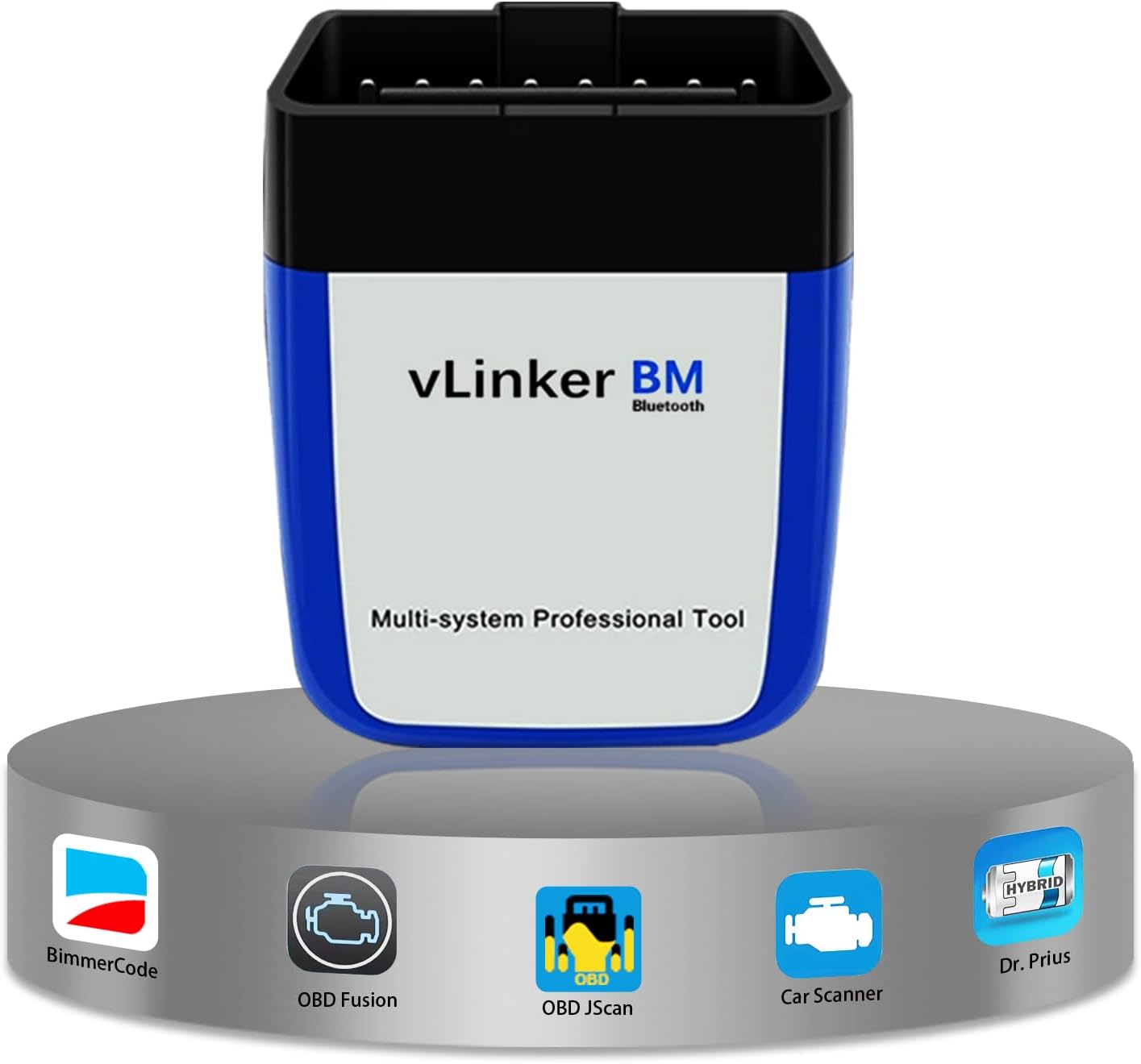
Image: The Vgate vLinker BM Bluetooth3.0 OBD2 Scanner, a compact diagnostic tool.
Key features include multi-system support, Bimmercode optimization, battery saver technology, high-performance data transfer, and broad vehicle compatibility.
2. Setup Guide
2.1 Package Contents
- Vgate vLinker BM Bluetooth3.0 Device
- User Manual

Image: The Vgate vLinker BM device and its packaging, including the quick start guide.
2.2 Physical Connection
Locate your vehicle's OBD-II port, typically found under the dashboard on the driver's side. Plug the Vgate vLinker BM device firmly into the OBD-II port. The device will power on automatically.
2.3 Bluetooth Pairing (Android)
- Step 1: Open your phone's Bluetooth Settings, search for available devices, and tap on "vLinker BM-Android".
- Step 2: Enter the pairing code "1234" if prompted, and click "OK".
- Step 3: Once paired, open your preferred OBD-II application (e.g., Bimmercode, Torque).
- Step 4: Within the app, select the OBD Adapter "vLinker Bluetooth" from the available devices.
- Step 5: Click on "CONNECT" within the app.
- Step 6: Choose your car model if the app requires it.

Image: Visual guide for connecting the Vgate vLinker BM to an Android phone via Bluetooth.
Note: The Vgate vLinker BM Bluetooth3.0 scanner is compatible with Android and Windows operating systems. It is NOT supported on iOS devices.
3. Operating Instructions
3.1 Using with Bimmercode
The Vgate vLinker BM is optimized for use with Bimmercode, allowing you to customize various aspects of your BMW or Mini vehicle. After connecting the device as described in the setup section, launch the Bimmercode app and follow its instructions to access and modify vehicle settings.

Image: The Bimmercode application interface showing vehicle ECU modules, accessible with the vLinker BM.
3.2 Recommended Applications
Beyond Bimmercode, the vLinker BM is compatible with a wide range of popular OBD-II applications for Android and Windows, including:
- BimmerLink
- TORQUE Lite/Pro (Android)
- JScan
- OBD Fusion
- DashCommand
- Car Scanner ELM OBD2
- inCarDoc
- AlfaOBD
- And many more.
Note: Some features or the applications themselves may require additional payment to the software company.

Image: Examples of popular applications recommended for use with the vLinker BM.
3.3 Using with Torque (Android)
- Step 1: Enter your phone's Bluetooth settings and select 'vLinker BM-Android'.
- Step 2: Enter the code '1234' if prompted.
- Step 3: After successful Bluetooth connection, go to Torque app and click the settings icon.
- Step 4: Go to 'OBD2 Adapter Settings'.
- Step 5: Select 'Connection Type' as 'Bluetooth'.
- Step 6: Choose 'vLinker BM-Android' as the Bluetooth Device.

Image: Detailed steps for configuring the Torque application on Android to work with the vLinker BM.
4. Maintenance
4.1 Firmware Updates
Regular firmware updates ensure optimal performance and compatibility. The Vgate vLinker BM supports free firmware updates.
- Step 1: Scan the QR code (provided in the manual or on the product packaging) to download the 'VgateFwUpdater' app. Download VgateFwUpdater
- Step 2: Open the app and click "Auto connect".
- Step 3: Click "Download" to start the firmware update.
- Step 4: Wait for the upgrade to be successful.

Image: Step-by-step instructions for upgrading the vLinker BM Bluetooth firmware using the VgateFwUpdater app.
4.2 Battery Saver Technology
The vLinker BM features auto sleep and wake-up modes, along with over-voltage and battery drain protection. It has a low operating current of 51mA and automatically enters sleep mode with a current as low as 3mA when idle, preventing vehicle battery drain during long periods of connection.

Image: Icon representing the battery saver technology feature.
5. Troubleshooting
5.1 Connection Issues
- Ensure the device is firmly plugged into the OBD-II port.
- Verify Bluetooth is enabled on your Android or Windows device.
- Confirm the correct pairing code (1234) was entered.
- Check that no other Bluetooth devices are interfering with the connection.
- Restart your phone/computer and the vehicle's ignition.
5.2 App Compatibility
While the vLinker BM supports many apps, some app features may be locked behind a paywall or require specific vehicle protocols. Ensure your chosen app is up-to-date and compatible with your vehicle model.
5.3 Testing for Non-BMW Users
If you are not a BMW or Mini user, you can still test the vLinker BM with other compatible OBD-II applications like Torque, OBD Fusion, or Car Scanner ELM OBD2. These apps provide general diagnostic functions for most OBD2 compliant vehicles.

Image: A visual prompt addressing how non-BMW users can test the vLinker BM.
6. Specifications
| Feature | Detail |
|---|---|
| Model | Vgate vLinker BM BT3.0 |
| Connectivity | Bluetooth 3.0 |
| Operating System Compatibility | Android, Windows (Not iOS) |
| Supported Protocols |
|
| Operating Current | 51mA |
| Sleep Current | 3mA |
| Baud Rate | Up to 230.4Kbps |
| Product Dimensions | 4.72 x 2.76 x 1.18 inches |
| Item Weight | 2.46 ounces |

Image: Dimensions of the Vgate vLinker BM3.0 device.
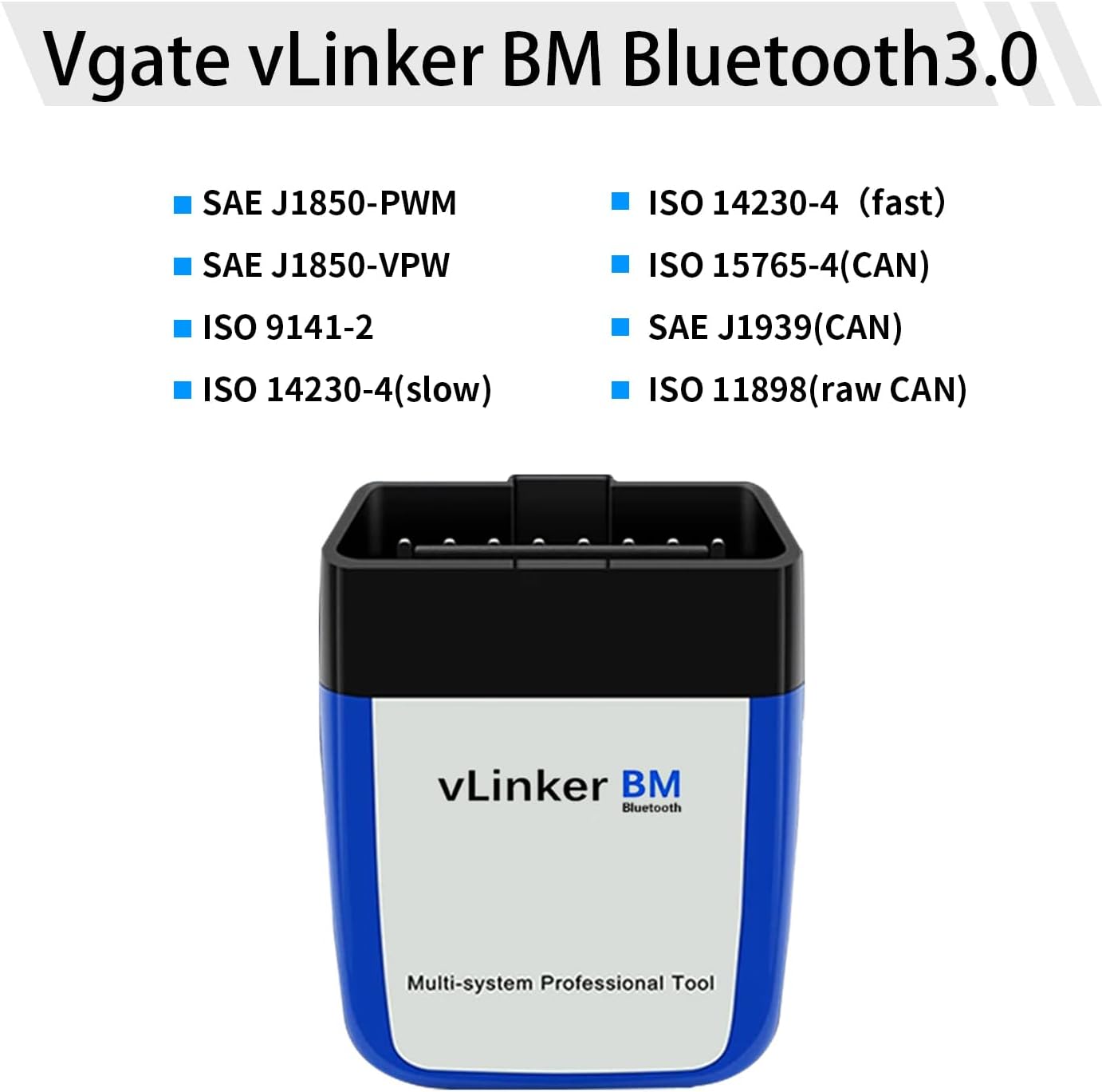
Image: List of OBD-II protocols supported by the Vgate vLinker BM Bluetooth3.0.
7. Warranty & Support
The Vgate vLinker BM Bluetooth3.0 comes with a one-year warranty. We are committed to 100% satisfaction service. If you have any issues or questions, please contact the VgateDirect after-sales service team directly for hassle-free support.
Image: Icon representing customer service and support for warranty claims.


