
1. Introduction
This manual provides detailed instructions for the installation, operation, and maintenance of the VSDISPLAY VS-CS56S2 USB SD LCD Driver Board. This controller board is designed to work with 12.3-inch LVDS LCD screens with a resolution of 1920x720, such as the HSD123IPW1-A00 model. Please read this manual thoroughly before use to ensure proper functionality and to prevent damage.
2. Product Overview
2.1 Key Features
- Compatible with 12.3-inch LVDS LCD screens (1920x720 resolution), including HSD123IPW1-A00.
- Supports USB and SD card for multimedia playback.
- Audio input via USB and SD, with audio output to speaker or earphone.
- On-Screen Display (OSD) menu for contrast, brightness, and other settings.
- Low power consumption in standby mode (<0.3W).
- Recommended input power: 12Vdc, greater than 2A.
2.2 Package Contents
The following items are included in your package:
- 1 × USB SD LCD Controller Board (VS-CS56S2)
- 1 × Inverter Board
- 1 × LVDS Cable
- 1 × Keyboard with Cable

Figure 1: Included components of the VSDISPLAY VS-CS56S2 kit.
2.3 Board Layout and Dimensions
The VS-CS56S2 board measures approximately 107mm x 50mm x 15mm (4.21 x 1.97 x 0.59 inches). Refer to the images below for detailed dimensions and port identification.

Figure 2: Dimensions of the VS-CS56S2 controller board.
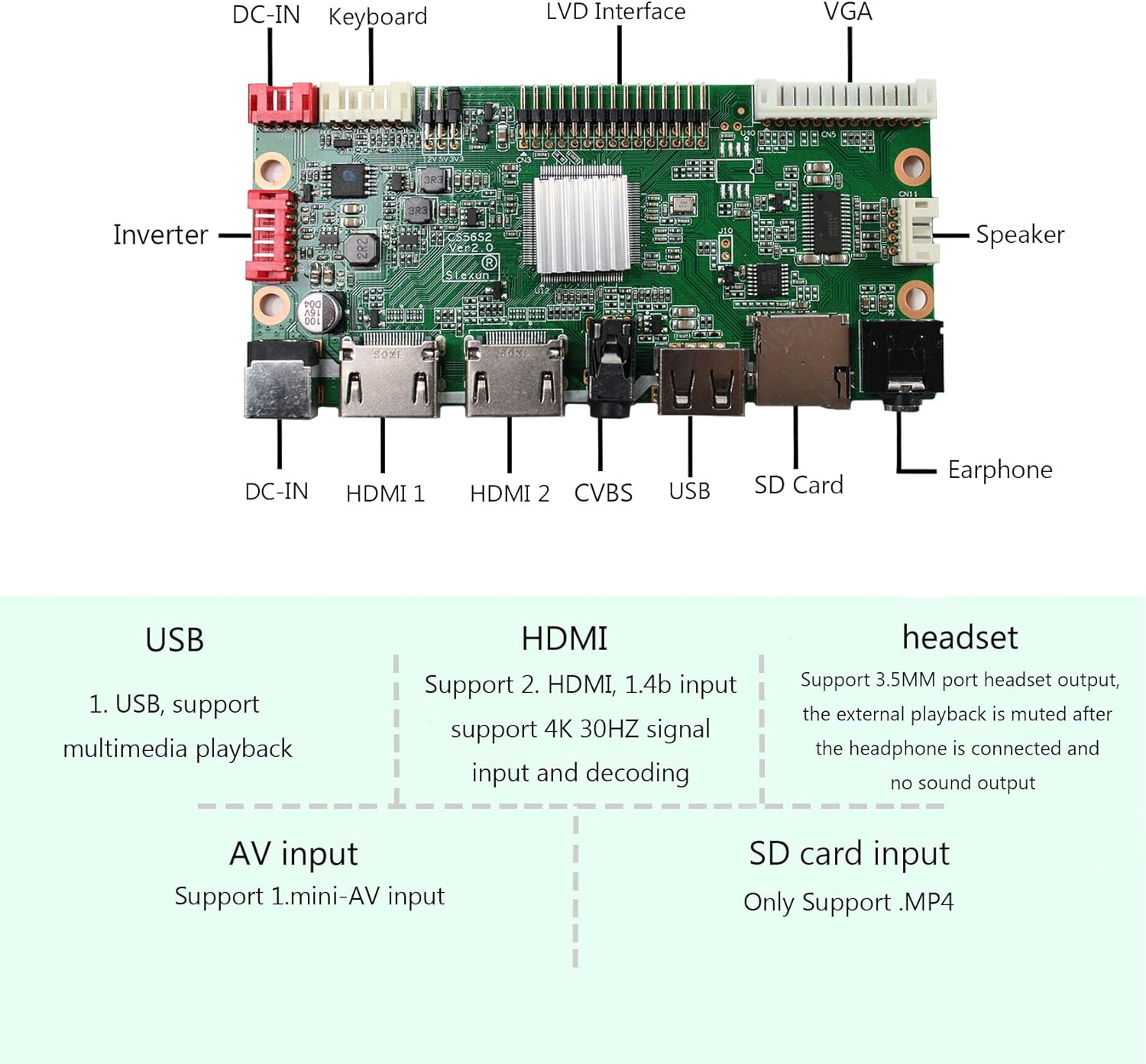
Figure 3: Labeled ports and interfaces on the VS-CS56S2 controller board.
3. Setup Instructions
Follow these steps to correctly connect the VS-CS56S2 driver board to your LCD screen and other peripherals.
- Connect the LVDS Cable: Carefully connect the LVDS cable to the LVDS interface on the controller board and to the corresponding port on your 12.3-inch LCD screen. Ensure the connection is secure and correctly oriented.
- Connect the Inverter Board: If your LCD screen requires a separate inverter for backlighting, connect the inverter board to the designated port on the VS-CS56S2 controller board and then to the LCD panel's backlight input.
- Connect the Keyboard: Attach the provided keyboard with its cable to the "Keyboard" port on the controller board. This keyboard is used for OSD menu navigation.
- Connect Power: Connect a 12Vdc power adapter (minimum 2A) to the DC-IN port on the controller board. Ensure the power adapter is suitable for the board's requirements.
- Connect Audio (Optional): If using external speakers or headphones, connect them to the "Speaker" or "Earphone" output ports.
- Connect USB/SD (Optional): Insert a USB drive or SD card into the respective ports for multimedia playback.

Figure 4: Example of LVDS cable connection to an LCD panel.
4. Operating Instructions
4.1 Power On/Off
Once all connections are made and the power adapter is plugged in, the board will enter standby mode if no signal is detected. Press the "Power" button on the connected keyboard to turn on the display. Press it again to turn off or enter standby mode.
4.2 OSD Menu Navigation
Use the provided keyboard to navigate the On-Screen Display (OSD) menu:
- Menu: Press to open the OSD menu.
- Up/Down: Use these buttons to navigate through menu options.
- Exit: Press to exit the current menu or OSD.
- Power: Toggles power on/off or standby.
Within the OSD menu, you can adjust settings such as contrast, brightness, and other display parameters.
4.3 Multimedia Playback
The VS-CS56S2 supports multimedia playback from USB drives and SD cards. Ensure your media files are in a compatible format, such as MP4 for video. Insert the storage device into the corresponding port, and use the OSD menu to select the input source and navigate your files.
Audio input is supported via USB and SD. Audio output is available through the speaker and earphone ports. When headphones are connected, the speaker output will be muted.
5. Specifications
| Feature | Specification |
|---|---|
| Model | VS-CS56S2 |
| Compatible LCD Screen Size | 12.3 inches |
| Compatible LCD Resolution | 1920x720 |
| Compatible LCD Interface | LVDS (40 Pin) |
| Recommended Input Power | 12Vdc, >2A |
| Standby Power Consumption | <0.3W |
| Multimedia Support | MP4 (via USB/SD) |
| Audio Input | USB, SD |
| Audio Output | Speaker, Earphone |
| OSD Language | English |
| Board Dimensions (L x W x H) | 107mm x 50mm x 15mm (4.21 x 1.97 x 0.59 inches) |
6. Troubleshooting
If you encounter issues with your VS-CS56S2 driver board, please refer to the following common problems and solutions:
- No Display / Black Screen:
- Ensure the 12Vdc power adapter is correctly connected and providing sufficient power (>2A).
- Verify that the LVDS cable is securely connected to both the controller board and the LCD panel, with correct orientation.
- Check if the inverter board (if used) is properly connected and functioning.
- Confirm the LCD panel is compatible with the VS-CS56S2 board (12.3-inch, 1920x720, LVDS 40 Pin).
- No Audio Output:
- Check if headphones are plugged in; if so, the speaker output will be muted.
- Ensure the audio files on USB/SD are in a supported format (e.g., MP4).
- Verify speaker/earphone connections.
- OSD Menu Not Appearing/Responding:
- Ensure the keyboard is correctly connected to the board.
- Check for any physical damage to the keyboard or its cable.
- Image Quality Issues (Flickering, Distorted):
- Re-check the LVDS cable connection for looseness or incorrect seating.
- Ensure the power supply is stable and meets the specifications.
If problems persist after attempting these solutions, please contact VSDISPLAY customer support for further assistance.
7. Maintenance
The VSDISPLAY VS-CS56S2 driver board requires minimal maintenance. To ensure longevity and optimal performance:
- Keep the board in a clean, dry environment, away from dust and moisture.
- Avoid exposing the board to extreme temperatures or direct sunlight.
- Do not attempt to disassemble the board or modify its components, as this may void any warranty.
- When cleaning, use a soft, dry cloth. Do not use liquid cleaners or solvents.
8. Warranty and Support
All VSDISPLAY products are tested before packaging and shipment. If you encounter any issues with your product, please contact VSDISPLAY customer support. Refer to your purchase documentation for specific warranty terms and contact information.
For support, visit the official VSDISPLAY store or contact the seller directly through the platform where the product was purchased.