
NPET K201
NPET K201 Wireless Triple Mode Keyboard User Manual
Model: K201
Introduction
Welcome to the user manual for your NPET K201 Wireless Triple Mode Keyboard. This manual provides detailed instructions for setup, operation, maintenance, and troubleshooting to ensure optimal performance and longevity of your device. Please read this manual thoroughly before using the keyboard.

Image: The NPET K201 keyboard, a compact 100-key layout with RGB backlighting, shown from a top-down perspective.
Key Features
- Compact 100-Key Layout: A space-saving design that retains full functionality, including a numeric keypad and dedicated arrow keys.
- Triple Mode Connectivity: Supports USB-C wired, 2.4G wireless, and Bluetooth 5.1 connections for versatile use across multiple devices.
- Multi-Device Connection: Connect up to 3 devices simultaneously via Bluetooth and switch between them easily.
- Ergonomic Design & Mechanical Feel: Designed for comfort during long-term use with a 40g key operation force, providing a satisfying typing experience.
- Anti-Ghosting: Features 26-key anti-ghosting to ensure all key presses are registered accurately during fast typing or gaming.
- Customizable RGB Backlight: Over 20 RGB backlight modes with adjustable brightness and color options to personalize your setup.
- IP32 Spill Resistance: Designed to withstand minor liquid spills, offering enhanced durability.
- Doubleshot ABS Keycaps: Durable keycaps resistant to shine from prolonged use.
- Long-Lasting Battery: Equipped with a 3000 mAh battery and an OLED display for real-time battery percentage.
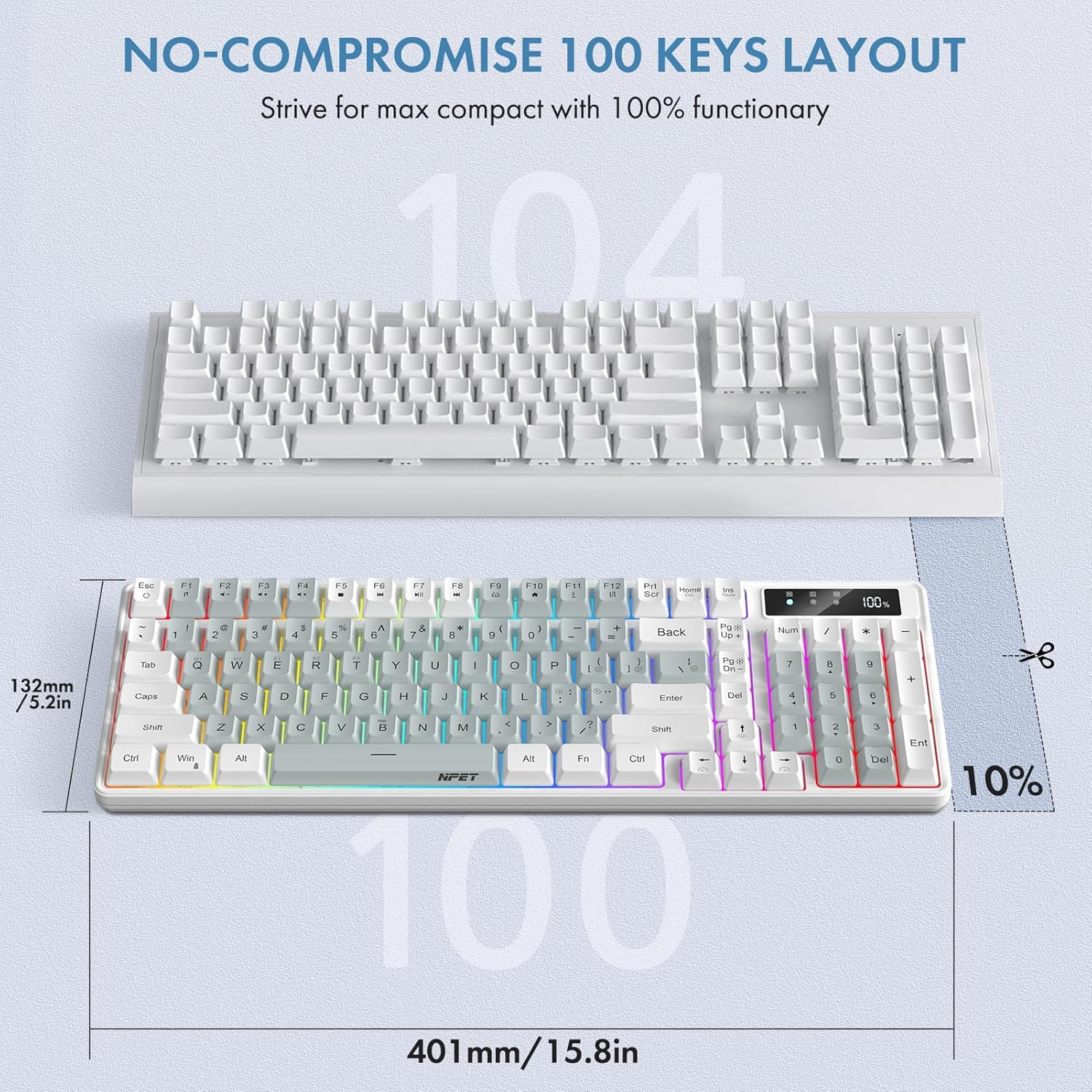
Image: A comparison showing a standard 104-key keyboard layout above the more compact 100-key NPET K201 keyboard, highlighting its space-saving design.

Image: A close-up view of the NPET K201 keyboard's keys, illustrating the 40g gentle feel pressure switch for silent and soft typing.

Image: A close-up view of the NPET K201 keyboard in a modern desk setup, emphasizing the durable doubleshot ABS keycaps.
Setup
Package Contents
- NPET K201 Wireless Triple Mode Keyboard
- USB-C Cable
- 2.4G USB Receiver
- User Manual
Initial Charging
Before first use, connect the keyboard to a USB power source (e.g., computer USB port, USB wall adapter) using the provided USB-C cable. The OLED display on the keyboard will indicate the charging status. A full charge is recommended for optimal battery life.
Connectivity Modes
The NPET K201 supports three connection modes: USB-C Wired, 2.4G Wireless, and Bluetooth 5.1. You can switch between these modes using the dedicated switch on the keyboard.

Image: An illustration demonstrating the three connection modes of the NPET K201 keyboard: Bluetooth 5.0, 2.4G Wireless, and USB-C Wired, with icons representing each mode.

Image: The NPET K201 keyboard connected to multiple devices (laptop, PC, tablet) via its tri-mode smart connection (wired, Bluetooth, 2.4G wireless).
Operating Instructions
Switching Connection Modes
Locate the mode switch on the keyboard. Toggle it to select your desired connection mode: Wired (USB-C), 2.4G, or BT (Bluetooth).
2.4G Wireless Mode
- Plug the 2.4G USB receiver into an available USB port on your computer.
- Switch the keyboard to 2.4G mode. The keyboard will automatically connect to the receiver.
Bluetooth 5.1 Mode
- Switch the keyboard to Bluetooth mode. The keyboard will enter pairing mode.
- On your device (PC, Mac, tablet, smartphone), enable Bluetooth and search for new devices.
- Select "NPET K201" from the list of available devices to pair.
- To connect to additional Bluetooth devices (up to 3), repeat the pairing process. You can switch between paired devices using specific function key combinations (refer to keyboard legends or product documentation for details).
USB-C Wired Mode
- Connect the provided USB-C cable to the keyboard's USB-C port and the other end to an available USB port on your computer.
- Switch the keyboard to wired mode. The keyboard will be recognized as a standard USB input device.
Backlight Control
The NPET K201 keyboard features over 20 customizable RGB backlight modes. Use the designated function keys (e.g., Fn + specific keys like F-keys or arrow keys) to cycle through modes, adjust brightness levels, change colors, and control lighting effects. Refer to the keycap legends for specific combinations.

Image: A close-up of the NPET K201 keyboard's side profile, showcasing the vibrant 10-zone RGB lighting and its aesthetic appeal.
Battery Management
The keyboard is equipped with a 3000 mAh rechargeable battery. The integrated OLED display shows the current battery percentage, allowing you to monitor power levels and recharge as needed. For optimal battery life, charge the keyboard when the battery level is low.

Image: An illustration highlighting the 3000 mAh battery capacity of the NPET K201 keyboard, with an OLED display showing 100% charge, indicating long-lasting power.
Maintenance
Cleaning
To clean the keyboard, first disconnect it from all devices. Use a soft, dry cloth to wipe the surface. For stubborn dirt or dust between keycaps, a small brush or compressed air can be used. A slightly damp cloth can be used for the surface, but ensure no liquid enters the keyboard's internal components.
Spill Resistance
The NPET K201 keyboard has an IP32 spill resistance rating, meaning it is protected against vertically falling water drops when tilted up to 15 degrees. It is designed to withstand minor spills up to 120ml. In the event of a liquid spill, immediately disconnect the keyboard from all power sources and devices. Gently wipe off any excess liquid and allow the keyboard to air dry completely for at least 24 hours before reconnecting it.

Image: A visual representation of the NPET K201 keyboard being splashed with water, illustrating its IP32 spill resistance feature.
Storage
When not in use for extended periods, store the keyboard in a cool, dry place away from direct sunlight, extreme temperatures, and high humidity. Avoid placing heavy objects on the keyboard to prevent damage.
Troubleshooting
Keyboard Not Responding
- Ensure the keyboard is sufficiently charged. Connect it to a power source using the USB-C cable.
- Verify that the connection mode switch on the keyboard is set to the correct mode (Wired, 2.4G, or BT) for your intended use.
- For wired mode, try connecting to a different USB port on your computer or using a different USB-C cable.
- For 2.4G wireless mode, ensure the USB receiver is securely plugged into a working USB port. Try a different port if necessary.
- For Bluetooth mode, ensure Bluetooth is enabled on your device and the keyboard is properly paired. Try unpairing and re-pairing the keyboard if the connection is unstable.
Backlight Not Working
- Ensure the keyboard is powered on and has sufficient battery charge.
- Check if the backlight is turned off or set to minimum brightness using the function key combinations (e.g., Fn + arrow keys for brightness).
- Cycle through the backlight modes to ensure it's not set to a static off mode.
Keys Not Registering / Ghosting
- The keyboard features 26-key anti-ghosting. If specific keys are not registering, try cleaning around the keycap to remove any debris.
- Ensure the keyboard's firmware is up to date. Check the NPET official website for any available firmware updates and installation instructions.
Bluetooth Connection Issues
- Ensure the keyboard is within the effective Bluetooth range (typically up to 10 meters) of your device.
- Minimize interference from other wireless devices operating on the same frequency.
- Try restarting both the keyboard and your device.
- If you have multiple Bluetooth devices connected, try disconnecting others temporarily to see if it resolves the issue.
Specifications
| Brand | NPET |
| Model | K201 |
| Connectivity Technology | Bluetooth 5.0, Wireless 2.4G, USB-C |
| Number of Keys | 100 |
| Keycap Material | Acrylonitrile Butadiene Styrene (ABS) |
| Backlight | RGB (20+ modes) |
| Battery Capacity | 3000 mAh |
| Spill Resistance | IP32 |
| Dimensions (L x W x H) | 44.5 x 17.7 x 5.59 cm |
| Weight | 812 g |
| Compatible Devices | Laptop, PC (Windows/Mac dual system) |
| Key Operation Force | 40g |
Warranty and Support
NPET provides a 24-month warranty for the K201 keyboard from the date of purchase. This warranty covers manufacturing defects and ensures your product functions as intended under normal use.
For technical support, warranty claims, or any further assistance, please contact NPET customer service at support@npettech.com. When contacting support, please include your product model number (K201) and details of your purchase for faster service.
Ask a question about this manual
Ask about setup, troubleshooting, compatibility, parts, safety, or missing instructions. Manuals+ will review the question and use this page’s manual context to help answer it.