
SSK SD301
SSK External USB C SSD Flash Drive User Manual
Model: SD301 | Brand: SSK
Introduction
This manual provides essential information for the SSK External USB C SSD Flash Drive, 512GB (Model SD301). It covers product features, setup, operation, maintenance, and troubleshooting to ensure optimal performance and longevity of your device. This high-speed solid-state drive offers versatile connectivity and robust data storage solutions for a wide range of devices.

Figure 1: SSK External USB C SSD Flash Drive (Model SD301) and its included carrying case.
Product Features
- Dual Drive USB C + USB A: Equipped with both USB-C and USB-A 3.2 ports, allowing convenient data transfer between smartphones, tablets, and computers.
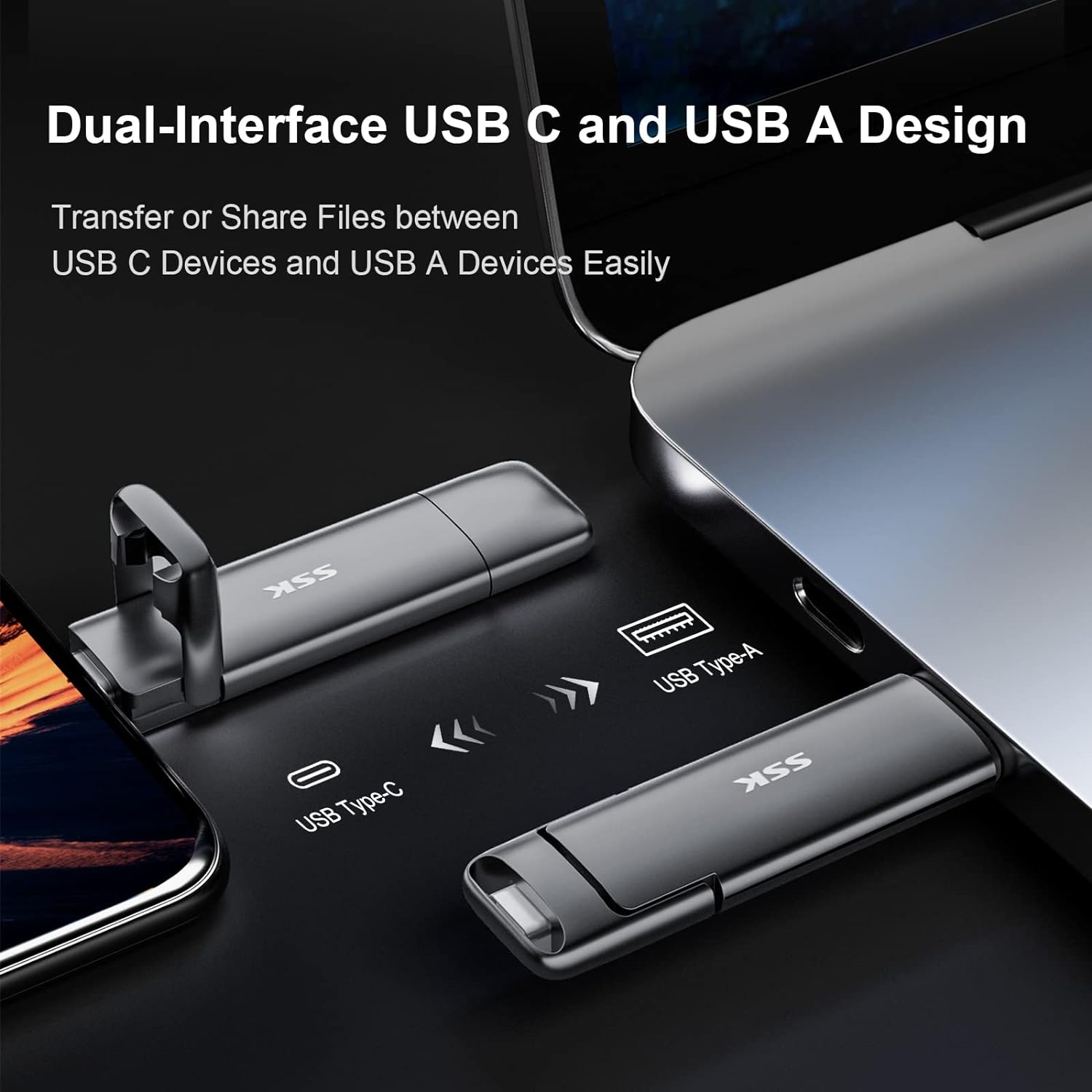
Figure 2: Dual USB-C and USB-A interface for broad compatibility.
- Ultra Fast High Speed: Achieves up to 550MB/s read speeds and 500MB/s write speeds, significantly faster than traditional USB 3.0 memory sticks. Ideal for large files and high-resolution media.

Figure 3: High-speed performance for efficient data handling.
- Plug and Play: No software installation required. Expands storage capacity for phones and computers, facilitating direct file sharing, data transmission, and video playback.
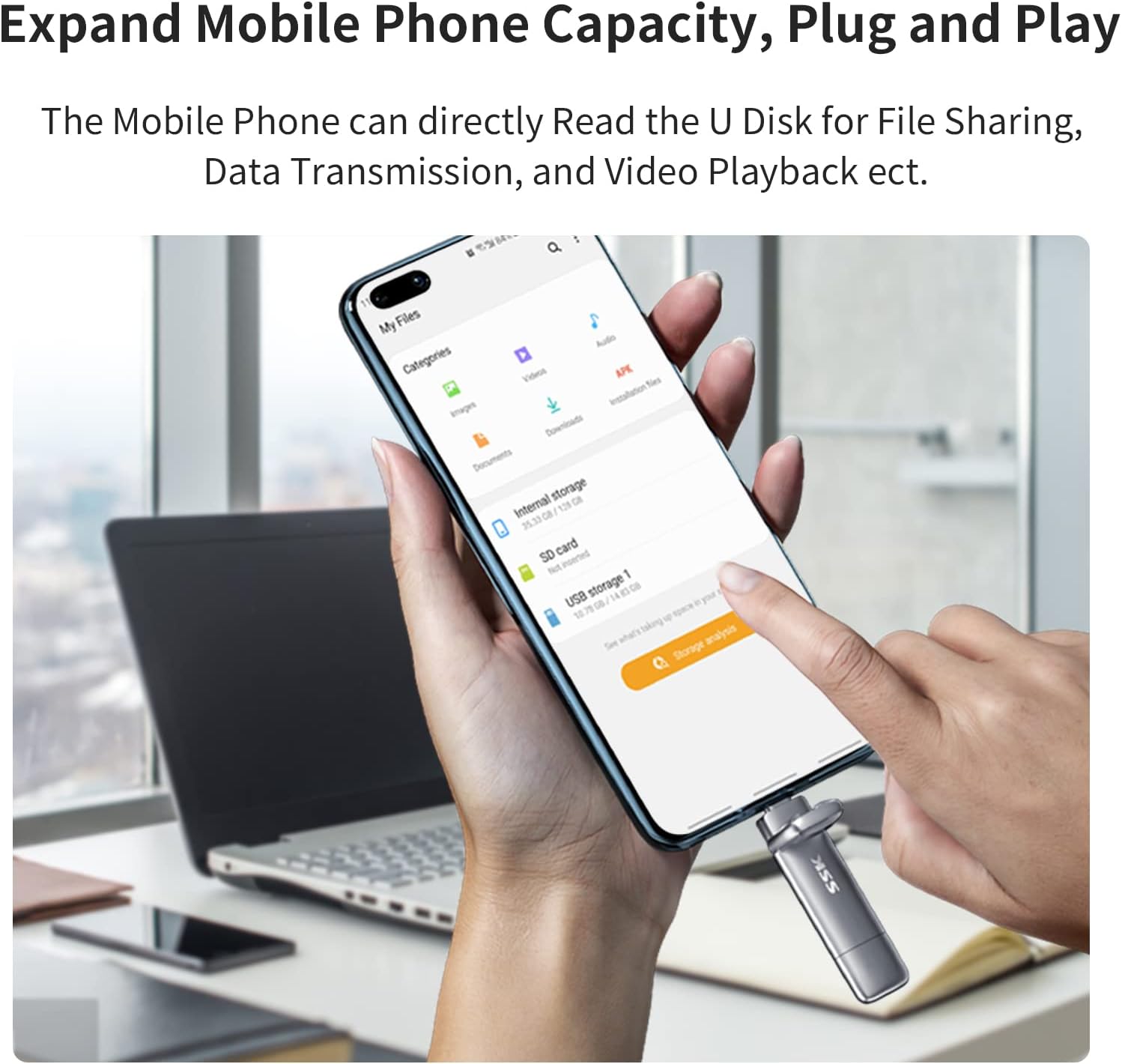
Figure 4: Plug-and-play functionality with mobile devices.
- Safe & Reliable: Constructed with a high-grade zinc alloy shell for durability, resistance to drops and abrasion. Features a double-head protective cover for enhanced interface protection.
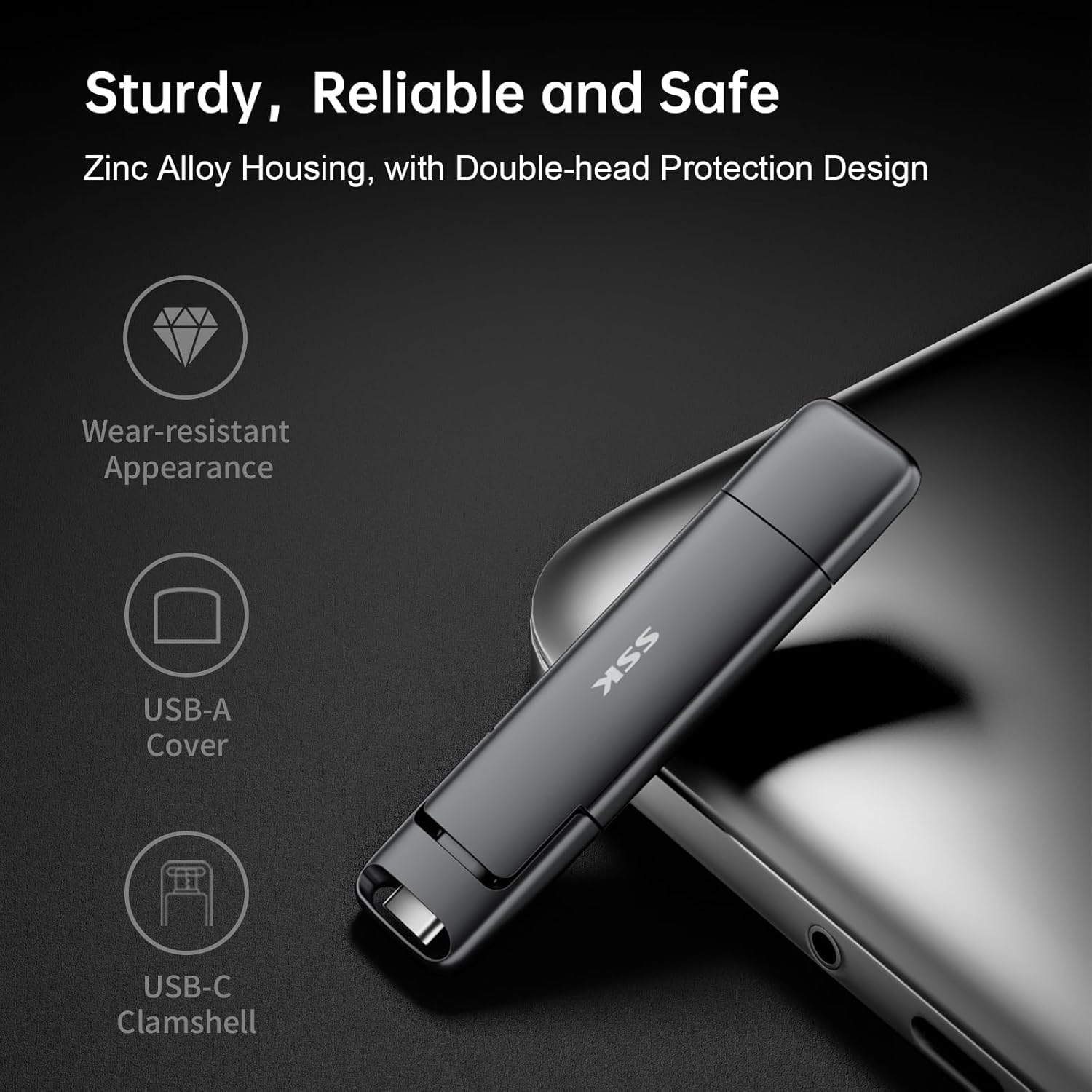
Figure 5: Robust design for enhanced durability and protection.
- Universal Compatibility: Compatible with Windows, Android, Mac OS, Linux, and iPad OS systems. Works with computers, smart TVs, car audio systems, smartphones (including iPhone 15), iPads, and laptops.
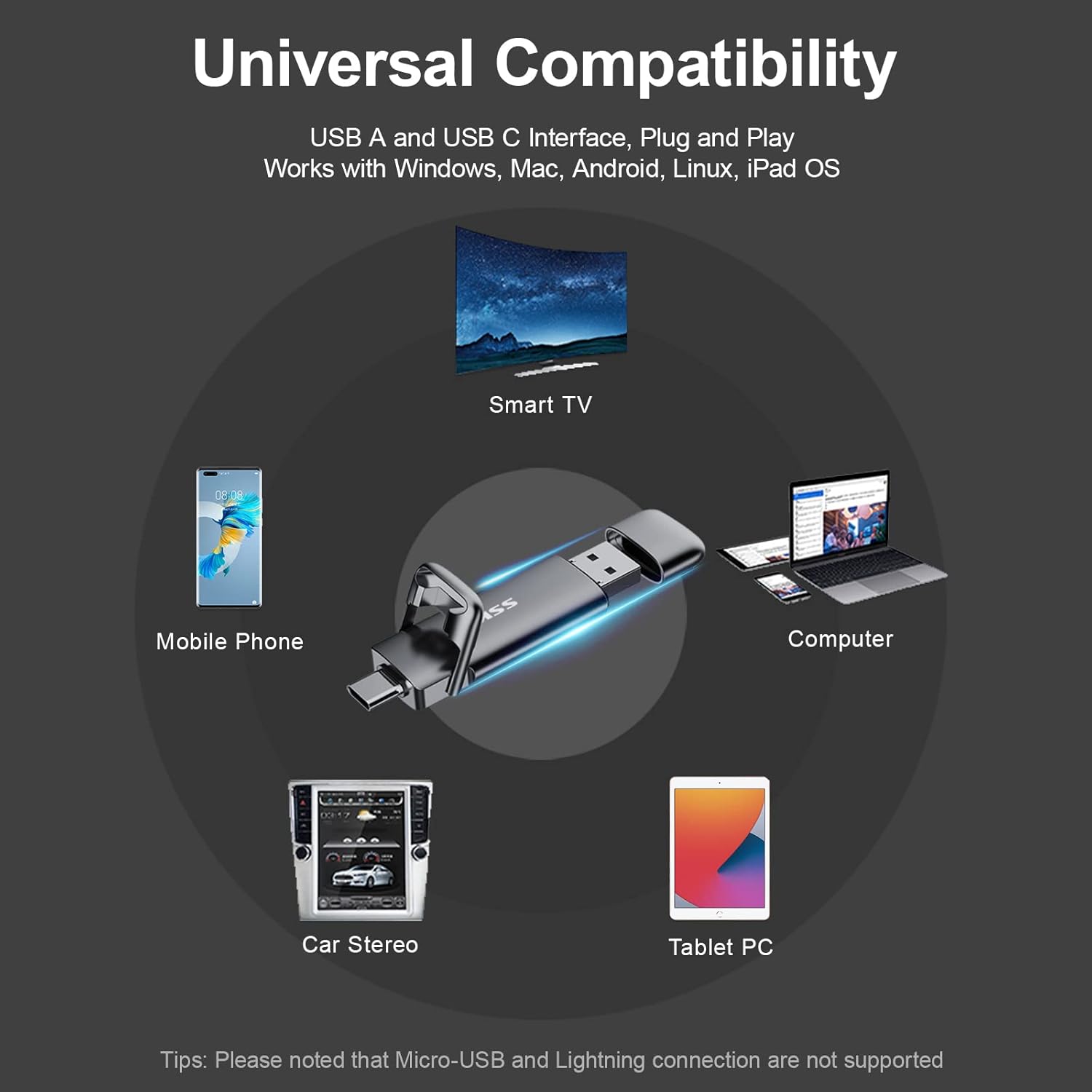
Figure 6: Broad device compatibility.
Setup
The SSK External USB C SSD Flash Drive is designed for ease of use with its plug-and-play functionality. No special drivers or software installations are typically required for most operating systems.
- Identify the Correct Port: Determine whether your device (computer, smartphone, tablet, etc.) has a USB-C port or a traditional USB-A port. The SSK drive features both.
- Connect the Drive:
- For USB-C devices: Insert the USB-C end of the drive into your device's USB-C port.
- For USB-A devices: Insert the USB-A end of the drive into your device's USB-A port.
- Accessing the Drive: Once connected, your device should automatically recognize the drive. It will typically appear as a removable storage device (e.g., "USB Drive," "External Disk," or "SSK SSD") in your file explorer (Windows), Finder (Mac), or file manager app (Android/iOS).
- Initial Format (if necessary): The drive comes pre-formatted with EXFAT, which is compatible with most systems (Windows, Mac OS, Android, Linux). If you encounter issues or wish to use a different file system, you may reformat the drive using your operating system's disk utility. Caution: Reformatting will erase all data on the drive.
Important Note: This drive is not compatible with devices using a Lightning port. Ensure your device has a compatible USB-C or USB-A port.
Operating Instructions
Using your SSK SSD Flash Drive for data transfer is straightforward:
- Transferring Files:
- Open the file explorer/manager on your device.
- Navigate to the files or folders you wish to transfer.
- Select the items, then copy or cut them.
- Navigate to the SSK SSD drive, then paste the items into your desired location.

Figure 7: Example of high-speed data transfer performance.
- Playing Media Directly: For compatible devices (e.g., smart TVs, car audio systems, computers), you can often play media files (videos, music, photos) directly from the drive without transferring them to the device's internal storage.
- Ejecting Safely: Always safely eject or unmount the drive before physically disconnecting it to prevent data corruption.
- Windows: Right-click the drive icon in "This PC" or the taskbar, then select "Eject."
- Mac: Drag the drive icon from the desktop to the Trash, or click the Eject icon next to the drive name in Finder.
- Android: Go to Storage settings and tap "Eject" or "Unmount" next to the USB drive.
Maintenance
Proper care will extend the life and performance of your SSK SSD Flash Drive:
- Physical Protection: The zinc alloy shell provides excellent durability. Utilize the double-head protective cover when the drive is not in use to shield the USB-C and USB-A connectors from dust, debris, and physical damage.
- Cleaning: Use a soft, dry, lint-free cloth to clean the exterior of the drive. Avoid using liquid cleaners or solvents.
- Temperature and Humidity: Store the drive in a cool, dry place away from extreme temperatures and high humidity.
- Avoid Drops and Impacts: While designed to be shock-resistant, excessive force or repeated drops can still damage the internal components.
Troubleshooting
If you encounter issues with your SSK SSD Flash Drive, consider the following common solutions:
- Drive Not Recognized:
- Ensure the drive is fully inserted into the USB port.
- Try a different USB port on your device.
- Test the drive on another computer or compatible device to rule out a device-specific issue.
- Restart your computer or device.
- Check your device's Disk Management (Windows) or Disk Utility (Mac) to see if the drive is detected but not assigned a drive letter or mounted.
- Slow Transfer Speeds:
- Ensure you are using a USB 3.0 or USB 3.2 compatible port on your device. Connecting to a USB 2.0 port will result in significantly slower speeds.
- Close other applications that might be using system resources or performing background transfers.
- Verify the file system. EXFAT is generally good, but sometimes NTFS (Windows) or APFS (Mac) might offer better performance for specific use cases.
- Data Corruption or Errors:
- Always safely eject the drive before disconnecting it.
- Run a disk check utility (e.g., 'chkdsk' on Windows, Disk Utility's 'First Aid' on Mac) to scan and repair potential errors.
Specifications
| Attribute | Detail |
|---|---|
| Brand | SSK |
| Model Number | SD301 |
| Digital Storage Capacity | 512 GB |
| Hard Drive Interface | Solid State |
| Connectivity Technology | USB (USB-C and USB-A 3.2 Gen 2) |
| Read Speed (Max) | Up to 550 MB/s |
| Write Speed (Max) | Up to 500 MB/s |
| Material | Zinc Alloy Shell |
| Color | Grey |
| Item Weight | 1.31 ounces |
| Product Dimensions (LxWxH) | 3.07 x 0.81 x 0.34 inches |
| Compatible Devices | Portable, Smartphone, Tablet, Television, PC, Mac |
| Pre-formatted File System | EXFAT |
Warranty and Support
For detailed warranty information and customer support, please refer to the official SSK website or the documentation included with your product. A comprehensive User Manual (PDF) is available for download, which may contain additional language options and frequently asked questions.
User Manual (PDF): You can access the official PDF user manual here.
For technical assistance or inquiries, please contact SSK customer service through their official channels.
Related documentsSD301


Ask a question about this manual
Ask about setup, troubleshooting, compatibility, parts, safety, or missing instructions. Manuals+ will review the question and use this page’s manual context to help answer it.