
1. Introduction
The Epson Perfection V39 II is a compact and lightweight flatbed scanner designed for high-quality scanning of color photos and documents. With its 4800 dpi optical resolution, it ensures superb image clarity and detail, making it ideal for enlarging photos and preserving memories. This scanner offers effortless scanning to USB and cloud storage through Epson ScanSmart software and features convenient one-touch scanning buttons. Its versatile design, including a high-rise removable lid, allows for scanning of various materials, from single photos to thick books and photo albums.
2. Important Safety Instructions
Please read and follow these safety instructions carefully to ensure safe operation and prevent damage to your scanner or personal injury.
- Do not block or cover the openings on the scanner.
- Use only the type of power source indicated on the scanner's label.
- Avoid placing the scanner on an unstable surface.
- Do not expose the scanner to rain, liquid, or excessive humidity.
- Unplug the scanner from the power source before cleaning.
- Do not attempt to service the scanner yourself. Refer all servicing to qualified service personnel.
3. Package Contents
Verify that all items listed below are included in your scanner box. If any items are missing or damaged, please contact Epson support.
- Epson Perfection V39 II Scanner
- USB Cable (Type-A to Micro-USB)
- Start Here Guide / Setup Sheet
For a visual guide on unpacking your scanner, you may refer to unboxing videos available from various online content creators.
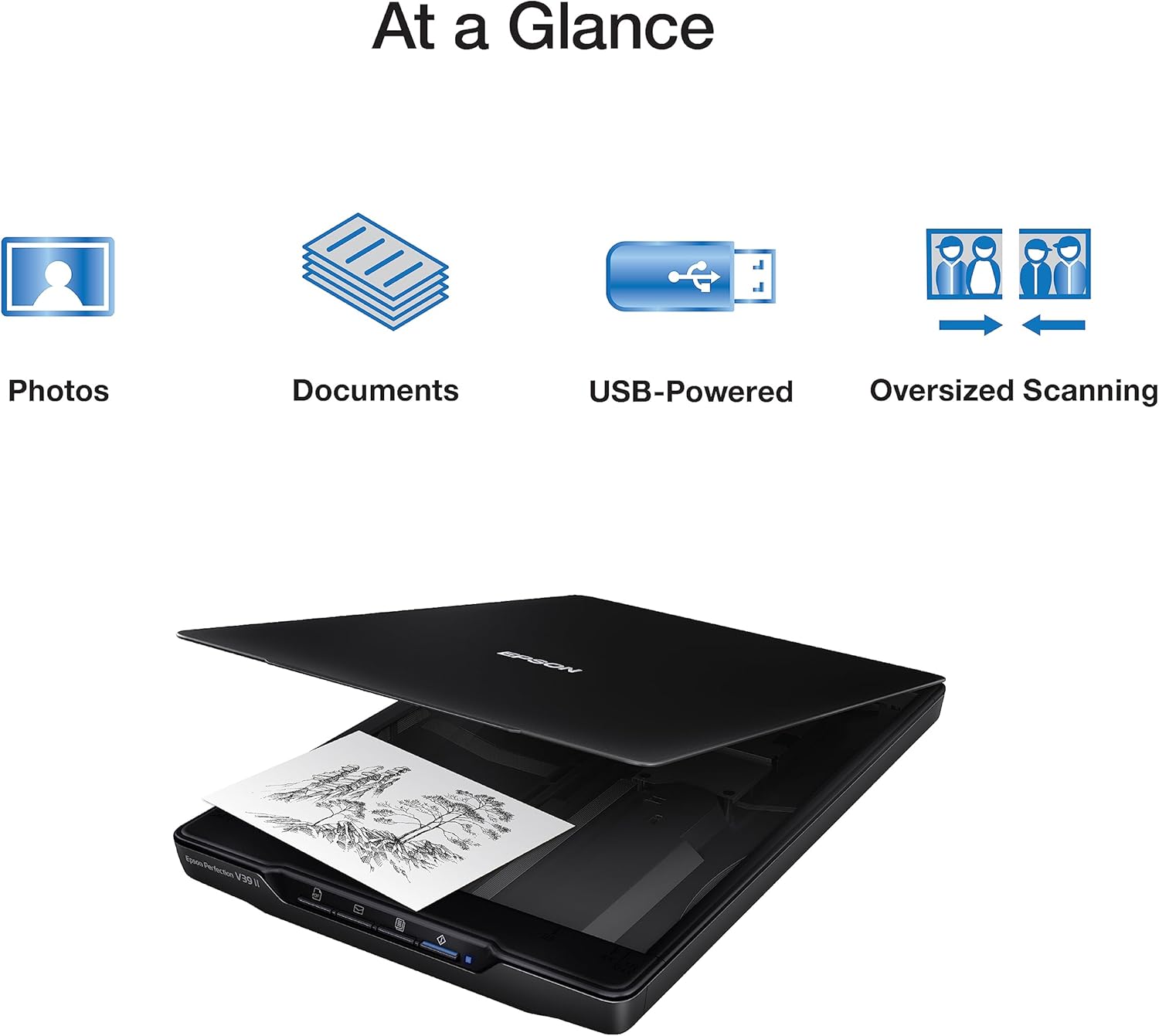
Image: The contents of the Epson Perfection V39 II scanner box, showing the scanner itself, a USB cable, and a 'Start Here Guide'. Dimensions of the scanner (1.5" H, 14.4" D, 9.9" W) are also labeled.
4. Product Overview
Scanner Components and Features
Familiarize yourself with the various parts and functions of your Epson Perfection V39 II scanner.
Front Panel
The front panel of the scanner features several one-touch buttons for quick and easy operation:
- PDF Button: Scans documents directly to PDF format.
- Email Button: Scans documents or photos and attaches them to an email.
- Multi-Scan Button: Allows for scanning multiple items at once.
- Scan Button: Initiates a standard scan.
- LED Indicator: Displays the scanner's status (e.g., ready, scanning, error).

Image: A direct front view of the Epson Perfection V39 II scanner, clearly showing the four function buttons and the model name 'Epson Perfection V39 II' on the front panel.
Rear Panel
The rear of the scanner houses the Micro USB port, which is used for both data transfer and power supply. The scanner is conveniently USB-powered, eliminating the need for a separate AC adapter.
Built-in Kickstand
The scanner features a built-in kickstand on its underside, allowing it to be positioned vertically. This is useful for saving desk space when the scanner is not in active use or for scanning in a vertical orientation if preferred.

Image: The Epson Perfection V39 II scanner standing upright on a desk, supported by its built-in kickstand, next to a laptop. This demonstrates its space-saving vertical storage and operation.

Image: An overhead view of the Epson Perfection V39 II scanner with callouts pointing to its key features: 4800 dpi optical resolution, high-rise removable lid, USB-powered operation, OCR software included, easy-to-use buttons/compact design, and built-in kickstand.
5. Setup
Initial Setup
Unpacking and Preparation
- Carefully remove the scanner from its packaging.
- Remove all protective tapes and packing materials from the scanner, including those on the scanning platen and around the lid.

Image: Epson Perfection V39 II scanner with its lid open, revealing a photo placed on the scanning platen. The scanner is black with the Epson logo and model name visible on the front.
Software Installation
Before connecting the scanner to your computer, it is recommended to install the necessary software.
- Insert the included software CD into your computer's CD/DVD drive. If your computer does not have a CD/DVD drive, download the Epson ScanSmart software from the official Epson support website. An internet connection is required for software download.
- Follow the on-screen instructions to complete the software installation.
Connecting the Scanner
Once the software is installed, connect the scanner to your computer.
- Connect the Micro-USB end of the supplied USB cable to the USB port on the back of the scanner.
- Connect the standard USB (Type-A) end of the cable to an available USB port on your Windows PC or Mac.
- The scanner will power on automatically via the USB connection.

Image: The Epson Perfection V39 II scanner lying flat on a wooden desk, connected to a laptop via a USB cable. Two scanned photos are placed on the desk beside the scanner, illustrating its use in a typical home or office setup.
6. Operating Instructions
How to Use Your Scanner
Basic Scanning
- Place your document or photo face-down on the scanner glass, aligning it with the corner guide.
- Close the scanner lid gently.
- Launch the Epson ScanSmart software on your computer.
- Select your desired scan settings (e.g., document type, color mode, resolution).
- Click the 'Scan' button within the software or press the 'Scan' button on the scanner's front panel.
- Preview and save your scanned image or document.
One-Touch Scanning
The front panel buttons provide quick access to common scanning tasks:
- Press the PDF button to scan directly to a PDF file.
- Press the Email button to scan and automatically open your email client with the scan attached.
- Press the Multi-Scan button for scanning multiple photos or documents in one go, which the software will then separate.
- Press the Scan button for a general scan, which will open the ScanSmart software for further options.

Image: A close-up view of the front panel of the Epson Perfection V39 II scanner, highlighting the four one-touch buttons for PDF, email, multi-scan, and regular scan functions. Text overlay indicates 'One Touch Scanning'.
High-Resolution Scanning
The Epson Perfection V39 II boasts an optical resolution of 4800 dpi, which is the maximum scan resolution of the image sensor as defined by ISO 14473. This high resolution is particularly beneficial for scanning photos, allowing for significant enlargement without loss of detail and ensuring superb image quality.

Image: The Epson Perfection V39 II scanner on a desk with two scanned photos beside it, illustrating its high-resolution scanning capability. Text overlay indicates 'High Resolution Scanning'.
Scanning Books and Photo Albums
The scanner's high-rise, removable lid provides added convenience for scanning thicker items such as books, magazines, or photo albums. Simply lift the lid to accommodate the item, or remove it entirely if needed, to ensure full contact with the scanning platen.
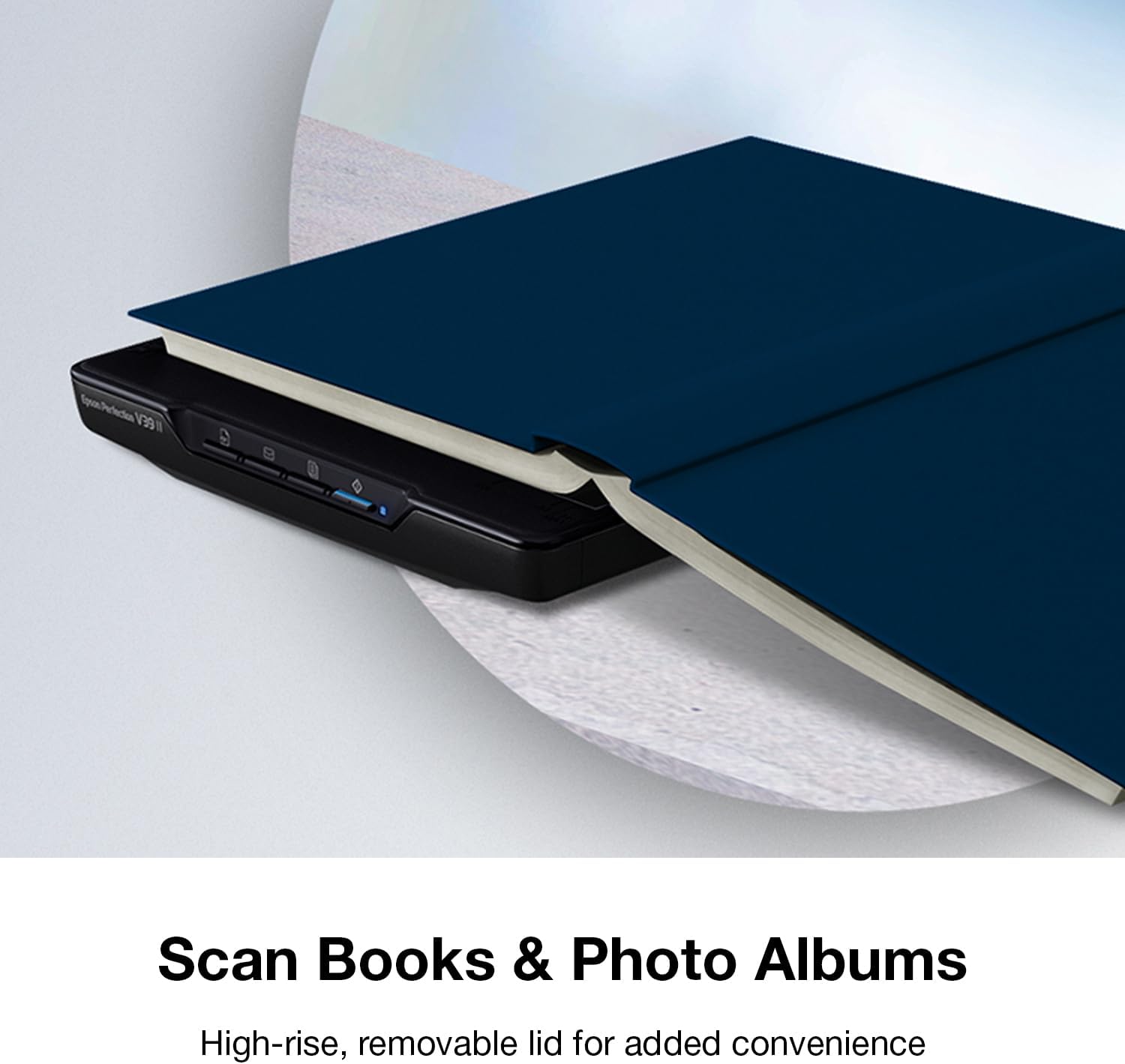
Image: The Epson Perfection V39 II scanner with its lid raised to accommodate a thick book or photo album, demonstrating its high-rise, removable lid feature. Text overlay indicates 'Scan Books & Photo Albums'.
Using Epson ScanSmart Software
Epson ScanSmart software, installed on your connected Windows PC or Mac, simplifies scanning tasks. It allows you to:
- Effortlessly scan to USB and various cloud storage services (Internet connection required for cloud services).
- Restore faded photos with Easy Photo Fix technology.
- Utilize Optical Character Recognition (OCR) software to create editable Microsoft Office files from scanned documents.
- Seamlessly stitch oversized images together.
7. Maintenance
Care and Cleaning
Regular maintenance helps ensure optimal performance and longevity of your scanner.
- Cleaning the Scanner Glass: Gently wipe the scanner glass with a soft, lint-free cloth moistened with a small amount of glass cleaner. Do not spray cleaner directly onto the glass.
- Cleaning the Exterior: Wipe the outer casing of the scanner with a soft, dry cloth. Avoid using abrasive cleaners or solvents.
- Storage: When not in use, store the scanner in a clean, dry place away from direct sunlight and extreme temperatures. Utilize the built-in kickstand for vertical storage to save space.
8. Troubleshooting
This section provides solutions to common issues you might encounter with your Epson Perfection V39 II scanner.
| Problem | Solution |
|---|---|
| Scanner not recognized by computer. | Ensure the USB cable is securely connected to both the scanner and the computer. Try a different USB port. Reinstall the Epson ScanSmart software and drivers. |
| Scanned images are blurry, streaky, or have lines. | Clean the scanner glass thoroughly. Ensure the document or photo is placed flat on the platen. |
| Epson ScanSmart software is not launching or functioning correctly. | Ensure your computer meets the system requirements. Check for software updates (internet connection required). Try restarting your computer and the scanner. |
| Scanner LED indicator is off or blinking abnormally. | Verify the USB connection is providing sufficient power. If connected to a USB hub, try connecting directly to the computer. Refer to the 'Start Here Guide' for specific LED patterns. |
9. Specifications
Detailed technical specifications for the Epson Perfection V39 II scanner.
| Feature | Specification |
|---|---|
| Product Dimensions (D x W x H) | 9.9" x 9.9" x 1.5" (25.1 cm x 25.1 cm x 3.8 cm) |
| Item Weight | 3.1 pounds (1.4 kg) |
| Optical Resolution | 4800 dpi |
| Scanner Type | Flatbed (Document, Photo) |
| Connectivity Technology | USB |
| Maximum Scan Area (Sheet Size) | 8.5 x 11.7 inches (21.6 cm x 29.7 cm) |
| Power Consumption | 2.5 watts (Operating) |
| Item Model Number | B11B268201 |
10. Warranty and Customer Support
Epson provides a limited warranty for the Perfection V39 II scanner. For detailed warranty terms and conditions, please refer to the warranty statement included with your product or visit the official Epson website.
For further assistance, technical support, or to download the latest drivers and software, please visit the official Epson support website or refer to the comprehensive User Manual PDF:
- Official User Manual (PDF): https://manuals.plus/m/b128eff82cbe462d1e6dee916e54dcb5237fe93e4a41f4866797eed0e9871bfd
- Epson Support Website: Please visit your regional Epson website for contact information and support resources.


