
1. Introduction
This manual provides comprehensive instructions for the LENVII D7800 Desktop Automatic 2D Barcode Scanner. Please read this manual carefully before using the product to ensure proper operation and to maximize its performance and lifespan. Keep this manual for future reference.
2. Safety Information
- Do not expose the scanner to water or excessive humidity.
- Avoid dropping the scanner from heights exceeding 1.2 meters to prevent damage, despite its anti-shock design.
- Do not attempt to disassemble or repair the scanner yourself. Refer to qualified service personnel.
- Keep the scanning window clean to ensure optimal performance.
- Avoid direct eye exposure to the scanner's light source.
3. Package Contents
Verify that all items are present in the package:
- LENVII D7800 Desktop Automatic 2D Barcode Scanner
- USB Cable (integrated)
- User Manual (this document)

Figure 3.1: Package contents including the scanner, USB cable, and user manual.
4. Product Overview
4.1 Key Features
- Hands-free Design: Omnidirectional scanning for 1D, 2D, and QR codes.
- CCD Scanning Technology: Capable of reading barcodes from mobile phone and computer screens, as well as damaged, blurred, distorted, colorful, or reflective barcodes.
- Plug and Play: No driver installation required.
- Wide Compatibility: Works with Windows XP/7/8/10, Mac OS, and Linux operating systems.
- Adjustable Head: Features a 15° adjustable head for flexible scanning angles.
- Anti-shock Design: Engineered to withstand drops from up to 1.2 meters.
4.2 Dimensions
The scanner has compact dimensions suitable for desktop use.

Figure 4.1: Front and side view of the LENVII D7800 scanner with dimensions indicated.
4.3 Anti-shock Design
The LENVII D7800 is designed for durability, capable of withstanding accidental drops from a height of 1.2 meters without affecting its functionality.

Figure 4.2: Illustration of the scanner's anti-shock capability.
5. Setup
5.1 Connecting the Scanner
- Place the LENVII D7800 scanner on a stable, flat surface.
- Connect the integrated USB cable from the scanner to an available USB port on your computer (desktop or laptop).
- The scanner will power on automatically and initiate the "Plug and Play" process.

Figure 5.1: The scanner connected to various devices, demonstrating its plug-and-play functionality.
5.2 Driver Installation
The LENVII D7800 is a plug-and-play device. No additional drivers or software installation is required for basic operation. Your operating system (Windows, Mac OS, Linux) will automatically recognize the device.
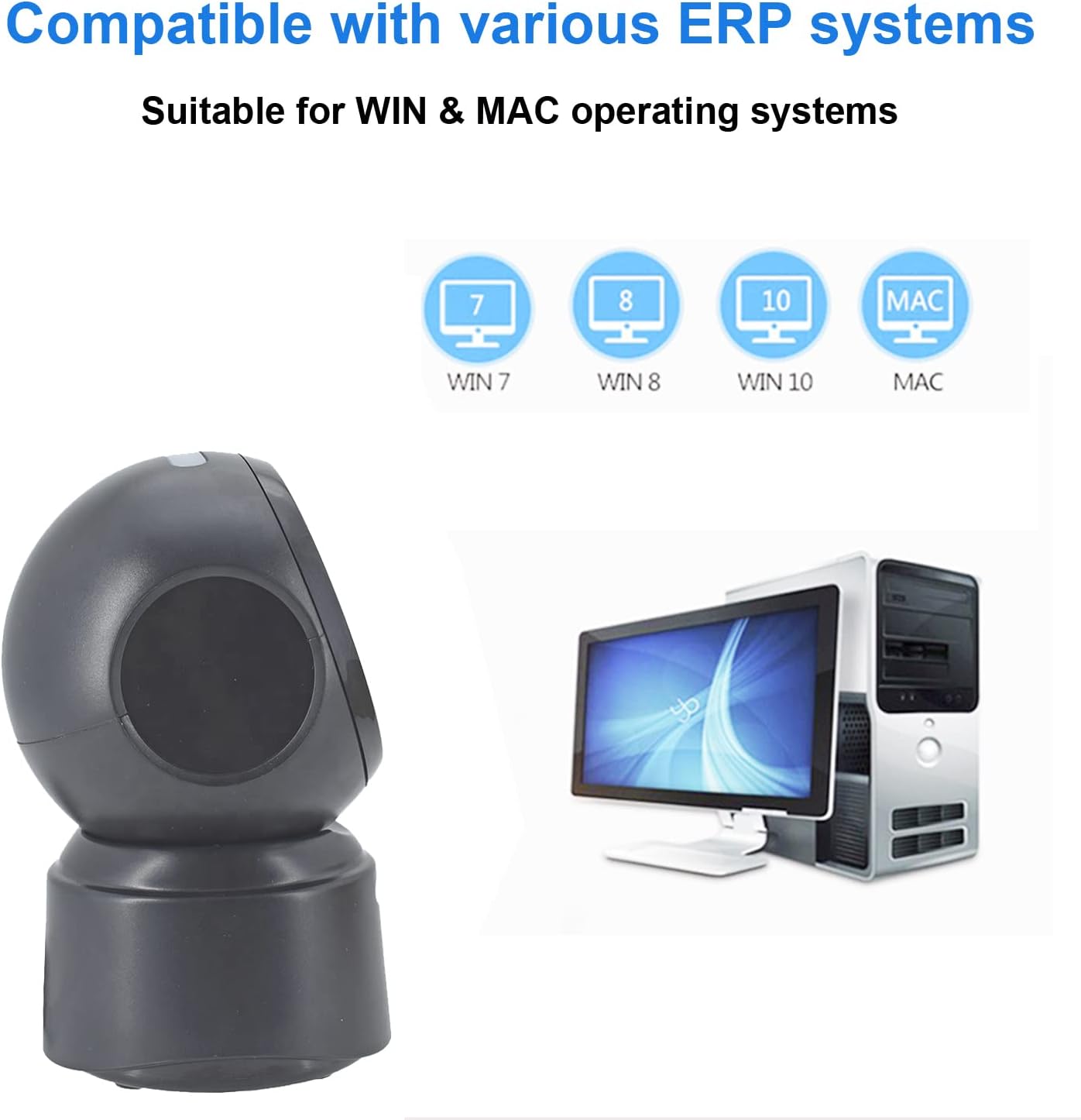
Figure 5.2: Compatibility with various operating systems.
6. Operating Instructions
6.1 Basic Scanning Procedure
The D7800 scanner operates in an automatic, hands-free mode. Once connected, it is ready to scan.
- Ensure the scanner is connected to your computer and powered on.
- Present the barcode to the scanning window. The scanner will automatically detect and read the barcode.
- A successful scan is typically indicated by an audible beep and/or a visual confirmation (e.g., LED indicator).
- The scanned data will be transmitted to your computer as keyboard input.
6.2 Scanning Barcode Types
The scanner supports a wide range of 1D, 2D, and QR codes, including those that are less than perfect.
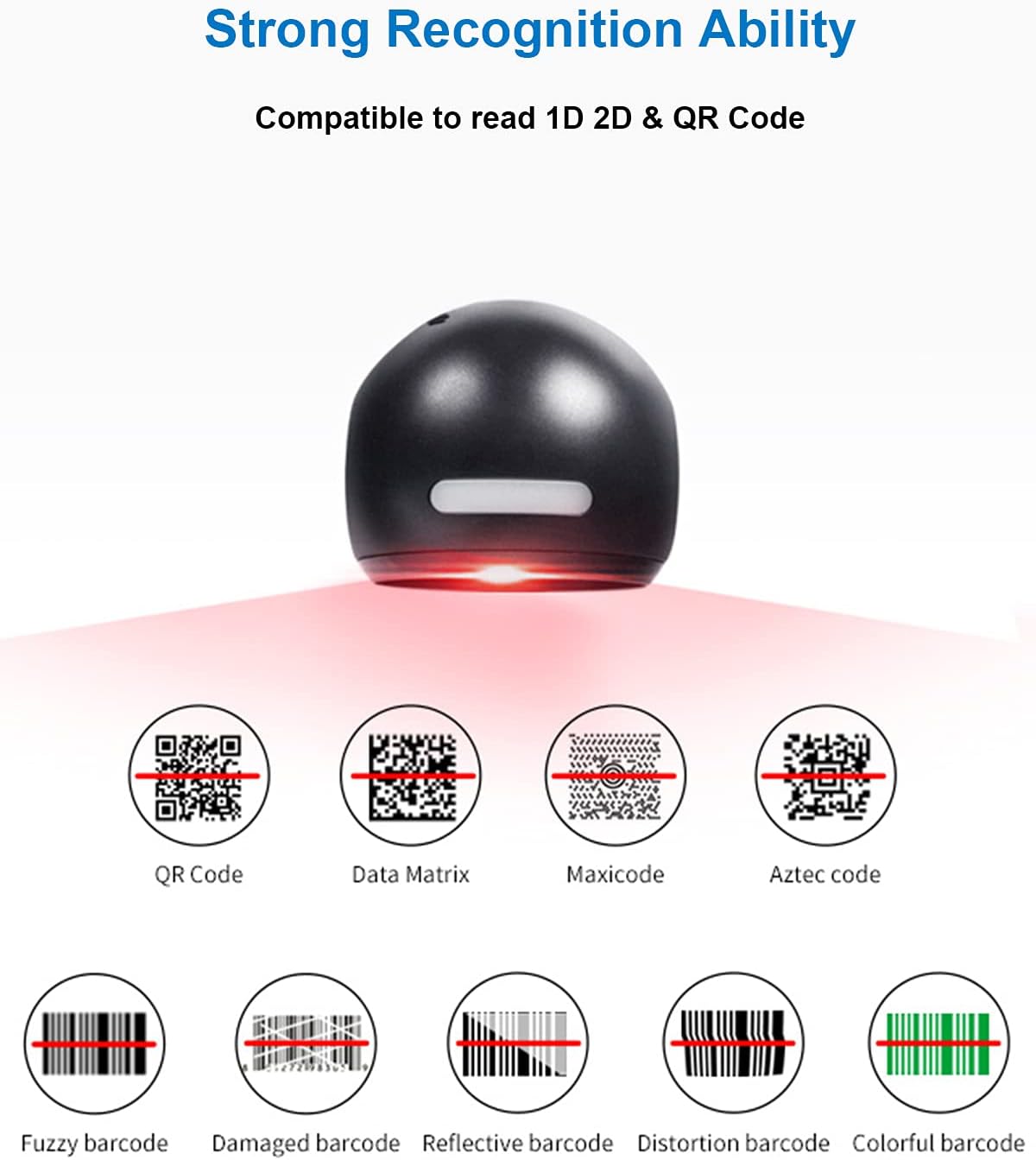
Figure 6.1: Examples of various barcode types and conditions the scanner can recognize.
6.3 On-Screen Barcode Scanning
The D7800 is capable of scanning barcodes directly from digital displays, such as smartphones, tablets, and computer monitors.

Figure 6.2: The scanner reading a barcode from a digital screen. Example barcode: 1234567890
6.4 Application Scenarios
The LENVII D7800 is suitable for various environments requiring efficient barcode scanning.
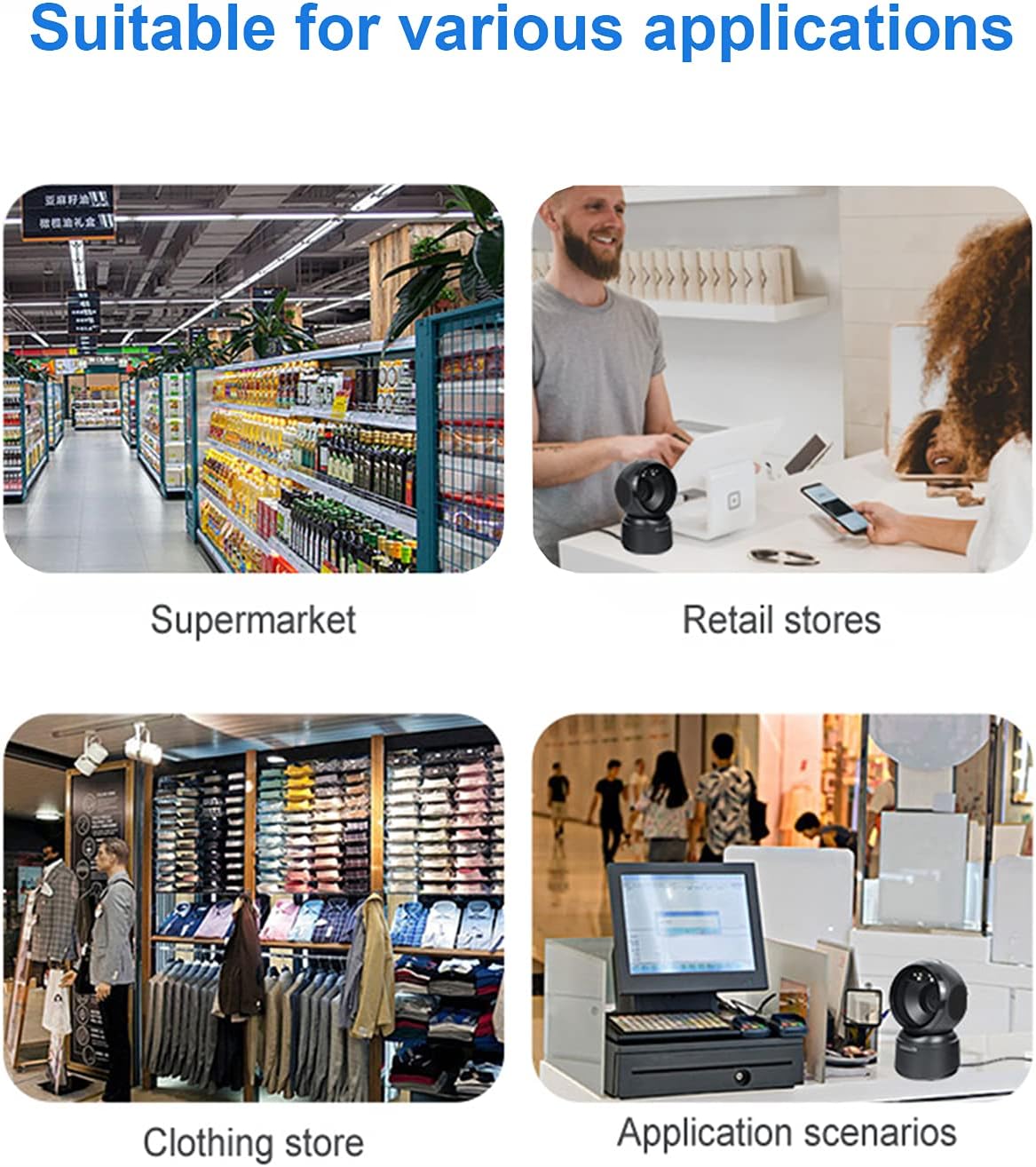
Figure 6.3: Common application environments for the scanner.
7. Maintenance
7.1 Cleaning the Scanner
- Ensure the scanner is disconnected from the power source before cleaning.
- Use a soft, dry, lint-free cloth to wipe the exterior of the scanner.
- For the scanning window, use a lens cleaning cloth or a soft cloth lightly dampened with a mild, non-abrasive cleaning solution. Avoid spraying cleaners directly onto the scanner.
- Do not use harsh chemicals, solvents, or abrasive materials, as these can damage the scanner's surface or scanning window.
7.2 Storage
When not in use, store the scanner in a cool, dry place, away from direct sunlight and extreme temperatures. The maximum storage temperature is 60°C (140°F).
8. Troubleshooting
| Problem | Possible Cause | Solution |
|---|---|---|
| Scanner does not power on. | USB cable not properly connected or faulty USB port. | Ensure the USB cable is securely connected. Try a different USB port on your computer. |
| Scanner does not read barcodes. |
|
|
| Scanned data is incorrect or incomplete. |
|
|
If the problem persists after attempting these solutions, please contact customer support.
9. Specifications
| Feature | Detail |
|---|---|
| Model | D7800 |
| Type | 2D CMOS Wired Barcode Scanner |
| Connection Method | USB |
| Dimensions (W x H x D) | 84mm x 140.2mm x 90.1mm (approx. 3.31 x 5.52 x 3.55 inches) |
| Weight | 230g (approx. 0.51 lbs) |
| Material | ABS |
| Color | Black |
| Light Source | 617nm LED (aimer); 6500K LEDs (illumination) |
| Image Sensor | 640*480 CMOS |
| Processor | ARM 32-bit |
| Scan Speed | 200 times/s |
| Power | DC 5V |
| Current | 400mA ±5% |
| Compatible OS | Windows XP/7/8/10, Mac OS, Linux |
| 1D Code Support | EAN-8, EAN-13, Codabar, CODE 39, CODE 93, CODE 128, China Post, GS1-128, UPC-A, UPC-E, ISBN/ISSN, ISBT, Interleaved 2 of 5, Standard 2 of 5, Matrix 2 of 5, Industrial 2 of 5, MSI, RSS, ITF14, Telepen, etc. |
| 2D/QR Code Support | Micro QR Code, Data Matrix, PDF417, Micro PDF417, Maxicode, Aztec, Hanxin, etc. |
| Maximum Storage Temperature | 60°C (140°F) |
10. Warranty and Support
10.1 Warranty Information
LENVII products are covered by a limited warranty against defects in materials and workmanship. Please refer to the warranty card included with your product or contact LENVII customer support for specific warranty terms and conditions.
10.2 Customer Support
For technical assistance, troubleshooting, or product inquiries, please contact LENVII customer support. Contact information can typically be found on the product packaging or the official LENVII website.


