
1. Introduction
Thank you for choosing the AZDOME M330 Dash Cam. This manual provides detailed instructions for the installation, operation, and maintenance of your device. Please read it carefully before use to ensure proper functionality and to maximize your driving safety and recording experience.
2. Product Overview
The AZDOME M330 is a compact and powerful dash cam designed to record your journeys in Full HD. It features a 0.96-inch display, built-in WiFi, voice control, WDR night vision, and 24-hour parking monitoring capabilities.

Front view of the AZDOME M330 Dash Cam with its compact design and lens.

The AZDOME M330 Dash Cam shown alongside a smartphone displaying the AZDOME app interface, highlighting the built-in WiFi connectivity.
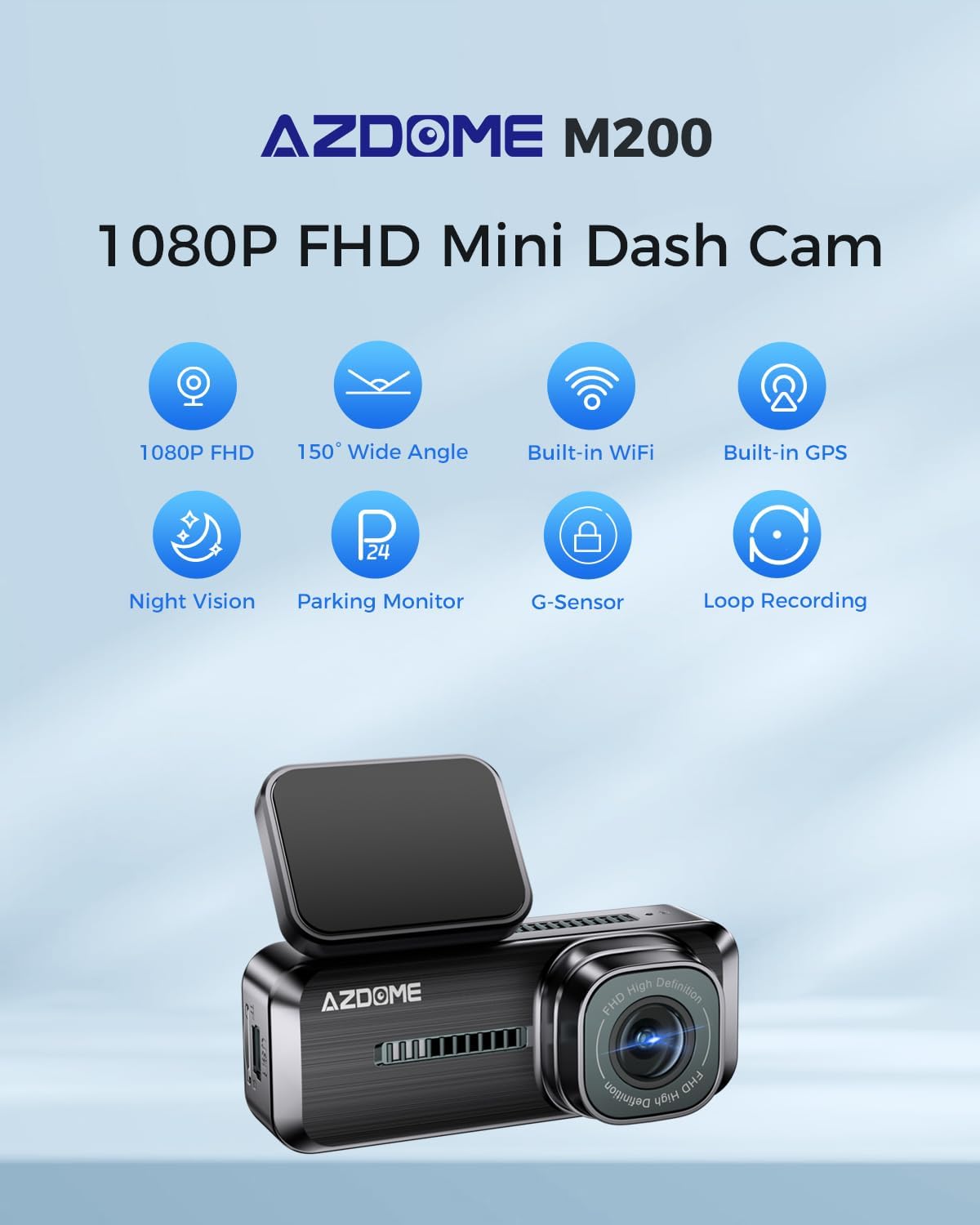
Visual representation of the AZDOME M330's key features including 1080p FHD, 150° Wide Angle, Built-in WiFi, Built-in GPS, Night Vision, Parking Monitor, G-Sensor, and Loop Recording.
3. Setup
3.1 Installation
- Mounting the Dash Cam: Choose a suitable location on your windshield, typically behind the rearview mirror, to ensure an unobstructed view and minimal driver distraction. Clean the windshield surface thoroughly before attaching the mount.
- Power Connection: Connect the dash cam to your vehicle's power outlet (cigarette lighter socket) using the provided car charger. Route the cable neatly to avoid obstructing your view or interfering with driving.
- SD Card Insertion: Insert a high-speed Micro SD card (Class 10 or higher, up to 128GB recommended) into the designated slot. Ensure the card is formatted within the dash cam's settings before first use to prevent recording issues.
3.2 App Connection (Built-in WiFi)
The AZDOME M330 features built-in WiFi for seamless connection to the 'AZDOME' app on iOS or Android devices. This allows for easy video playback, download, and management.
- Download the App: Search for and download the 'AZDOME' app from the Apple App Store (for iOS) or Google Play Store (for Android).
- Enable WiFi: Turn on the dash cam. On your smartphone, enable WiFi and connect to the dash cam's WiFi network. The network name (SSID) and default password are usually displayed on the dash cam's screen or in its settings.
- Connect and Manage: Open the AZDOME app. Once connected, you can view live footage, play back recorded videos, download files to your phone, and adjust various dash cam settings directly from the app.
4. Operating Instructions
4.1 FHD 1080p Recording
The M330 front camera records high-definition videos at 1920x1080p resolution at 30 frames per second (fps). This ensures clear capture of details such as license plates and road signs, providing crucial evidence if needed.
4.2 Voice Control
The AZDOME M330 supports 11 English voice commands for hands-free operation, allowing you to control the dash cam without taking your hands off the wheel. This enhances driving safety.
- Example commands include: "Turn on recording", "Take photo", "Lock video", "Turn off screen", etc.
4.3 24-Hour Parking Monitor
The dash cam automatically records important events when it detects an impact while parked. This feature provides peace of mind when you are away from your vehicle.
- Note: For continuous 24-hour parking monitoring, an additional hardwire kit is required (search for ASIN: B0BML1DK8W).
4.4 G-Sensor & Loop Recording
The built-in G-sensor detects sudden movements or collisions and automatically locks the current video footage, preventing it from being overwritten. Loop recording ensures continuous recording by automatically overwriting the oldest unlocked videos when the memory card is full, while protecting important locked files.

Visual representation of the dash cam's loop recording function, showing older footage being overwritten by new recordings.
4.5 Super Night Vision (WDR)
The dash cam utilizes Wide Dynamic Range (WDR) technology to significantly enhance visibility during night driving. This improves the recording of details in low-light conditions, ensuring clear footage even at night.

Illustration of the dash cam's super night vision capability, showing clear capture of a license plate in a low-light environment.
5. Maintenance
5.1 SD Card Management
To ensure optimal performance and prevent data corruption, it is recommended to regularly format your Micro SD card (e.g., once a month). Always use a high-quality, reputable brand SD card designed for dash cam use.
6. Troubleshooting
If you encounter any issues with your AZDOME M330 Dash Cam, please refer to the following common solutions:
- Dash Cam Not Powering On: Check the power connection and ensure the vehicle's ignition is on. Verify the car charger is working correctly.
- Recording Issues: If the dash cam is not recording or showing errors, try formatting the Micro SD card. If the issue persists, try using a different, high-quality SD card.
- WiFi Connection Problems: Ensure the AZDOME app is updated to the latest version. Restart both the dash cam and your smartphone, then try reconnecting.
- Voice Control Not Responding: Ensure you are using the correct English commands clearly and that the environment is not excessively noisy.
For persistent issues not covered here, please contact AZDOME customer support.
7. Specifications
| Feature | Specification |
|---|---|
| Brand | AZDOME |
| Model Number | M330 |
| Connectivity | Wi-Fi |
| Special Features | Night Vision, Built-in GPS, Voice Control |
| Compatible Devices | Car, Smartphone |
| Battery Composition | Lithium-ion |
| Video Recording Resolution | 1080p |
| Included Components | Memory Card (Note: Check product packaging for actual inclusion), Wiring Kit (Note: Check product packaging for actual inclusion) |
| Mounting Type | Dashboard Mount |
| Item Weight | 200 Grams |
| Optical Sensor Technology | CMOS |
| Vehicle Service Type | Car |
| Date First Available | February 19, 2024 |
8. Warranty and Support
The AZDOME M330 Dash Cam comes with a 12-month warranty and 24x7 technical support.
For any after-sales issues, technical assistance, or warranty claims, please contact AZDOME customer support. The AZDOME R&D team is committed to addressing your feedback and inquiries within 24 business hours.
Contact Information: Please refer to your product packaging or the official AZDOME website for the most current contact details.


