
1. Introduction
This manual provides detailed instructions for the KUIYN 383 PRO M5 Wired Ultralight Gaming Mouse. Please read this manual thoroughly to ensure proper setup, operation, and maintenance of your device. Keep this manual for future reference.

This image displays the KUIYN 383 PRO M5 ultralight gaming mouse in a vibrant green color, showcasing its honeycomb shell design and dynamic RGB lighting.
2. Setup
The KUIYN 383 PRO M5 mouse is designed for plug-and-play functionality, making initial setup straightforward.
- Connect the Mouse: Insert the USB connector of the mouse into an available USB port on your computer or compatible device.
- Automatic Driver Installation: Your operating system will typically detect and install the necessary drivers automatically.
- Optional Software Installation: For advanced customization, including macro programming and detailed RGB settings, download the dedicated driver software from the official KUIYN website. Refer to the website for the latest software version and installation instructions.

This image displays the KUIYN 383 PRO M5 mouse alongside various operating system logos, including Windows 7, Windows XP, Windows 8, and Windows 10, illustrating its wide compatibility with different PC environments.
3. Operating Instructions
This section details the primary functions and customizable features of your KUIYN 383 PRO M5 gaming mouse.
Basic Functions
- Left Click: Standard selection and activation.
- Right Click: Context menu access.
- Scroll Wheel: Scroll up/down, and middle click for additional functions.
- Forward/Backward Buttons: Located on the side, these buttons are typically used for navigation in web browsers or file explorers. Their functions can be customized via the driver software.
DPI Adjustment
The mouse features 6 adjustable DPI levels, allowing you to change cursor sensitivity on the fly.

This image illustrates the 6 adjustable DPI levels (800, 1600, 2400, 3200, 6400, 12000) available on the KUIYN 383 PRO M5 mouse, with a visual representation of the DPI switch button.
To cycle through DPI settings, use the dedicated DPI button, usually located below the scroll wheel. Each press will switch to the next preset DPI level: 800, 1600, 2400, 3200, 6400, 12000.
RGB Lighting Control
The KUIYN 383 PRO M5 mouse features 26 integrated RGB lighting modes.
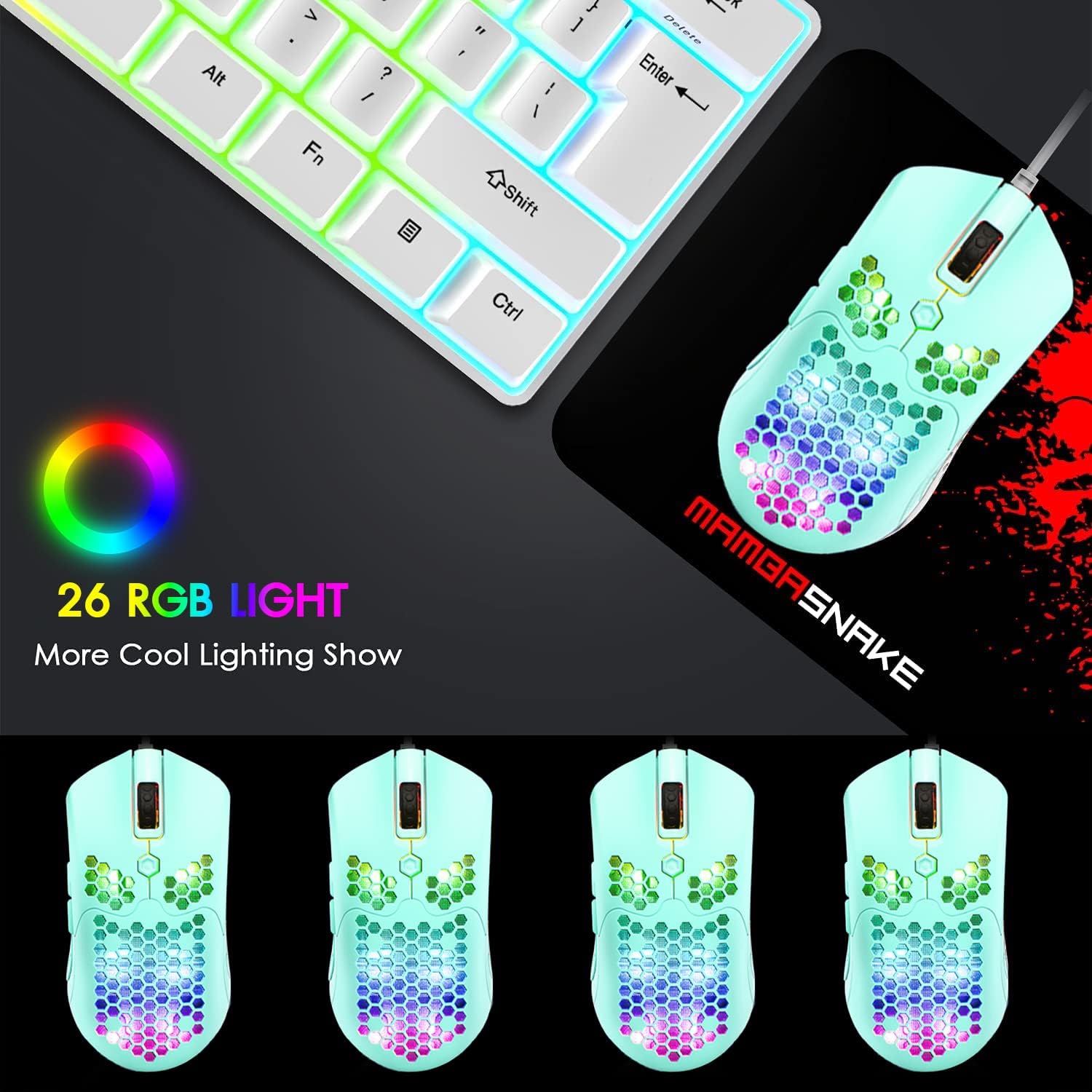
This image showcases the KUIYN 383 PRO M5 mouse with its vibrant RGB lighting, demonstrating different color patterns and effects across its honeycomb shell.
To adjust the lighting effects, use the RGB button located on the bottom of the mouse. Pressing this button will cycle through the 26 available modes. You can also choose to turn off the lighting if preferred. Further customization of lighting speed and patterns is available through the driver software.
Programmable Buttons
The mouse includes 7 programmable buttons. These can be configured using the dedicated driver software to assign complex macro functions, custom key bindings, or specific actions for gaming or productivity.
- Download and install the KUIYN driver software from the official website.
- Launch the software and navigate to the button assignment section.
- Select the desired button and assign its function.
- Save your profile.
4. Maintenance
Proper maintenance ensures the longevity and optimal performance of your KUIYN 383 PRO M5 mouse.
- Cleaning: Use a soft, dry cloth to wipe the mouse surface. For stubborn dirt, slightly dampen the cloth with water or a mild electronic cleaner. Avoid using harsh chemicals or abrasive materials.
- Sensor Cleaning: Occasionally, use a cotton swab lightly dampened with isopropyl alcohol to gently clean the optical sensor on the underside of the mouse. Ensure no liquid enters the mouse interior.
- Cable Care: Avoid sharp bends or excessive pulling on the USB cable. Store the cable neatly to prevent tangling and damage.
- Storage: When not in use for extended periods, store the mouse in a clean, dry environment away from direct sunlight and extreme temperatures.
5. Troubleshooting
If you encounter issues with your KUIYN 383 PRO M5 mouse, refer to the following common solutions.
- Mouse Not Responding:
- Ensure the USB cable is securely connected to your computer's USB port.
- Try connecting the mouse to a different USB port.
- Test the mouse on another computer to determine if the issue is with the mouse or the computer.
- Restart your computer.
- DPI Not Changing:
- Ensure you are pressing the correct DPI adjustment button.
- If using custom profiles, verify that the driver software is running and the profile is active.
- RGB Lighting Issues:
- Press the RGB button on the bottom of the mouse to cycle through modes or turn the lighting on/off.
- Check the driver software for lighting settings and ensure they are configured correctly.
- Buttons Not Working:
- Check button assignments in the driver software.
- Ensure no other software is interfering with mouse button functions.
If problems persist, please contact KUIYN customer support for further assistance.
6. Specifications
Technical Specifications

This image emphasizes the ultralight design of the KUIYN 383 PRO M5 mouse, weighing only 65 grams, depicted alongside a feather to symbolize its lightness.
| Feature | Detail |
|---|---|
| Brand | KUIYN |
| Model | 383 PRO M5 |
| Connectivity | Wired USB |
| Sensor | Pixart PAW3325 Optical |
| DPI Levels | 800 / 1600 / 2400 / 3200 / 6400 / 12000 |
| Number of Buttons | 7 (Programmable) |
| Lighting | 26 RGB Lighting Effects |
| Weight | 65 Grams |
| Cable Length | 1.7 meters |
| Switch Lifespan | 20 million cycles |
| Hand Orientation | Ambidextrous |
| Compatible OS | Windows 2000/XP/WIN 7/WIN8/WIN10/WIN11, Vista 32bit, Mac OS, Xbox, PlayStation |
7. Warranty Information
KUIYN products are manufactured to high-quality standards. This product comes with a standard manufacturer's warranty. For specific warranty terms, conditions, and duration, please refer to the warranty card included with your product or visit the official KUIYN website. Keep your proof of purchase for warranty claims.
8. Customer Support
For technical assistance, troubleshooting, or any inquiries regarding your KUIYN 383 PRO M5 mouse, please visit the official KUIYN support website or contact their customer service department. Contact information can typically be found on the KUIYN website or in the product packaging.
