
1. Introduction
The HumanWare explorē 12 is a portable video magnifier designed to assist individuals with low vision. This device provides high-definition image quality for magnifying text and objects, both up close and at a distance. It is part of the explorē series, offering advanced features for an enhanced viewing experience.
Key features include:
- Magnification range of 2x to 30x with autofocus when using the built-in stand, and 1x to 15x on the reading stand.
- A brilliant 12-inch ISP LCD touchscreen with pinch-to-zoom and live panning capabilities.
- High-definition image quality for clear viewing.
- Customizable settings including preferred zoom levels, lines/blinds, menu text size, and 17 color schemes.
- Integrated built-in stand and a separate reading stand for versatile use.
- Support for 30 different languages.
- Equipped with two high-definition 21MP cameras for near and far viewing.
2. Setup
Follow these steps for initial setup of your explorē 12 device:
- Unpack the Device: Carefully remove the explorē 12 from its packaging. Ensure all components, including the device, power adapter, and reading stand, are present.
- Charge the Battery: Before first use, connect the power adapter to the device and a power outlet. Allow the device to charge fully. The charging indicator will provide status.
- Power On: Press and hold the power button (location typically on the side or top edge) until the screen illuminates.
- Adjust the Stand:
- Built-in Stand: Gently unfold the integrated stand at the back of the device to position it for comfortable viewing.
- Reading Stand: For extended reading or writing, place the explorē 12 onto the dedicated reading stand. Ensure it is securely seated.
- Initial Language Selection: Upon first power-on, you may be prompted to select your preferred language from the 30 available options.

Image: The explorē 12 device set up on its built-in stand, displaying a magnified recipe. This setup is ideal for reading documents or books.
3. Operating Instructions
The explorē 12 offers intuitive controls for various magnification tasks.
3.1 Basic Magnification
- Power On/Off: Press and hold the power button.
- Zoom In/Out: Use the dedicated '+' and '-' buttons on the device, or perform a pinch-to-zoom gesture directly on the touchscreen.
- Autofocus: The device features automatic focus adjustment for clear images.

Image: A user's hand demonstrates the touchscreen functionality, panning across a magnified newspaper. The device is on its built-in stand.
3.2 Viewing Modes and Customization
- Near View: Position the device over the material you wish to magnify (e.g., a book, document). The built-in camera will capture the image.
- Far View: Utilize the second high-definition camera for viewing objects at a distance, such as a whiteboard or presentation screen.
- Color Schemes: Access the menu to select from 17 different color schemes to optimize contrast and readability based on your preference.
- Lines and Blinds: Enable reading lines or blinds from the menu to help maintain focus and track text across the screen.
- Menu Text Size: Adjust the size of the menu text for easier navigation.

Image: The explorē 12 positioned directly on an open book, magnifying handwritten notes and calculations. This demonstrates its use for close-up reading and study.
3.3 Using the Reading Stand
The dedicated reading stand provides a stable platform for reading and writing under the magnifier.
- Place the explorē 12 securely onto the reading stand.
- Position your document or writing material beneath the device on the stand's base.
- Adjust magnification as needed. The reading stand offers a magnification range of 1x to 15x.
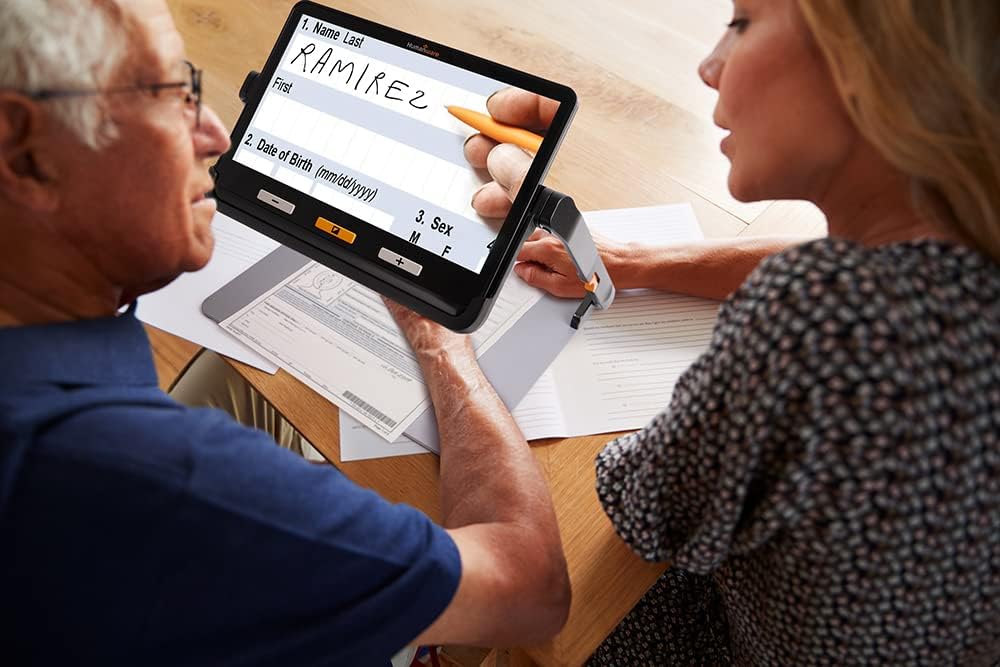
Image: Two individuals are observing the explorē 12 as it magnifies a document being filled out. This illustrates its utility for tasks requiring writing or form completion.
4. Maintenance
Proper maintenance ensures the longevity and optimal performance of your explorē 12.
- Cleaning the Screen and Lens: Use a soft, lint-free cloth specifically designed for electronics screens. Do not use abrasive cleaners or solvents. Gently wipe the screen and camera lenses to remove dust and smudges.
- Battery Care: To prolong battery life, avoid fully discharging the device frequently. Charge the battery regularly, and if storing for an extended period, ensure it has a partial charge (around 50%).
- Storage: Store the device in a cool, dry place, away from direct sunlight and extreme temperatures.
- Handling: Handle the device with care to prevent drops or impacts, which can damage internal components or the screen.
5. Troubleshooting
This section addresses common issues you might encounter with your explorē 12.
- Device Does Not Power On:
- Ensure the battery is charged. Connect the device to the power adapter and allow it to charge for at least 30 minutes before attempting to power on again.
- Verify the power button is pressed and held for the required duration (typically a few seconds).
- Image is Blurry or Out of Focus:
- The explorē 12 has autofocus. Ensure the object is within the camera's focal range.
- Check if the camera lens is clean and free from smudges or dust.
- For objects on the reading stand, ensure the device is properly seated and the material is flat.
- Screen is Unresponsive:
- Perform a soft reset by holding the power button until the device powers off, then power it back on.
- Ensure your fingers are clean and dry when interacting with the touchscreen.
- Difficulty Magnifying Thick Books:
- When using the device on its built-in stand or flat on a surface, very thick or uneven books may not sit flush, affecting focus or viewing area. Consider using the dedicated reading stand for better stability and consistent focus with such materials.
6. Specifications
| Feature | Detail |
|---|---|
| Brand | HumanWare |
| Model Number | FGEX-1022 |
| Magnification Strength | 2x - 30x (built-in stand), 1x - 15x (reading stand) |
| Screen Type | 12-inch ISP LCD Touchscreen |
| Cameras | 2 x 21MP High-Definition (Near and Far) |
| Lens Material | Glass, Acrylic, or Polycarbonate |
| Batteries Required | No (Internal rechargeable battery) |
| UPC | 821555079101 |
| ASIN | B0C31JW6XJ |
7. Warranty and Support
For warranty information, technical support, or service inquiries, please contact HumanWare directly. Refer to the documentation included with your purchase or visit the official HumanWare website for the most current contact details and warranty terms.
HumanWare Contact Information:
- Website: www.humanware.com (Please check the official website for specific support pages or contact forms.)
- Customer Service: Refer to the "Contact Us" section on the HumanWare website for phone numbers or email support.