
1. Introduction
The ATUVOS Air Tracker Tags are compact Bluetooth tracking devices designed to help you locate your personal belongings. These tags integrate seamlessly with the Apple Find My app on iOS devices, allowing you to track items such as luggage, keys, backpacks, and wallets. The device utilizes the extensive Apple Find My network for both nearby and distant tracking, ensuring your items are always within reach or locatable.

Image 1.1: Two ATUVOS Air Tracker Tags, designed for item tracking.

Image 1.2: The ATUVOS Air Tracker Tag can be attached to various items like keys, backpacks, and luggage.
2. Getting Started: Pairing Your ATUVOS Tracker
Follow these steps to pair your ATUVOS Air Tracker Tag with your iOS device using the Apple Find My app. This product is compatible only with iOS devices and does not support Android.
- Enable Bluetooth: Ensure Bluetooth is enabled on your iOS device.
- Open Find My App: Launch the Apple "Find My" app on your iOS device.
- Add Item: Tap on the "Items" tab at the bottom of the screen, then select "Add Item."
- Select Other Supported Item: Choose "Other Supported Item" from the options.
- Pairing Mode: Press and hold the button on your ATUVOS Air Tracker Tag for 10 seconds until you hear a beep, indicating it is in pairing mode.
- Follow On-Screen Instructions: Your device will detect the tracker. Follow the prompts within the Find My app to complete the pairing process.

Image 2.1: Visual guide for the easy pairing process of the ATUVOS Air Tracker Tag.
3. Operating Your ATUVOS Tracker
3.1 Finding Nearby Items
When your ATUVOS Air Tracker Tag is within Bluetooth range (approximately 200 feet), you can use the Find My app to play a sound on the tracker. This feature helps you locate misplaced items quickly, such as keys hidden under a couch cushion.
- Open the Find My app.
- Select the ATUVOS tracker associated with your item.
- Tap "Play Sound" to make the tracker emit a loud ringing sound (80-100 decibels).
- Alternatively, you can ask Siri, "Hey Siri, find my [item name]."

Image 3.1: Using the Find My app to play a sound and locate nearby items.

Image 3.2: The ATUVOS tracker emits a loud sound to help you find it.
3.2 Finding Far Away Items
If your item is out of Bluetooth range, the ATUVOS Air Tracker Tag leverages the Apple Find My network, which consists of hundreds of millions of Apple devices worldwide. These devices securely relay the location of your tracker to you.
- Open the Find My app.
- Select the ATUVOS tracker.
- Use the map navigation feature within the app to get directions to your item's last known location.
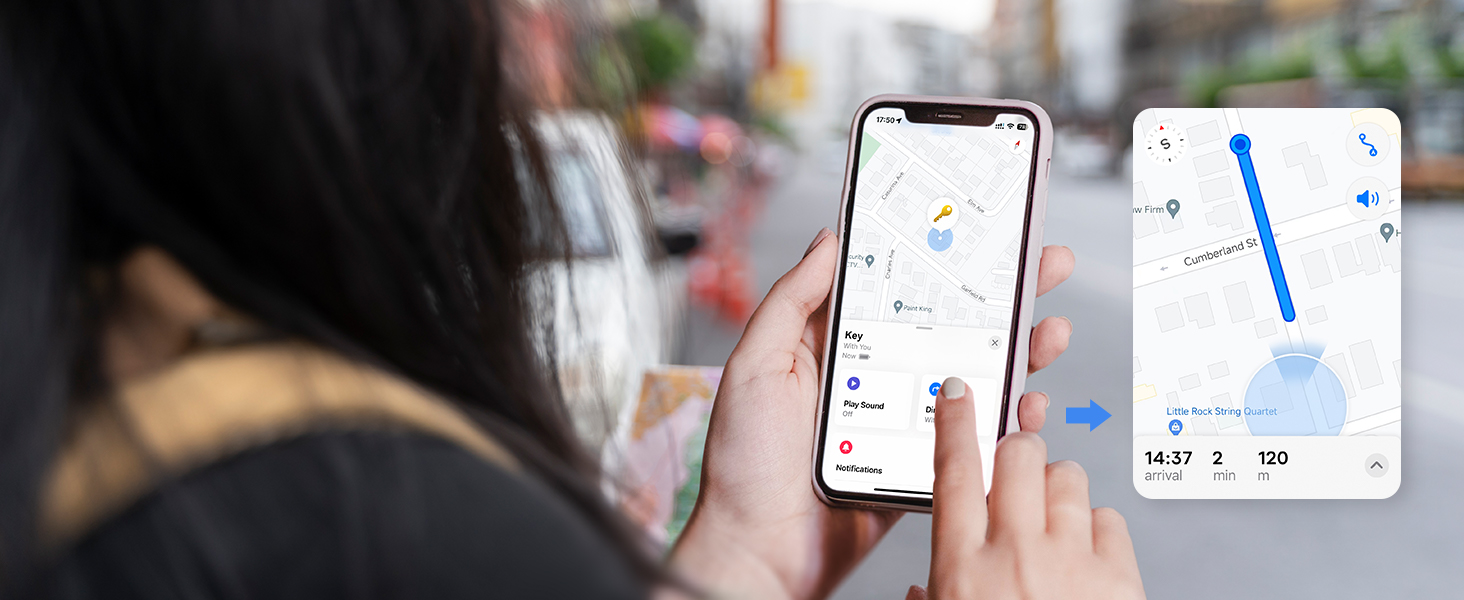
Image 3.3: Map navigation helps locate items beyond Bluetooth range.
3.3 Left Behind Reminders
Receive instant notifications if your ATUVOS tracker disconnects from your iOS device's Bluetooth connection. This feature helps prevent you from leaving important items behind.
- Ensure "Left Behind Remind" is enabled in the Find My app settings for your tracker.
- If your item is separated from you, your iOS device will display a notification indicating its last detected location.

Image 3.4: A 'Left Behind Remind' notification on an iPhone.
3.4 Lost Mode and Identifying Found Items
If you lose an item with an ATUVOS tracker, you can enable Lost Mode in the Find My app. This allows anyone who finds your item to view your contact information by tapping their NFC-enabled smartphone on the tracker.
- In the Find My app, select your tracker and enable "Lost Mode."
- Enter your contact information, which will be displayed to anyone who finds and scans your tracker.

Image 3.5: The 'Identify Found Item' feature allows a finder to contact the owner.
3.5 Sharing Your Tracker (iOS 17+)
With iOS 17 or later, you can share your ATUVOS Air Tracker Tag with up to 5 other individuals. This allows multiple users to track the same item without receiving unwanted tracking notifications when the item is with a shared user.
- Ensure your iOS device is updated to iOS 17 or a newer version.
- In the Find My app, select the tracker you wish to share.
- Follow the in-app instructions to add borrowers.

Image 3.6: Sharing an ATUVOS tracker with others via the Find My app (iOS 17+).
4. Key Features
- Apple Find My Network Integration: Utilizes the global Apple Find My network for precise and wide-ranging item location.
- Privacy Protection: Location data is encrypted and anonymous, ensuring only you know your item's whereabouts.
- Replaceable Battery: Equipped with a user-replaceable battery that lasts approximately one year.
- IP67 Water-resistant: Designed to withstand water splashes, rain, and brief submersion, offering durability in various conditions.
- Loud Ringing: Built-in speaker emits a loud sound (80-100 dB) for easy location of nearby items.
- Left Behind Reminders: Receive alerts if you accidentally leave your tracked item behind.

Image 4.1: The ATUVOS tracker ensures privacy protection for your location data.

Image 4.2: The ATUVOS tracker is IP67 water-resistant.
5. Maintenance: Battery Replacement
The ATUVOS Air Tracker Tag uses a replaceable Lithium Metal battery (CR2032) that typically lasts for one year. When the battery is low, you will receive a notification on your iOS device. Follow these steps to replace the battery:
- Open the Tracker: Gently twist the back cover of the ATUVOS tracker counter-clockwise to open it.
- Remove Old Battery: Carefully remove the old CR2032 battery.
- Insert New Battery: Insert a new CR2032 battery with the positive (+) side facing upwards.
- Close the Tracker: Align the back cover and twist it clockwise until it is securely closed.

Image 5.1: Diagram illustrating the replaceable battery mechanism.
6. Troubleshooting
| Issue | Possible Cause | Solution |
|---|---|---|
| Tracker not pairing | Bluetooth off, incorrect pairing steps, low battery. | Ensure Bluetooth is on. Follow pairing steps carefully. Replace battery if needed. |
| Cannot hear the tracker's sound | Tracker is out of range, sound is muffled, low battery. | Move closer to the tracker. Ensure it's not deeply buried. Replace battery. |
| Location not updating | Tracker is out of range of the Find My network, low battery. | Ensure the tracker is in an area with Apple devices. Replace battery. |
| "Left Behind Remind" not working | Feature not enabled, app permissions. | Check Find My app settings to ensure the feature is active. Verify app has location permissions. |
| Tracker frequently disconnects | Interference, low battery, outdated iOS. | Avoid strong interference sources. Replace battery. Update iOS to the latest version. |
7. Specifications
| Feature | Detail |
|---|---|
| Model Number | AT2301 |
| Dimensions | 1.57 x 1.18 x 0.79 inches |
| Item Weight | 1.44 ounces |
| Battery Type | CR2032 Lithium Metal (replaceable) |
| Battery Life | Approximately 1 year |
| Water Resistance | IP67 |
| Connectivity | Bluetooth |
| Compatibility | iOS devices only (not for Android) |
| Manufacturer | ATUVOS |
8. Warranty and Support
8.1 Warranty Information
The ATUVOS Air Tracker Tags come with a 1-year warranty from the date of purchase. This warranty covers manufacturing defects and malfunctions under normal use. Please retain your proof of purchase for warranty claims.
8.2 Customer Support
For any questions regarding the use, setup, or troubleshooting of your ATUVOS Air Tracker Tags, please contact our customer service team. We offer 24-hour customer support to assist you.
Contact Information: Please refer to the contact details provided with your product packaging or visit the official ATUVOS website for support options.


