1. Introduction
This user manual provides detailed instructions for the PrancyBt Bluetooth Headset, Model KH120M. This wireless headset features Bluetooth 5.2 connectivity, an AI noise-cancellation microphone, and is designed for comfort during extended use in various environments such as home offices, call centers, and for online meetings via platforms like Zoom and Skype.
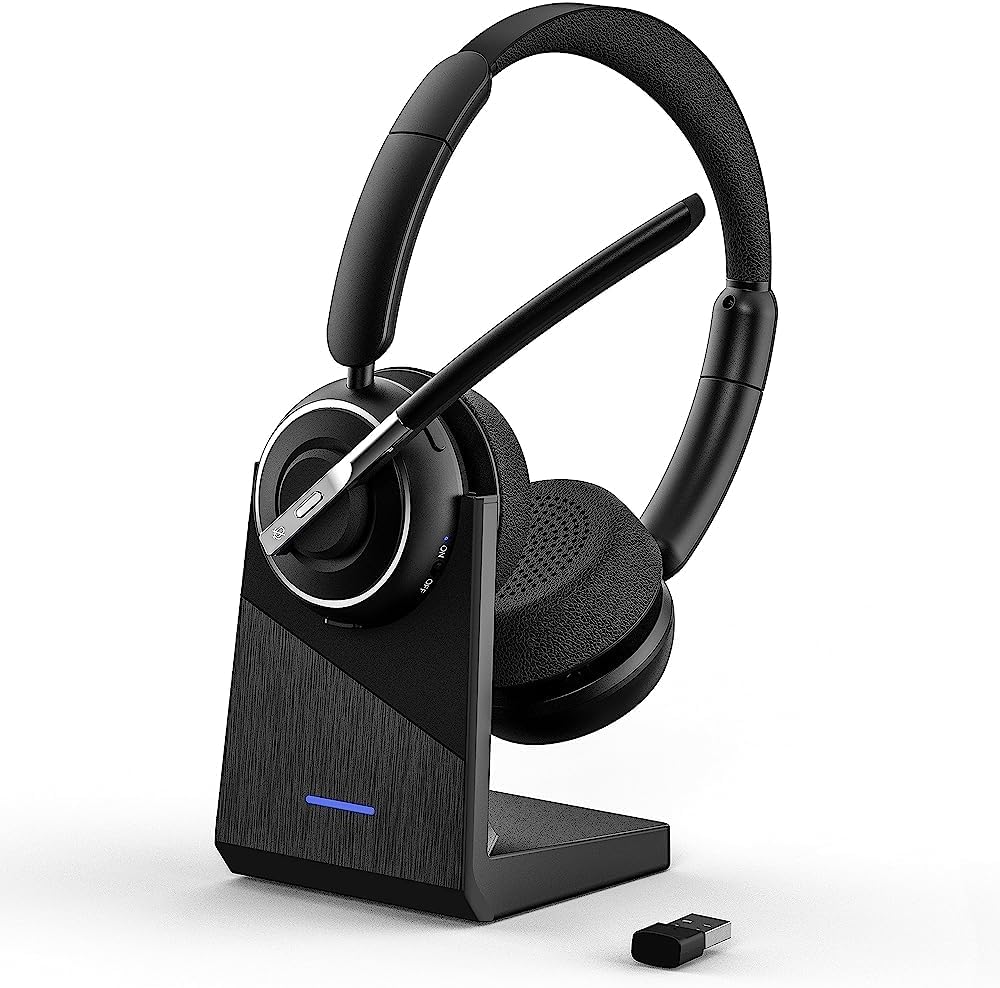
Image 1.1: The PrancyBt Bluetooth Headset KH120M shown on its charging base, with the included USB adapter visible. This image highlights the headset's design and charging solution.
2. What's in the Box
Upon unboxing your PrancyBt Bluetooth Headset KH120M, please ensure all the following components are present:
- Bluetooth headphones
- Charging Station
- USB Adapter
- Cable (Type-C charging cable)
- User Manual (this document)
3. Product Features
The PrancyBt Bluetooth Headset KH120M is equipped with several features designed to enhance your communication and audio experience:
- Easy to Use Controls: Features a Multi-Function Button (MFB), dedicated mute button, and volume controls for convenient call management and audio adjustment.
- Advanced AI Noise Cancellation: The integrated microphone utilizes AI noise-canceling technology to reduce background noise, ensuring clear voice transmission during calls.
- Bluetooth 5.2 Connectivity: Provides a stable and efficient wireless connection with a range of up to 33 feet (10 meters).
- Included Bluetooth Adapter: For enhanced stability and compatibility, especially with computers lacking built-in Bluetooth or for a more reliable connection. Note: This adapter is specifically paired with the KH120M headset.
- All-Day Comfort: Designed with comfortable earmuffs and an adjustable headband to minimize discomfort during prolonged wear.
- Long Battery Life: Offers up to 35 hours of talk time on a single 2-hour charge.
- Dual Charging Modes: Can be charged via the included charging station (POGO base) or directly using a Type-C cable.

Image 3.1: Detailed view of the headset highlighting its comfortable earmuffs, adjustable headband, 270° rotatable microphone, Multi-Function Button (MFB), LED indicator, toggle switch for power, volume controls, Type-C port, and mute button.

Image 3.2: Illustrates the AI Noise Canceling feature, showing a user in a professional setting, emphasizing how the built-in microphone blocks out background noise for clear communication.

Image 3.3: Depicts multiple users wearing the headset in an office environment, emphasizing the comfort for all-day use and showing the location of the mute button on the microphone boom.
4. Setup and Connection
The PrancyBt Bluetooth Headset KH120M offers flexible connection options for various devices.
4.1. Connecting via USB Dongle (Recommended for PC/Laptop)
- Insert the provided USB dongle into an available USB 2.0 or USB 3.0 port on your computer or laptop.
- The LED indicator on the dongle will flash blue, indicating it is in pairing mode.
- Power on your PrancyBt Bluetooth Headset. It will automatically attempt to connect to the dongle.
- Once connected, the LED indicator on the dongle will turn solid blue.
- On your computer, navigate to Sound Settings and set "KH120M Dongle" as both the input (microphone) and output (speaker) device.
This method provides a stable connection with no transmission delay, ideal for computer-based communication.
4.2. Connecting via Bluetooth (for Mobile Devices and PCs with Bluetooth)
- Ensure your headset is powered on and in pairing mode (refer to the headset's LED indicator for pairing status).
- On your device (phone, tablet, or PC), go to Bluetooth settings.
- Enable Bluetooth and search for new devices.
- Select "KH120M" from the list of available devices to pair.
- Once paired, the headset's LED indicator will confirm connection.
- On your device's sound settings, ensure "KH120M" is selected as the audio input and output.

Image 4.1: Flowchart illustrating the steps for connecting the headset to a PC using either the USB dongle or direct Bluetooth, including sound settings configuration. Also shows setup for Skype and other meeting applications.
5. Operating Instructions
Familiarize yourself with the headset's controls for optimal use:
- Power On/Off: Use the toggle switch located on the headset.
- Multi-Function Button (MFB):
- Press once to answer an incoming call.
- Press once to end an active call.
- Press and hold to reject an incoming call.
- For phone calls only. For PC applications like Skype, Zoom, or Teams, call control functions (answer/hang up) must be managed within the software itself.
- Volume Controls: Use the dedicated volume up (+) and volume down (-) buttons to adjust audio levels.
- Mute Button:
- Press the mute button on the microphone boom to mute or unmute your microphone.
- This mute function is primarily for cell phone calls. When using PC calling software (e.g., Skype, Zoom, Teams), please use the mute function within the software application for proper operation.
- Microphone Adjustment: The microphone is 270° rotatable. Adjust its position for optimal voice pickup, ensuring it is close to your mouth.

Image 5.1: A collage demonstrating various common uses for the headset, including taking online classes, working from home, working in a call center, and listening to music, highlighting its versatility.
6. Maintenance and Charging
Proper maintenance ensures the longevity and performance of your headset.
6.1. Charging the Headset
The headset supports two charging methods:
- Charging Station (POGO Base): Place the headset onto the charging station. Ensure the charging contacts align. The LED indicator on the base will show charging status.
- Type-C Cable: Connect the provided Type-C USB cable directly to the headset's charging port and to a USB power source.
A full charge takes approximately 2 hours and provides up to 35 hours of talk time.

Image 6.1: Demonstrates the two available charging methods for the headset: placing it on the dedicated charging base and connecting it directly via a Type-C USB cable to a laptop.
6.2. Cleaning and Storage
- Wipe the headset and charging base with a soft, dry cloth.
- Avoid using harsh chemicals or abrasive materials.
- Store the headset in a cool, dry place away from direct sunlight and extreme temperatures.
7. Troubleshooting
If you encounter issues with your PrancyBt Bluetooth Headset KH120M, please refer to the following common solutions:
| Problem | Possible Cause | Solution |
|---|---|---|
| Headset does not power on. | Low battery. | Charge the headset fully using either the charging base or Type-C cable. |
| Cannot connect to device. | Headset not in pairing mode; Device Bluetooth off; Out of range; Incorrect device selection. | Ensure headset is in pairing mode. Turn device Bluetooth off/on. Move headset closer to device. Select "KH120M" from device's Bluetooth list. For PC, ensure correct audio device is selected in sound settings. |
| No sound or poor audio quality. | Volume too low; Incorrect audio output selected; Interference. | Increase headset and device volume. Ensure "KH120M" is set as the default audio output. Move away from other wireless devices. |
| Microphone not working. | Microphone muted; Incorrect audio input selected; Microphone not positioned correctly. | Unmute the microphone (on headset or in software). Ensure "KH120M" is set as the default audio input. Adjust microphone boom closer to your mouth. |
| Mute button not working in PC software. | Headset mute button is primarily for phone calls. | Use the mute function within the specific PC calling application (e.g., Zoom, Skype, Teams). |
8. Specifications
| Feature | Detail |
|---|---|
| Model Name | KH120M |
| Brand | PrancyBt |
| Connectivity Technology | Wireless (Bluetooth) |
| Wireless Communication Technology | Bluetooth 5.2 |
| Bluetooth Range | 10 meters (33 feet) |
| Special Features | Microphone Included, AI Noise Cancellation |
| Ear Placement | On Ear |
| Form Factor | On Ear |
| Material | Leather (earmuffs/headband) |
| Charging Time | 2 Hours |
| Battery Life (Talk Time) | Up to 35 Hours |
| Item Weight | 183 Grams (6.5 ounces) |
| Compatible Devices | Laptops, Computers, Cell Phones, other Bluetooth devices |
| Included Components | Bluetooth headphones, Cable, Charging Station, USB Adapter, User Manual |
9. Warranty and Support
For information regarding product warranty, returns, or technical support, please refer to the warranty card included with your product or contact PrancyBt customer service directly. Contact details can typically be found on the manufacturer's official website or on the product packaging.
Additional protection plans may be available for purchase from your retailer. Please consult your purchase documentation for details.