
Introduction
Thank you for choosing the AZDOME M550 Pro 3-Lens 4K Dashcam. This manual provides detailed instructions on how to set up, operate, and maintain your dashcam to ensure optimal performance and safety. Please read this manual thoroughly before using the device and keep it for future reference.
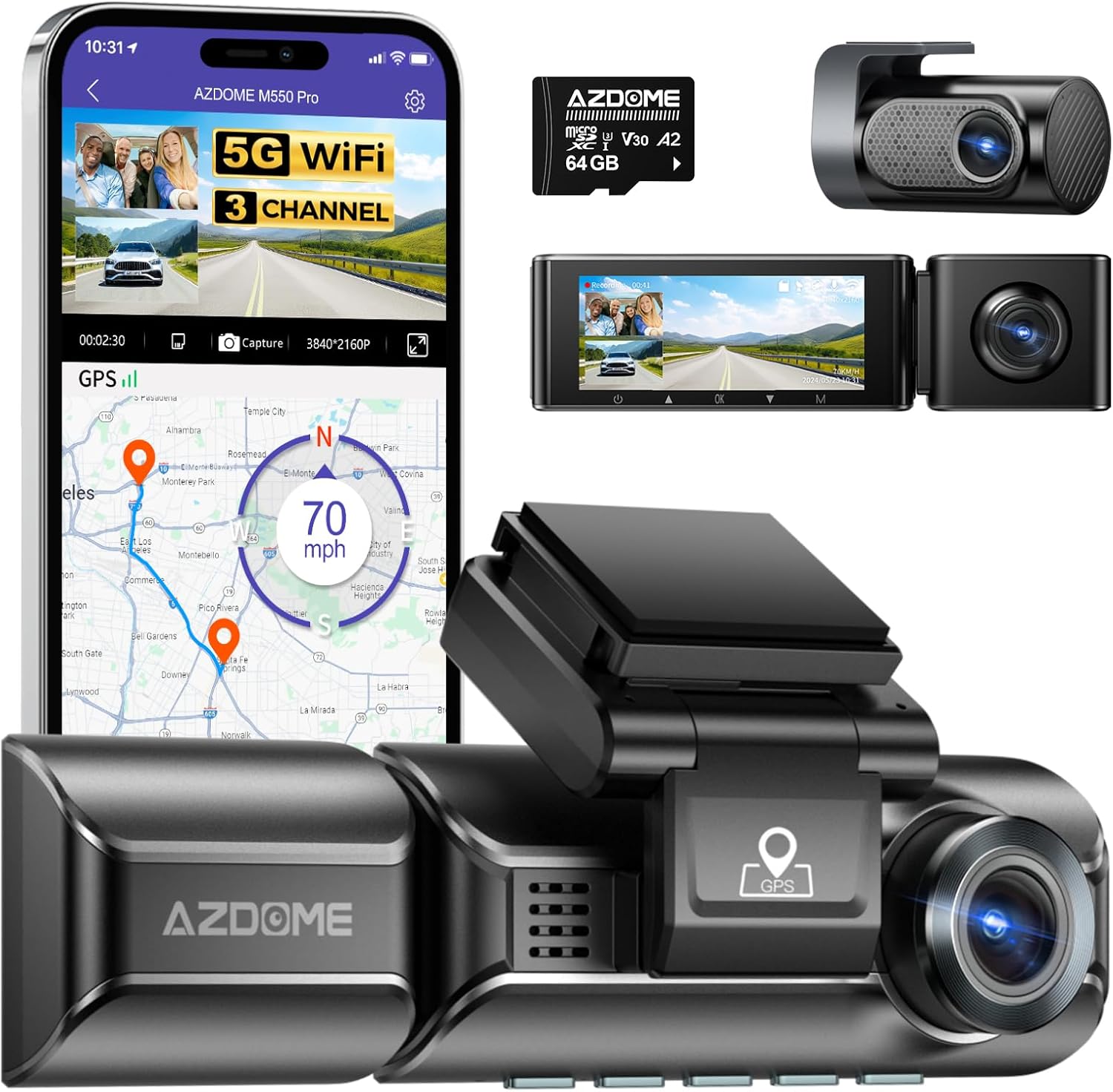
Image: The AZDOME M550 Pro dashcam, showing its main unit, a separate cabin camera, a rear camera, a 64GB SD card, and a smartphone displaying the companion app with GPS tracking and live view.
Package Contents
Please check the package contents upon unboxing. If any items are missing or damaged, please contact customer support.
- Front Camera Unit
- Cabin Camera
- Rear Camera (6M/20ft cable)
- Car Charger
- Mini USB Power Cable (3.5M/12ft)
- Adhesive Bracket
- Electrostatic Films
- 64GB Micro SD Card
- Pry Tool
- Cable Clips
- User Manual

Image: A visual representation of all components included in the AZDOME M550 Pro dashcam package, such as the main camera, cabin camera, rear camera, cables, charger, mounting accessories, and SD card.
Product Overview
Key Features
- 4K UltraHD Recording: Front camera records up to 4K resolution, ensuring clear capture of license plates and road signs.
- 3-Channel Recording: Simultaneously records from front (2.5K), cabin (1080P), and rear (1080P) cameras, providing comprehensive coverage.
- 5G WiFi Connectivity: Fast video download and management via the AZDOME app on your smartphone.
- Built-in GPS: Accurately records time, date, position, and speed, viewable via the AZDOME GPS Player on PC.
- Super Night Vision: Equipped with WDR technology and 6 IR LEDs for enhanced clarity in low-light conditions.
- Parking Monitoring: Features Collision Detection and Time-Lapse parking modes (requires 3-lead hardwire kit, sold separately).
- G-Sensor & Emergency Lock: Automatically detects sudden impacts and locks the current video footage to prevent overwriting.
- Loop Recording: Continuously records, overwriting the oldest files when the SD card is full.
- 3.19-inch LCD Screen: For live view, playback, and menu navigation.
Recording Modes Explained

Image: Illustration of the 3-channel recording capability, showing views from the front (2.5K), cabin (1080P), and rear (1080P) cameras, each with a 150-degree wide angle.
The M550 Pro offers versatile recording options:
- Front Camera Only: Up to 4K resolution.
- Front + Rear Cameras: 4K (front) & 1080P (rear).
- Front + Cabin Cameras: 2.5K (front) & 1080P (cabin).
- 3-Way Recording (Front + Cabin + Rear): 2.5K (front) & 1080P (cabin) & 1080P (rear).
Night Vision Capabilities

Image: A visual comparison demonstrating the effectiveness of the 6 IR LEDs for night vision, showing clearer cabin footage when IR LEDs are active versus when they are off.
The dashcam utilizes WDR (Wide Dynamic Range) technology and 6 hidden IR LED lights to automatically illuminate images in low-light conditions, ensuring clear recordings even at night.
Setup
1. Inserting the Micro SD Card
The 64GB Micro SD card is pre-inserted. If you need to replace it, ensure the dashcam is off. Insert the Micro SD card into the slot until it clicks. Use a Class 10, U3 speed Micro SD card (up to 256GB) for optimal performance.

Image: A close-up view of the AZDOME M550 Pro dashcam with an arrow indicating where to insert the 64GB Micro SD card, highlighting its pre-insertion and support for larger capacities.
2. Installation in Vehicle
Mount the main dashcam unit on your front windshield using the adhesive bracket. Route the power cable neatly along the windshield and dashboard edges using the provided pry tool and cable clips. Connect the cabin camera and rear camera to the main unit and position them appropriately. The rear camera should be installed inside the car, typically on the rear windshield.

Image: A detailed diagram showing the recommended installation points for the front dashcam, cabin camera, and rear camera within a car, along with suggested cable routing paths for a clean setup.
3. Power Connection
Connect the car charger to your vehicle's cigarette lighter socket and the Mini USB power cable to the dashcam. The dashcam will automatically power on and begin recording when the vehicle's ignition is turned on.
4. Connecting to the AZDOME App (5GHz WiFi)
The AZDOME M550 Pro features 5GHz WiFi for faster video downloads and remote control via your smartphone.
- Install AZDOME App: Download the "AZDOME" app from Google Play Store or Apple App Store.
- Connect to WiFi: On your phone, go to WiFi settings and connect to the dashcam's WiFi network (e.g., "M550 Pro"). Turn off cellular data for a stable connection.
- Format SD Card: Open the AZDOME app. It is recommended to format the Micro SD card through the app for first-time use.
- Start Recording: You can now view live footage, manage settings, and download videos directly from the app.

Image: A step-by-step guide illustrating how to connect the AZDOME M550 Pro dashcam to a smartphone via 5GHz WiFi using the AZDOME app, including app installation, WiFi connection, SD card formatting, and live view.
Operating Instructions
Basic Recording
Once powered on, the dashcam will automatically start recording. The recording is continuous, with older files being overwritten by new ones when the memory card is full. This is known as Loop Recording. Video segments are typically 1, 3, or 5 minutes long.

Image: An illustration demonstrating the seamless loop recording feature, showing how older video segments are overwritten by new ones when the SD card reaches its capacity, ensuring continuous recording.
G-Sensor & Emergency Lock
The built-in G-sensor detects sudden movements or impacts (e.g., collisions). When triggered, it automatically locks the current video file (typically 20 seconds, including 5 seconds pre-incident and 15 seconds post-incident) to a protected folder, preventing it from being overwritten by loop recording. This ensures critical evidence is preserved.

Image: A visual explanation of the Emergency Lock and G-sensor function, showing how the dashcam saves and locks a 20-second video (5 seconds before and 15 seconds after) an incident, ensuring critical footage is captured and protected.
Parking Monitoring
To enable 24-hour parking monitoring, a 3-lead hardwire kit (not included, search ASIN: B096G6FKZP) is required. The M550 Pro offers two parking modes:
- Collision Detection Parking Mode: The dashcam remains in standby and starts recording upon detecting a collision.
- Time-Lapse Parking Mode: Records continuously at a low frame rate (e.g., 1 frame per second) to save storage space while providing full coverage of events.

Image: An overview of the 24-hour parking mode, detailing both Collision Detection Parking Mode (triggered by impact) and Time-Lapse Parking Mode (continuous low-frame-rate recording), and noting the requirement for a hardwire kit.
GPS Functionality
The built-in GPS module records your driving speed, longitude, and latitude. You can review this data along with your video footage using the "AZDOME GPS Player" software on your PC (available for Windows and Mac). This provides a comprehensive record of your journey.

Image: A display showing the AZDOME GPS Player interface on a laptop, with video playback from multiple cameras and a map displaying the recorded driving route and speed information.
Maintenance
Formatting the SD Card
It is recommended to format the Micro SD card regularly (e.g., once a month) to ensure stable recording performance and prevent data corruption. You can format the card directly through the dashcam's menu settings or via the AZDOME app.
Cleaning the Device
Use a soft, dry cloth to clean the dashcam's lenses and body. Do not use abrasive cleaners or solvents, as they may damage the device. Keep the lenses free from dust and smudges for clear video quality.
Troubleshooting
| Problem | Possible Cause / Solution |
|---|---|
| Dashcam not turning on. |
|
| Recording stops or freezes. |
|
| Poor video quality at night. |
|
| WiFi connection issues. |
|
| GPS not recording or inaccurate. |
|
Specifications
| Feature | Detail |
|---|---|
| Brand | AZDOME |
| Model Name | M550 Pro-3CH |
| Video Recording Resolution | Front: 4K (single), 2.5K (multi-channel); Cabin: 1080P; Rear: 1080P |
| Display Type | LCD |
| Screen Size | 3.19 Inches |
| Viewing Angle | 150 Degrees (each lens) |
| Memory Card Type | Micro SD Card (up to 256GB, Class 10 U3 recommended) |
| Included Memory Card Size | 64 GB |
| Special Features | Night Vision, Built-in WiFi (5GHz), Parking Monitor, Built-in GPS, App Control |
| Connectivity Technology | Wi-Fi |
| Mounting Type | Windshield Mount |
| Product Dimensions | 4 x 7 x 9.5 cm; 5 g |
Warranty and Support
AZDOME products come with a standard manufacturer's warranty. For specific warranty terms and conditions, please refer to the warranty card included in your package or visit the official AZDOME website. If you encounter any issues or have questions regarding your M550 Pro dashcam, please contact AZDOME customer support through their official channels or the seller on Amazon.
For the latest software updates and FAQs, please visit the AZDOME support page.


