
Benibela JT170M-D03
Benibela 17 Inch Digital Picture Frame User Manual
Model: JT170M-D03
1. Introduction
This manual provides detailed instructions for the setup, operation, maintenance, and troubleshooting of your Benibela 17 Inch Digital Picture Frame (Model JT170M-D03). Please read this manual thoroughly before using the product to ensure proper functionality and to maximize your experience.
2. Package Contents
Verify that all items are present in your product package:
- Benibela 17 Inch Digital Picture Frame
- Power Adapter
- Remote Control
- Stand
- Mounting Screws
- User Manual
3. Product Overview
The Benibela 17 Inch Digital Picture Frame is designed to display your cherished photos and videos with ease. It features a 17-inch display, 32GB internal storage, dual-band Wi-Fi (2.4G/5G), and smart functions like AI face recognition and a motion sensor.

Image: The Benibela 17 Inch Digital Picture Frame displaying a family photo, accompanied by its remote control and a smartphone showing the companion app interface.
3.1 Key Features
- 17-inch Display: High-resolution screen for clear image quality.
- Dual-Band Wi-Fi: Supports 2.4G and 5G networks for stable connectivity.
- 32GB Internal Memory: Stores over 30,000 photos and videos.
- VPHOTO App: Free application for easy photo and video sharing.
- AI Face Recognition: Automatically classifies uploaded photos by recognizing faces.
- Motion Sensor: Automatically turns the frame on/off when presence is detected.
- Remote Control & Touch Screen: Multiple control options for user convenience.
- Wall-Mountable & Auto-Rotation: Flexible placement options with automatic orientation adjustment.
4. Setup
4.1 Initial Setup
- Power Connection: Connect the power adapter to the frame and plug it into an electrical outlet. The frame will power on automatically.
- Language Selection: Follow the on-screen prompts to select your preferred language.
- Wi-Fi Connection: Select your Wi-Fi network (supports 2.4G and 5G) and enter the password. Ensure a stable internet connection for optimal performance.
4.2 VPHOTO App Installation and Pairing
The VPHOTO app allows you to easily manage and share content with your digital picture frame.
- Download the App: Search for "VPHOTO" in your smartphone's app store (iOS or Android) and install it.
- Create an Account: Open the VPHOTO app and follow the instructions to create a new user account.
- Pair Your Frame: In the app, select the option to add a new frame. The app will guide you through pairing using a unique connection code displayed on your digital picture frame.
4.3 Preloading Photos for Gifting
You can pre-load photos and videos onto the frame before gifting it to someone. This feature allows for a personalized unboxing experience.
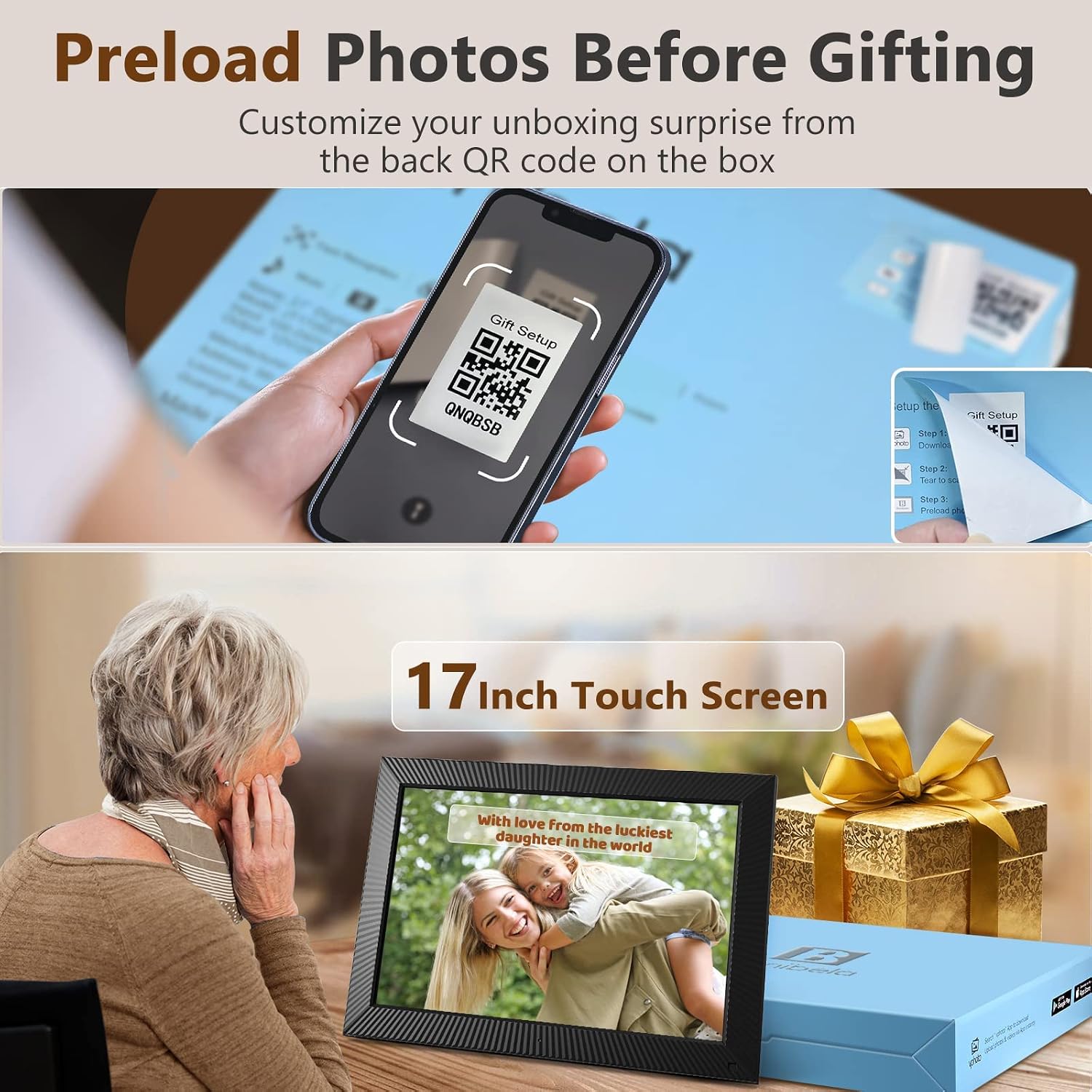
Image: A smartphone scanning a QR code labeled 'QNQBSB' on the back of the product box, illustrating the process of preloading photos before gifting.
- Locate QR Code: Find the QR code on the back of the product box. It may be under a removable sticker.
- Scan QR Code: Use the VPHOTO app to scan the QR code (e.g., QNQBSB).
- Upload Content: Follow the app's instructions to upload desired photos and videos to the frame.
5. Operating Instructions
5.1 Uploading Photos and Videos
The frame supports multiple methods for uploading your media:
- VPHOTO App: The primary method for sharing. Select photos/videos from your phone and send them directly to the frame.
- Email: Send photos and videos to the unique email address associated with your frame.
- USB Drive: Insert a USB drive into the frame's USB port to transfer media.
- SD Card: Insert an SD card into the frame's SD card slot to transfer media.
- Cloud Wi-Fi: Utilize cloud services for sharing (details available in the VPHOTO app).

Image: Icons illustrating various secure sharing methods: 2.4G & 5G WiFi, Vphoto App, E-mail, SD Card, USB Drive, and Cloud WiFi.
5.2 Display Modes and Filters
Customize your photo display with various modes and filters.
- Slideshow: Photos and videos will play in a continuous loop. You can adjust the interval and transition effects in the settings.
- Memory Filter: Applies a filter to give photos an aged, nostalgic appearance.
- Museum Filter: Applies a filter to give photos a classic, artistic look.

Image: The digital picture frame showcasing different display filters: a 'Museum Filter' giving a vintage tone to a wedding photo, and a 'Memory Filter' presenting a black and white image.
5.3 AI Face Recognition
The frame features AI face recognition technology to help organize your photos.
- Automatic Classification: The frame can identify faces in your uploaded photos and automatically classify them into categories, making it easier to find specific images.

Image: The digital picture frame's interface showing a grid of various photos and a menu with options like 'Internal Storage', 'SD Card', 'USB', 'Folder', 'Face', and 'Favorites', highlighting the AI Face Recognition feature.
5.4 Motion Sensor
The integrated motion sensor enhances energy efficiency and user convenience.
- Automatic On/Off: The frame will automatically turn on when motion is detected nearby and turn off after a period of inactivity, saving power.
5.5 Remote Control and Touch Screen
Control your frame using either the included remote or the touch screen interface.
- Remote Control: Use the remote to navigate menus, adjust settings, and control slideshows from a distance.
- Touch Screen: Directly interact with the display for intuitive navigation and control.

Image: A family watching a digital picture frame, with one person using the remote control. The image also highlights the 2.4G/5G Wi-Fi and Gravity Sensing features, showing the frame automatically rotating its display.
5.6 Placement and Orientation
The frame offers flexible placement options.
- Tabletop Placement: Use the included stand to place the frame on any flat surface.
- Wall Mounting: The frame is designed for wall mounting. Use the provided screws and follow standard wall-mounting procedures.
- Gravity-Sensing Auto-Rotation: The frame automatically adjusts the photo orientation (portrait or landscape) based on how it is positioned.
6. Maintenance
6.1 Cleaning
- Screen: Use a soft, lint-free cloth specifically designed for electronics screens. Do not use abrasive cleaners or sprays directly on the screen.
- Frame Body: Wipe with a soft, dry cloth. Avoid using harsh chemicals.
6.2 Software Updates
- Periodically check for software updates through the frame's settings menu or the VPHOTO app to ensure optimal performance and access to new features.
7. Troubleshooting
If you encounter issues with your digital picture frame, refer to the following common solutions:
| Problem | Possible Cause | Solution |
|---|---|---|
| Frame does not power on | Power adapter not connected or faulty. | Ensure the power adapter is securely connected to the frame and a working power outlet. Try a different outlet. |
| Cannot connect to Wi-Fi | Incorrect password, weak signal, or network incompatibility. | Verify the Wi-Fi password. Move the frame closer to the router. Ensure your router supports 2.4G/5G networks. Restart the frame and router. |
| Photos not appearing | Incorrect upload method, file format issues, or insufficient storage. | Confirm photos were uploaded successfully via the VPHOTO app, email, USB, or SD card. Check supported file formats. Verify available storage space. |
| Remote control not working | Dead batteries or obstruction. | Replace the batteries in the remote control. Ensure there are no obstructions between the remote and the frame's sensor. |
| Touch screen unresponsive | Temporary software glitch. | Restart the frame by unplugging and re-plugging the power adapter. |
If the problem persists after attempting these solutions, please contact Benibela customer support for further assistance.
8. Specifications
| Feature | Detail |
|---|---|
| Model Number | JT170M-D03 |
| Screen Size | 17 Inches |
| Resolution | 1920*1200P |
| Internal Storage | 32GB |
| Wi-Fi Support | 2.4G/5G Dual-Band |
| Compatible Devices | Smartphone (via VPHOTO App) |
| Product Dimensions | 17.1 x 12.4 x 0.99 inches |
| Item Weight | 6.1 pounds |
| Manufacturer | Benibela |
9. Warranty and Support
Your Benibela Digital Picture Frame is covered by a manufacturer's warranty. For specific warranty terms and conditions, please refer to the warranty card included in your package or visit the official Benibela website.
For technical support, troubleshooting assistance, or any product-related inquiries, please contact Benibela customer service. Contact information can typically be found on the Benibela website or on the product packaging.
Related documentsJT170M-D03

Ask a question about this manual
Ask about setup, troubleshooting, compatibility, parts, safety, or missing instructions. Manuals+ will review the question and use this page’s manual context to help answer it.