
1. Product Overview
The Amazon Renewed RBR850 is a powerful Tri-Band Mesh WiFi 6 Router designed to provide strong, reliable, and high-performance WiFi throughout your entire home. This system ensures simultaneous WiFi streaming, gaming, and browsing on multiple devices, eliminating dead zones and extending coverage. It is ideal for homes requiring robust internet connectivity across all areas.
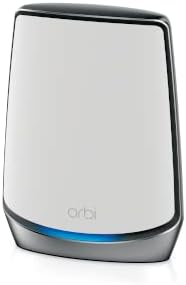
Figure 1: Front view of the RBR850 Orbi WiFi 6 Router.

Figure 2: RBR850 Orbi WiFi 6 Router, highlighting the model name.

Figure 3: Rear view of the RBR850 Orbi WiFi 6 Router, displaying the Sync button, Internet port, and Gigabit Ethernet ports.
2. Setup Instructions
2.1 What's in the Box
- RBR850 Router
- Ethernet Cord
- Power Adapter
2.2 Initial Connection
- Position the Router: Place your RBR850 router in a central location in your home for optimal coverage.
- Connect to Modem: Connect one end of the provided Ethernet cord to the yellow 'Internet' port on the back of your RBR850 router (refer to Figure 3). Connect the other end to your internet modem.
- Power On: Plug the power adapter into the router's power port and then into an electrical outlet. The router's LED light should illuminate.
2.3 App-Based Setup
The easiest way to set up and manage your Orbi system is by using the Orbi app. This app guides you through the entire installation process, including connecting satellites (if applicable) and configuring your network settings.
Video 1: Official guide on how to set up your NETGEAR Orbi system using the mobile application. This video demonstrates the step-by-step process for initial configuration and network connection.
- Download Orbi App: Download the NETGEAR Orbi app from your device's app store.
- Follow On-Screen Instructions: Open the app and follow the prompts to connect to your new Orbi network, set up your WiFi name (SSID) and password, and configure any additional settings.
3. Operating Your Orbi System
Once set up, your RBR850 router will broadcast a single, unified WiFi network name (SSID) across your home, allowing your devices to seamlessly connect to the strongest signal available as you move around.
3.1 Network Management
- Orbi App: Use the Orbi app to monitor your network status, view connected devices, manage guest WiFi, and access parental controls.
- Web Interface: For advanced settings, you can access the router's web interface by typing
orbilogin.netorrouterlogin.netinto a web browser while connected to your Orbi network.
3.2 Connectivity
The RBR850 router features multiple Gigabit Ethernet ports (refer to Figure 3) for wired connections, providing stable and high-speed internet for devices like gaming consoles, PCs, and smart TVs.
4. Maintenance
Regular maintenance ensures your Orbi system performs optimally and remains secure.
4.1 Firmware Updates
Keep your router's firmware updated to benefit from the latest features, performance improvements, and security patches. You can check for and install updates via the Orbi app or the web interface.
4.2 Physical Care
- Placement: Ensure the router is placed in an open area, away from obstructions and other electronic devices that might cause interference.
- Cleaning: Periodically clean the device with a soft, dry cloth to prevent dust buildup in ventilation areas.
5. Troubleshooting
If you encounter issues with your Orbi system, try the following troubleshooting steps.
5.1 No Internet Connection
- Check Cables: Ensure all Ethernet and power cables are securely connected to both the router and your modem.
- Restart Devices: Power cycle your modem first, wait 30 seconds, then power cycle your Orbi router. Wait for all lights to stabilize.
- ISP Status: Verify that your Internet Service Provider (ISP) is not experiencing an outage.
5.2 Weak WiFi Signal / Dead Zones
- Router Placement: Relocate the router to a more central position in your home, away from large metal objects or thick walls.
- Interference: Keep the router away from other electronics like cordless phones, microwaves, or Bluetooth devices.
5.3 Factory Reset
A factory reset will restore your router to its default settings. This can resolve persistent issues but will erase all custom configurations.
Video 2: Guide on how to perform a factory reset on a Netgear Orbi Router. This process will revert the device to its original factory settings.
- Locate Reset Button: With the router powered on, locate the small reset button on the back of the device (often recessed).
- Press and Hold: Use a paperclip or similar pointed object to press and hold the reset button for about 5-10 seconds until the LED light on the router starts blinking.
- Release Button: Release the button and allow the router to restart. It will boot up with factory default settings.
6. Specifications
| Feature | Detail |
|---|---|
| Model Name | RBR850 |
| Brand | Amazon Renewed (Original Manufacturer: Generic) |
| Wireless Communication Standard | 802.11ax (WiFi 6) |
| Frequency Band Class | Tri-Band |
| Connectivity Technology | Wi-Fi |
| Special Feature | WPS |
| Compatible Devices | Gaming Console |
| Recommended Uses For Product | Cyber Security |
| Included Components | Router, Ethernet Cord, Power Adapter |
| Color | White |
| Item Weight | 3.23 pounds |
| Package Dimensions | 13.46 x 10.47 x 3.46 inches |
| ASIN | B0C2XW9QND |
| Date First Available | April 19, 2023 |
7. Warranty and Support
7.1 Warranty Information
As an Amazon Renewed product, this RBR850 router is backed by the Amazon Renewed Guarantee. Please refer to the specific terms and conditions of your purchase for detailed warranty coverage, which typically includes a 90-day return or replacement policy.
7.2 Technical Support
For further assistance, technical support, or warranty claims, please contact Amazon Renewed customer service or the original manufacturer's support channels if directed by Amazon.
