
KYOCERA MA5500ifx
KYOCERA ECOSYS MA5500ifx All-in-One Monochrome Laser Printer User Manual
Model: MA5500ifx
Introduction
Welcome to the user manual for your KYOCERA ECOSYS MA5500ifx All-in-One Monochrome Laser Printer. This comprehensive guide provides essential information for setting up, operating, maintaining, and troubleshooting your device. The MA5500ifx is designed for high-efficiency office environments, offering robust print, copy, scan, and fax capabilities with advanced security features.

Figure 1: Front view of the KYOCERA ECOSYS MA5500ifx printer.
Key features of your MA5500ifx include:
- Versatile All-in-One Functionality: Copy, Scan, Print, and Fax in monochrome.
- High-Quality Output: Up to 1200 x 1200 dpi resolution for crisp documents.
- Fast Performance: Print speeds of up to 57 pages per minute (black and white).
- Enhanced Security: Optional K-Level security features to protect data, network, and device integrity.
- Intuitive Control: A 7-inch Color Touch Screen Control Panel for easy navigation.

Figure 2: Overview of the printer's productivity features, including resolution and speed.
Setup Guide
Follow these steps to set up your KYOCERA ECOSYS MA5500ifx printer for the first time.
1. Unpacking and Placement
- Carefully remove the printer from its packaging. Retain all packing materials for future transport.
- Place the printer on a stable, level surface with adequate ventilation. Ensure there is enough space around the device for operation and maintenance.
- Remove all protective tapes and packaging inserts from the exterior and interior of the printer. Refer to the quick setup guide included in the box for specific locations.
2. Connecting Power and Network
- Connect the power cord to the printer's power input and then to a grounded electrical outlet.
- For network connectivity, connect an Ethernet cable from your network router or switch to the printer's Ethernet port.
- Alternatively, for direct connection, use a USB cable to connect the printer to your computer.
3. Loading Paper
- Open the paper tray.
- Adjust the paper guides to the size of the paper you are loading.
- Load the paper stack, ensuring it does not exceed the maximum fill line.
- Close the paper tray.
4. Initial Power On and Driver Installation
- Press the power button on the printer. The 7-inch touchscreen panel will illuminate.
- Follow the on-screen prompts to complete the initial setup, including language selection and network settings.
- Insert the driver CD (if included) into your computer, or download the latest drivers from the official KYOCERA support website.
- Run the driver installation program and follow the instructions to install the necessary software for printing, scanning, and faxing.
Operating Instructions
This section details the primary functions of your ECOSYS MA5500ifx printer.
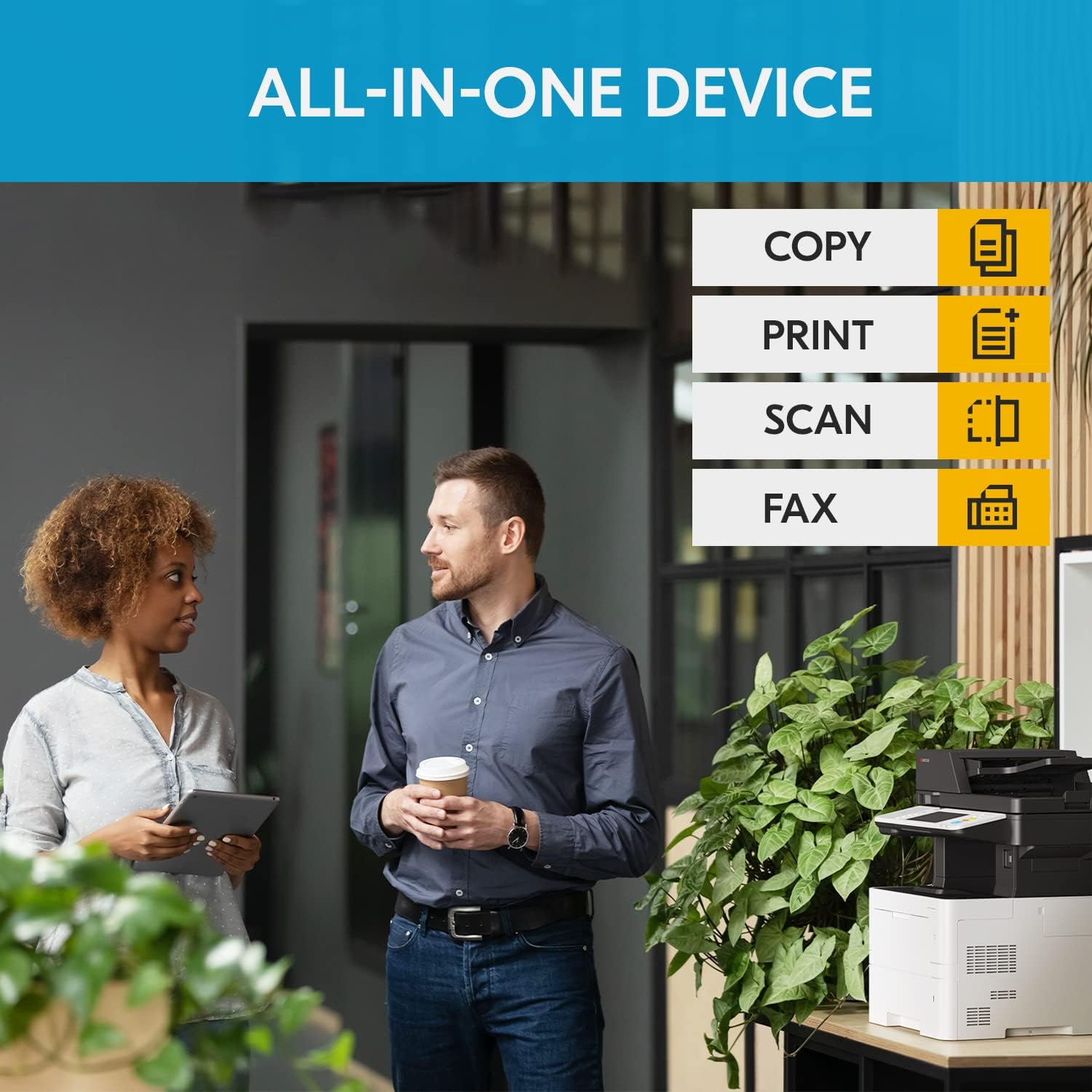
Figure 3: The MA5500ifx offers comprehensive Copy, Print, Scan, and Fax functionalities.
Printing
To print documents from your computer:
- Open the document or image you wish to print.
- Select Print from the application's menu (e.g., File > Print).
- Choose the KYOCERA ECOSYS MA5500ifx from the list of available printers.
- Adjust print settings such as paper size, orientation, number of copies, and quality as needed.
- Click Print to send the job to the printer.
Copying
To make copies using the printer's control panel:
- Place the original document face-down on the scanner glass or face-up in the Automatic Document Feeder (ADF).
- On the 7-inch touchscreen panel, select the Copy function.
- Adjust settings such as number of copies, zoom, density, and paper selection.
- Press the Start button to begin copying.
Scanning
To scan documents to your computer or network location:
- Place the original document on the scanner glass or in the ADF.
- On the touchscreen panel, select the Scan function.
- Choose your desired scan destination (e.g., Scan to PC, Scan to Email, Scan to Folder).
- Configure scan settings such as resolution, color mode, and file format.
- Press the Start button to initiate the scan.
Faxing
To send a fax using the printer:
- Ensure the printer is connected to a telephone line.
- Place the document to be faxed on the scanner glass or in the ADF.
- On the touchscreen panel, select the Fax function.
- Enter the recipient's fax number using the on-screen keypad.
- Adjust any necessary fax settings.
- Press the Start button to send the fax.
Using the 7-inch Touchscreen Panel
The intuitive 7-inch color touchscreen panel provides access to all printer functions and settings. Navigate through menus by tapping icons and options. Use the virtual keyboard for data entry. The panel also displays status messages and alerts.

Figure 4: The printer supports mobile integration for cloud printing and scanning, enhancing workflow.
Maintenance
Regular maintenance ensures optimal performance and longevity of your KYOCERA ECOSYS MA5500ifx printer.
Cleaning the Printer
- Exterior: Wipe the exterior surfaces with a soft, damp, lint-free cloth. Do not use abrasive cleaners or solvents.
- Scanner Glass: Clean the scanner glass with a soft cloth dampened with glass cleaner. Ensure no residue is left behind.
- ADF Rollers: Periodically clean the ADF rollers with a lint-free cloth moistened with water to prevent paper jams.
Toner Cartridge Replacement
When the toner cartridge is low or empty, a message will appear on the control panel. Follow these general steps to replace it:
- Open the front cover of the printer.
- Carefully remove the old toner cartridge by pulling it out.
- Unpack the new KYOCERA genuine toner cartridge and gently shake it horizontally several times to distribute the toner.
- Insert the new cartridge firmly into its slot until it clicks into place.
- Close the front cover.
Always use genuine KYOCERA toner cartridges for best performance and to avoid potential damage to the printer.
Troubleshooting
This section provides solutions to common issues you might encounter with your MA5500ifx printer.
Printer Not Responding
- Check if the printer is powered on and the power cord is securely connected.
- Verify network cable connections or USB cable connections.
- Restart the printer and your computer.
- Ensure the correct printer driver is installed and selected on your computer.
Paper Jams
- Follow the instructions on the printer's control panel to locate and clear the paper jam.
- Ensure paper is loaded correctly in the trays and not overfilled.
- Use paper that meets the printer's specifications.
Poor Print Quality
- Check the toner level and replace the cartridge if it is low.
- Ensure you are using genuine KYOCERA toner.
- Clean the printer's internal components as described in the maintenance section.
- Adjust print quality settings in your printer driver.
Network Connectivity Issues
- Verify the Ethernet cable is securely connected to both the printer and the network device.
- Check the printer's IP address settings on the control panel and ensure they are correct for your network.
- Restart your network router/switch.
Technical Specifications
| Feature | Specification |
|---|---|
| Model Name | ECOSYS MA5500ifx |
| Functions | Print, Copy, Scan, Fax |
| Printing Technology | Laser (Monochrome) |
| Max Print Speed (Monochrome) | 57 ppm |
| Max Print Resolution | 1200 x 1200 dpi |
| Max Copy Resolution | 1200 x 1200 dpi |
| Control Panel | 7-inch Color Touch Screen |
| Connectivity | USB, Ethernet, SDHC |
| Memory Storage Capacity | 512 MB |
| Max Input Sheet Capacity | 600 sheets |
| Maximum Media Size | 8.5 x 14 inch |
| Duplex Printing | Yes |
| Product Dimensions (DxWxH) | 19.5" x 18.9" x 24.13" |
| Item Weight | 54.4 pounds |
Warranty and Support
Warranty Information
Your KYOCERA ECOSYS MA5500ifx printer comes with a limited warranty. For specific details regarding the duration and terms of your warranty, please refer to the warranty documentation included with your product or visit the official KYOCERA website. Keep your proof of purchase for warranty claims.
Customer Support
If you encounter issues that cannot be resolved using this manual or require further assistance, please contact KYOCERA customer support. Support contact information can typically be found on the official KYOCERA website or in the documentation provided with your printer.
For additional resources, including driver downloads, FAQs, and service information, please visit the KYOCERA support portal online.
Related Documents - MA5500ifx
 |
KYOCERA ECOSYS MA4000cifx/MA4000cix/MA3500cifx/MA3500cix First Steps Quick Guide A quick guide for setting up and operating KYOCERA ECOSYS MA4000cifx, MA4000cix, MA3500cifx, and MA3500cix multifunction printers, covering installation, login, copying, scanning, faxing, and troubleshooting. |
 |
Kyocera ECOSYS M4125idn Multifunction Printer: Features and Specifications Detailed overview of the Kyocera ECOSYS M4125idn, a monochrome A4/A3 multifunctional printer. Covers print, copy, scan, and fax capabilities, technical specifications, paper handling, consumables, and optional features. |
 |
KYOCERA ECOSYS MA Series Quick Start Guide A comprehensive quick start guide for KYOCERA ECOSYS MA6000ifx, MA5500ifx, MA4500ifx, and MA4500ix multifunction printers, covering initial setup, operation, and troubleshooting. |
 |
KYOCERA Command Center RX User Guide for ECOSYS Printers Comprehensive user guide for KYOCERA's Command Center RX, detailing how to configure and manage ECOSYS printers and multifunction devices via the embedded web server. |
 |
Kyocera TASKalfa and ECOSYS Printers: Product Quick Reference Guide A comprehensive quick reference guide detailing specifications for Kyocera's TASKalfa and ECOSYS series of multifunctional printers and color printers, including print speed, resolution, paper handling, memory, and more. |
 |
KYOCERA ECOSYS M Series Safety and Installation Guide Safety and installation precautions for KYOCERA ECOSYS M2135dn, M2635dn, M2635dw, M2040dn, M2540dn, M2540dw, M2735dw, and M2640idw multifunction printers. Includes warnings and environmental specifications. |
Ask a question about this manual
Ask about setup, troubleshooting, compatibility, parts, safety, or missing instructions. Manuals+ will review the question and use this page’s manual context to help answer it.