
SIYI MK32E
SIYI MK32E Industrial Ground Station Smart Transmitter
User Manual
1. Introduction
This manual provides essential information for the safe and effective operation of your SIYI MK32E Industrial Ground Station Smart Transmitter. Please read this manual thoroughly before use and retain it for future reference.
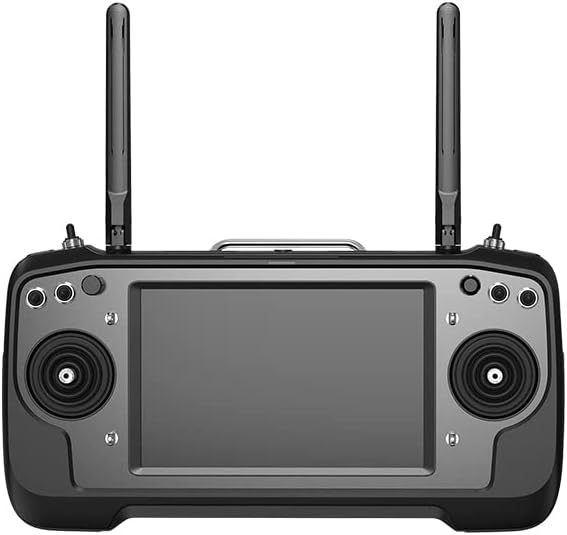
Figure 1: SIYI MK32E Industrial Ground Station Smart Transmitter (Front View)
2. Product Overview and Features
The SIYI MK32E is an advanced industrial ground station designed for professional applications, integrating remote control, data link, and video streaming into a single unit. It offers robust performance and versatile connectivity.
Key Features:
- High Brightness, High Resolution 7-inch Monitor: The MK32E features a 7-inch high-resolution and high-brightness monitor, providing clear display information and high-quality images from ground control software. It boasts a maximum brightness of 1000 nits.
- 15KM Wireless Digital Image Transmission: The MK32 link is based on SIYI's independent wireless HD image transmission technology, an all-in-one link integrating remote control, data link, and video streaming. This technology includes a smart function that automatically adapts transmission to the frequency band with the least interference. The transmission range is up to 15km with standard omnidirectional antennas, and up to 30km with directional antennas.
- Android OS Superior Performance: The MK32 ground station is equipped with a Qualcomm 8-core CPU, capable of smoothly decoding 1080p 30fps video streams in H264 or H265 format. The Android system is upgraded with 4GB RAM and 64GB ROM, efficiently running various ground control software. The MK32 Android platform also includes full-band 4G network support, enabling HD video streaming to cloud servers via SDK development.
- Dual Operator, Remote Control Relay: For significant benefits in enterprise applications relying on wireless HD image transmission technology, SIYI has endowed the MK32 with multiple link functions. The Dual Operator function allows two MK32 ground stations to control the same aerial unit. For example, one MK32 controls the drone's flight attitude, while another ground station controls payloads such as gimbal cameras or pods. In Dual Operator mode, both ground stations can acquire images from the same camera or different cameras. The Remote Control Relay function is designed for extremely long-range flights. One MK32 ground station can relay control from another station via the same aerial unit to reach up to twice the range of a single MK32 system. This function is widely used for UAV inspection and surveillance, and remote distribution of UAVs.

Figure 2: High-Brightness Display in Operation
3. Package Contents
The Standard Combo package includes the following components:
- MK32E Transmitter x 1
- MK32E Receiver x 1
Other combo options may include additional accessories:
- HDMI Combo: MK32E Transmitter x 1, MK32E Receiver x 1, AIR HDMI Input Adapter x 1
- Dual Combo: MK32E-DR Transmitter x 1, MK32E-DR Transmitter x 1, MK32E Dual Air x 1

Figure 3: Available Combos and Optional Parts
4. Setup Guide
4.1 Charging the Transmitter
Connect the provided USB-C cable to the charging port on the MK32E transmitter and a compatible USB power adapter. The charging indicator will show the charging status. Ensure the device is fully charged before first use.
4.2 Antenna Installation
Carefully screw the two omnidirectional antennas into their respective ports on the top of the transmitter. Ensure they are securely fastened but do not overtighten. For optimal signal, position the antennas vertically during operation.

Figure 4: Rear View with Antenna Ports
4.3 Powering On/Off
To power on, press and hold the power button located on the transmitter until the screen illuminates. To power off, press and hold the power button again until a shutdown prompt appears, then confirm.
4.4 Initial Connection (Binding)
Refer to the specific binding instructions provided with your aerial unit (drone/UAV) to establish a secure connection with the MK32E transmitter. This typically involves putting both devices into binding mode and confirming the connection on the transmitter's screen.
5. Operating Instructions
5.1 Controls and Ports Overview
The MK32E features a comprehensive set of controls and ports for versatile operation. Familiarize yourself with the layout shown in the diagram below.

Figure 5: MK32E Controls and Ports Diagram
- Control Sticks: Used for primary flight control (e.g., throttle, yaw, pitch, roll).
- 3-Position Switches: Configurable switches for various functions (e.g., flight modes, gimbal control).
- Buttons: Programmable buttons for quick access to functions.
- Centering Dials: For fine-tuning or specific parameter adjustments.
- Type-C Port: For charging, file transfer, and firmware updates.
- S.Bus Output / PPM Input: For external link connections.
- LAN (Ethernet) Port: For video stream and data link to PC.
- HDMI Port: For video output to an external monitor.
- USB Port: For connecting USB devices.
- MIC Input: For microphone connection.
- Quick Release Battery: For easy battery replacement.
5.2 Screen Navigation
The 7-inch touchscreen operates like a standard Android device. Swipe to navigate between screens, tap icons to open applications, and use the system settings to configure Wi-Fi, Bluetooth, and other device preferences. Pre-installed ground control software can be accessed from the home screen.
5.3 System Connectivity
The MK32E supports various connectivity options for integration into complex systems.

Figure 6: System Connectivity Diagram
- Remote Control S.Bus Output: Connects to flight controllers or other S.Bus compatible devices.
- PWM Channels: Five PWM channels for controlling servos or other devices.
- Data Link: Bi-directional telemetry and flight data between flight controller and GCS.
- IP Camera / IP FPV Camera: Connects to compatible IP cameras for video input.
- HDMI Ethernet Converter: For converting HDMI input to Ethernet.
- Power Inputs: Supports XT30 (11-16.8V) and XT60 (14-75.6V) power inputs.
6. Maintenance
6.1 Cleaning
Wipe the exterior of the transmitter with a soft, dry cloth. Do not use liquid cleaners or solvents. Keep the screen clean using a microfiber cloth designed for electronics.
6.2 Storage
Store the MK32E in a cool, dry place away from direct sunlight and extreme temperatures. If storing for extended periods, ensure the battery is charged to approximately 50-60% to prolong its lifespan.
6.3 Battery Care
Avoid fully discharging the battery. Recharge the battery regularly, even if the device is not in frequent use. If the battery shows signs of swelling or damage, discontinue use immediately and dispose of it properly.
7. Troubleshooting
| Problem | Possible Cause | Solution |
|---|---|---|
| Transmitter does not power on. | Low battery; Power button not pressed correctly. | Charge the transmitter; Press and hold the power button for several seconds. |
| No video signal on screen. | Receiver not powered; Receiver not bound; Interference; Incorrect camera connection. | Ensure receiver is powered; Re-bind the receiver; Move to an area with less interference; Check camera and cable connections. |
| Poor control range or signal loss. | Antennas improperly positioned; Environmental interference; Obstructions. | Ensure antennas are vertical and unobstructed; Operate in open areas; Avoid strong electromagnetic interference. |
| Android system slow or unresponsive. | Too many apps running; Low storage; Software glitch. | Close unnecessary applications; Clear cache/data; Restart the device; Check for firmware updates. |
8. Specifications
| Feature | Detail |
|---|---|
| Model Number | MK32E |
| Manufacturer | SIYI |
| Display | 7-inch HD, up to 1000 nits brightness |
| Processor | Qualcomm 8-core CPU |
| Memory | 4GB RAM, 64GB ROM |
| Operating System | Android |
| Image Transmission Range | Up to 15km (omnidirectional antenna), 30km (directional antenna) |
| Video Decoding | 1080p 30fps (H264/H265) |
| Connectivity | USB, HDMI, LAN, S.Bus, PWM, 4G Network |
9. Warranty and Support
For warranty information and technical support, please refer to the official SIYI website or contact your authorized dealer. Keep your proof of purchase for warranty claims.
For further assistance, you may visit the ARRISHOBBY Store on Amazon.
Related documentsMK32E


Ask a question about this manual
Ask about setup, troubleshooting, compatibility, parts, safety, or missing instructions. Manuals+ will review the question and use this page’s manual context to help answer it.