
Introduction
This manual provides detailed instructions for the setup, operation, maintenance, and troubleshooting of your Taiahiro Mechanical Gaming Keyboard and Mouse Combo. Please read this manual thoroughly to ensure proper use and to maximize your product's lifespan and performance.
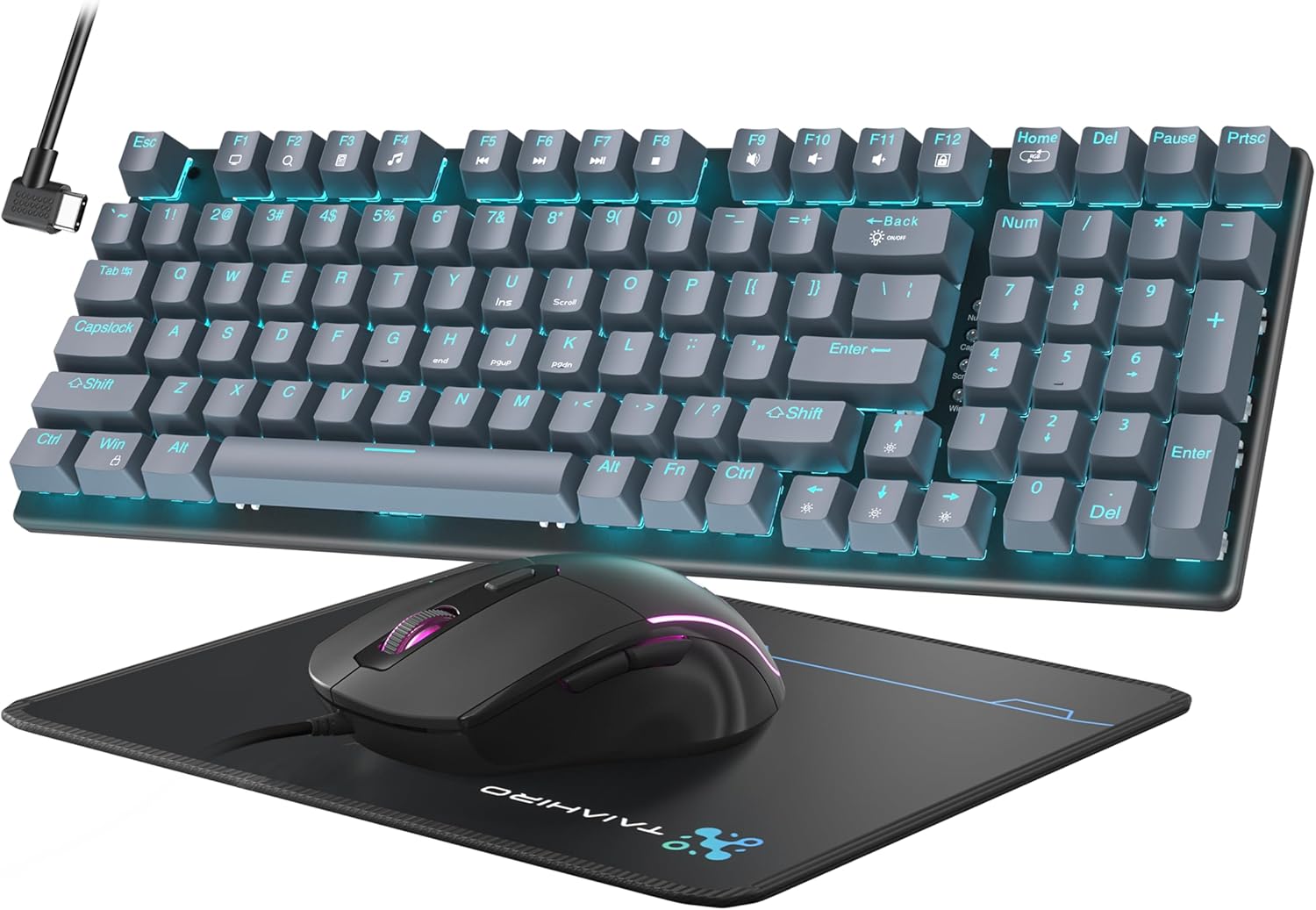
Image: The Taiahiro Mechanical Gaming Keyboard and Mouse Combo, featuring a gray 98-key keyboard with blue LED backlighting, a black RGB gaming mouse, and a mouse pad.
Setup
Connecting Your Devices
The Taiahiro Mechanical Gaming Keyboard and Mouse Combo are wired devices, ensuring a stable and responsive connection. Both connect via a USB Type-C cable.
- Unpack the Devices: Carefully remove the keyboard, mouse, and USB Type-C cable from their packaging.
- Connect the Keyboard: Insert the USB Type-C end of the cable into the port located on the keyboard. Connect the standard USB-A end of the cable to an available USB port on your computer (PC or Mac).
- Connect the Mouse: The mouse is also wired. Connect its USB-A cable to another available USB port on your computer.
- Plug and Play: No additional drivers or software are required. Your operating system will automatically recognize the devices.
Video: An unboxing and setup demonstration of the Taiahiro Mechanical Keyboard and Mouse Combo.

Image: A close-up of the detachable USB Type-C cable, which connects the keyboard to your computer.
Operating Instructions & Features
Keyboard Features
- Mechanical Blue Switches: The keyboard is equipped with durable mechanical blue switches, providing a satisfying tactile bump and audible click with each keystroke. This ensures precise and responsive feedback for both gaming and typing.
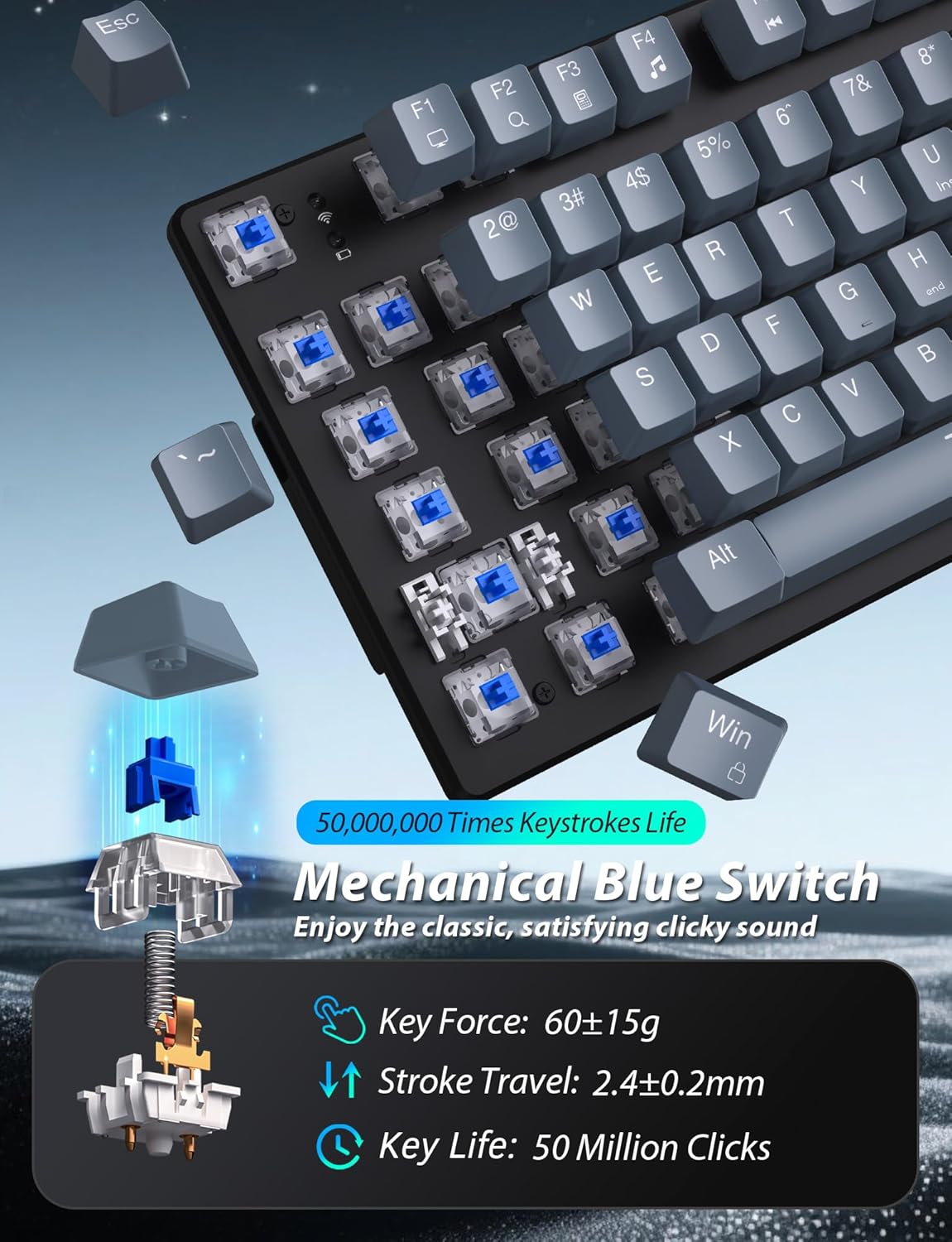
Image: A detailed view of the mechanical blue switches, highlighting their construction and the satisfying click they produce.
Video: A demonstration of the Taiahiro Mechanical Gaming Keyboard, showcasing its blue switches and backlighting.
- 18 Modes Blue LED Backlighting: Personalize your setup with 18 different blue LED backlighting modes. Adjust brightness and breathing speed to match your preference or gaming environment.
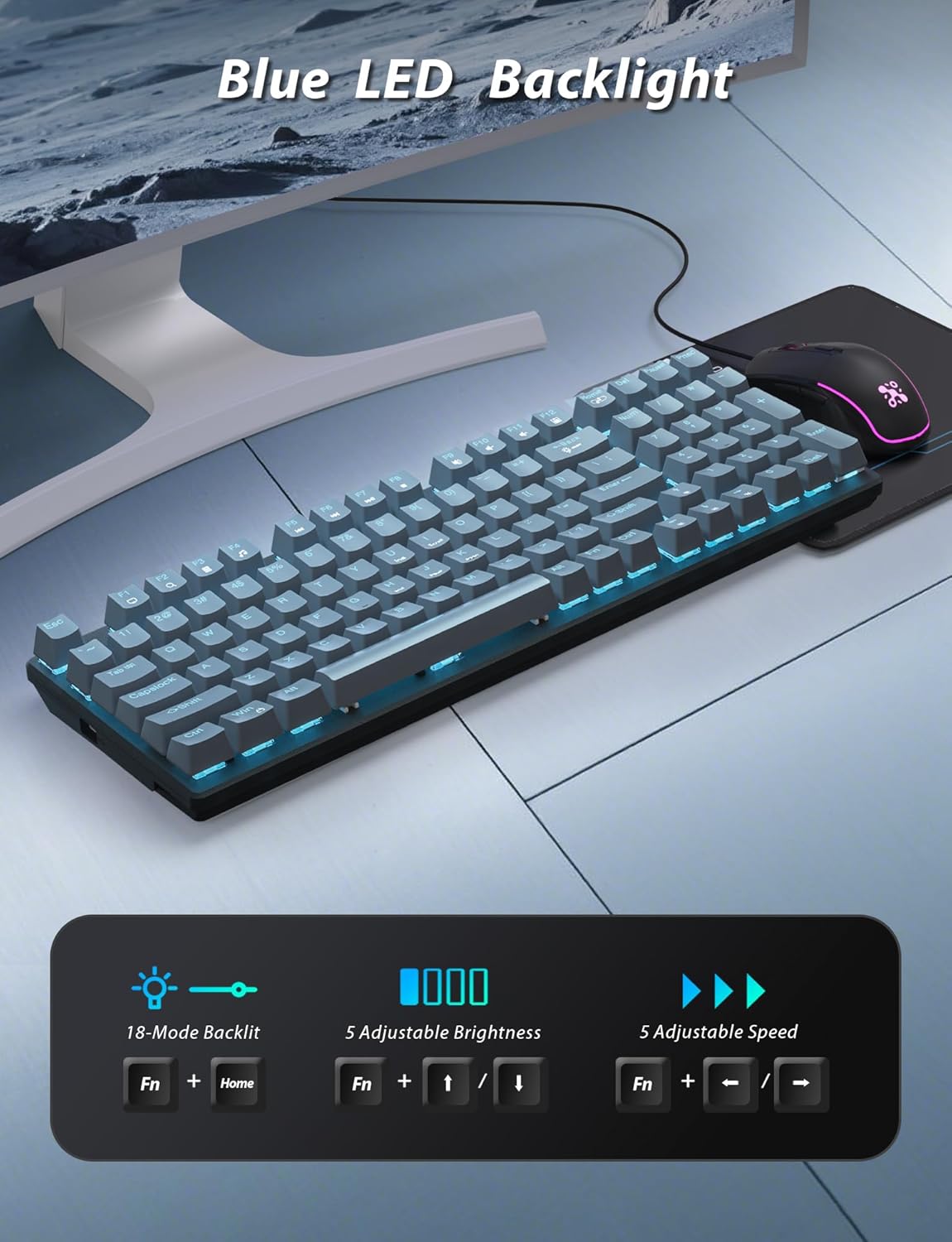
Image: Visual representation of the 18 blue LED backlighting modes, with controls for brightness and speed.
- 98-Key Full-Size Layout: This keyboard offers a complete typing experience with 98 keys, including a numeric keypad, in a compact design.
- Detachable Floated Keycaps: The double-shot-molded ABS keycaps are wear-resistant and non-fading. Their floated design makes them easy to remove for cleaning and maintenance.
- Ergonomic Design: The keyboard features an ergonomic, sloped design with adjustable feet, allowing you to set a comfortable typing angle to reduce hand fatigue during extended use.

Image: The ergonomic design of the keyboard, showing the adjustable stand and how the mouse fits comfortably in hand.
Video: A short clip highlighting the ergonomic features of the Taiahiro Mechanical Keyboard and Mouse.
Mouse Features
- 4 Adjustable DPI Levels: The wired gaming mouse features a high-precision optical sensor with 4 adjustable DPI levels (800/1600/2400/3200). Easily switch DPI settings to suit different tasks or game requirements.

Image: The RGB backlit ergonomic gaming mouse, detailing its 4 DPI levels and side buttons.
Video: A brief overview of the Taiahiro Mouse and Mechanical Keyboard Combo, focusing on mouse features.
- 7 Colors Breathing RGB Backlighting: The mouse features dynamic 7-color RGB lighting that constantly breathes and cycles, adding to your gaming aesthetic.
- Ergonomic Contoured Shape: Designed to fit comfortably in your hand, the mouse's contoured shape and textured grip ensure a secure hold for improved accuracy.
Maintenance
Cleaning the Keyboard
To maintain optimal performance and hygiene, regular cleaning of your keyboard is recommended.
- Disconnect the Keyboard: Always unplug the keyboard from your computer before cleaning.
- Remove Keycaps: Use the included keycap puller tool to carefully remove the keycaps. This allows access to the switches and the keyboard plate for thorough cleaning.

Image: A keycap puller tool, used for safely removing keycaps from the keyboard.
- Clean the Keycaps: Keycaps can be cleaned with a mild soap and water solution. Ensure they are completely dry before reattaching.
- Clean the Keyboard Plate: Use compressed air to blow out dust and debris from between the switches. A soft brush or microfiber cloth can be used to wipe down the surface.
- Replace Keycaps: Carefully press each keycap back onto its corresponding switch until it clicks into place.
Cleaning the Mouse
Keep your mouse clean for smooth operation.
- Disconnect the Mouse: Unplug the mouse from your computer.
- Wipe Surfaces: Use a soft, damp cloth to wipe the surface of the mouse. Avoid using harsh chemicals.
- Clean Optical Sensor: Gently clean the optical sensor on the bottom of the mouse with a cotton swab to ensure accurate tracking.
Troubleshooting
If you encounter any issues with your Taiahiro Mechanical Gaming Keyboard and Mouse Combo, please refer to the following common troubleshooting steps:
- No Response from Keyboard/Mouse:
- Ensure both devices are securely plugged into active USB ports on your computer.
- Try connecting the devices to different USB ports.
- Restart your computer.
- Backlighting Not Working/Incorrect:
- For the keyboard, press Fn + Home to cycle through the 18 backlight modes.
- Adjust brightness using Fn + Up/Down Arrow keys.
- The mouse RGB lighting is automatic and cycles through 7 colors. Ensure the mouse is connected.
- Mouse Tracking Issues:
- Clean the optical sensor on the bottom of the mouse.
- Ensure you are using the mouse on a clean, non-reflective surface or the included mouse pad.
- Adjust the DPI settings using the DPI button on the mouse.
- Keys Not Registering:
- If a specific key is not working, try removing and re-seating its keycap.
- If the issue persists, the switch might need replacement. The product includes extra switches and a switch puller for this purpose.

Image: A switch puller tool, used for replacing individual mechanical switches on the keyboard.
Specifications
| Feature | Detail |
|---|---|
| Brand | Taiahiro |
| Model | BK6301 |
| Keyboard Type | Mechanical Gaming Keyboard |
| Key Switches | Blue Switches |
| Keycap Type | Double-shot-molded ABS, Floated |
| Keyboard Layout | 98-Key Full-Size with Numpad |
| Keyboard Backlighting | 18 Modes Blue LED Backlighting |
| Mouse Type | Wired Optical Gaming Mouse |
| Mouse DPI Levels | 800/1600/2400/3200 (Adjustable) |
| Mouse Backlighting | 7 Colors Breathing RGB |
| Connectivity | Wired (USB Type-C for keyboard, USB-A for mouse) |
| Compatible Devices | Laptop, Personal Computer (MAC, PC) |
| Keyboard Dimensions | 14.7 x 5.2 x 1.8 inches (approx.) |
| Item Weight | 2.72 pounds |
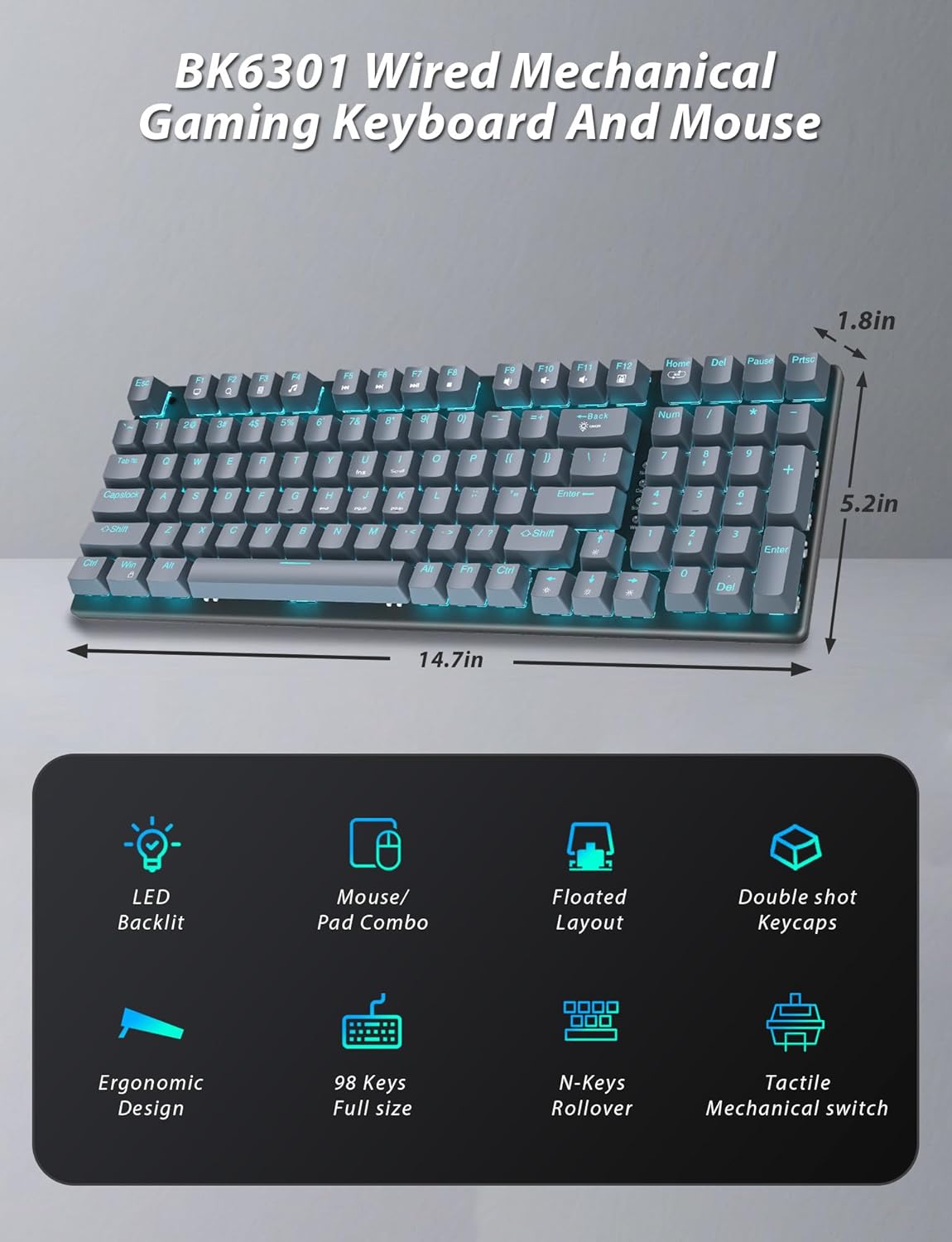
Image: Diagram illustrating the dimensions of the Taiahiro Mechanical Gaming Keyboard.
Warranty and Support
Taiahiro products are manufactured with high-quality materials and undergo strict quality control. For any product-related inquiries, technical support, or warranty claims, please contact Taiahiro customer service through the retailer's platform or the official Taiahiro website. Please retain your proof of purchase for warranty purposes.


