
1. Introduction
The ZMOON ZM201 is an advanced OBD2 diagnostic scanner designed to help vehicle owners and mechanics quickly identify and resolve car issues. This tool provides comprehensive diagnostic functions, including reading and clearing trouble codes, viewing live data streams, and performing various system tests. With its user-friendly interface and extensive DTC library, the ZM201 empowers you to understand your vehicle's health and make informed decisions about maintenance and repairs.
This manual provides detailed instructions on how to set up, operate, and maintain your ZM201 scanner, ensuring you get the most out of its powerful features.
2. Product Overview

Figure 2.1: ZM201 OBD2 Scanner with its diagnostic cable.

Figure 2.2: Overview of ZM201's diagnostic capabilities.
2.1 Components
- Main Unit: Features a 2.8-inch color screen with adjustable brightness and selectable dark/light modes.
- OBD2 Connector Cable: Integrated cable for connecting to your vehicle's OBD2 port.
- Control Buttons: Intuitive button layout for navigation and function selection.
- Status Indicator Lights: Red, yellow, and green lights to indicate connection and fault status.
2.2 Controls and Interface
The ZM201 features a user-friendly interface with dedicated function keys and navigation buttons:
- F1 Button: Quickly retrieves trouble codes.
- F2 Button: Provides instant access to I/M readiness information.
- OK Button: Confirms selections.
- Navigation Buttons (Up/Down/Left/Right): Used to navigate through menus and options.
- EXIT Button: Returns to the previous menu or exits a function.
3. Setup
Follow these steps to set up and connect your ZM201 OBD2 scanner to your vehicle:
- Locate the OBD2 Port: The 16-pin OBD2 diagnostic link connector (DLC) is typically located under the dashboard on the driver's side of the vehicle. Refer to your vehicle's owner's manual if you cannot locate it.
- Connect the Scanner: Plug the ZM201's diagnostic cable firmly into the vehicle's OBD2 port. Ensure a secure connection.
- Turn On Vehicle Ignition: Turn the vehicle's ignition key to the 'ON' position (engine off) or start the engine, depending on the specific test you wish to perform. The scanner will automatically power on.
- Observe Status Indicator: The green status indicator light on the scanner will illuminate when a successful connection is established. A yellow light indicates incompatibility or connection failure, and a red light indicates a detected fault.
Video 3.1: Demonstrates connecting the ZM201 scanner to a vehicle's OBD2 port and navigating the main menu. This video shows the physical connection process and initial power-up, followed by a brief overview of the diagnostic options available on the device's screen.

Figure 3.1: The ZM201 scanner connected to a vehicle's OBD2 port, ready for diagnostics.
4. Operating the ZM201 Scanner
The ZM201 offers a comprehensive suite of diagnostic functions. Navigate through the main menu using the arrow keys and press 'OK' to select a function.
4.1 Read & Clear Codes
This function allows you to read diagnostic trouble codes (DTCs) stored in the vehicle's computer and clear them to turn off the Check Engine Light (MIL).
- Read DTC: Select 'Read DTC' from the main menu or press the F1 button for quick access. The scanner will display any stored, pending, or permanent trouble codes.
- Clear DTC: Select 'Clear DTC' from the main menu. This will erase all diagnostic trouble codes and turn off the Malfunction Indicator Lamp (MIL). Note: Ensure you have addressed the underlying issue before clearing codes, as they may reappear if the problem persists.

Figure 4.1: One-click access to Read Codes and I/M Readiness status.
4.2 Live Data Stream
View real-time operational data from the vehicle's sensors and components. This data can be displayed in text or graph format, allowing for dynamic analysis of vehicle performance.
- Select 'Data Stream' from the main menu.
- Choose 'View the data' to see all available parameters or 'Custom data set' to select specific parameters for monitoring.

Figure 4.2: Real-time live data stream display with graphing capabilities.
4.3 I/M Readiness
Check the status of the vehicle's emission-related monitoring systems to determine if they are ready for an emissions test. Press the F2 button for quick access.
- Select 'I/M Readiness' from the main menu or press the F2 button.
- The scanner will display the status of various monitors (e.g., MIL, Misfire Monitor, Fuel System Monitor, O2 Sensor Monitor). 'OK' indicates the monitor has completed its test cycle, while 'INC' indicates it is incomplete.

Figure 4.3: Detailed I/M Readiness status for emission monitoring systems.
4.4 O2 Sensor Test, On-Board Monitor, and Component Test
These advanced functions allow for specific testing of emission control systems and individual components:
- O2 Sensor Test: Retrieves O2 sensor monitoring test results for the most recently completed tests from the vehicle's computer.
- On-Board Monitor: Retrieves test results for emission-related powertrain components and systems that are not continuously monitored.
- Component Test: Allows initiation of a leak test for the vehicle's EVAP system or other component-specific tests.

Figure 4.4: Enhanced Mode 6 and Mode 8 tests for O2 sensor, on-board monitor, and EVAP system.
4.5 VIN Retrieval and Battery Voltage Test
Access important vehicle information and monitor battery health:
- Vehicle Info: Retrieves the Vehicle Identification Number (VIN), Calibration ID, and Calibration Verification Number (CVN) from the vehicle's computer.
- Voltage: Performs a battery voltage test, providing real-time voltage readings and indicating battery health (e.g., too low to start, normal, too high).

Figure 4.5: Battery voltage test display, indicating battery health before and after engine starting.
4.6 DTC Lookup
The ZM201 features an extensive built-in DTC library with over 35,901 diagnostic trouble codes. This allows you to quickly look up the definition of a code without needing external resources.
- Select 'DTC Lib' from the main menu.
- Enter the fault code as prompted to query its definition.
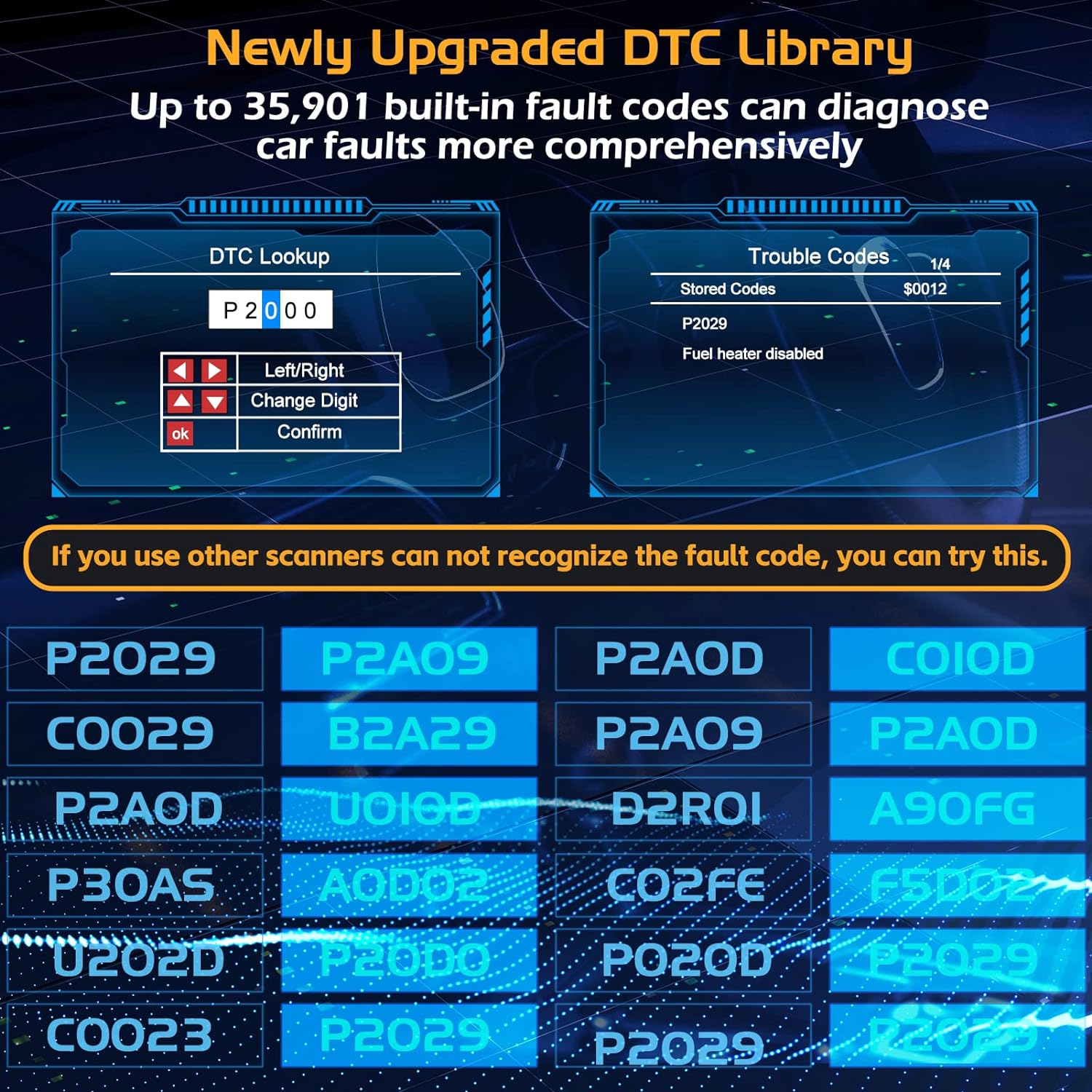
Figure 4.6: The ZM201's newly upgraded DTC library for comprehensive fault code diagnosis.
5. Software Updates & Printing
The ZM201 offers lifetime free software updates and a convenient printing function for diagnostic reports.
5.1 Software Updates
To ensure your scanner has the latest features and vehicle compatibility, perform regular software updates:
- Connect the ZM201 to a computer using the provided USB cable.
- Visit elm327.com to download the latest update software.
- Follow the on-screen instructions to update the scanner's firmware.
5.2 Printing Diagnostic Data
You can print diagnostic data for record-keeping or sharing with a mechanic:
- Connect the ZM201 to a computer via USB.
- Download and install the client software from elm327.com.
- Open the client software and select the diagnostic data (DTCs, live data stream) you wish to print.

Figure 5.1: The ZM201 connected to a computer for software updates and printing diagnostic reports.
6. Compatibility
The ZM201 OBD2 scanner is compatible with most vehicles that comply with the OBD2 protocol. This includes:
- Most USA-manufactured vehicles after 1996.
- Most EU-manufactured vehicles after 2002.
- Most Asia-manufactured vehicles after 2008.
Note: The ZM201 is not compatible with new energy vehicles, hybrid vehicles, or models that do not comply with the OBD2 protocol.
Figure 6.1: Global vehicle compatibility and supported languages for the ZM201.
7. Specifications
| Feature | Specification |
|---|---|
| Brand | Zmoon |
| Model | ZM201 |
| Product Dimensions | 3.45"L x 0.92"W x 6"H |
| Item Weight | 13.1 ounces |
| Operating System | Built-in System |
| Display Resolution | 320x240 |
| DTC Library Size | 35,901 DTCs |
| Supported Protocols | SAE J1850 PWM, SAE J1850 VPW, ISO9141-2, ISO14230 KWP, ISO15765-4 CAN |
| Supported Languages | English, German, French, Dutch, Italian, Spanish, Russian, Chinese, Japanese, Portuguese |
8. Troubleshooting
If you encounter issues while using your ZM201 scanner, refer to the following common troubleshooting tips:
- Scanner Does Not Power On:
- Ensure the OBD2 cable is securely connected to the vehicle's DLC.
- Verify the vehicle's ignition is in the 'ON' position or the engine is running.
- Check the vehicle's fuse for the OBD2 port (consult your vehicle's manual).
- Communication Error:
- Confirm the vehicle is OBD2 compliant and falls within the supported manufacturing years (USA after 1996, EU after 2002, Asia after 2008).
- Ensure the connection is stable and free from damage.
- Try connecting to a different OBD2 compliant vehicle to rule out scanner issues.
- No Codes Found:
- If the Check Engine Light (MIL) is not illuminated, there may be no active trouble codes.
- Some intermittent issues may not set a permanent code immediately. Drive the vehicle under various conditions to allow monitors to run.
- Scanner Freezes or Responds Slowly:
- Disconnect the scanner from the vehicle and reconnect it.
- Ensure the scanner's software is up to date (refer to Section 5.1).
9. Maintenance
Proper care and maintenance will extend the life of your ZM201 scanner:
- Cleaning: Use a soft, damp cloth to clean the scanner's exterior. Do not use abrasive cleaners or solvents.
- Storage: Store the scanner in a clean, dry environment away from extreme temperatures, direct sunlight, and excessive dust.
- Cable Care: Avoid bending or crimping the diagnostic cable excessively. Store it neatly to prevent damage.
- Software Updates: Regularly check for and install software updates to maintain optimal performance and compatibility (refer to Section 5.1).
10. Warranty and Support
Zmoon is committed to providing high-quality products and excellent customer service.
- Warranty: Enjoy a 3-year free replacement warranty for manufacturing defects.
- Returns: We offer a 90-day no-reason return policy.
- Customer Support: Our dedicated support team is available for quick replies to your inquiries within 24 hours.

Figure 10.1: Zmoon's commitment to unparalleled customer service.
For further assistance, please contact Zmoon customer support through the official channels provided with your product or visit the Zmoon store on Amazon.


