
1. Product Overview
The Taiahiro Low Profile Mechanical Keyboard is an ultra-slim 87-key keyboard designed specifically for Mac users, offering a compact 80% layout. It features ultra-low profile brown switches for a tactile and responsive typing experience. This wired keyboard provides full support for Mac function keys and customizable white backlighting.
Key Features
- Low Profile Brown Switches for tactile feedback.
- 87-key (TKL) compact design.
- Full Mac Function Keys Support.
- Detachable Type-C connection.
- 18-Modes LED White Backlighting with 4 adjustable brightness levels.
- Durable Aluminum Alloy Panel construction.
- Double Shot Injection Keycaps for comfortable typing.
- Ergonomic design for comfortable angle.
Package Contents
- Taiahiro Low Profile Mechanical Keyboard
- USB-C to USB-A Cable
- User Manual
Product Diagram

Figure 1: Overview of the Taiahiro Low Profile Mechanical Keyboard, highlighting its compact design and key layout.
2. Setup Guide
Connecting the Keyboard
- Locate the USB-C port on the back of the keyboard.
- Connect one end of the provided USB-C cable to the keyboard's USB-C port.
- Connect the other end of the USB-C cable to an available USB-A port on your computer (MacBook Pro/Air, iMac, Mac Mini, or PC).
- The keyboard is plug-and-play and should be recognized automatically by your operating system.
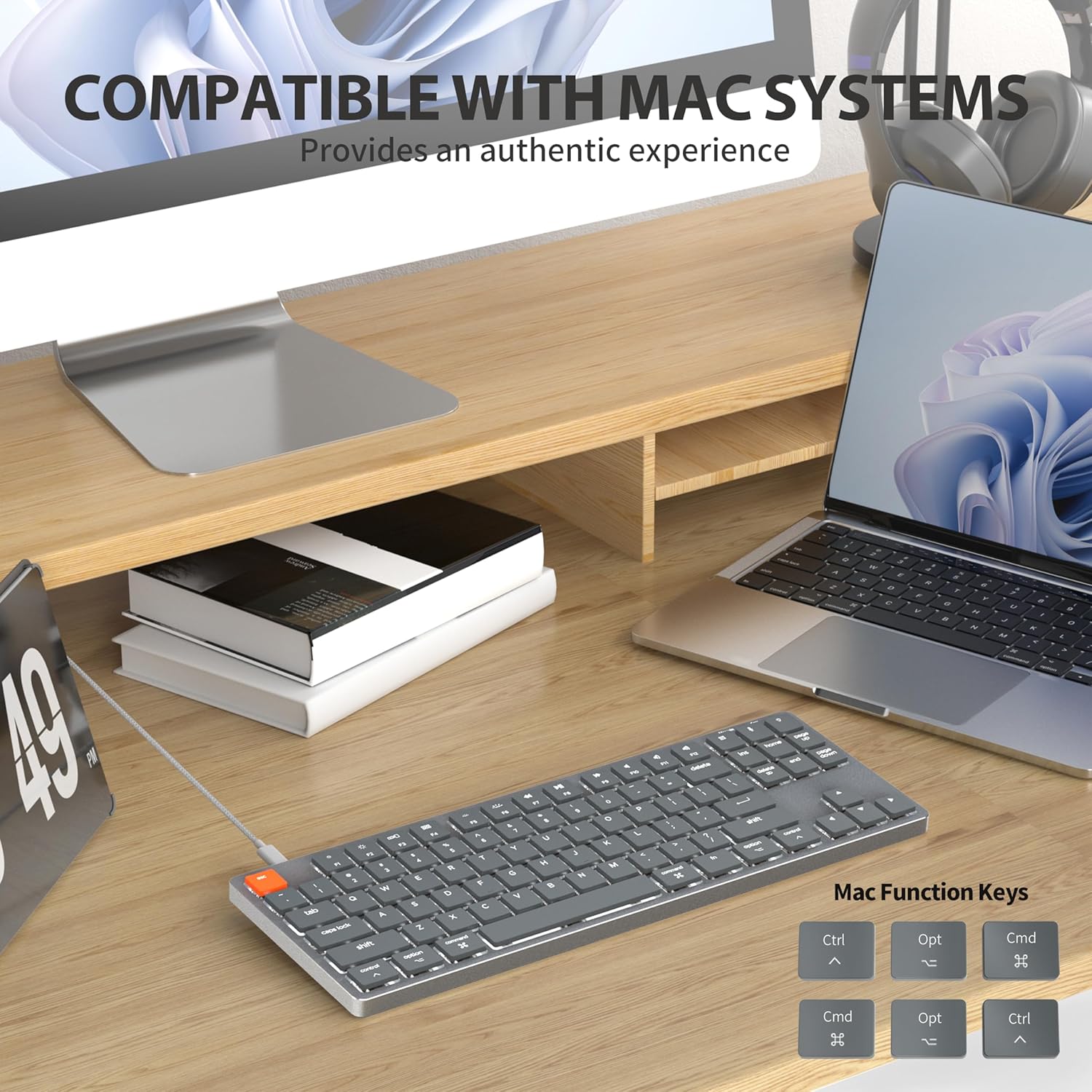
Figure 2: Connecting the detachable Type-C cable to the keyboard for convenience and efficiency.
System Compatibility
This keyboard is designed for full compatibility with Mac OS and Windows operating systems. It supports Mac Mini, MacBook Air, MacBook Pro, PC, and iMac devices.

Figure 3: The keyboard seamlessly integrated with a Mac system, providing an authentic user experience.
3. Operating Instructions
Basic Typing
The low-profile brown switches provide a quiet yet responsive typing experience with satisfying tactile feedback. The ultra-thin design and high-quality keycaps enhance fingertip comfort during extended use.
Backlighting Control
The keyboard features 18 distinct LED white backlighting modes. You can cycle through these modes and adjust brightness levels using the dedicated function keys. Refer to the keyboard's layout for specific key combinations, typically involving the 'Fn' key combined with other keys (e.g., Fn + F1/F2 for brightness, Fn + arrow keys for modes).

Figure 4: The keyboard's 18-modes LED white backlighting, offering customizable illumination.
Mac Function Keys Support
The keyboard is specifically designed to support Mac function keys, allowing you to easily control system functions such as screen brightness, volume, and media playback directly from the keyboard. These functions are typically accessed by pressing the 'Fn' key in combination with the corresponding F-keys (F1-F12).
Shortcut Keys
The keyboard includes multifunctional shortcut keys for enhanced productivity. These keys provide quick access to various commands, including multimedia controls. Consult the keycap legends for specific shortcut functions.

Figure 5: The keyboard's multifunctional shortcut keys, providing 100% fully loaded functionality.
4. Maintenance and Care
Cleaning the Keyboard
- Disconnect the keyboard from your computer before cleaning.
- Use a soft, lint-free cloth slightly dampened with water or a mild cleaning solution to wipe the keycaps and surface.
- For dust and debris between keys, use compressed air or a small brush.
- Avoid using harsh chemicals, abrasive cleaners, or excessive moisture.
Storage
When not in use for extended periods, store the keyboard in a cool, dry place away from direct sunlight and extreme temperatures to prevent damage.
5. Troubleshooting
Keyboard Not Responding
- Check Connection: Ensure the USB-C cable is securely connected to both the keyboard and your computer.
- Try Different Port: Plug the keyboard into a different USB port on your computer.
- Restart Computer: Sometimes a simple system restart can resolve connectivity issues.
- Check Cable: If possible, try using a different USB-C cable to rule out a faulty cable.
Backlight Issues
- Enable Backlight: Ensure the backlight is not turned off. Use the designated function keys (e.g., Fn + backlight key) to toggle it on/off.
- Adjust Brightness: Cycle through brightness levels using the appropriate function keys (e.g., Fn + F1/F2) to ensure it's not set to the lowest level.
- Change Mode: Try cycling through different backlight modes to see if the issue persists across all modes.
Mac Compatibility Concerns
- Operating System Version: Ensure your Mac OS is up to date or meets the minimum requirements for peripheral compatibility.
- Processor Type: While designed for Mac, some specific processor architectures (e.g., M2/ARM) might require updated drivers or system settings. Check Taiahiro's official support page for any specific driver downloads or compatibility notes.
- Keyboard Mode: If your keyboard has a physical switch or key combination to toggle between Mac/Windows mode, ensure it is set to Mac mode.
6. Technical Specifications
| Feature | Detail |
|---|---|
| Model Number | 201 |
| Brand | Taiahiro |
| Keyboard Type | Low Profile Mechanical Keyboard |
| Switch Type | Brown Switch |
| Number of Keys | 87 |
| Connectivity | Wired (USB-C) |
| Backlighting | 18-Modes LED White Backlighting |
| Material | Aluminum Alloy Panel |
| Color | Black-Gray |
| Product Dimensions | 12.5 x 1.8 x 34.59 cm (4.92 x 0.71 x 13.62 inches) |
| Item Weight | 971 g |
| Compatible OS | Mac OS, Windows |
Dimensions and Profile

Figure 6: Detailed dimensions of the 87-key ultra-thin mechanical keyboard, illustrating its compact and slim profile.
Switch Technology

Figure 7: Comparison of Ultra Low Profile Brown Switch with standard mechanical switches, highlighting shorter actuation point for faster and more precise input.
Keycap Design

Figure 8: The ultra-thin double shot injection keycaps, designed for comfortable and durable typing.
Ergonomics
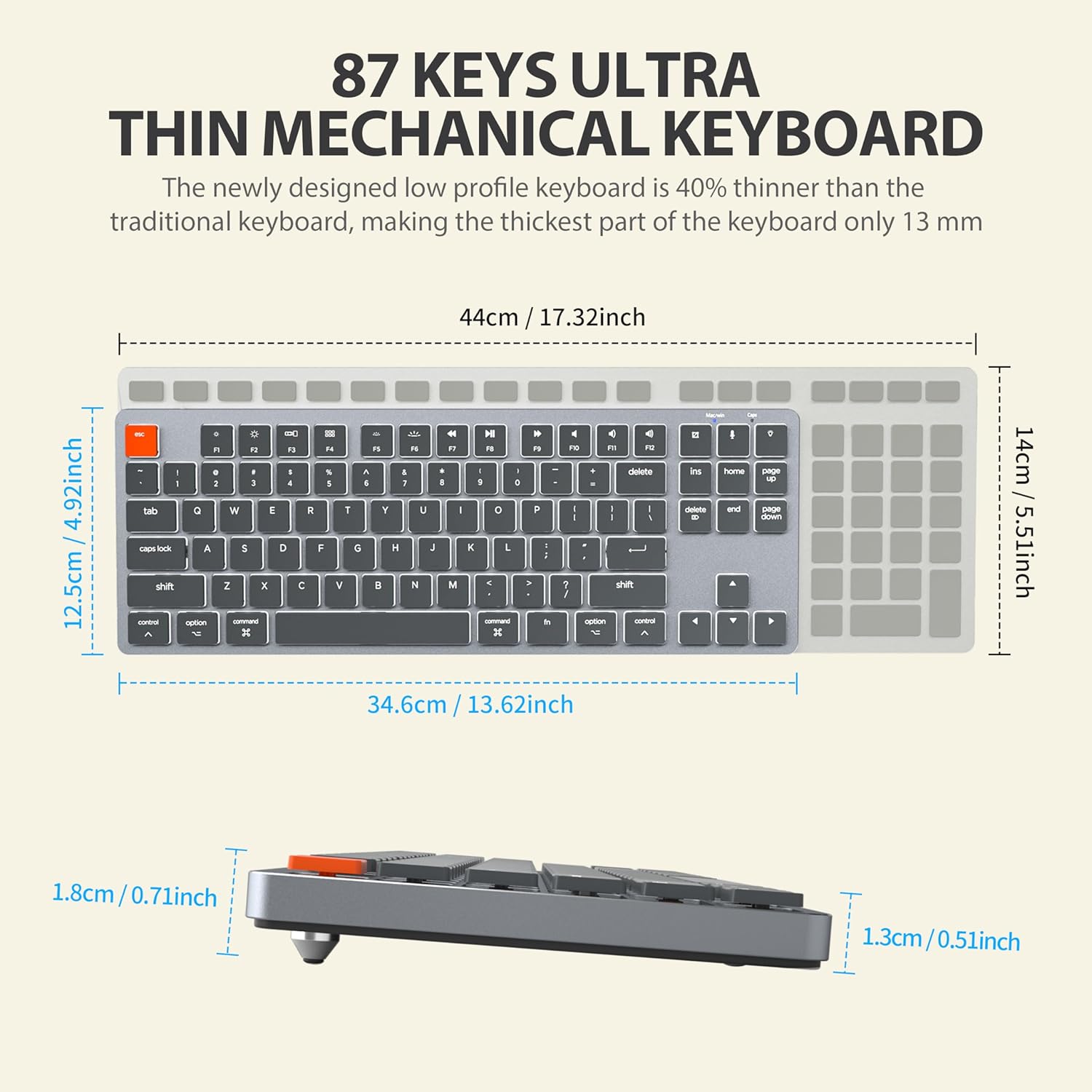
Figure 9: The ergonomic design of the keyboard, providing a comfortable angle for extended typing sessions.
7. Warranty and Support
Warranty Information
This Taiahiro product comes with a standard manufacturer's warranty. Please refer to the product packaging or the official Taiahiro website for specific warranty terms and conditions, including coverage period and claim procedures.
Customer Support
For technical assistance, troubleshooting, or any product-related inquiries, please visit the official Taiahiro website or contact their customer service department. Contact information can typically be found on the product packaging or the brand's official online presence.