
1. Introduction
Thank you for choosing the Taiahiro Typewriter Style Mechanical Gaming Keyboard and Mouse Combo. This set is designed to provide a unique blend of retro aesthetics and modern gaming performance. Featuring durable mechanical blue switches, vibrant RGB backlighting, and an ergonomic design, this combo is perfect for both intensive gaming sessions and comfortable typing.
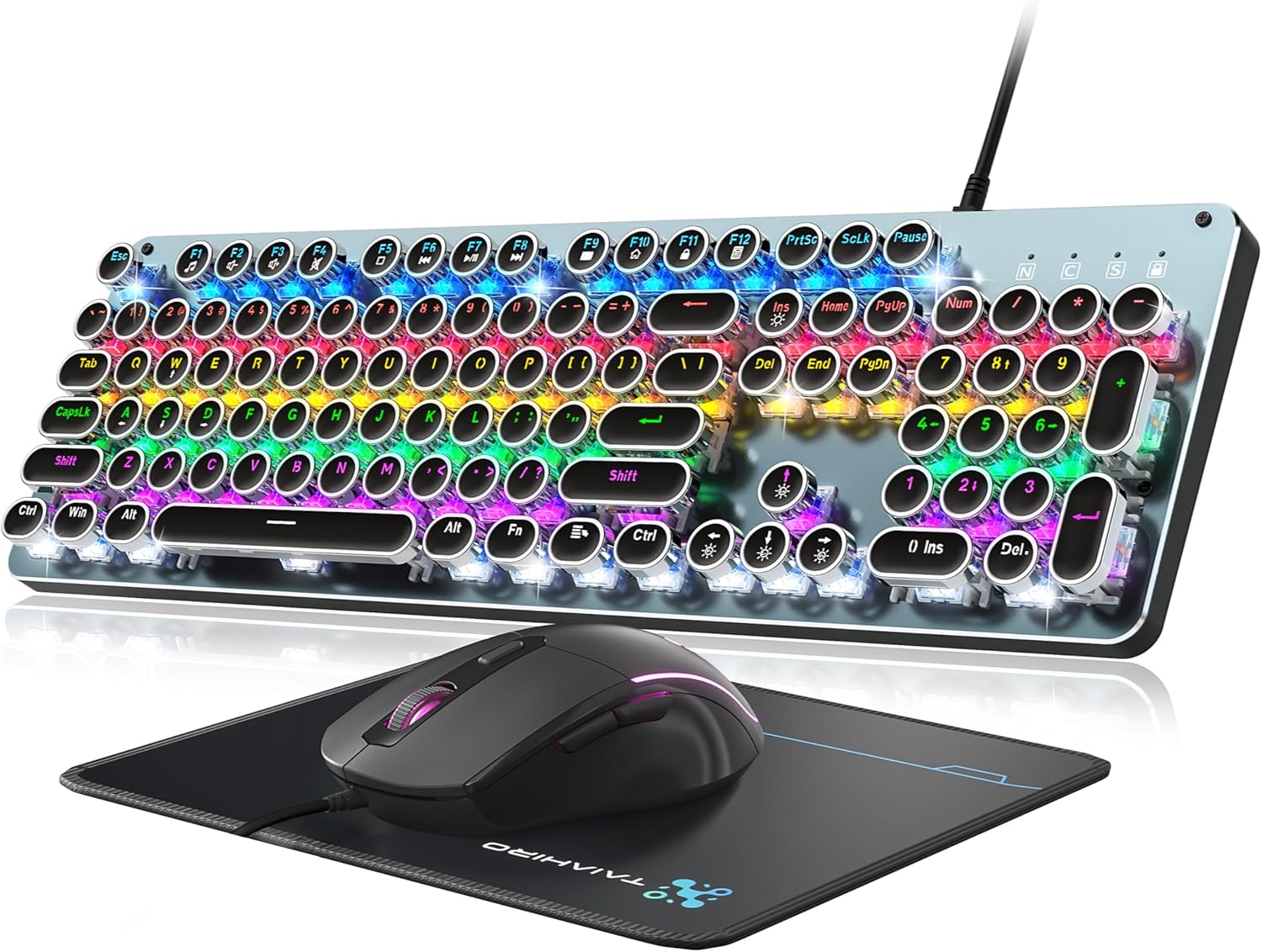
Image: The Taiahiro Typewriter Style Mechanical Gaming Keyboard, Mouse, and Mouse Pad.
2. What's in the Box
- 1x Mechanical Gaming Keyboard
- 1x Gaming Mouse
- 1x Mouse Pad

Image: Visual representation of the BK820 keyboard and mouse highlighting key features like Rainbow LED Backlit, Punk Round Keycaps, and Metal Panel.
3. Setup
The Taiahiro keyboard and mouse combo features a simple USB 2.0 plug-and-play connection, requiring no additional drivers for basic functionality.
- Connect the Keyboard: Locate an available USB port on your PC or laptop. Insert the keyboard's USB cable into the port.
- Connect the Mouse: Insert the mouse's USB cable into another available USB port on your PC or laptop.
- Placement: Place the mouse pad on a flat surface. Position the keyboard and mouse comfortably for optimal use.
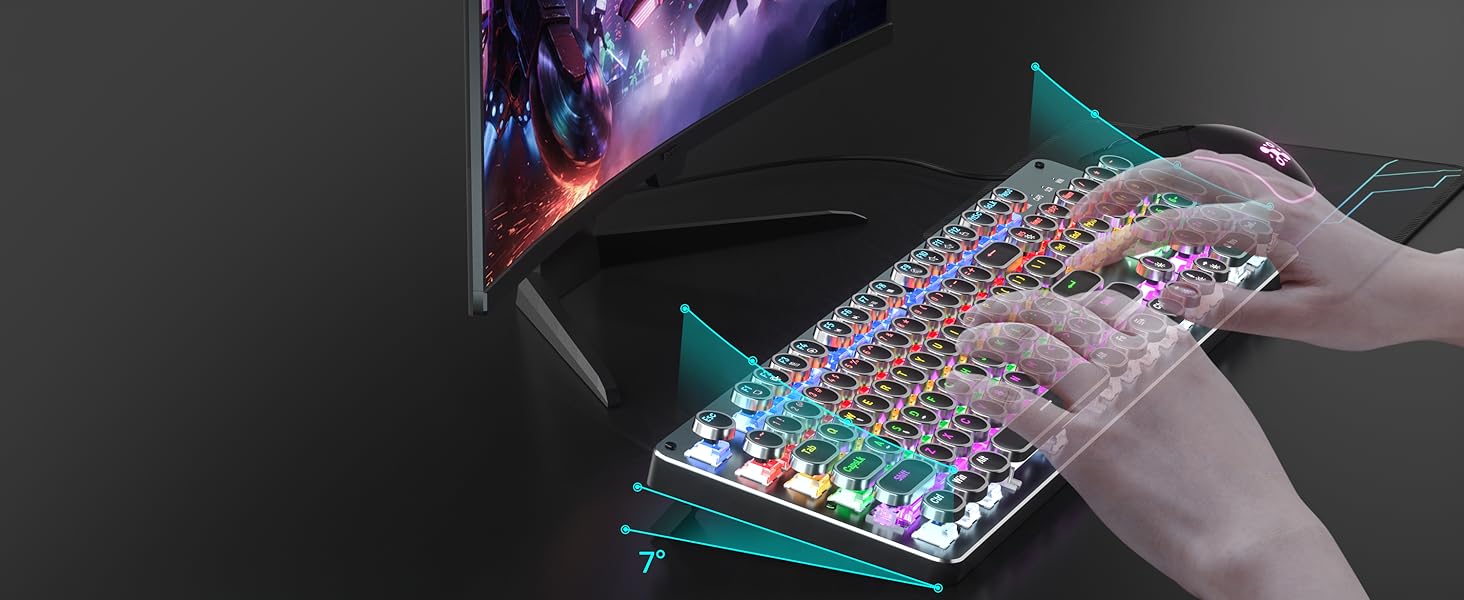
Image: The keyboard and mouse set up on a desk, ready for use.
4. Operating Instructions
4.1 Keyboard Features
- Mechanical Blue Switches: Experience satisfying tactile and audible feedback with each keystroke, ideal for typing and gaming.
- 104-Key Anti-Ghosting: Ensures all your key presses are registered accurately, even during intense gaming sequences.
- Multimedia Keys: Access 12 dedicated multimedia functions (F1-F12) by pressing the Fn key in combination with the corresponding F-key.
- Ergonomic Design: Features a high-low key layout, suspended round keycaps, and adjustable double kickstand feet to reduce hand fatigue during prolonged use.

Image: Detailed view of the mechanical blue switch mechanism, showing key force, stroke travel, and key life.
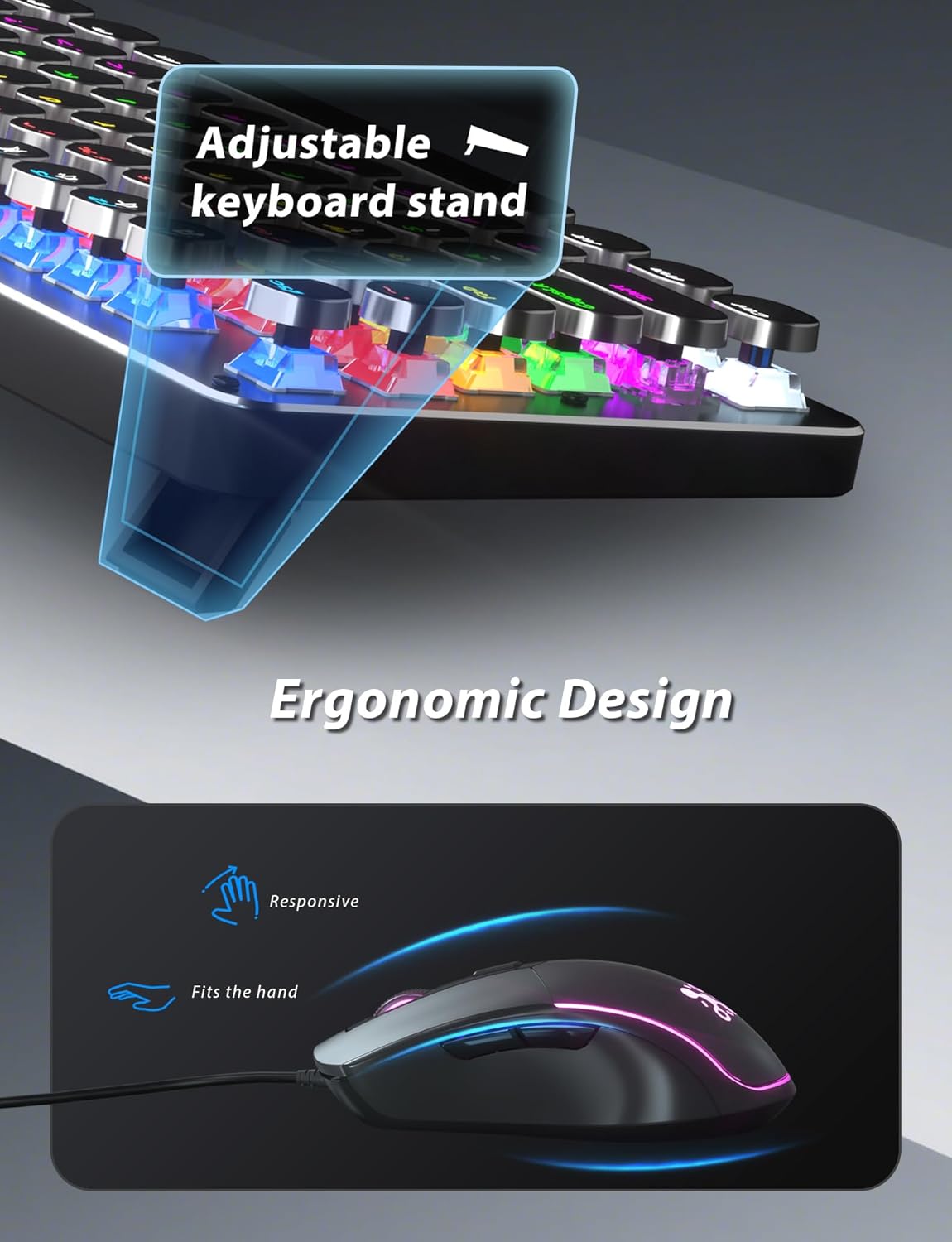
Image: The keyboard with its adjustable stand extended, illustrating the ergonomic design for comfortable typing.
4.2 Mouse Features
- Adjustable DPI: Cycle through 4 DPI levels (800/1600/2400/3200) to adjust cursor sensitivity for different tasks or games.
- 7-Color Breathing RGB Backlighting: The mouse features dynamic 7-color lighting that constantly breathes and cycles.
- Ergonomic Shape: Contoured shape designed to fit comfortably in your hand for extended use.

Image: The gaming mouse showcasing its RGB backlighting and ergonomic design.
4.3 Keyboard Lighting Modes
The keyboard offers 11 different RGB backlighting modes. You can adjust the brightness and breathing speed to suit your preferences.
- Change Lighting Mode: Press Fn + Ins to cycle through the 11 available lighting modes.
- Adjust Brightness: Press Fn + ↑ (Up Arrow) to increase brightness, and Fn + ↓ (Down Arrow) to decrease brightness (4 adjustable levels).
- Adjust Speed: Press Fn + ← (Left Arrow) to decrease breathing speed, and Fn + → (Right Arrow) to increase breathing speed (4 adjustable levels).
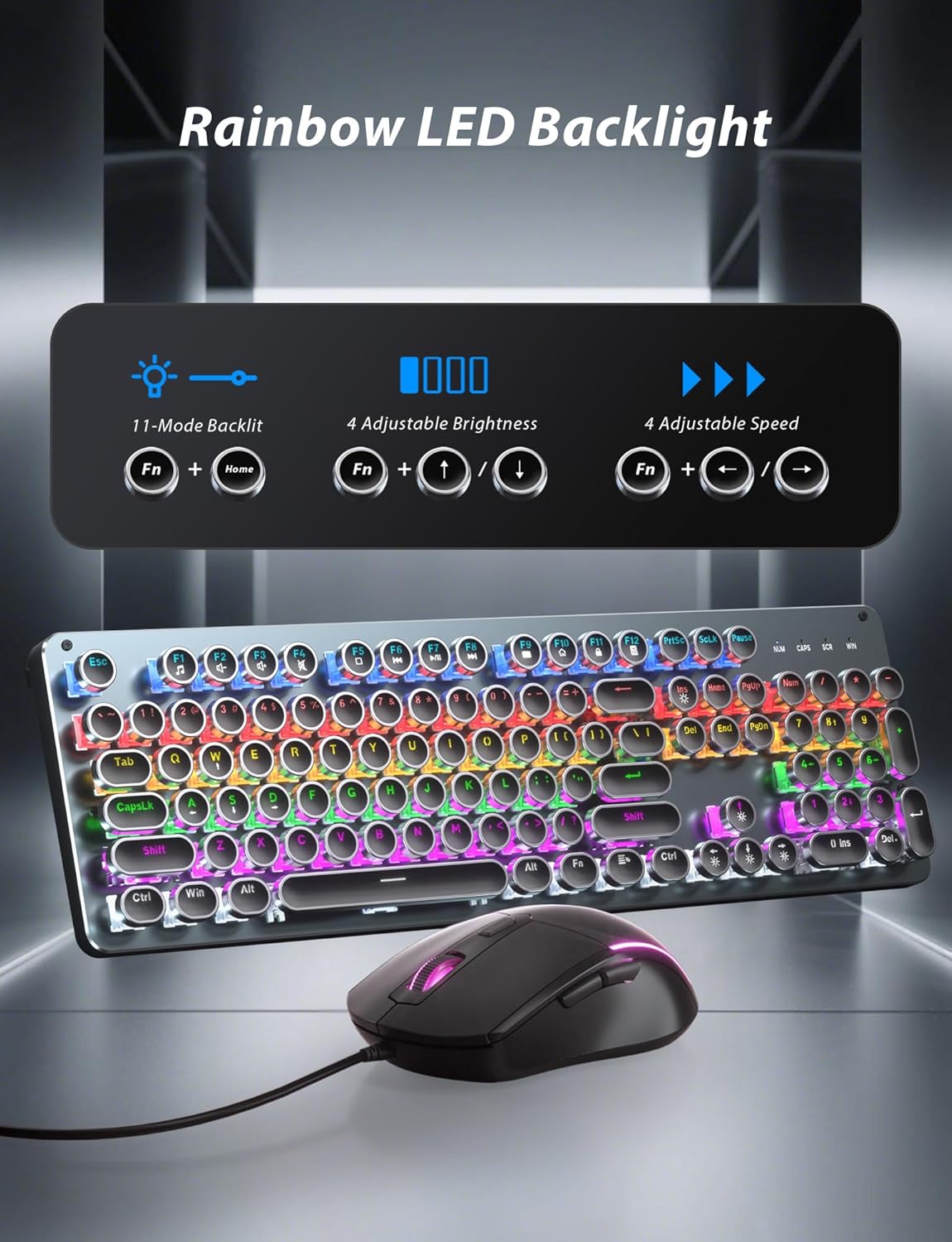
Image: Diagram showing the Fn key combinations for adjusting keyboard backlight modes, brightness, and speed.
4.4 Official Product Video
Video: An official product video from Taiahiro Tech showcasing the features and functionality of the Typewriter Mechanical Keyboard and Mouse Pad Combo.
5. Maintenance
- Cleaning: The double-shot-molded ABS keycaps are wear-resistant and non-fading, and are removable for easy cleaning and maintenance. Gently pull keycaps upwards to remove. Use a soft brush or compressed air to clean dust and debris from under the keycaps.
- General Care: Avoid spilling liquids on the keyboard and mouse. Keep the devices away from extreme temperatures and direct sunlight.
6. Troubleshooting
- Device Not Responding: Ensure both USB cables are securely plugged into your computer's USB ports. Try connecting to different USB ports.
- Lighting Issues: If the backlighting is not working or is stuck, try cycling through the lighting modes using Fn + Ins. Ensure the brightness is not set to the lowest level.
- Keys Not Registering: Verify the keyboard is properly connected. If specific keys are not working, ensure they are clean and free of debris.
- Mouse Inaccuracy: Adjust the DPI settings using the DPI button on the mouse. Ensure the mouse sensor is clean and free from obstructions.
7. Specifications
| Feature | Detail |
|---|---|
| Product Dimensions | 17.25 x 5.35 x 1.3 inches |
| Item Weight | 2.48 pounds |
| Manufacturer | Taiahiro Tech |
| Item Model Number | 820 |
| Color | Metallic Silver |
| Connectivity Technology | USB |
| Special Feature | RGB Backlighting Light Up Computer Keyboard, Blue Switches Mechanical Gaming Keyboard |
| Compatible Devices | Laptop, Personal Computer |
8. Warranty & Support
For warranty information and customer support, please refer to the product packaging or contact Taiahiro customer service directly. Keep your purchase receipt for warranty claims.


