
ORICO WS400RU3
ORICO 4-Bay RAID Hard Drive Docking Station User Manual
Model: WS400RU3
Brand: ORICO
1. Introduction
The ORICO WS400RU3 is a high-performance 4-bay RAID hard drive docking station designed for efficient and secure data storage. It supports both 2.5-inch and 3.5-inch SATA HDDs and SSDs, offering versatile storage solutions for home and business users. With USB 3.0 connectivity, it provides fast data transfer speeds and supports multiple RAID modes (RAID 0/1/3/5/10/JBOD/Clear) to meet diverse data management needs. Its robust aluminum alloy construction and integrated cooling fan ensure optimal heat dissipation and drive longevity.

Figure 1: ORICO 4-Bay RAID Hard Drive Docking Station (WS400RU3)
2. Package Contents
Please verify that all items are present in the package:
- ORICO 4-Bay RAID Hard Drive Docking Station (WS400RU3)
- USB 3.0 Type-B to Type-A Data Cable
- Power Adapter (12V 6.5A)
- Screwdriver
- Mounting Screws
- User Manual (this document)
3. Setup & Installation
3.1. Hard Drive Installation
The WS400RU3 features a DIY installation process with screw mounting for enhanced stability. Follow these steps to install your 2.5-inch or 3.5-inch SATA HDDs/SSDs:
- Gently pull out the drive trays from the front of the docking station.
- For 3.5-inch HDDs, align the drive with the screw holes on the tray and secure it using the provided screws and screwdriver.
- For 2.5-inch HDDs/SSDs, place the drive into the designated slot on the tray and secure it with screws.
- Slide the loaded drive trays back into the corresponding bays of the docking station until they click into place.

Figure 2: DIY Hard Drive Installation Process
3.2. Connecting to Your Computer
Once the hard drives are installed, connect the docking station to your computer and power source:
- Connect one end of the provided USB 3.0 cable to the USB 3.0 Type-B port on the back of the docking station.
- Connect the other end of the USB 3.0 cable to an available USB 3.0 (or higher) port on your computer.
- Connect the power adapter to the DC IN port on the back of the docking station.
- Plug the power adapter into a wall outlet.
- Press the power button on the docking station to turn it on. The power indicator light will illuminate.
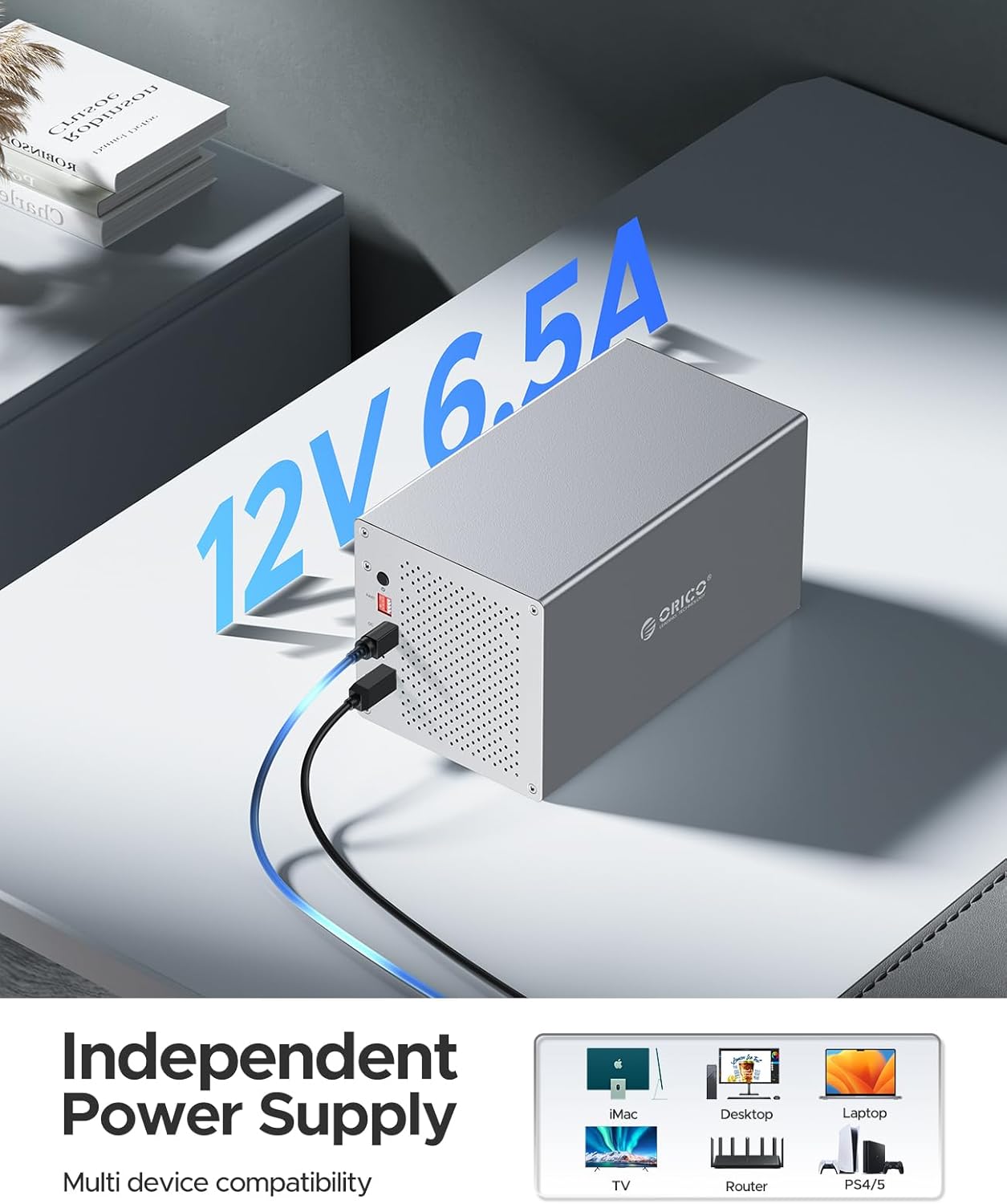
Figure 3: Connecting Power and Data Cables
4. Operating Instructions
4.1. RAID Modes Configuration
The ORICO WS400RU3 supports various RAID modes to optimize data storage based on your needs for speed, capacity, or redundancy. Refer to the table below for an overview of each mode. Please consult the dedicated RAID configuration guide (usually a separate document or detailed section in the full manual) for specific steps on how to set up each RAID mode using the physical switches or software utility.

Figure 4: Multiple RAID Modes Overview
4.2. Data Transfer and Compatibility
The docking station utilizes a USB 3.0 interface, providing data transfer speeds of up to 5 Gbps. This allows for rapid transfer of large files, making it suitable for demanding tasks such as video editing, large file backups, and centralized storage for multiple devices.

Figure 5: High-Speed Data Transfer
It is compatible with a wide range of operating systems, including Linux, macOS, and Windows XP/7/8/10/11 or higher. The device supports plug-and-play functionality, meaning no additional drivers are typically required for basic operation.

Figure 6: Centralized Storage Solution
4.3. Smart Design Features
The WS400RU3 incorporates an intelligent sleep function. If there is no data interaction for 10 minutes, the hard drives will automatically enter sleep mode. This feature significantly reduces power consumption and extends the lifespan of your hard drives.
5. Maintenance
To ensure the longevity and optimal performance of your ORICO docking station, consider the following maintenance tips:
- Cleaning: Regularly wipe the exterior of the device with a soft, dry cloth. Avoid using liquid cleaners or abrasive materials.
- Ventilation: Ensure the cooling vents and fan area are free from dust and obstructions. The aluminum alloy casing and integrated 80x80mm cooling fan are designed for efficient heat dissipation.
- Environment: Operate the device in a well-ventilated area, away from direct sunlight, excessive heat, and moisture.
- Safe Removal: Always safely eject the device from your computer before disconnecting the USB cable or power to prevent data corruption.

Figure 7: Convective Heat Dissipation Design
6. Troubleshooting
If you encounter issues with your ORICO WS400RU3, try the following common troubleshooting steps:
- Device Not Detected:
- Ensure the power adapter is securely connected and the device is powered on.
- Check the USB cable connection to both the docking station and the computer. Try a different USB port or cable.
- Verify that the hard drives are properly seated in their trays and the trays are fully inserted into the bays.
- For new drives, ensure they are initialized and formatted in your operating system's Disk Management (Windows) or Disk Utility (macOS).
- Slow Transfer Speeds:
- Ensure you are connected to a USB 3.0 port on your computer. USB 2.0 ports will result in significantly lower speeds.
- Check the health of your hard drives. Degraded drives can affect performance.
- Ensure no other high-bandwidth operations are running simultaneously on your computer.
- RAID Configuration Issues:
- Refer to the specific RAID configuration instructions for your model. Incorrect setup can lead to drives not being recognized or data loss.
- Ensure all drives in a RAID array are of the same type and capacity for optimal performance and stability.
- Overheating:
- Ensure the device is placed in a well-ventilated area and that the fan and vents are not blocked.
- If the issue persists, contact ORICO support.
If these steps do not resolve your issue, please contact ORICO customer support for further assistance.
7. Specifications
| Feature | Specification |
|---|---|
| Model Number | WS400RU3 (4 Bay USB 3.0 + RAID) |
| Brand | ORICO |
| Manufacturer | SHENZHEN ORICO TECHNOLOGIES CO.,LTD |
| Interface | USB 3.0 (Type-B) |
| Data Transfer Rate | Up to 5 Gbps |
| Supported Drive Types | 2.5" / 3.5" SATA HDD/SSD |
| Max Capacity per Drive | 16 TB |
| Number of Bays | 4 |
| RAID Modes Supported | RAID 0, RAID 1, RAID 3, RAID 5, RAID 10, JBOD, Clear |
| Material | Aluminum Alloy, ABS |
| Color | Silver |
| Cooling System | Integrated 80x80mm Cooling Fan, Convective Heat Dissipation Holes |
| Compatible OS | Linux, macOS, Windows XP/7/8/10/11 or higher |
| Power Supply | 12V 6.5A Power Adapter |
8. Warranty & Support
ORICO products typically come with a standard manufacturer's warranty. Please refer to the warranty card included with your purchase or visit the official ORICO website for detailed warranty terms and conditions specific to your region.
For technical support, product inquiries, or service requests, please contact ORICO customer support through their official website or the contact information provided in your product packaging. Ensure you have your model number (WS400RU3) and purchase details ready when contacting support.
Related documentsWS400RU3


Ask a question about this manual
Ask about setup, troubleshooting, compatibility, parts, safety, or missing instructions. Manuals+ will review the question and use this page’s manual context to help answer it.