1. Introduction
This manual provides detailed instructions for the installation, configuration, and operation of your Tenda TX12 Pro AX3000 Dual Band Gigabit Wi-Fi 6 Router. The TX12 Pro V2.0 is designed to deliver high-performance wireless connectivity, supporting Wi-Fi 6 (802.11ax) with a combined speed of up to 2976Mbps. It features a 12nm 1.3GHz dual-core CPU for stable network performance and incorporates advanced technologies like Wi-Fi+, OFDMA, and MU-MIMO to enhance coverage and efficiency.
2. Package Contents
Please verify that all items are present in your package. If any item is missing or damaged, please contact your retailer.
- Tenda TX12 Pro AX3000 Router Body
- Power Adapter
- Ethernet Cable
- Quick Install Guide

Image: Front view of the Tenda TX12 Pro AX3000 Router, showcasing its design and antennas.
3. Physical Overview
Familiarize yourself with the ports and indicators on your router.
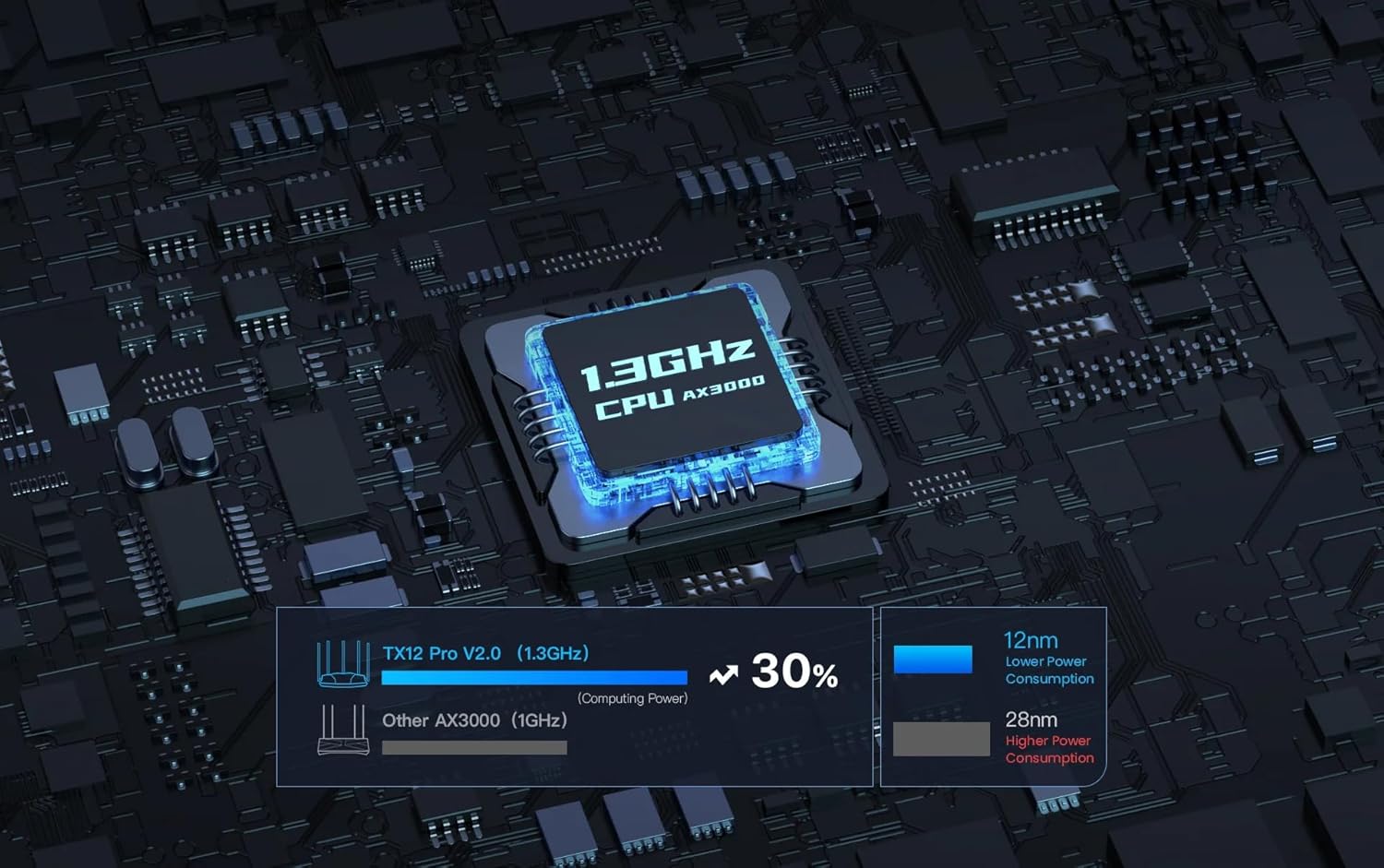
Image: Rear view of the Tenda TX12 Pro AX3000 Router, highlighting the various ports for connectivity.
3.1. LED Indicators
- System LED: Indicates the router's operational status.
- WAN LED: Indicates the status of the internet connection.
- LAN LEDs: Indicate the status of wired connections to LAN ports.
- Wi-Fi LED: Indicates the status of the wireless network.
3.2. Ports and Buttons
- WAN Port: Connects to your modem or internet service provider's (ISP) network.
- LAN Ports: Connect to wired devices such as computers, gaming consoles, or network storage.
- Power Port: Connects to the included power adapter.
- Reset Button: Used to restore the router to factory default settings. Press and hold for approximately 8-10 seconds while the router is powered on.
- WPS/Reset Button: May combine WPS function with reset. A short press activates WPS, a long press initiates reset.
4. Setup
4.1. Hardware Connection
- Power Off: Disconnect the power from your modem and router (if applicable).
- Connect WAN: Connect one end of the Ethernet cable to the WAN port of the Tenda TX12 Pro router and the other end to your modem's LAN port.
- Connect LAN (Optional): For wired devices, connect an Ethernet cable from a LAN port on the router to your computer or other network device.
- Power On: Connect the power adapter to the router's power port and plug it into an electrical outlet. Power on your modem, then power on the router. Wait for the System LED to indicate a stable state (usually solid green or blue).
4.2. Initial Configuration
You can configure the router using a web browser or the Tenda Wi-Fi app.
4.2.1. Via Web Browser
- Connect to Router: Connect your computer to the router via an Ethernet cable (to a LAN port) or wirelessly to the default Wi-Fi network (SSID and password are usually on a label on the router's bottom).
- Access Web UI: Open a web browser and enter the default access address (e.g., http://tendawifi.com or http://192.168.0.1) in the address bar.
- Follow Setup Wizard: The setup wizard will guide you through setting up your internet connection type (e.g., PPPoE, Dynamic IP, Static IP) and configuring your Wi-Fi network name (SSID) and password.
- Set Admin Password: Create a strong login password for the router's management interface.
4.2.2. Via Tenda Wi-Fi App
- Download App: Download the Tenda Wi-Fi app from your mobile device's app store.
- Connect to Router: Connect your mobile device to the router's default Wi-Fi network.
- Launch App: Open the Tenda Wi-Fi app and follow the on-screen instructions to set up your router.
5. Operating Your Router
5.1. Basic Wi-Fi Usage
Once configured, your Wi-Fi network will be broadcast. Connect your wireless devices (smartphones, tablets, laptops) by selecting your Wi-Fi network name (SSID) and entering the password you set during setup.
5.2. Advanced Features
- Guest Network: Create a separate Wi-Fi network for guests to provide internet access while isolating your main network for security. This feature is accessible via the router's web interface or Tenda Wi-Fi app.
- Parental Controls: Manage internet access for specific devices. This includes features like blacklisting (blocking specific websites) and whitelisting (allowing only specific websites), and setting time limits for internet usage.
- Bandwidth Control: Allocate specific bandwidth to different devices or applications to prioritize network traffic and ensure fair usage.
- Web Remote Management: Access and manage your router's settings remotely via the Tenda Wi-Fi app or web interface, even when you are not at home.
- Wi-Fi+: This feature allows for easy mesh networking, extending Wi-Fi coverage in large homes by seamlessly connecting multiple Tenda Wi-Fi+ compatible devices.
- OFDMA + MU-MIMO Technology: These Wi-Fi 6 technologies improve network efficiency by allowing the router to communicate with multiple devices simultaneously, reducing latency and improving overall performance, especially in environments with many connected devices.

Image: Illustration demonstrating the performance advantage of AX3000 with 160MHz bandwidth compared to AC1200.

Image: Diagram showing the 1.3GHz dual-core CPU of the TX12 Pro V2.0, highlighting its lower power consumption and higher computing power compared to other 1GHz AX3000 CPUs.
6. Maintenance
6.1. Firmware Updates
Regularly check for and install firmware updates to ensure optimal performance, security, and access to new features. Firmware updates can typically be performed through the router's web interface under "System Tools" or "Firmware Upgrade," or via the Tenda Wi-Fi app.
6.2. Resetting the Router
If you encounter persistent issues or forget your login password, you can restore the router to its factory default settings. With the router powered on, press and hold the Reset button (usually located in a small pinhole) for approximately 8-10 seconds until the LEDs flash. The router will then restart with default settings.
6.3. Cleaning
Gently wipe the router's exterior with a soft, dry cloth. Do not use liquid cleaners or aerosols. Ensure the router is powered off before cleaning.
7. Troubleshooting
- No Internet Access:
- Check if the WAN LED is solid. If not, ensure the Ethernet cable from the modem is securely connected to the router's WAN port.
- Verify your modem is working correctly.
- Log into the router's web interface and check the internet connection status. Re-run the setup wizard if necessary.
- Contact your ISP to confirm service status.
- Slow Wi-Fi Speed:
- Ensure your devices support Wi-Fi 6 (802.11ax) to benefit from the router's full speed capabilities.
- Reduce interference by placing the router in a central location, away from obstacles and other electronic devices.
- Check for firmware updates.
- Utilize the 5GHz band for higher speeds, as the 2.4GHz band is more susceptible to interference and offers lower speeds.
- Frequent Wi-Fi Disconnections:
- Adjust Wi-Fi channel settings in the router's interface to avoid crowded channels.
- Ensure the router's firmware is up to date.
- Check for physical obstructions or sources of interference.
- Cannot Access Router's Web Interface:
- Ensure your device is connected to the router's network (wired or wireless).
- Verify you are entering the correct IP address or domain name (e.g., http://tendawifi.com).
- Clear your browser's cache or try a different browser.
- If you forgot the password, perform a factory reset (see Section 6.2).
8. Specifications
| Model Name | TX12 Pro |
| Wireless Standard | 802.11ax (Wi-Fi 6) |
| Frequency Band | Dual-Band (2.4 GHz & 5 GHz) |
| Max Wireless Speed | Up to 2976Mbps (5GHz: 2402Mbps, 2.4GHz: 574Mbps) |
| CPU | 12nm 1.3GHz Dual-core |
| Connectivity Technology | Ethernet, Wi-Fi |
| Special Features | Parental Controls, Bandwidth Control, Guest Network, MAC Clone, Web Remote Management, Wi-Fi+, OFDMA, MU-MIMO |
| Compatible Devices | Gaming Console, Personal Computer, Smart Television, Smartphone, Tablet |
| Recommended Uses | Gaming, Home |
| Item Weight | 70 Grams |
| Package Dimensions | 35.9 x 30.1 x 6.4 cm |
9. Warranty and Support
For warranty information and technical support, please refer to the warranty card included in your product package or visit the official Tenda website. You can also find FAQs and additional resources on their support pages.
Tenda Official Website: https://www.tendacn.com


