
1. Introduction
The ComMarker B4 30W Fiber Laser Engraver is a versatile 2-in-1 desktop and handheld fiber laser marking machine. It features a 30W 110V Raycus laser source and is compatible with LightBurn and Ezcad2 software. This machine is designed for high-speed precision engraving on various materials, including metals like stainless steel, aluminum, gold, silver, and alloys, as well as most painted products and non-transparent plastics. It comes with two lenses (110x110mm and 200x200mm) to accommodate different marking areas and applications.
2. Safety Information
This product is a Class 1 Laser Product with a power output of 1.95mW, compliant with IEC 60825-1 and FDA Accession No. 2521455-000. Despite its classification, proper safety precautions must always be observed when operating any laser device.
- Eye Protection: Always wear the provided 1064nm laser safety goggles during operation to protect your eyes from direct or reflected laser light.
- Work Area: Operate the laser engraver in a well-ventilated area to dissipate fumes and particles generated during engraving.
- Material Safety: Ensure materials being engraved do not produce hazardous fumes or ignite easily. Consult material safety data sheets if unsure.
- Emergency Stop: Familiarize yourself with the emergency stop button and its location.
- Supervision: Never leave the machine unattended during operation.
- Children and Pets: Keep children and pets away from the laser engraver during operation.
- Maintenance: Disconnect power before performing any maintenance or cleaning.
3. Package Contents
The ComMarker B4 30W Fiber Laser Engraver package includes the following items:
- 1x B4 Machine
- 1x 110mm x 110mm Lens
- 1x 200mm x 200mm Lens
- 1x Adapter
- 1x Rotary Axis
- 1x Foot Switch
- 1x Positioner
- 1x USB Drive (containing software and drivers)
- 1x Ruler
- 1x Data Cable
- 1x Allen Wrench Set
- 1x 1064nm Goggles
- 2x Paperboard
- 2x Steel Plate
- 1x Auxiliary Holder
- 1x Material Package

Image: All components included in the ComMarker B4 30W Fiber Laser Engraver package, neatly arranged.
4. Product Features
- High-Speed Precision: Equipped with a high-speed precision galvanometer for accurate and fast marking.
- Dual Lens System: Includes 110x110mm and 200x200mm lenses for varied marking areas.
- 2-in-1 Design: Functions as both a desktop and handheld fiber laser marking machine for enhanced versatility.
- Software Compatibility: Supports LightBurn and Ezcad2 for design and control.
- Automatic Lifting: Features automatic lifting for ease of use and precise focusing.
- Safety Features: Includes an emergency switch for immediate shutdown and dust shields for extended service life.
- Wide Material Range: Capable of engraving metals (Stainless Steel, Aluminum, Gold, Silver, Alloy) and marking most painted products and non-transparent plastics.

Image: The ComMarker B4 30W Fiber Laser Engraver in operation, demonstrating its precision.

Image: Close-up of the ComMarker B4 30W Fiber Laser Engraver highlighting the electric lifting mechanism for easy height adjustment.

Image: Diagram illustrating the compact dimensions and various configurations of the ComMarker B4 series.
5. Specifications
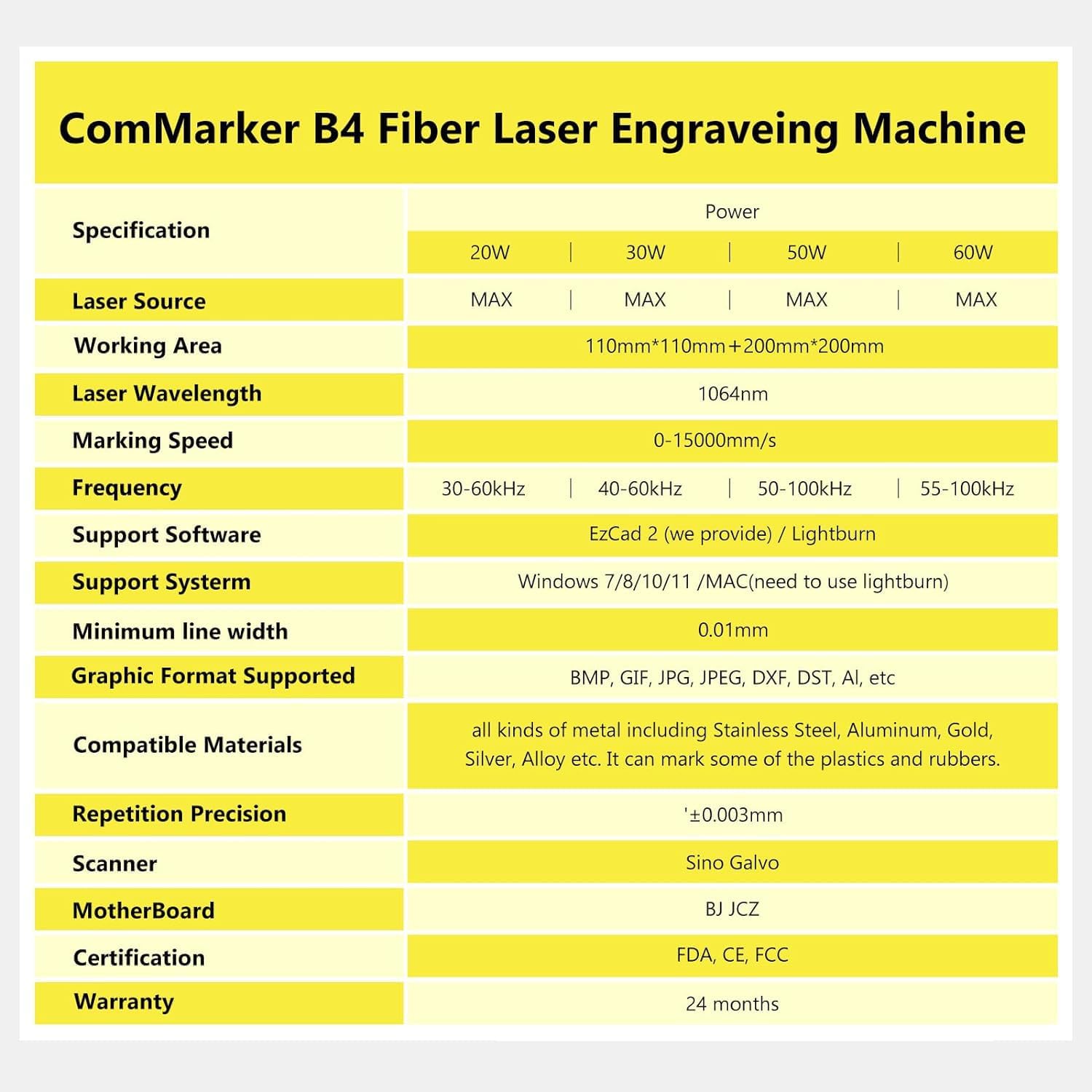
Image: A detailed table outlining the specifications for the ComMarker B4 Fiber Laser Engraving Machine, including power options, laser source, working area, wavelength, marking speed, frequency, software support, system compatibility, minimum line width, graphic formats, compatible materials, repetition precision, scanner, motherboard, certifications, and warranty.
| Parameter | Value |
|---|---|
| Laser Wavelength | 1064 nm |
| Marking Speed | 0-15000mm/s |
| Frequency | 20-60kHz |
| System Compatibility | Windows 7/8/10/11, MAC (LightBurn) |
| Supported Graphics Formats | BMP, GIF, JPG, JPEG, DXF, DST, AI, etc. |
| Minimum Line Width | 0.01mm |
| Engraving Depth | 0.1-0.5mm |
| Product Dimensions | 28 x 10 x 10 inches |
| Item Weight | 44 pounds |
6. Setup & Installation
6.1. Software Installation (Mac)
Follow these steps to install LightBurn software on your Mac and configure the ComMarker B4:
- Plug the provided USB drive into your Mac.
- Open the USB drive and copy the 'EZCAD for ComMarker B4' folder to your desktop.
- Open your web browser and navigate to www.lightburnsoftware.com.
- Click on 'Download / Trial' and select the 'Mac OS version' to download the LightBurn installer.
- Once downloaded, open the .dmg file and drag the LightBurn icon into your Applications folder.
- Connect the ComMarker B4 machine to your Mac via USB cable and turn on the machine.
- Open the Applications folder and launch LightBurn.
- In LightBurn, go to 'Devices' and click 'Create Manually'.
- Select 'JCZ Fiber' and click 'Next'.
- Click 'Import EZCad Config' and navigate to the 'EZCAD for ComMarker B4' folder on your desktop. Inside, find the 'plug' folder and select 'markcfg7'.
- Verify the configuration details, ensuring 'Laser Type: Fiber' is displayed, then click 'Next'.
- Rename your device (e.g., 'ComMarker B4') and set the work area dimensions (e.g., X Axis Length 110mm, Y Axis Length 110mm). Click 'Next', then 'Finish', and 'OK'.
- Go to 'Device Setting' (wrench icon) in LightBurn. Click 'Load COR file' and select 'jcz11.cor' from the '110mm' folder within 'EZCAD for ComMarker B4' on your desktop.
- Adjust the frequency data (Min Freq, Max Freq) according to your machine's specifications (e.g., 20000-200000 for 30W).
- Ensure 'Galvo 2 is X axis' is checked. Click 'OK' to save settings.
Video: Step-by-step guide on how to install and set up LightBurn software for the ComMarker B4 Fiber Laser Engraver on a Mac operating system.
6.2. Software Installation (Windows)
Follow these steps to install LightBurn software on your Windows PC and configure the ComMarker B4:
- Plug the provided USB drive into your Windows PC.
- Open the USB drive and copy the 'EZCAD for ComMarker B4' folder to your desktop.
- Right-click on the 'Start' button, then choose 'Computer Management'. In 'Computer Management', click 'Device Manager'.
- Connect the ComMarker B4 machine to your PC via USB cable and turn on the machine.
- In Device Manager, look for 'USBLMCV2' (or 'Unknown Device') under 'Other devices' or 'Universal Serial Bus devices'.
- Right-click on 'USBLMCV2' and select 'Update driver'. Choose 'Browse my computer for drivers' and navigate to the 'driver' folder within 'EZCAD for ComMarker B4' on your desktop. Select the subfolder corresponding to your Windows version (e.g., 'win11' for Windows 11). Click 'Next' and 'Finish' to install the driver.
- Once the driver is installed, Device Manager should display 'BJJCZ Device'.
- Open your web browser and navigate to www.lightburnsoftware.com.
- Click on 'Download / Trial' and select the 'Windows 64-bit version' to download the LightBurn installer.
- Once downloaded, open the installer and follow the prompts. Before finishing the setup, ensure to tick 'Install EzCad2 driver (used by galvos)'.
- Launch LightBurn. In LightBurn, go to 'Devices' and click 'Create Manually'.
- Select 'JCZ Fiber' and click 'Next'.
- Click 'Import EZCad Config' and navigate to the 'plug' folder within 'EZCAD for ComMarker B4' on your desktop. Select 'markcfg7'.
- Verify the configuration details, ensuring 'Laser Type: Fiber' is displayed, then click 'Next'.
- Rename your device (e.g., 'ComMarker B4') and set the work area dimensions (e.g., X Axis Length 110mm, Y Axis Length 110mm). Click 'Next', then 'Finish', and 'OK'.
- Go to 'Device Setting' (wrench icon) in LightBurn. Click 'Load COR file' and select 'jcz11.cor' from the '110mm' folder within 'EZCAD for ComMarker B4' on your desktop.
- Adjust the frequency data (Min Freq, Max Freq) according to your machine's specifications (e.g., 20000-200000 for 30W).
- Ensure 'Galvo 2 is X axis' is checked. Click 'OK' to save settings.
Video: Detailed instructions on how to install and configure LightBurn software for the ComMarker B4 Fiber Laser Engraver on a Windows operating system.
7. Operating Instructions
7.1. Material Compatibility
The ComMarker B4 Fiber Laser Engraver is suitable for a wide range of materials:
- Metals: Stainless Steel, Aluminum, Gold, Silver, Alloy, etc.
- Coated Materials: Most painted products.
- Plastics: Non-transparent plastics.
Common applications include engraving on metal, jewelry, pens, tags, and tumblers.
7.2. Engraving Process
After setting up your machine and software, you can import your design into LightBurn or Ezcad2. Use the software to adjust laser parameters (speed, power, frequency) based on your material and desired effect. The machine's automatic lifting and three-point coincidence focusing system ensure accurate and precise engraving.

Image: A collection of diverse items, including metal bookmarks, pocket knives, bottles, and jewelry, all custom-engraved using the ComMarker B4 laser marking machine.

Image: Further examples of metal items such as tumblers, keychains, and industrial parts, showcasing intricate engravings and markings by the ComMarker B4.
8. Maintenance
Regular maintenance ensures optimal performance and longevity of your ComMarker B4 Fiber Laser Engraver:
- Cleaning Lenses: Periodically clean the field lenses with a soft, lint-free cloth and lens cleaning solution to maintain laser beam quality.
- Dust Removal: Keep the machine free of dust and debris, especially around the laser head and ventilation areas. The machine includes dust shields for a longer service life.
- Software Updates: Regularly check for software updates for LightBurn and Ezcad2 to ensure compatibility and access to new features.
- Cable Inspection: Inspect all cables (USB, power) for any signs of wear or damage.
9. Troubleshooting
If you encounter issues with your ComMarker B4, consider the following:
- Machine Not Connecting: Ensure the USB cable is securely connected to both the machine and your computer. Verify that the correct drivers are installed in Device Manager (Windows) or that LightBurn is properly configured (Mac).
- Laser Not Firing: Check if the machine is powered on and the emergency stop button is disengaged. Confirm that the laser is 'Ready' in the LightBurn software interface.
- Poor Engraving Quality: Adjust laser parameters (speed, power, frequency) in the software. Ensure the material is properly focused using the machine's automatic lifting and three-point coincidence system. Clean the lenses if necessary.
- Software Errors: Restart LightBurn or your computer. Ensure your software is up to date.
10. Warranty & Support
The ComMarker B4 30W Fiber Laser Engraver comes with a 24-month warranty.
For any technical assistance, troubleshooting, or warranty claims, please contact ComMarker customer support:
Email: support@commarker.com


