
1. Introduction
This manual provides detailed instructions for the installation, operation, maintenance, and troubleshooting of your Fortdows 10.2-inch IPS Android Car Radio. Designed specifically for Toyota RAV4 models from 2013 to 2018, this advanced car stereo system enhances your driving experience with features like wireless CarPlay, Android Auto, GPS navigation, and a high-resolution touchscreen. Please read this manual thoroughly before using the product to ensure proper functionality and safety.

Figure 1.1: Fortdows 10.2-inch IPS Android Car Radio unit.
2. Product Overview
The Fortdows Android Car Radio is a comprehensive infotainment system featuring a 10.2-inch IPS display and an 8-core processor with 4GB RAM and 64GB ROM, ensuring smooth and responsive performance. Key features include:
- Wireless CarPlay & Android Auto: Seamless smartphone integration for navigation, music, and calls.
- 10.2-inch IPS Touch Screen: High-resolution 1280x800 display with vibrant colors and wide viewing angles.
- Powerful 8-Core Processor: Ensures fast app responses and smooth operation.
- Built-in DSP Sound Effect Chip: Customizable sound settings for an optimized audio experience.
- Mirror Link Technology: Mirror your smartphone's screen directly onto the car stereo.
- Backup Camera Integration: Provides a clear view for safer parking and reversing.
- Bluetooth 5.0: Supports hands-free calls, phone book download, and music playback.
- 5G WiFi Connectivity: Improves network performance for online maps and app downloads.
- Online OTA System Upgrade: Convenient over-the-air firmware updates.
- Steering Wheel Control (SWC) Support: Retains original car button functionality.
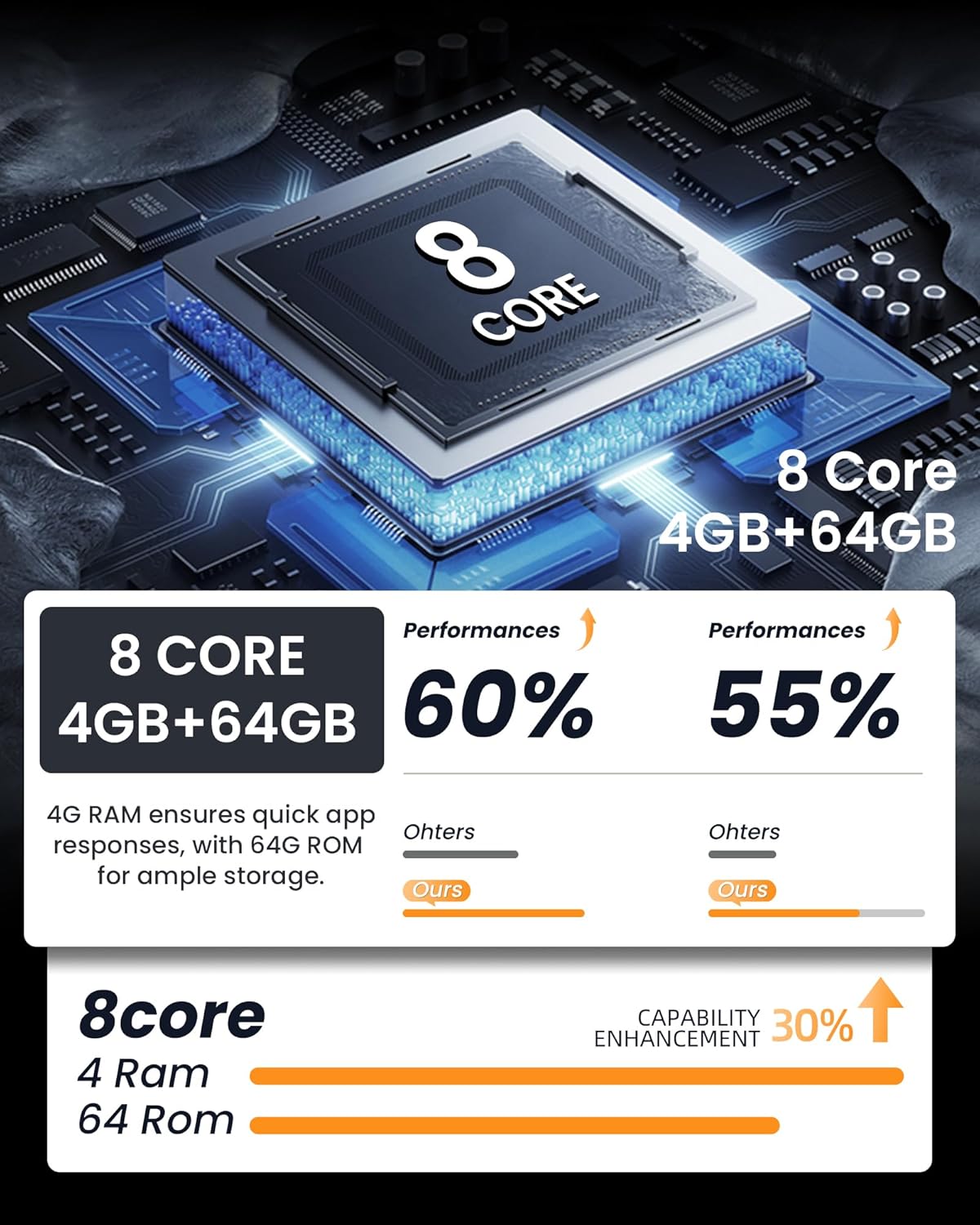
Figure 2.1: The powerful 8-core processor with 4GB RAM and 64GB ROM for enhanced performance.

Figure 2.2: Comparison highlighting the superior clarity and saturation of the 1280x800 IPS touchscreen.
3. Setup & Installation
The Fortdows Android Car Radio is designed for direct fitment in Toyota RAV4 models from 2013 to 2018. It comes with all necessary cables and connectors for a plug-and-play installation into the factory harness. For vehicles equipped with a JBL sound system, an optional JBL adapter harness is available and may be required.
3.1. Pre-Installation Checklist
- Ensure your vehicle is a Toyota RAV4 manufactured between 2013 and 2018.
- Gather necessary tools (trim removal tool, screwdrivers).
- Disconnect the vehicle's battery before starting installation.
3.2. Installation Steps (General Guide)
- Carefully remove the original car radio and trim panel. A trim removal tool is recommended to prevent damage.
- Transfer any necessary plastic clips and air vents from your old unit to the new Fortdows unit.
- Connect the provided wiring harnesses to the corresponding ports on the new unit and the vehicle's factory harness. Ensure all connections are secure.
- If installing a backup camera, connect its video cable to the designated input on the head unit.
- Connect the GPS antenna and 5G WiFi antenna. These can often be tucked behind the dash for optimal signal.
- Carefully mount the new Fortdows unit into the dashboard opening.
- Reconnect the vehicle's battery.
- Power on the unit and perform initial setup and testing of all functions.
Note: While designed for ease of installation, professional installation is recommended if you are unfamiliar with car audio systems. Online video tutorials specific to Toyota RAV4 radio replacement can also provide visual guidance.

Figure 3.1: Visual comparison of the dashboard before and after installing the Fortdows car radio.
4. Operating Instructions
4.1. Wireless CarPlay & Android Auto
This unit supports wireless CarPlay and Android Auto, allowing you to integrate your smartphone for navigation, music, phone calls, and messaging. Connect via Bluetooth and the original USB cable for initial setup. Once connected, you can use voice control (Siri or Google Assistant) to access your phone's functions, minimizing distractions while driving.
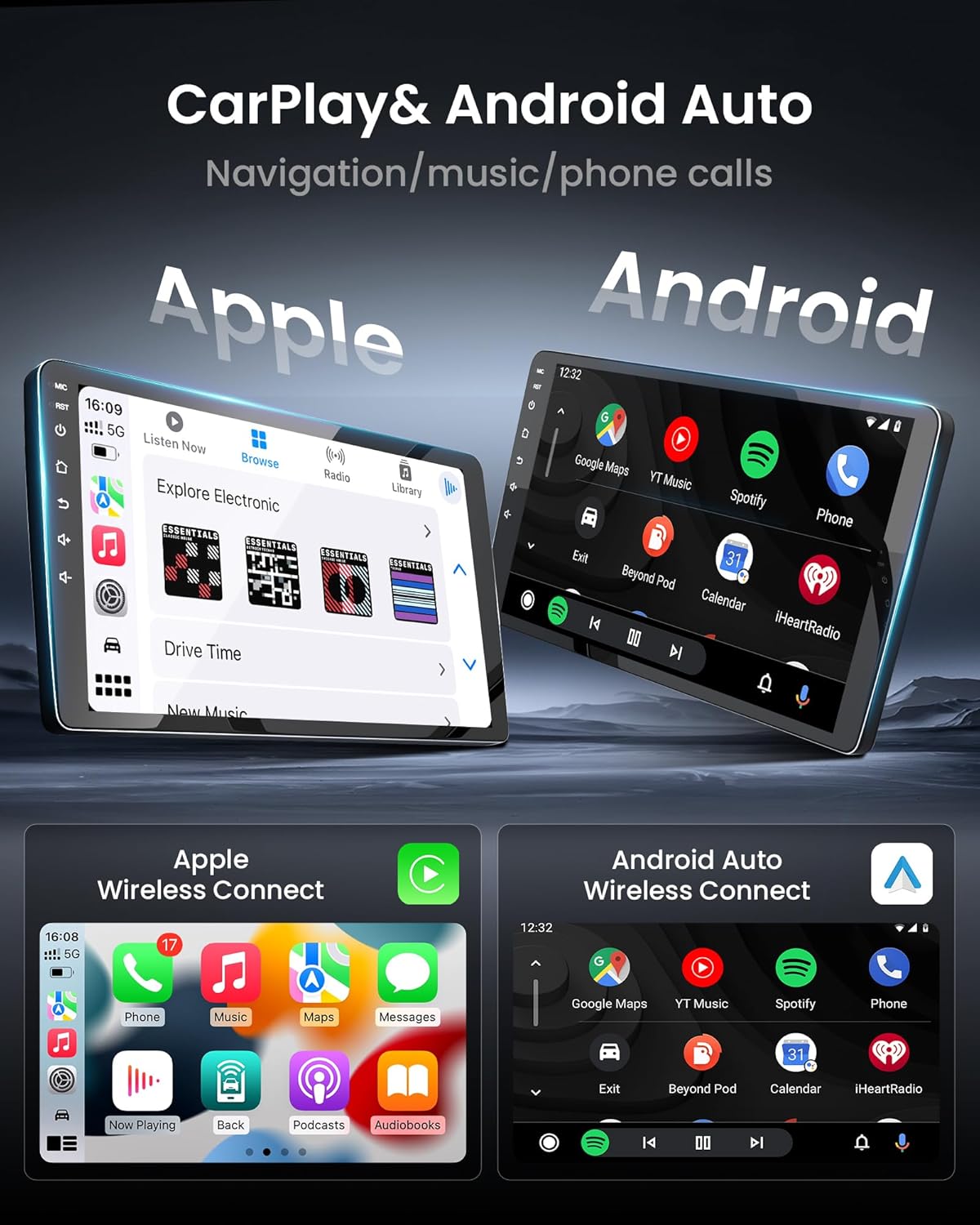
Figure 4.1: Display showing the Apple CarPlay and Android Auto interfaces.
4.2. GPS Navigation
The system supports both online and offline navigation applications. After connecting to WiFi, you can download and use your preferred GPS navigation apps (e.g., Google Maps, Waze) to guide you to your destination. The large IPS screen provides clear and detailed map views.

Figure 4.2: Example of GPS navigation interface with precise positioning.
4.3. Bluetooth 5.0
Built-in Bluetooth 5.0 allows for hands-free calling, phone book synchronization, and wireless music streaming. Pair your smartphone with the unit to make and receive calls safely while driving, and enjoy your favorite audio content wirelessly.

Figure 4.3: Bluetooth 5.0 interface showing phone and music functions.
4.4. 5G WiFi Function
The integrated 5G WiFi module improves network performance and user experience, reducing latency for online activities such as browsing, streaming, and downloading applications from the app store.

Figure 4.4: Illustration of 5G WiFi functionality and network speed enhancement.
4.5. Mirror Link
Mirror Link technology allows you to display your smartphone's screen directly onto the car stereo. This feature is useful for accessing navigation, videos, or other apps from your phone on the larger display.

Figure 4.5: Mirror Link allows screen mirroring from your smartphone.
4.6. DSP Sound Quality
The built-in DSP (Digital Signal Processor) sound effect processing chip offers 6 sound settings (Smart Bass, Balance, Emperor, 42-EQ, Loudness, Filter). You can customize the sound output to your preferences, optimizing the audio experience for different seating positions and music genres.

Figure 4.6: Visual representation of the DSP sound settings and audio customization options.
4.7. OTA System Upgrade
The unit supports Online OTA (Over-The-Air) system upgrades to ensure you always have the latest firmware and features. Follow these steps to update:
- Tap the “Check for Updates” button in the system settings.
- The system will compare your current firmware version with the version on the server.
- If a newer version is found, the “Download Update” button will become active. Tap it to start downloading.
- The device will automatically unzip the update and reboot to begin the upgrade process.
- After the upgrade is complete, the head unit will reboot automatically again.
Forced Upgrade Feature: If you encounter system crashes or freezes, a forced upgrade feature is available. Tap “Check for Updates” and, if you receive a “No update needed” message, tap the “Download Update” button ten times consecutively. A password input prompt will appear; entering the correct password will allow the update to proceed. This mechanism prevents misuse of the download function.
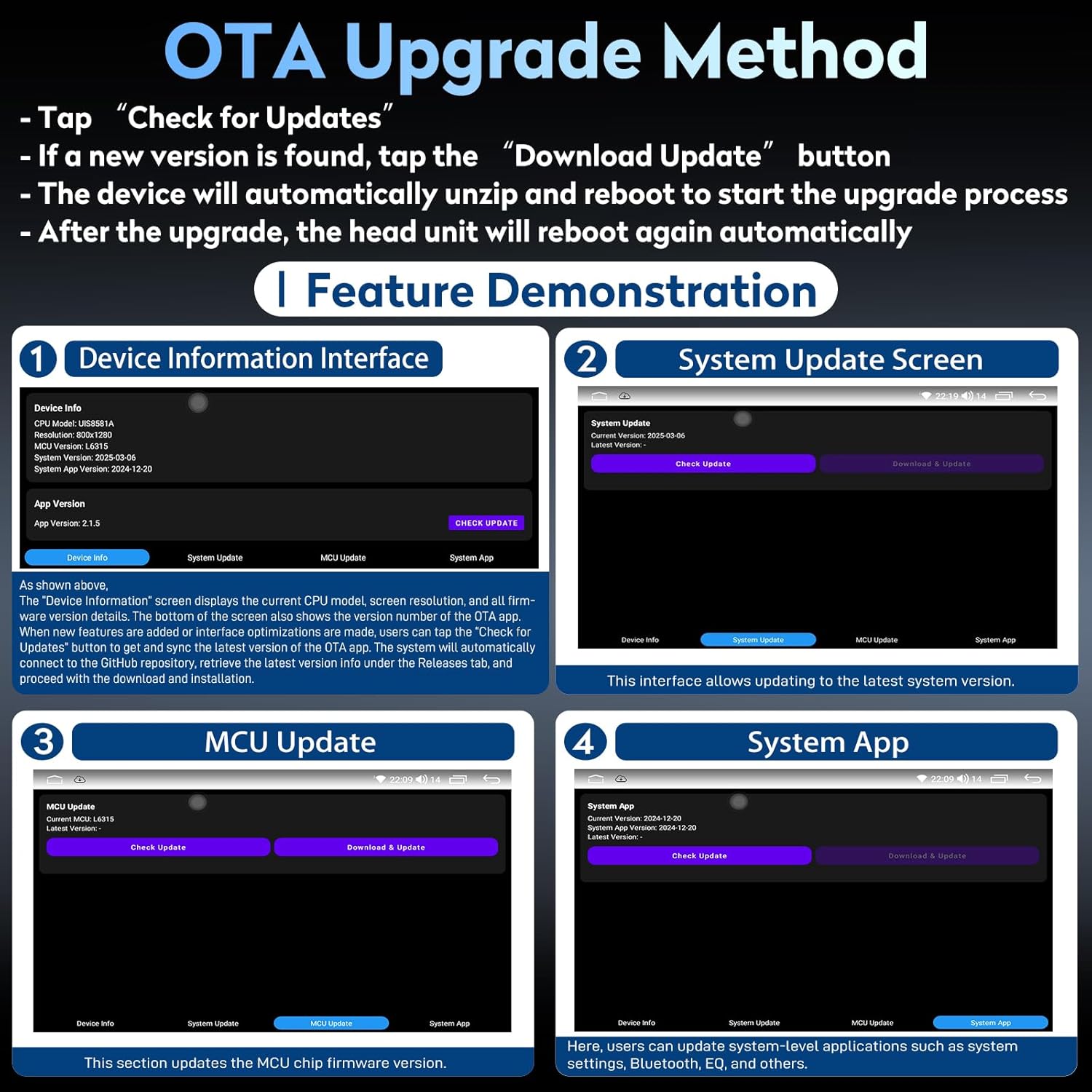
Figure 4.7: Screenshots demonstrating the Device Information and System Update interfaces for OTA upgrades.

Figure 4.8: Detailed instructions for downloading updates and using the forced upgrade feature.
4.8. Backup Camera
The unit integrates with a backup camera (included), providing a clear 1080P view of the area behind your vehicle when reversing. This significantly enhances safety and ease of parking.

Figure 4.9: Illustration of the 1080P rear view camera functionality.
4.9. Steering Wheel Controls (SWC)
The Fortdows unit supports your vehicle's original steering wheel controls, allowing you to manage audio, calls, and other functions without taking your hands off the wheel. This ensures a safer and more convenient driving experience.

Figure 4.10: Depiction of the car radio supporting original steering wheel controls.
4.10. FM/AM RDS Radio
Enjoy a wide range of radio stations with the built-in FM/AM RDS radio. The Radio Data System (RDS) provides additional information such as station name and song title, enriching your listening experience.

Figure 4.11: The FM AM RDS radio interface with frequency display.
4.11. Split Screen Function
The split-screen feature allows you to run two applications simultaneously on the display, such as navigation and music playback, enhancing multitasking capabilities.

Figure 4.12: Demonstration of the split-screen function, showing navigation and music simultaneously.
5. Maintenance
To ensure the longevity and optimal performance of your Fortdows car radio, follow these maintenance guidelines:
- Cleaning: Use a soft, dry cloth to clean the screen and exterior. For stubborn smudges, slightly dampen the cloth with water or a screen-safe cleaner. Avoid abrasive materials or harsh chemicals.
- Temperature: Avoid exposing the unit to extreme temperatures (very hot or very cold) for extended periods, as this can affect electronic components and the display.
- Connections: Periodically check all cable connections to ensure they are secure and free from corrosion.
- Software Updates: Regularly check for and install OTA system updates to benefit from performance improvements and new features.
- Avoid Liquids: Keep liquids away from the unit to prevent damage to internal circuitry.
6. Troubleshooting
This section addresses common issues you might encounter with your Fortdows car radio. If the problem persists, please contact customer support.
| Problem | Possible Cause | Solution |
|---|---|---|
| Unit does not power on | Loose power connection; Blown fuse; Vehicle battery issue | Check power cables and fuse; Ensure vehicle battery is charged. |
| No sound output | Volume too low; Mute activated; Speaker wiring issue; DSP settings | Increase volume; Check mute status; Verify speaker connections; Adjust DSP settings. |
| Wireless CarPlay/Android Auto not connecting | Bluetooth/WiFi off; Incorrect pairing; Phone software issue | Ensure Bluetooth/WiFi is on; Re-pair device; Restart phone and head unit. |
| Backup camera shows "No Signal" | Loose camera connection; Incorrect video protocol | Check camera cable connection; Long-press the screen and change the camera protocol setting until it works. |
| GPS signal weak or inaccurate | GPS antenna placement; Environmental interference | Ensure GPS antenna has clear view of sky; Relocate antenna if necessary. |
| FM radio distortion or poor reception | Antenna connection; Weak signal area | Check radio antenna connection; Try scanning for stations in a different location. |
| System freezes or lags | Too many apps running; Software glitch | Close background apps; Perform a system restart; Consider an OTA update (including forced upgrade if needed). |
Note on Videos: No official seller videos with creator_type: "Seller" were found in the provided product data for embedding in this manual.
7. Specifications
| Feature | Specification |
|---|---|
| Display Size | 10.2 Inches |
| Display Resolution | 1280x800 IPS |
| Processor | 8-Core |
| RAM | 4GB |
| Internal Storage | 64GB |
| Operating System | Android (Version not specified, but supports OTA updates) |
| Connectivity | Bluetooth 5.0, USB, 5G Wi-Fi |
| Special Features | Wireless CarPlay, Android Auto, Mirror Link, DSP Sound, GPS Navigation, OTA System Upgrade, Steering Wheel Control Support |
| Included Components | Backup Camera |
| Audio Output Mode | Stereo |
| Mounting Type | Dashboard Mount |
| Item Weight | 4.29 pounds |
| Package Dimensions | 19 x 8 x 5 inches |
8. Warranty & Support
Fortdows is committed to providing high-quality products and excellent customer service.
8.1. Warranty Information
- 1-Year Warranty: Your Fortdows car radio is covered by a 1-year manufacturer's warranty from the date of purchase.
- 7-Day Return Policy: Products can be returned within 7 days of receipt.
- Return on Defects: Defective products are eligible for return or replacement.
8.2. Customer Support
For any questions, technical assistance, or warranty claims, please contact Fortdows customer support:
- Email: fortdows.cam@gmail.com
- Website: www.fancygod.com

Figure 8.1: Customer support contact details.


