
Introduction
This manual provides essential information for the setup, operation, maintenance, and troubleshooting of your TuTu Smart TV TUS24HF1A. This 24-inch (60 cm) Android TV features integrated WiFi, Bluetooth, Google Assistant, and Chromecast, offering a comprehensive entertainment experience. Please read these instructions carefully before using your television.
1. Setup
1.1 Unpacking
Carefully remove the TV and all accessories from the packaging. Retain the packaging materials for future transport or service needs.
1.2 Attaching the Stand or Wall Mounting
Table Stand Installation:
- Place the TV screen-down on a soft, flat surface to prevent scratches.
- Align the TV stands with the corresponding slots on the bottom of the TV.
- Secure the stands using the provided screws. Ensure they are firmly attached.
Wall Mounting (VESA 100 x 100 mm):
If you intend to wall mount your TV, ensure you use a VESA-compatible wall mount (100 x 100 mm) and follow the instructions provided with the wall mount kit. Remove the table stands if they are already attached.

Image: The TuTu Smart TV TUS24HF1A displayed on its included table stand, showing the front view of the television.
1.3 Connecting External Devices
Your TuTu Smart TV TUS24HF1A offers various connection ports:
- HDMI (x3): For connecting high-definition devices like Blu-ray players, game consoles, or set-top boxes.
- USB (x2): For connecting USB storage devices to play media files or for service updates.
- RF (x2): For connecting an antenna or cable TV signal.
- RJ45 (Ethernet): For a wired internet connection.
- COAX Out: For digital audio output.
- Mini YPbPr: For analog component video input.
- CVBS/Audio In: For analog composite video and audio input.
- EARPHONE Out: For connecting headphones.
- CI/CI+ Slot: For Conditional Access Modules (CAM) for encrypted channels.

Image: A diagram illustrating the various input and output interfaces available on the TuTu Smart TV, including RF, USB, Mini YPbPr, COAX Out, RJ45, CI/CI+, HDMI, CVBS/Audio In, and Earphone Out.
1.4 Power Connection and Initial Setup
- Connect the power cord to the TV and then to a power outlet.
- Press the power button on the remote control or on the TV itself to turn it on.
- Follow the on-screen instructions to complete the initial setup, including language selection, network connection (WiFi or Ethernet), and channel scanning.
2. Operating the TV
2.1 Remote Control Overview
Familiarize yourself with the remote control buttons. Key functions include power, volume, channel selection, input source, navigation (up/down/left/right, OK), home, back, and dedicated app buttons.
2.2 Android TV Interface
Your TuTu Smart TV runs on Android TV, providing access to a wide range of applications and services. The home screen displays recommended content, installed apps, and settings.

Image: The Android TV home screen displaying a selection of popular streaming applications such as Netflix, YouTube, Prime Video, Disney+, and others.
2.3 Using Google Assistant
The integrated Google Assistant allows you to control your TV using voice commands. Press the Google Assistant button on your remote and speak into the microphone.
- "Hey Google, play a movie."
- "Hey Google, play a song."
- "Hey Google, turn up the volume."
- "Open Netflix."

Image: A visual representation of using Google Assistant with the TV remote, showing example voice commands and the TV responding.
2.4 Streaming Applications
Access popular streaming services like YouTube, Netflix, Prime Video, Disney+, and more directly from your TV. Download additional applications from the Google Play Store.
2.5 Chromecast Built-in
Use Chromecast to cast content from your mobile device (smartphone, tablet) or computer to your TV. Ensure your mobile device and TV are connected to the same Wi-Fi network. Look for the Cast icon in compatible apps on your mobile device.
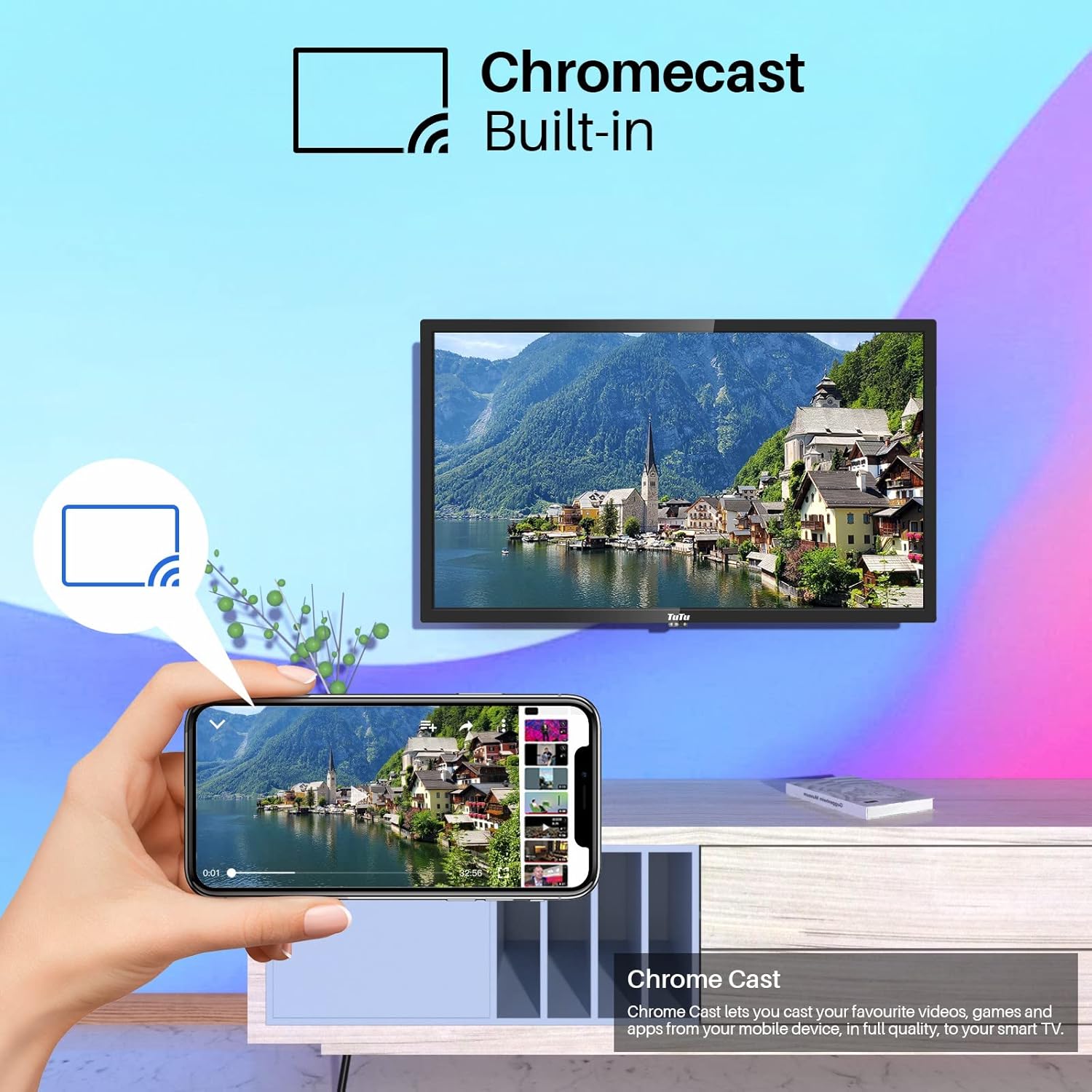
Image: A smartphone screen casting content to the TuTu Smart TV, illustrating the Chromecast built-in functionality.
2.6 Image Quality Features
The TuTu Smart TV TUS24HF1A incorporates several technologies for enhanced image quality:
- Direct LED: Provides uniform backlighting for consistent brightness and contrast.
- 3D Noise Reduction: Reduces visual noise in the picture for a clearer image.
- Motion Compensation: Improves the smoothness of fast-moving scenes.
- Precision Color: Utilizes a premium LED screen to produce rich and realistic colors.

Image: A diagram illustrating the effects of multi-technical image enhancement, including Direct LED, 3D Noise Reduction, and Motion Compensation, leading to a clearer final view.

Image: The TuTu TV screen showcasing vibrant and precise colors, highlighting the display's ability to produce rich tones and realistic images.
2.7 Wide View Angle
The TV is designed with a wide viewing angle, ensuring consistent picture quality from various positions in the room.

Image: A family watching the TuTu TV from a wide angle on a sofa, demonstrating the wide view angle feature.
3. Maintenance
3.1 Cleaning the TV
- Always unplug the TV before cleaning.
- Use a soft, dry, lint-free cloth to wipe the screen and TV body.
- For stubborn marks on the screen, lightly dampen the cloth with water or a specialized screen cleaner. Do not spray liquid directly onto the screen.
- Avoid using abrasive cleaners, waxes, or solvents as they can damage the TV's surface.
3.2 Software Updates
Your Android TV may receive periodic software updates. Ensure your TV is connected to the internet to receive these updates, which can improve performance and add new features. You can usually check for updates in the TV's settings menu.
4. Troubleshooting
If you encounter issues with your TuTu Smart TV, refer to the following common solutions:
4.1 No Power
- Check if the power cord is securely plugged into both the TV and the power outlet.
- Ensure the power outlet is functional by testing it with another device.
- Press the power button on the TV itself, not just the remote, to rule out a remote issue.
4.2 No Picture or Sound
- Verify that the correct input source is selected (e.g., HDMI 1, TV).
- Check all cable connections (HDMI, antenna, etc.) to ensure they are secure.
- Adjust the volume and ensure the TV is not muted.
- If using an external device, check its power and connections.
4.3 Remote Control Not Responding
- Replace the batteries in the remote control.
- Ensure there are no obstructions between the remote and the TV's IR sensor.
- Point the remote directly at the TV.
4.4 Network Connection Issues
- Check if your Wi-Fi router is powered on and functioning correctly.
- Restart your router and modem.
- Go to the TV's network settings and try reconnecting to your Wi-Fi network.
- If using a wired connection, ensure the Ethernet cable is securely connected.
4.5 App Not Working
- Ensure your TV has an active internet connection.
- Try closing and reopening the app.
- Clear the app's cache and data in the TV's settings (Settings > Apps > [App Name] > Clear cache/Clear data).
- Uninstall and reinstall the app.
5. Specifications
| Feature | Specification |
|---|---|
| Brand | TuTu |
| Model Number | TUS24HF1A |
| Screen Size | 24 inches (60 cm) |
| Operating System | Android |
| Display Technology | LED |
| Resolution | 720p |
| Aspect Ratio | 16:9 |
| Connectivity Technology | WiFi, Bluetooth, HDMI, USB |
| Connections | 3x HDMI, 2x USB, WiFi, Bluetooth+EDR, WLAN, 2x RF, 1x Mini YPbPr, 1x COAX Out, 1x RJ45, 1x CI/CI+, 1x CVBS/Audio In, 1x EARPHONE Out |
| Supported Internet Services | Youtube, Netflix, Prime Video, DAZN, Disney+, Google Play Store |
| Product Dimensions | 55P x 37l x 12H centimeters |
| Mounting Type | VESA 100 x 100 mm / Table Stand |
| Manufacturer | INNO TECHNOLOGY BV |
6. Warranty and Support
6.1 Warranty Information
Your TuTu Smart TV TUS24HF1A comes with a two-year warranty from the date of purchase. This warranty covers manufacturing defects and malfunctions under normal use. Please retain your proof of purchase for warranty claims.
The warranty does not cover damage caused by misuse, accidents, unauthorized repairs, or normal wear and tear.
6.2 Customer Support
For technical assistance, troubleshooting beyond this manual, or warranty claims, please contact TuTu customer support. Refer to the contact information provided with your product packaging or visit the official TuTu website for support details.


