This manual provides detailed instructions for the setup, operation, and maintenance of your Hagibis SWC05 Portable Switch Dock and Video Capture Card. Please read this manual thoroughly before using the product to ensure proper functionality and to prevent damage.
Product Overview
The Hagibis SWC05 is a versatile device that functions as both a portable dock for your Nintendo Switch and a video capture card. It allows you to connect your Nintendo Switch, iPhone, Steam Deck, or other compatible devices to a larger display via HDMI and capture video content for streaming or recording.

Image Description: A white and black Hagibis SWC05 device with a short white USB-C cable. The device features multiple ports, including USB-A, USB-C, and HDMI, indicating its multi-functional design.
Package Contents
Verify that all items are present in the package:
- Hagibis SWC05 Portable Switch Dock and Video Capture Card
- Data Cable
- User Manual (this document)

Image Description: An unboxed Hagibis SWC05 showing the product, its packaging box, a data cable, and the user manual.
Product Features and Ports
The Hagibis SWC05 integrates multiple functions into a compact design:
- Portable Dock: Replaces the original Nintendo Switch dock for TV mode.
- Video Capture Card: Records and streams video up to 1080P 60Hz.
- Multi-port Design: Includes HDMI, USB 3.0, and Power Delivery (PD) USB-C ports.
- High Resolution Output: Supports video resolution up to 4K (3840x2160P/30HZ) for display, and 1080P 60Hz for capture.
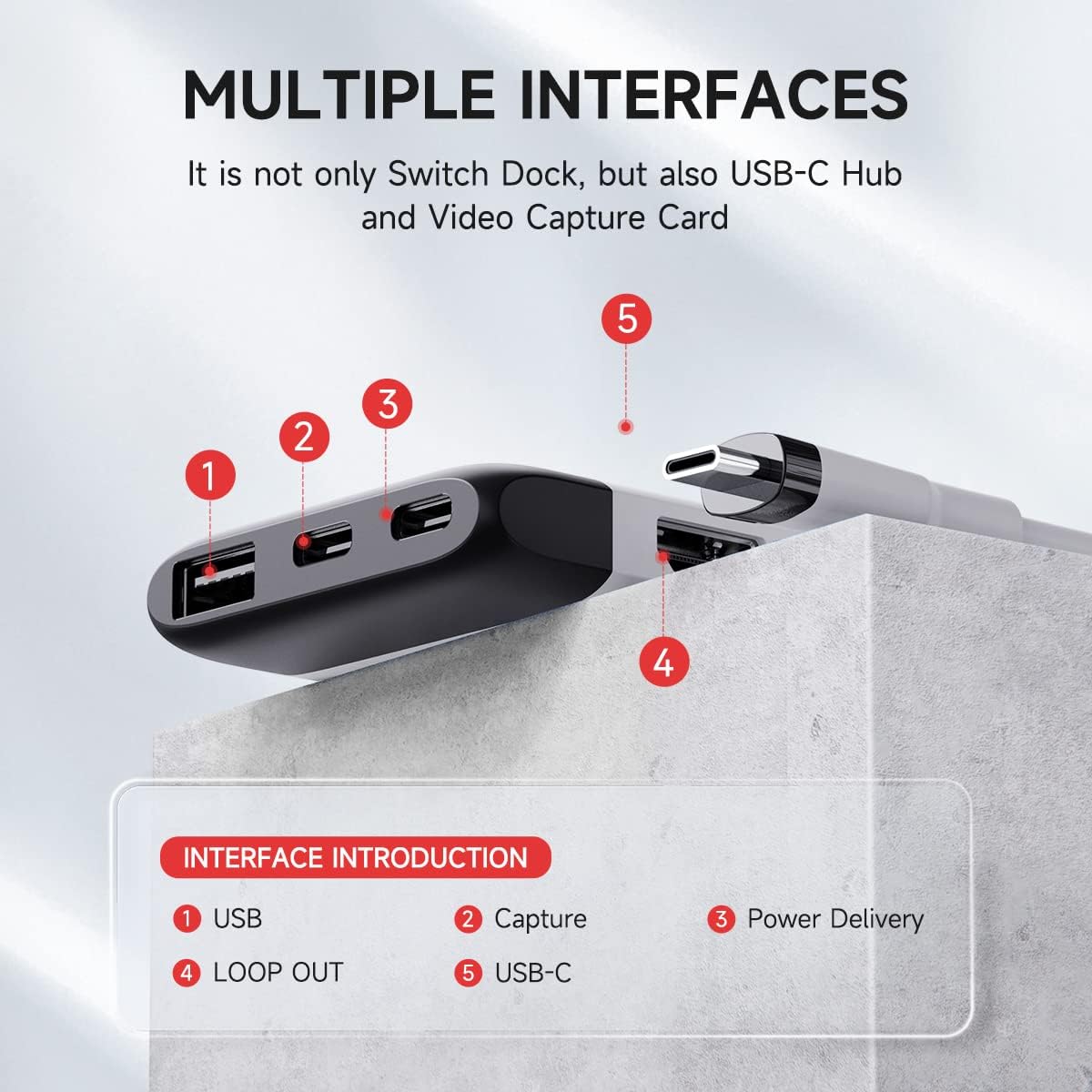
Image Description: A diagram highlighting the multiple interfaces of the Hagibis SWC05. Labels point to: 1. USB-A port, 2. Capture (USB-C) port, 3. Power Delivery (USB-C) port, 4. Loop Out (HDMI) port, and 5. USB-C input cable.
Setup Instructions
1. Connecting for TV Mode (Dock Function)
- Connect the Hagibis SWC05's integrated USB-C cable to your Nintendo Switch console.
- Connect an HDMI cable from the SWC05's HDMI "Loop Out" port to your TV or monitor.
- Connect a power adapter (5V2A or higher, or a laptop USB port) to the SWC05's Power Delivery (PD) USB-C port to power the device and charge your Switch.
- Ensure your TV/monitor is set to the correct HDMI input. Your Nintendo Switch should now display on the larger screen.

Image Description: A Nintendo Switch console connected to the Hagibis SWC05, which is then connected to a large monitor, displaying the Switch's home screen. A user is holding Joy-Cons.
2. Connecting for Video Capture
- Connect the Hagibis SWC05's integrated USB-C cable to your source device (e.g., Nintendo Switch, iPhone, Steam Deck).
- Connect a USB 3.0 cable from the SWC05's "Capture" USB-C port to your computer (Windows, Mac) or Android tablet/smartphone.
- (Optional) If you wish to simultaneously view your content on a larger screen, connect an HDMI cable from the SWC05's HDMI "Loop Out" port to your TV or monitor.
- Connect a power adapter to the SWC05's Power Delivery (PD) USB-C port for stable operation and charging.

Image Description: A setup showing a Nintendo Switch connected to the Hagibis SWC05, which is simultaneously connected to a laptop for capture and a monitor for loop-out display. A user is playing a game.
Operating Instructions
1. Using as a Portable Dock (TV Mode)
- Once connected as described in "Setup Instructions - 1. Connecting for TV Mode", your Nintendo Switch will automatically switch to TV mode.
- You can use your Joy-Cons or a compatible USB controller connected to the SWC05's USB-A port to play games on the large screen.
- The SWC05 supports up to 4K (3840x2160P/30HZ) output to the display. Note that the Nintendo Switch itself outputs a maximum of 1080P.

Image Description: A Nintendo Switch console connected to the Hagibis SWC05, displaying a game on a large TV screen, illustrating the TV mode functionality.
2. Using as a Video Capture Card
For video capture, you will need compatible software on your computer or Android device. Recommended software includes OBS Studio (Windows), Potplayer (Mac OS), or USB Camera (Android).

Image Description: A graphic showing logos for OBS, Potplayer, and USB Camera, indicating recommended software for video capture on Windows, Mac OS, and Android respectively.
OBS Studio Setup (Example for Windows)
- Download and install OBS Studio from obsproject.com.
- Launch OBS Studio. In the "Sources" box, click the + icon.
- Select Video Capture Device from the list.
- Choose Create new and name your source (e.g., "Hagibis Capture"). Click OK.
- In the properties window, select your Hagibis SWC05 device (it may appear as "Display capture-UVC02" or similar).
- Set Resolution/FPS Type to Custom, Resolution to 1920x1080, and FPS to 60.
- For audio, check Use custom audio device and select the audio input from your capture card.
- To monitor audio, right-click the audio mixer for your capture device and select Advanced Audio Properties.
- Set Audio Monitoring to Monitor and Output for your capture device.

Image Description: A screenshot of OBS Studio's "Sources" panel, with an arrow pointing to the "+" button to add a new source.

Image Description: A screenshot of OBS Studio's "Add Source" menu, with "Video Capture Device" highlighted.

Image Description: A screenshot of OBS Studio's "Create/Select Source" dialog, with "Create new" and "Video Capture Device" selected.

Image Description: A screenshot of OBS Studio's Video Capture Device properties, showing settings for resolution, FPS, video format, and the option to use a custom audio device.

Image Description: A screenshot of OBS Studio's audio mixer, with "Advanced Audio Properties" highlighted in the context menu.

Image Description: A screenshot of OBS Studio's Advanced Audio Properties, showing the "Audio Monitoring" option set to "Monitor and Output" for the video capture device.
Product Demonstration Video
Video Description: A short video demonstrating the Hagibis SWC05's functionality as a portable Switch dock and video capture card, showing connections to a TV, laptop, and various devices like Nintendo Switch, Steam Deck, iPad, and mobile phones.
Maintenance
- Keep the device clean and free from dust. Use a soft, dry cloth for cleaning.
- Avoid exposing the device to extreme temperatures, humidity, or direct sunlight.
- Do not attempt to disassemble or repair the device yourself. This may void the warranty and cause damage.
- Store the device in a safe place when not in use to prevent physical damage.
Troubleshooting
- No Display in TV Mode:
- Ensure all cables (USB-C to Switch, HDMI to TV, power to SWC05) are securely connected.
- Verify your TV/monitor is set to the correct HDMI input.
- Confirm the power adapter provides sufficient power (5V2A minimum).
- Try a different HDMI cable or TV/monitor to rule out external issues.
- No Video Capture on Computer/Tablet:
- Ensure the USB 3.0 cable from the SWC05's "Capture" port is connected to a compatible USB 3.0 port on your computer/tablet.
- Check your capture software (e.g., OBS Studio) settings to ensure the Hagibis SWC05 is selected as the video capture device.
- Restart your capture software and/or computer.
- Some users reported issues with USB 2.0 output; ensure your computer's USB port and the cable used for capture are USB 3.0 compatible for optimal performance.
- No Audio During Capture:
- In your capture software (e.g., OBS Studio), ensure the audio input for the capture device is correctly selected and set to "Monitor and Output" if you wish to hear it.
- Check your computer's sound settings to ensure the capture device's audio is not muted.
- Device Not Recognized:
- Try connecting the device to a different USB port on your computer.
- Ensure your operating system has the latest updates and drivers.
- Restart your computer.
Specifications
| Feature | Detail |
|---|---|
| Model Number | SWC05 |
| Product Dimensions | 2.55 x 0.5 x 2.16 inches |
| Item Weight | 3.52 ounces |
| Brand | Hagibis |
| Color | Black White MS2130 Chip |
| Hardware Interface | USB |
| Special Feature | Portable |
| Compatible Devices | Cameras, Gaming Consoles (Nintendo Switch, Steam Deck, Quest 3), Laptops, Tablets, Mobile Phones (iPhone 15/16 Pro Max) |
| HDMI Output Resolution | Up to 4K (3840x2160P/30HZ) |
| Video Capture Resolution | Up to 1080P 60Hz |
| USB 3.0 Transfer Speed | Up to 5Gbps |
| Power Delivery | 100W (via USB-C PD port) |

Image Description: A diagram showing the physical dimensions of the Hagibis SWC05 device, with measurements in millimeters for length, width, and height.
Warranty Information
Specific warranty details for the Hagibis SWC05 Portable Switch Dock and Video Capture Card are provided by the manufacturer. Please refer to the warranty card included with your product or visit the official Hagibis website for the most current warranty terms and conditions.
Customer Support
If you encounter any issues or have questions regarding your Hagibis SWC05, please contact Hagibis customer support through their official website or the contact information provided in your product packaging. When contacting support, please have your model number (SWC05) and purchase details ready.


