
1. Introduction
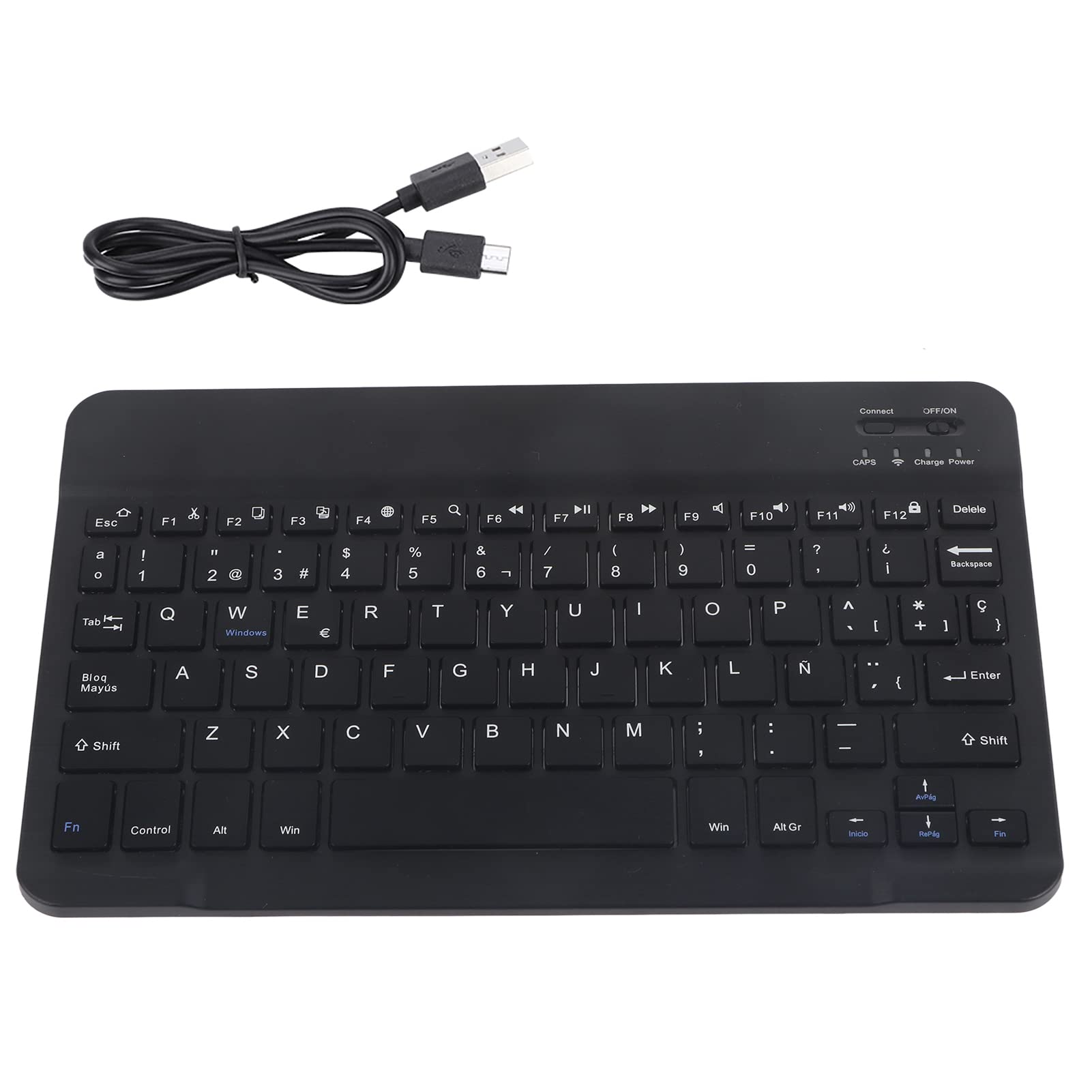
This manual provides detailed instructions for the Serounder Spanish & English Language Keyboard. Please read this manual thoroughly before using the product to ensure proper operation and to maximize its lifespan. This portable mini keyboard is designed for use with iOS and Android tablets, offering both Spanish and English language layouts.
2. Package Contents
Verify that all items listed below are included in your package. If any items are missing or damaged, please contact customer support.
- 1 x Serounder Spanish & English Language Keyboard
- 1 x USB Charging Cable
- 1 x Instruction Manual (this document)
3. Product Features
The Serounder keyboard is equipped with several features designed for convenience and efficiency:
- Dual Language Layout: Supports both Spanish and English characters.
- Rechargeable Battery: Built-in lithium battery for portable use.
- Power Switch: Allows you to turn off the keyboard when not in use, conserving battery life.
- Ultra-thin Design: With a body thickness of only 6.7mm (0.26 inches), it is highly portable.
- Scissor-Foot Structure: Provides a comfortable and responsive typing experience.
- Bluetooth Connectivity: Connects wirelessly to compatible devices.
- 7 Multimedia Keys: For quick access to common functions.
- 78 Buttons: A full set of keys for comprehensive input.
4. Setup Instructions
4.1. Charging the Keyboard
Before initial use, fully charge the keyboard. Use the provided USB cable to connect the keyboard to a USB power source (e.g., computer USB port, USB wall adapter).
- Connect the small end of the USB cable to the charging port on the keyboard.
- Connect the larger end of the USB cable to a USB power source.
- The "Charge Power" indicator light (located near the ON/OFF switch) will illuminate during charging and turn off when fully charged.
Note: The USB port on the keyboard is for charging only and cannot be used for wired connectivity.
4.2. Bluetooth Pairing
The keyboard connects wirelessly via Bluetooth. Ensure your device (tablet, smartphone, etc.) has Bluetooth enabled.
- Turn on the Keyboard: Locate the ON/OFF switch on the top right of the keyboard and slide it to the "ON" position.
- Activate Pairing Mode: Press the "Connect" button (located next to the ON/OFF switch). The Bluetooth indicator light will start blinking, indicating the keyboard is in pairing mode.
- Enable Bluetooth on Your Device: Go to your device's Bluetooth settings.
- Select the Keyboard: Your device will scan for available Bluetooth devices. Look for "Bluetooth Keyboard" or a similar name in the list and select it.
- Confirm Pairing: If prompted, enter the displayed pairing code on the Serounder keyboard and press Enter. Some devices may pair automatically without a code.
- Connection Confirmation: Once successfully paired, the Bluetooth indicator light on the keyboard will stop blinking and remain solid or turn off, depending on the keyboard's design.
The keyboard is now ready for use with your device. It should automatically reconnect to the last paired device when turned on, provided Bluetooth is active on the device.
5. Operating Instructions
5.1. Basic Typing
The keyboard functions like a standard QWERTY keyboard. Simply open a text editor or any application requiring text input on your paired device and begin typing.
- Caps Lock: Press the Bloq Mayús key to toggle uppercase letters. The CAPS indicator light will illuminate when Caps Lock is active.
- Shift Key: Use the Shift key for uppercase letters or to access the secondary symbols on keys.
5.2. Multimedia Keys
The keyboard includes 7 multimedia keys (F1-F7) that provide quick access to common functions. These keys are typically accessed by pressing the Fn key simultaneously with the desired function key.
| Key Combination | Function |
|---|---|
| Fn + F1 (Home icon) | Go to Home screen |
| Fn + F2 (Search icon) | Open Search function |
| Fn + F3 (Select All icon) | Select all text/items |
| Fn + F4 (Copy icon) | Copy selected content |
| Fn + F5 (Paste icon) | Paste copied content |
| Fn + F6 (Cut icon) | Cut selected content |
| Fn + F7 (Previous Track icon) | Previous media track |
| Fn + F8 (Play/Pause icon) | Play/Pause media |
| Fn + F9 (Next Track icon) | Next media track |
| Fn + F10 (Mute icon) | Mute audio |
| Fn + F11 (Volume Down icon) | Decrease volume |
| Fn + F12 (Volume Up icon) | Increase volume |
Note: The exact functionality of multimedia keys may vary slightly depending on the operating system and application used on your connected device.
5.3. Language Switching
This keyboard supports both Spanish and English layouts. To switch between languages, you typically manage this through your connected device's operating system settings.
- For iOS: Go to Settings > General > Keyboard > Keyboards, then add or select your desired language. You can often switch by pressing Control + Space or the Globe icon key (if present).
- For Android: Go to Settings > System > Languages & input > Physical keyboard, then select the Serounder keyboard and configure languages. You can often switch by pressing Shift + Space or Control + Space.
- For Windows: Use Windows key + Spacebar or Alt + Shift to cycle through installed languages. Ensure Spanish (Spain) or Spanish (Mexico) keyboard layout is added in Settings > Time & Language > Language.
The physical keys on the keyboard are labeled for both English and Spanish characters, such as 'Ñ' and various accent marks, which will correspond to the selected input language on your device.
6. Maintenance
6.1. Cleaning
To maintain the keyboard's appearance and functionality:
- Turn off the keyboard before cleaning.
- Use a soft, lint-free cloth slightly dampened with water or a mild cleaning solution.
- Avoid using harsh chemicals, abrasive cleaners, or excessive moisture, as these can damage the keyboard.
- For dust and debris between keys, use compressed air.
6.2. Battery Care
The keyboard contains a built-in rechargeable lithium battery. Follow these guidelines for optimal battery life:
- Avoid fully discharging the battery frequently.
- Charge the keyboard regularly, even if not in constant use.
- Store the keyboard in a cool, dry place when not in use for extended periods.
- Do not expose the keyboard to extreme temperatures.
7. Troubleshooting
If you encounter issues with your Serounder keyboard, refer to the following common solutions:
7.1. Keyboard Not Connecting/Pairing
- Ensure Keyboard is ON: Check the ON/OFF switch.
- Battery Level: Make sure the keyboard is sufficiently charged. Charge it if the "Charge Power" indicator is off or blinking.
- Pairing Mode: Press the "Connect" button to put the keyboard into pairing mode (Bluetooth indicator should blink).
- Device Bluetooth: Confirm Bluetooth is enabled on your tablet/device.
- Forget Device: If previously paired, try "forgetting" or "unpairing" the keyboard from your device's Bluetooth settings and then re-pair it.
- Restart Devices: Restart both the keyboard (turn off/on) and your connected device.
7.2. Keys Not Responding
- Connection: Ensure the keyboard is properly connected via Bluetooth.
- Battery: Check if the keyboard battery is low.
- Device Compatibility: Verify that your device's operating system is compatible with external keyboards.
- Language Settings: If specific characters are not working, check your device's input language settings.
7.3. Multimedia Keys Not Working
- Fn Key: Ensure you are pressing the Fn key simultaneously with the desired function key.
- Application Support: Some multimedia functions may not be supported by all applications or operating systems.
8. Specifications
| Feature | Detail |
|---|---|
| Model Number | Serounder41cq3bdt0k |
| Brand | Serounder |
| Material | Acrylonitrile Butadiene Styrene (ABS) |
| Color | Black |
| Battery Capacity | 180MAH (Built-in Lithium Battery) |
| Connectivity Technology | Bluetooth |
| Charging Interface | USB (for charging only) |
| Keyboard Layout | QWERTY (Spanish & English) |
| Number of Keys | 78 |
| Multimedia Keys | 7 |
| Thickness | 6.7mm (0.26 inches) |
| Compatible Devices | Tablets (iOS, Android) |
| Parcel Dimensions | 25.9 x 17.6 x 1.9 cm |
| Item Weight | 253 g |
9. Warranty and Support
For warranty information or technical support, please refer to the retailer's policy where the product was purchased or contact Serounder customer service directly. Keep your purchase receipt as proof of purchase.
For further assistance, please visit the official Serounder website or contact their support channels.