
1. Introduction
The KUIYN G6 Tri Mode Gaming Mouse offers versatile connectivity options and advanced features for an enhanced user experience. This manual provides detailed instructions for setting up, operating, and maintaining your mouse.

Image: The KUIYN G6 Tri Mode Gaming Mouse, showcasing its ergonomic design and blue color variant.
2. Package Contents
Please check the package for the following items:
- KUIYN G6 Tri Mode Gaming Mouse
- Type-C Charging Cable
- USB 2.4G Receiver
- User Manual (this document)
3. Product Overview
The KUIYN G6 mouse features a mechanical design with 10 buttons and 11 RGB lighting modes. Familiarize yourself with the mouse's layout:

Image: A detailed view of the KUIYN G6 mouse, highlighting its mecha-inspired aesthetic.
Button Functions:
- Left Click Button
- Right Click Button
- Scroll Wheel / Middle Click Button
- DPI Adjustment Button: Cycles through DPI settings.
- Light Control Button: Located next to the right mouse button, cycles through 11 RGB lighting modes.
- Fire Button: Dedicated button for rapid actions.
- Desktop Button: Quickly minimizes all open windows to show the desktop.
- Web Button: Opens a new web browser window.
- Additional side buttons for various functions.
Note: This mouse does not include driver software for custom button programming. Button functions are fixed.
4. Setup and Connectivity
The KUIYN G6 mouse supports three connection methods: Wired, 2.4G Wireless, and Bluetooth.

Image: The KUIYN G6 mouse demonstrating its tri-mode connectivity with a laptop, tablet, and game controller.
4.1 Wired Mode
- Connect the provided Type-C cable to the mouse and to an available USB port on your computer.
- The mouse will be automatically recognized and ready for use.
4.2 2.4G Wireless Mode
- Locate the USB 2.4G receiver (usually stored in a compartment on the underside of the mouse).
- Plug the USB receiver into an available USB port on your computer.
- Turn on the mouse using the power switch (located on the underside).
- The mouse should connect automatically.
4.3 Bluetooth Mode
- Turn on the mouse using the power switch.
- Activate Bluetooth on your computer or device.
- Search for new Bluetooth devices.
- Select "KUIYN G6" (or similar name) from the list of available devices to pair.
- Confirm pairing if prompted.
5. Operating Instructions
5.1 DPI Adjustment
Press the DPI Adjustment Button (typically located near the scroll wheel) to cycle through different sensitivity levels. The mouse supports a maximum sensitivity of 4000 DPI. There is no visual indicator for the current DPI setting.
5.2 RGB Lighting Control
The KUIYN G6 mouse features 11 RGB lighting modes. Use the dedicated Light Control Button (next to the right mouse button) to switch between different lighting effects. This button allows for easy customization of the mouse's aesthetic without needing to access the underside.
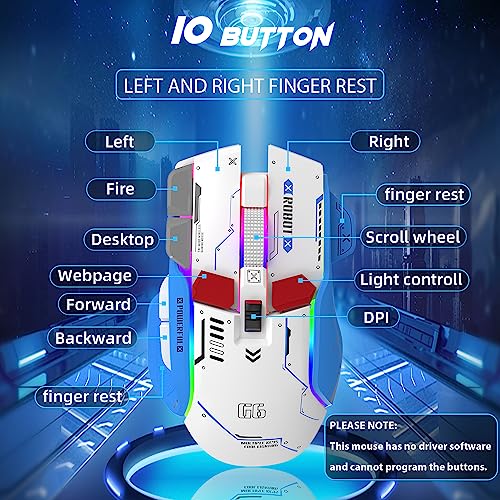
Image: The KUIYN G6 mouse illuminated with vibrant RGB backlighting, showcasing its various lighting effects.
5.3 Ergonomic Design
The mouse is designed for comfortable use during extended gaming or work sessions, featuring an ergonomic shape that fits well in the hand.

Image: A hand comfortably holding the KUIYN G6 mouse, emphasizing its ergonomic design for a secure grip.
6. Charging
The KUIYN G6 mouse is equipped with a built-in 500mAh rechargeable lithium battery.

Image: The KUIYN G6 mouse being charged via its Type-C port, highlighting the 500mAh battery capacity.
- To charge, connect the mouse to a power source using the provided Type-C cable.
- A full charge typically takes approximately 3-4 hours.
- The mouse is designed for energy efficiency, allowing for several weeks of use on a single charge.
- To conserve battery life, it is recommended to turn off the RGB lighting when not actively using the mouse.
7. Maintenance
- Cleaning: Use a soft, dry cloth to clean the mouse. Avoid using harsh chemicals or abrasive materials.
- Storage: Store the mouse in a cool, dry place away from direct sunlight and extreme temperatures.
- Cable Care: Handle the Type-C charging cable gently to prevent damage.
8. Troubleshooting
| Issue | Possible Cause | Solution |
|---|---|---|
| Mouse not responding in wireless mode. | Low battery, receiver not plugged in, mouse not powered on, incorrect mode selected. |
|
| Bluetooth connection issues. | Mouse not in pairing mode, device Bluetooth off, interference. |
|
| RGB lights flickering or not working. | Low battery, light mode issue. |
|
| DPI settings reset after turning off. | Expected behavior for some units. | Adjust DPI settings each time the mouse is powered on if this behavior occurs. |
| Buttons are not programmable. | The mouse does not support custom button programming via software. | Button functions are fixed as per design. |
9. Specifications
- Brand: KUIYN
- Model: G6
- Connectivity Technology: Bluetooth, 2.4G Wireless, USB (Wired)
- Special Features: Ergonomic Design, 11 RGB LED Lights, Rechargeable, Soundless Clicks
- Movement Detection Technology: Optical
- Button Quantity: 10 (including DPI, Light Control, Fire, Desktop, Web buttons)
- Hand Orientation: Ambidextrous
- Compatible Devices: Laptop, Personal Computer
- Operating System: Mac, Windows
- Battery: 1 Lithium Polymer (500mAh, included)
- Power Source: Battery Powered, Corded Electric (via Type-C)
- Maximum Sensitivity: 4000 Dots per Inch (DPI)
- Material: Metal, Plastic
- UPC: 796713807745
10. Warranty and Support
The KUIYN G6 Tri Mode Gaming Mouse comes with a 1-year product warranty from the date of purchase. For any support inquiries, troubleshooting assistance, or warranty claims, please contact KUIYN customer service through your retailer or the official KUIYN website.
Please retain your proof of purchase for warranty validation.