
1. Introduction
Thank you for choosing the COUGAR MX360 RGB Mid Tower Case. This manual provides essential information for the proper installation, operation, and maintenance of your new PC case. The MX360 RGB combines a sleek design with ARGB LED strips on the front panel, offering excellent cooling performance and support for a wide range of components, including up to a 360mm radiator, 315mm graphics cards, and 170mm CPU coolers. Its compact layout and full-length PSU shroud contribute to a clean and organized build.
2. Safety Information
- Always disconnect the power supply from the wall outlet before installing or removing any components.
- Handle components with care to avoid damage from static electricity. Consider using an anti-static wrist strap.
- Keep small parts and screws away from children.
- Ensure proper ventilation around the case to prevent overheating.
- Do not attempt to modify the case or its components, as this may void your warranty and pose safety risks.
3. Package Contents
Please verify that all the following items are included in your package:
- COUGAR MX360 RGB Mid Tower Case
- Accessory Box (containing screws, standoffs, cable ties, etc.)
- User Manual (this document)
4. Product Overview
The COUGAR MX360 RGB case features a minimalist design with integrated ARGB lighting and a tempered glass side panel for showcasing your build.

Figure 4.1: Front-side view of the COUGAR MX360 RGB case, showing the interior and active RGB lighting.
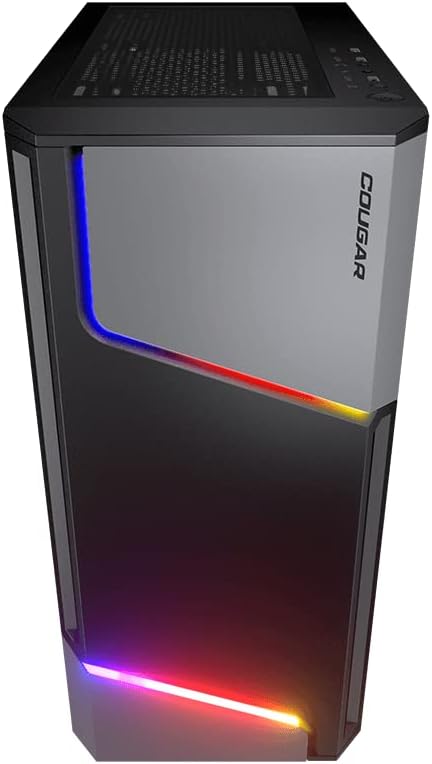
Figure 4.2: Front view of the COUGAR MX360 RGB case, highlighting the integrated ARGB LED strips.
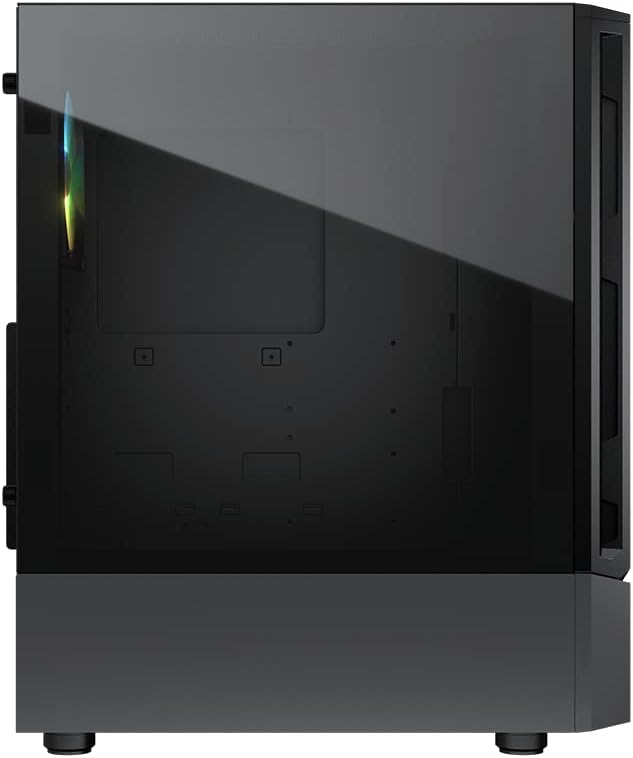
Figure 4.3: Side view of the COUGAR MX360 RGB case, featuring the tempered glass panel.

Figure 4.4: Angled front view of the COUGAR MX360 RGB case, showcasing its design and ARGB elements.
5. Setup and Installation
Follow these steps to install your components into the COUGAR MX360 RGB case.
5.1 Preparing the Case
- Place the case on a flat, stable surface.
- Remove the tempered glass side panel by unscrewing the thumb screws at the rear of the case and carefully sliding the panel off.
- Remove the opposite metal side panel by unscrewing the thumb screws and sliding it off.
5.2 Motherboard Installation
- Install the I/O shield (if not pre-installed on your motherboard) into the rear opening of the case.
- Ensure the correct standoffs are installed for your motherboard form factor (ATX, Micro-ATX, Mini-ITX). Adjust or add standoffs as needed.
- Carefully place your motherboard onto the standoffs, aligning the screw holes.
- Secure the motherboard with the provided screws.
5.3 Power Supply Unit (PSU) Installation
- Locate the PSU shroud at the bottom of the case.
- Slide your PSU into the designated compartment from the rear of the case.
- Secure the PSU with screws from the rear of the case.
- Route necessary cables through the cutouts in the PSU shroud for cable management.
5.4 Storage Drive Installation
The MX360 RGB supports various storage configurations.
- 3.5" HDDs: Install into the drive cage located under the PSU shroud.
- 2.5" SSDs/HDDs: Mount onto the dedicated trays or mounting points behind the motherboard tray.
5.5 Graphics Card (GPU) Installation
- Remove the necessary PCIe slot covers from the rear of the case.
- Insert your graphics card into the appropriate PCIe slot on the motherboard.
- Secure the graphics card with screws. The case supports graphics cards up to 315mm in length.
5.6 Cooling System Installation (Fans/Radiators)
The case supports up to six fans and a 360mm water cooling radiator.
- Front: Supports up to 3 x 120mm or 2 x 140mm fans, or a 240/280/360mm radiator.
- Top: Supports up to 2 x 120mm or 2 x 140mm fans, or a 240/280mm radiator.
- Rear: Supports 1 x 120mm fan.
Install fans or radiators using the provided screws, ensuring proper airflow direction.
5.7 Front Panel Connections
Connect the front panel cables (USB, Audio, Power, Reset, LED) to their corresponding headers on your motherboard. Refer to your motherboard manual for exact header locations.
5.8 ARGB Lighting Connection
The integrated ARGB LED strips on the front panel connect via a 5V/3Pin ARGB connector. Connect this cable to a compatible 5V/3Pin ARGB header on your motherboard to synchronize lighting effects with your system.
6. Operating the Case
Once all components are installed and connected, replace the side panels. Power on your system using the power button on the top I/O panel. The ARGB lighting will illuminate, controlled by your motherboard's software or a dedicated ARGB controller if you have one installed.
7. Maintenance
Regular maintenance helps ensure optimal performance and longevity of your PC components.
- Dust Filters: The MX360 RGB includes removable dust filters (e.g., top, bottom). Periodically remove and clean these filters with compressed air or water (ensure they are completely dry before reinstallation).
- Interior Cleaning: Use compressed air to remove dust from internal components like fans, heatsinks, and the motherboard.
- Exterior Cleaning: Wipe the exterior surfaces with a soft, damp cloth. Avoid abrasive cleaners.
8. Troubleshooting
If you encounter issues, refer to the following common troubleshooting steps:
- No Power: Ensure all power cables (24-pin ATX, 8-pin CPU, GPU power) are securely connected. Check the PSU switch is in the 'ON' position. Verify front panel power button connection to the motherboard.
- ARGB Lighting Not Working: Confirm the 5V/3Pin ARGB connector is correctly plugged into a compatible motherboard header. Check your motherboard's RGB software for control settings.
- Overheating: Ensure all case fans are spinning and oriented correctly for optimal airflow. Check for dust buildup on filters and components. Verify CPU cooler and GPU cooler are properly installed.
- Loose Connections: Re-seat all components (RAM, GPU, storage drives) and check all power and data cables.
9. Specifications
| Feature | Specification |
|---|---|
| Brand | COUGAR |
| Model Name | MX360 RGB |
| Item Model Number | CGR-5CC6G-RGB |
| Case Type | Mid Tower |
| Dimensions (LxWxH) | 14.88 x 8.27 x 18.11 inches (378 x 210 x 460 mm) |
| Item Weight | 10.56 pounds (4.8 Kilograms) |
| Material | Tempered Glass, Fine Metal |
| Color | Black |
| Motherboard Support | Mini ITX / Micro ATX / ATX |
| Max. Graphics Card Length | 315 mm |
| Max. CPU Cooler Height | 170 mm |
| PSU Support | Standard ATX PS2 |
| Cooling Method | Air / Water |
| Radiator Support | Front: 360mm / 280mm / 240mm / 140mm / 120mm Top: 280mm / 240mm / 140mm / 120mm Rear: 120mm |
| Fan Support | Front: 3 x 120mm / 2 x 140mm Top: 2 x 120mm / 2 x 140mm Rear: 1 x 120mm |
| Drive Bays | 3.5" HDD: 2 2.5" SSD: 2+2 (converted from 3.5" drive bays) |
| I/O Panel | USB 3.0 x 2, USB 2.0 x 1, Mic x 1, Audio x 1, RGB Button |
| Special Feature | ARGB LED Strips, Full-length PSU Cover for Cable Hiding and Improved Airflow |
10. Warranty and Support
COUGAR products are designed and manufactured to the highest quality standards. For warranty information, please refer to the warranty card included with your product or visit the official COUGAR website. Keep your proof of purchase for warranty claims.
For technical support or further assistance, please visit the official COUGAR website or contact their customer service department. You can find more information and resources on the COUGAR Store on Amazon.